Skip to content

Allow or Block Pop-ups and Redirects in Brave on Android

Pop-ups break your concentration and can redirect you to phishing pages or malware. They’re more than a nuisance, they’re a security risk.

Brave app has a simple toggle to block pop-ups and redirects. Here’s how to find it and turn it on or off.

In this guide, I have shared written instruction about:

Allow or Block Pop-ups and Redirects

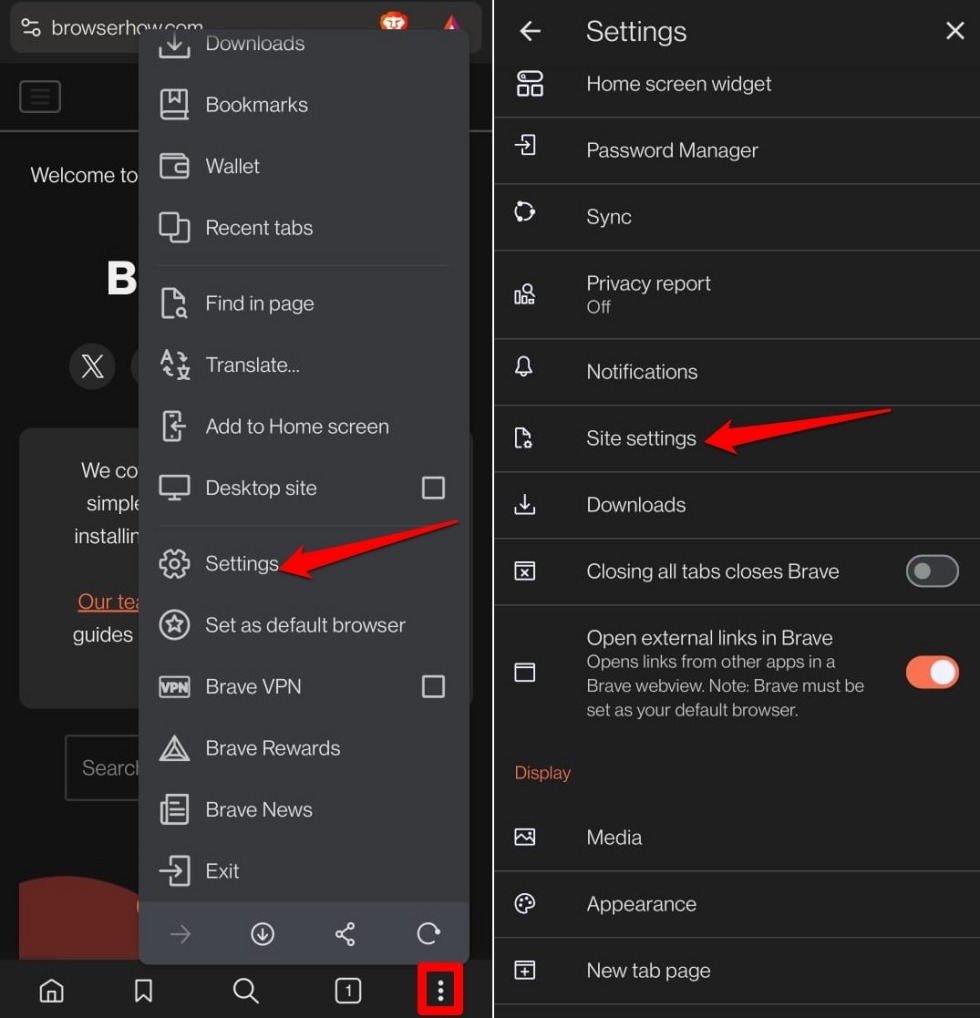
  1. Open Brave on your Android phone.
  2. Tap the vertical 3-dots icon icon and select Settings.
  3. Scroll down and tap Site Settings.
    Brave site settings android
  4. Tap Pop-ups and redirects.
  5. To block pop-ups and redirects, turn the toggle off.
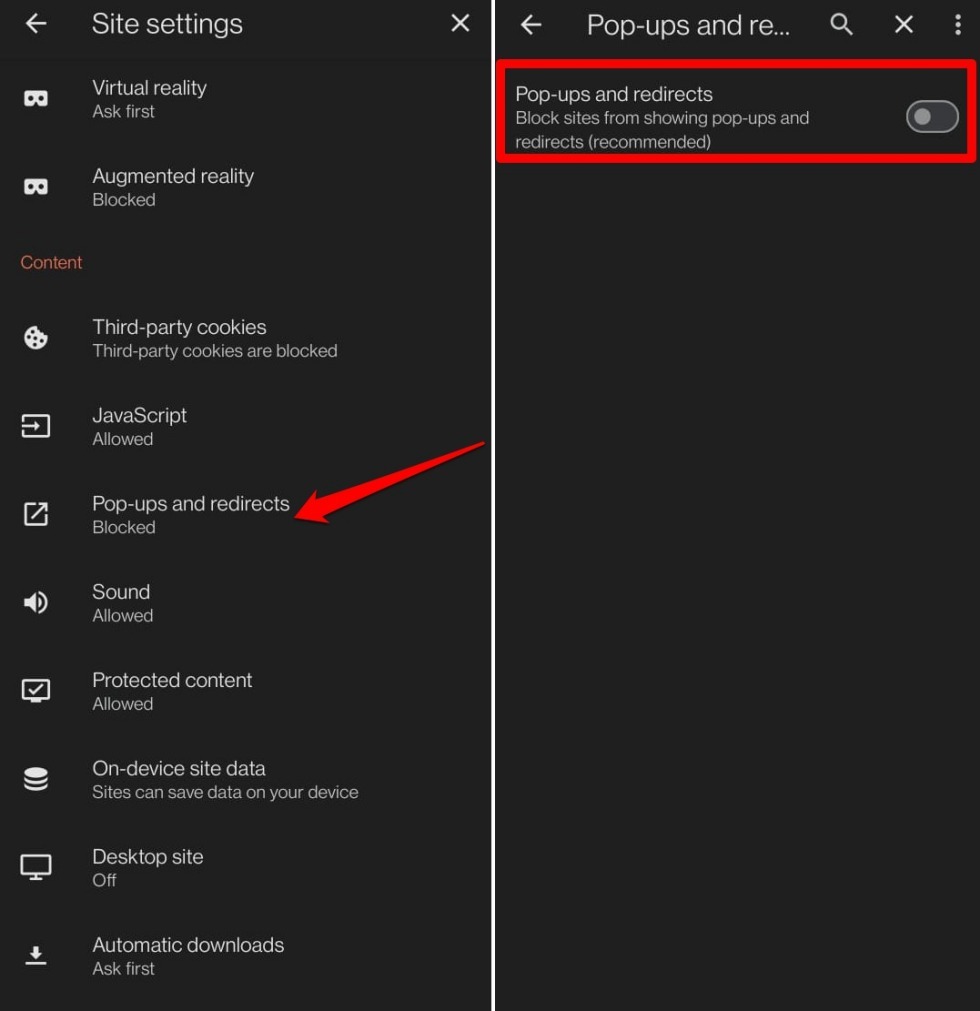
    disable pop ups and redirects on Brave android
  6. To allow pop-ups and redirects, turn the toggle on.
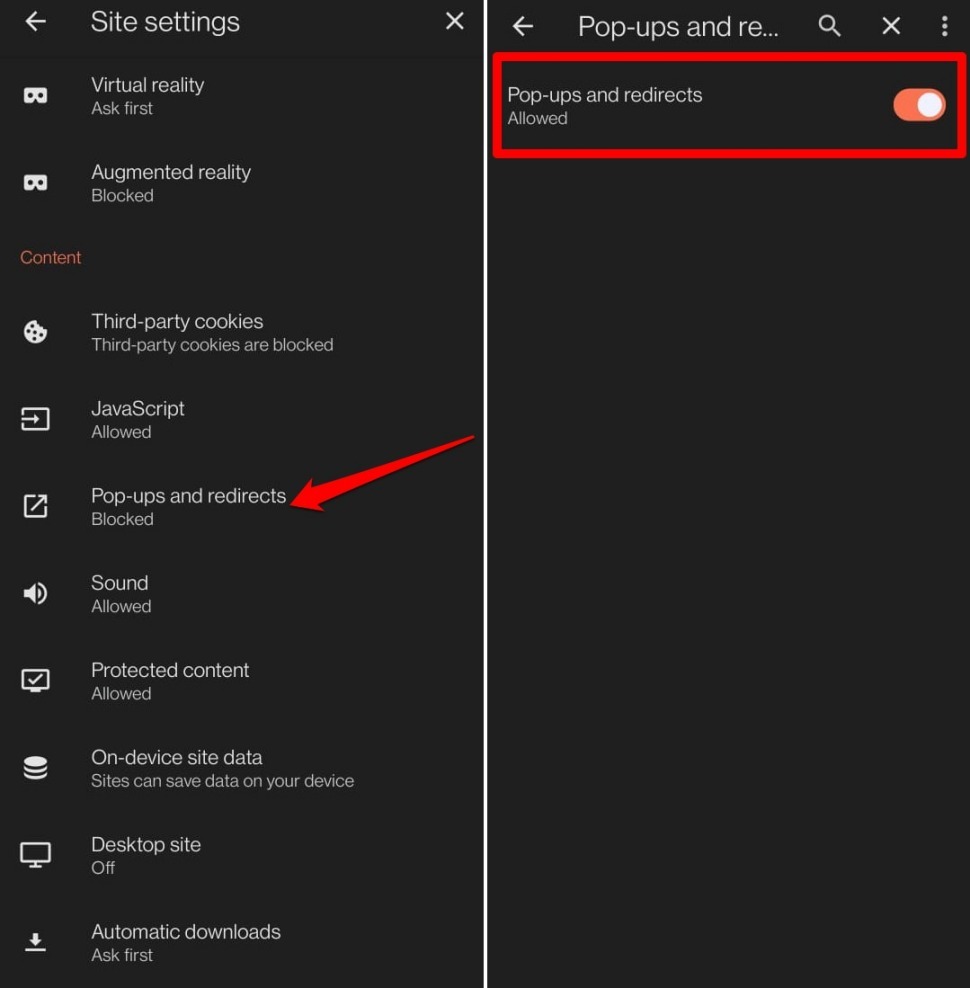
    allow pop ups and redirects on Brave android
note icon

Brave for Android doesn’t support per-site exceptions. The pop-up toggle applies to all websites.

Bottom Line

Pop-ups are a common entry point for scams and they make browsing frustrating. Blocking them in Brave keeps your sessions safer and less cluttered. Use the toggle in Site Settings to stop them from interrupting you.

Please share the article if you find it helpful:

Disclosure: This page may contain affiliate links, which means we may receive compensation for your purchases; of course at no extra cost to you (indeed, you may get special discounts).
Swayam Prakash

Swayam Prakash

Swayam is a professional content creator with 6-years of experience in conceptualizing, creating, and managing tech-based content for notable online publishing firms. He troubleshoots the technical issues and loves to write about it. Connect him on LinkedIn.

Leave a thought or feedback

Please leave a descriptive comment or feedback with your real name. Our human moderator vets every comment, and it may take 24 to 48 hours to get published or rejected.
Your email address will not be published, and we will never spam your inbox. Required fields are marked *