

A dim screen at night or a washed-out toolbar in direct sun can make browsing feel off before you even load a page. Brave's Appearance settings on Android let you switch between Light, Dark, and System default themes, and then fine-tune what shows up on screen: the bottom toolbar, Rewards icon, Night Mode toggle, and a handful of link-handling controls.
This guide walks through each setting step by step. You'll know you've got it right when your toolbar matches the time of day and the extras you never use finally stop crowding the interface.
In this guide, I have covered:
Contents
Set or Change the Brave Theme
You’ll feel the wrong theme instantly: a blinding white UI in a dark room, or dark chrome that’s hard to read outdoors. Swap it in four taps.
- Open the Brave app.
- Tap the
 icon and choose Settings.
 - Tap Appearance.
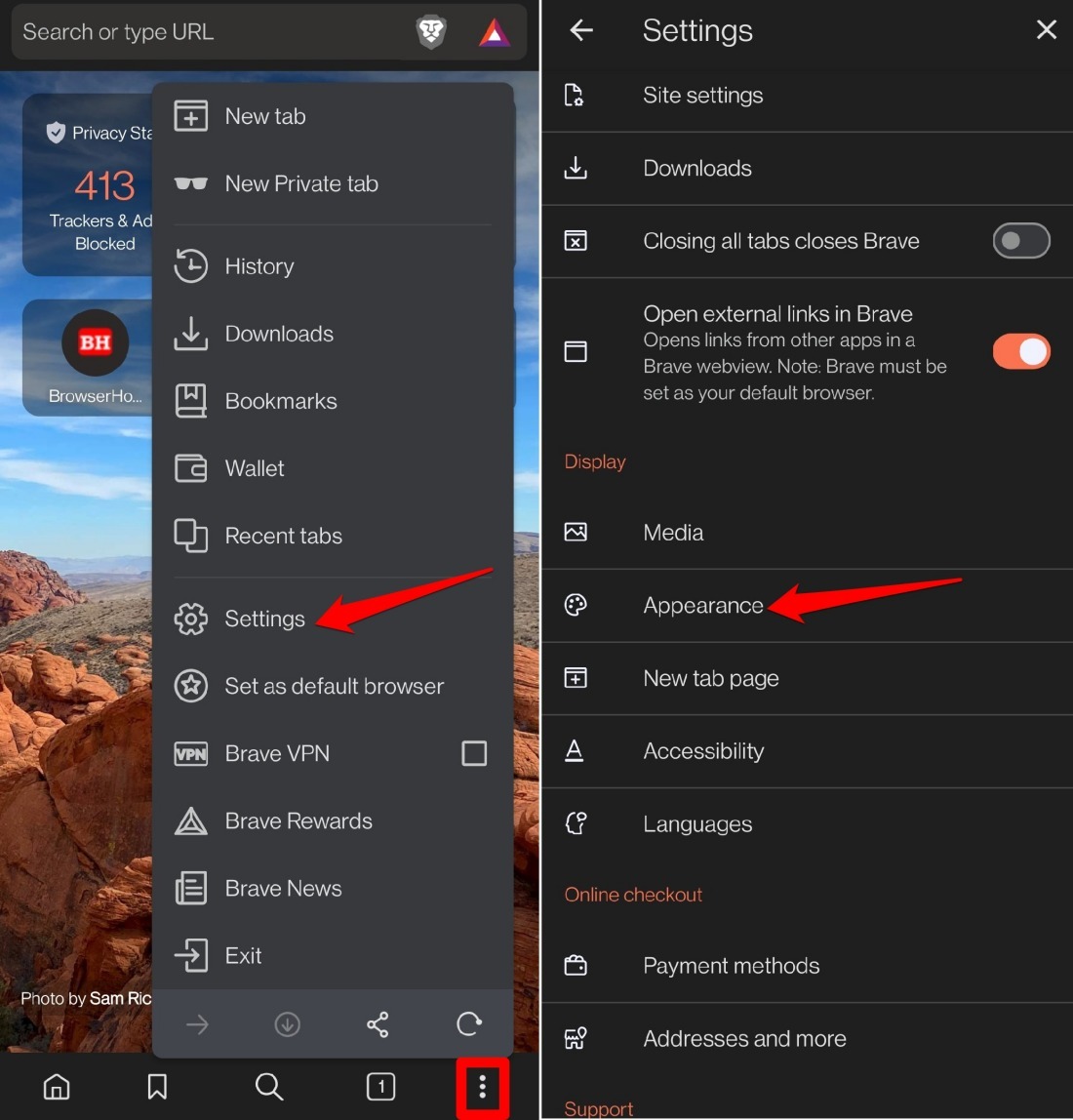
- Tap Theme.
- Pick System default, Light, or Dark.
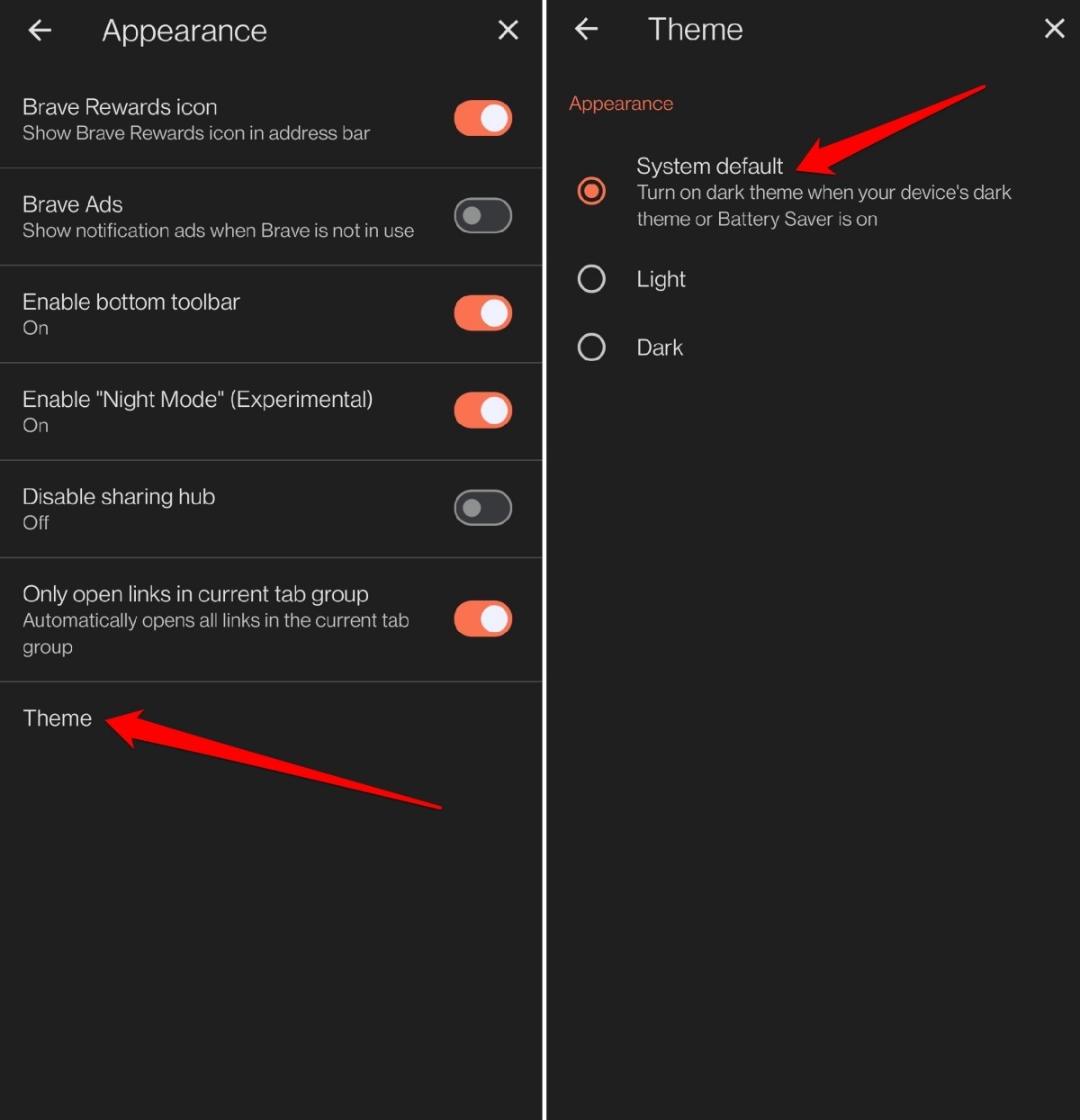

System default follows your phone’s current theme. If your device switches automatically at sunset, Brave will too.
Manage Appearance in Brave app
- Launch Brave on your phone.
- Tap the icon and open Settings.
- Scroll to and tap Appearance.
Here’s where the toolbar and icon clutter gets solved. Every toggle below sits on the Appearance screen. Flip the ones you want, then relaunch Brave so the changes stick.
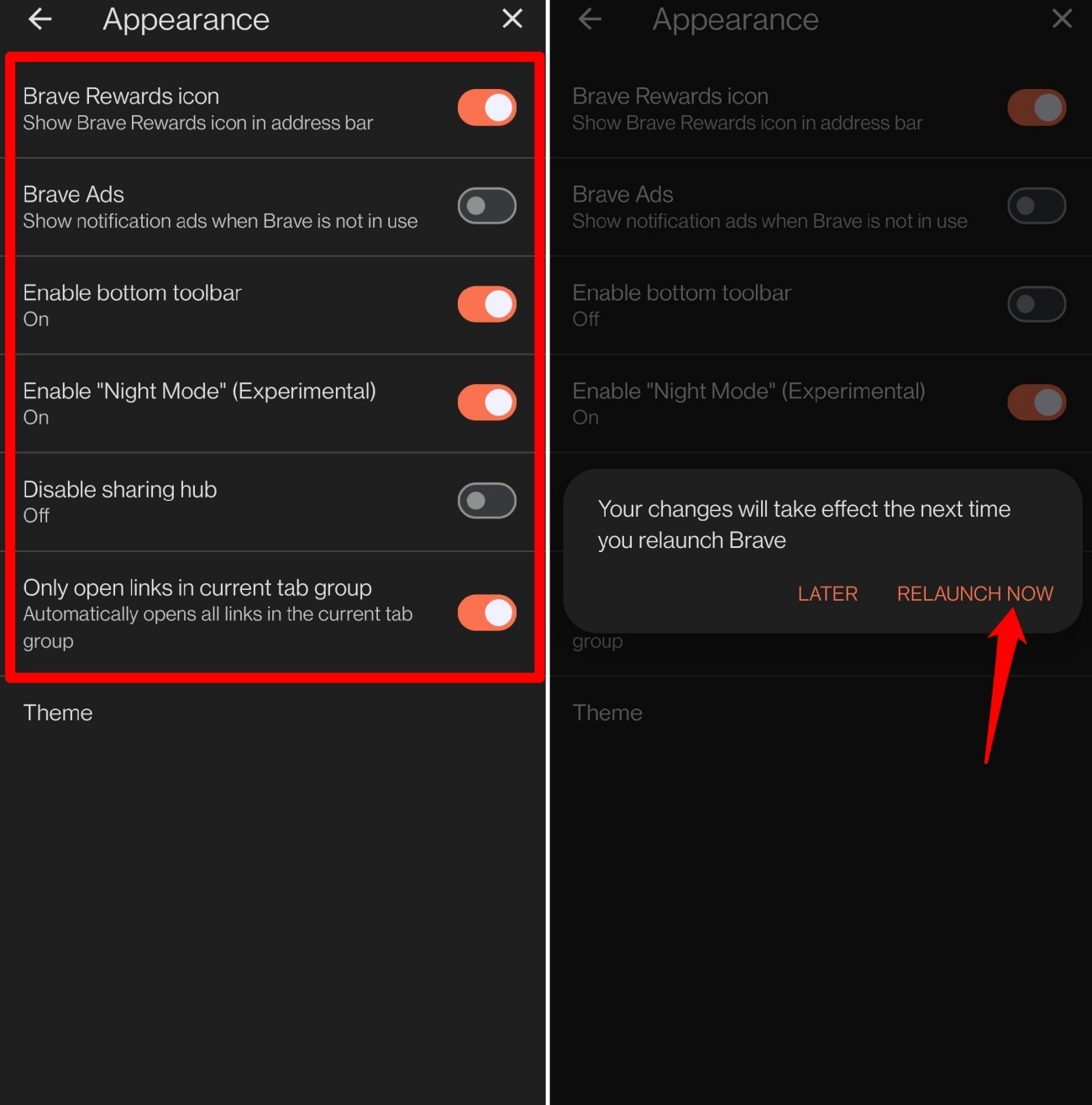
- Brave Rewards icon: Shows or hides the Rewards shortcut in the URL bar.
- Brave Ads: Controls whether you receive notification ads when Brave isn’t open.
- Bottom Toolbar: Puts Home, bookmarks, search, tabs, and the menu button within thumb reach at the bottom of the screen.
- Night Mode: An experimental dark overlay that dims web content, not just the browser chrome.
- Disable Sharing Hub: When off, tapping Share opens a compact panel for link sharing, copying, printing, or screenshots. When enabled, the hub is replaced by the system share sheet.
- Only open links in the current tab group: Forces all links to stay inside the active tab group instead of spawning a new one.

ALERT: Night Mode is marked experimental in Brave. It can cause rendering glitches on some sites. If pages look broken, toggle it back off and restart the browser.
Bottom Line
A cluttered browser pulls your attention away from the page. Stripping the toolbar down to what you actually use, setting a theme that matches your environment, and turning off icon noise makes every session feel less like managing software and more like reading the web. If something still looks off after relaunching, double-check that System default isn’t overriding your Light or Dark pick in a way you didn’t expect.




