

Struggling to zoom into web pages that disable pinch-to-zoom on Brave for Android? The browser includes a hidden accessibility option that forces zoom on all sites, so you can magnify any page with a simple pinch gesture.
Here's how to find the Force Enable Zoom toggle and combine it with Text Scaling for an even bigger view on your phone screen.
In this guide, I have covered:
Contents
Enable Forced Zooming in Brave on Android
If a website blocks you from pinch-zooming, this switch ignores the restriction and lets you zoom everywhere.
- Launch the Brave browser on your mobile phone.
- Tap the
 menu and select Settings.
 - Scroll to Accessibility and select it.
- Toggle on Force Enable Zoom.
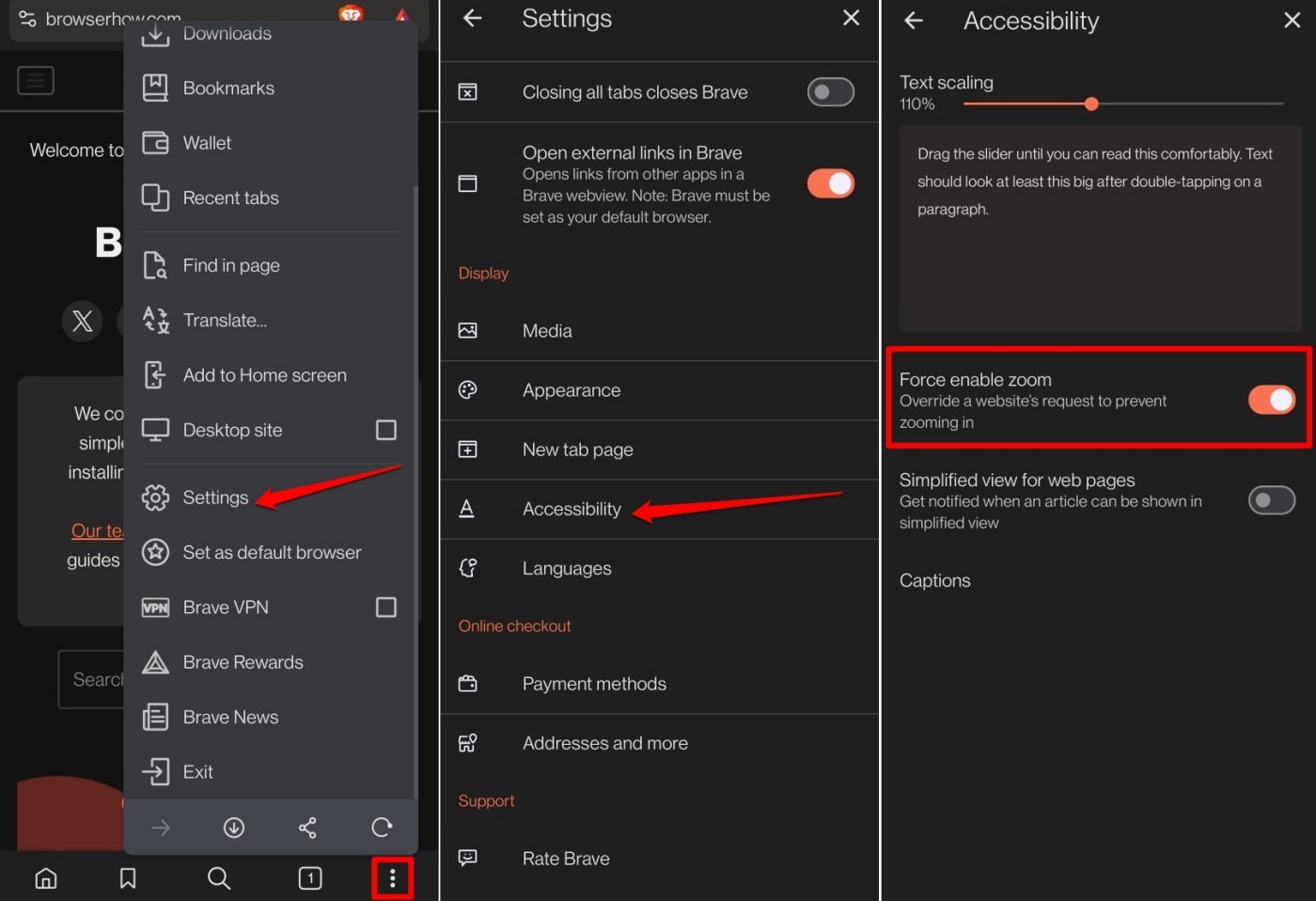
Use Force Zoom in Brave
Once the toggle is on, open any website and pinch two fingers apart to zoom in. Pinch them together to zoom out. The browser overrides any site-level zoom lock.
Increase or Decrease Text Font Size
If force zoom alone doesn’t give you enough magnification, raising the text scaling slider makes all text larger without rearranging the page.

TIP: If force zoom still doesn’t enlarge a page you’re viewing, increase the text font size to get a magnified view of text and images.
- Open the Brave browser app on your phone.
- Tap the icon and select Settings.
- Scroll to Accessibility and select it.
- Adjust the slider under Text Scaling to make the font larger or smaller.
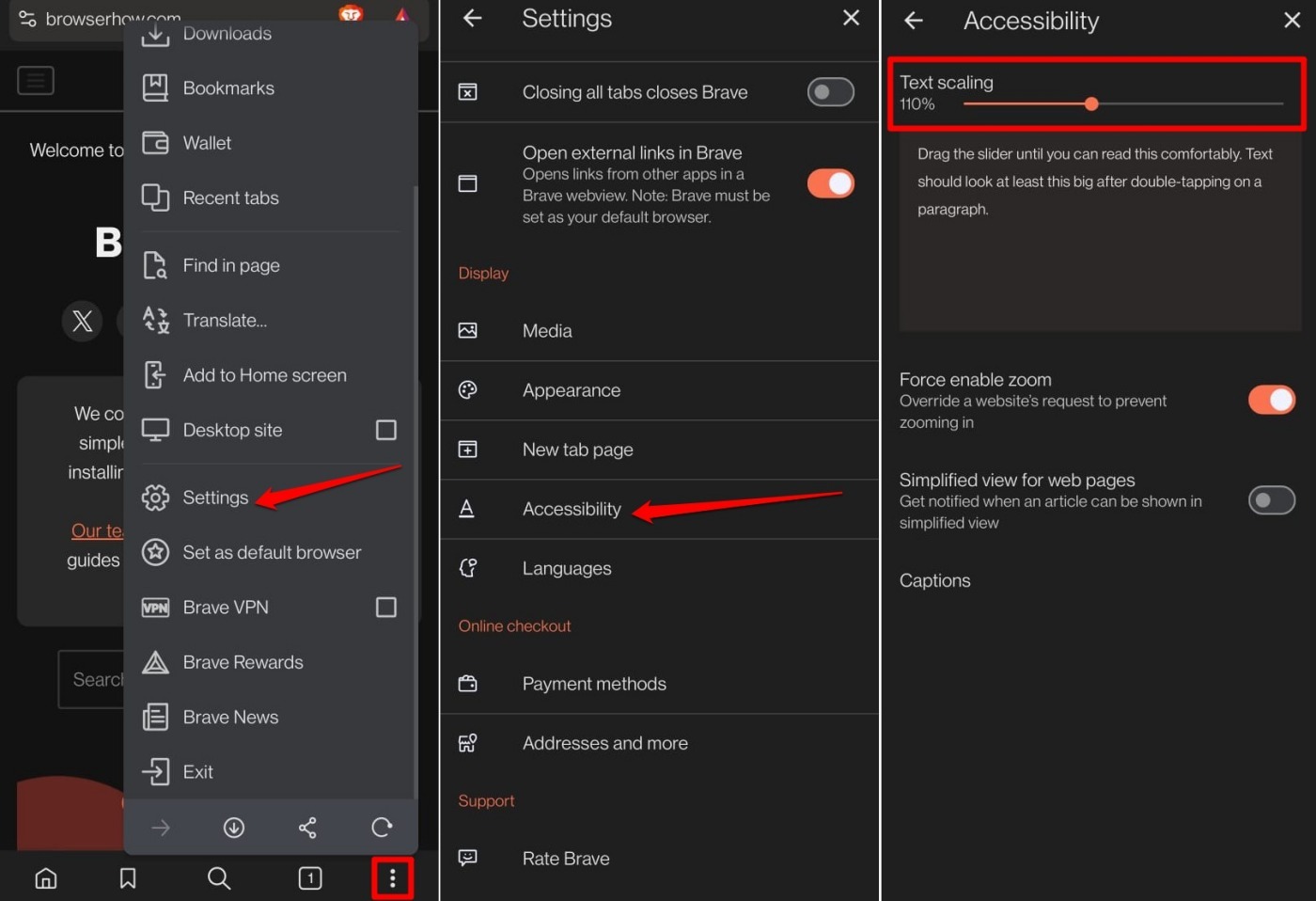
Bottom Line
Try force zoom first. If a stubborn site still refuses to enlarge, adjust the text scaling slider. You’ll know it worked when the page content instantly resizes, making everything easier to read on your phone.




