

Brave app doesn't let you pick a custom download folder, but you can still control a few key settings. Check the current save location, decide whether the browser asks where to save each file, and toggle auto-open after download.
The Downloads section also acts as a built-in file manager for everything you've saved: images, offline pages, and other files. You can search, share, and delete right from the browser.
In this guide, I have covered:
Contents
Access Downloads Setting in Brave app
- Launch the Brave browser on your device.
- Tap the
 menu icon and select Downloads.
 - Press the
 icon.
icon. - Check the Download Location to view the path of the folder where files downloaded on Brave are saved on your phone.
- Enable Ask where to save files (if an SD card is detected).
- Turn on the toggle to automatically open a file after it downloads (wherever possible).
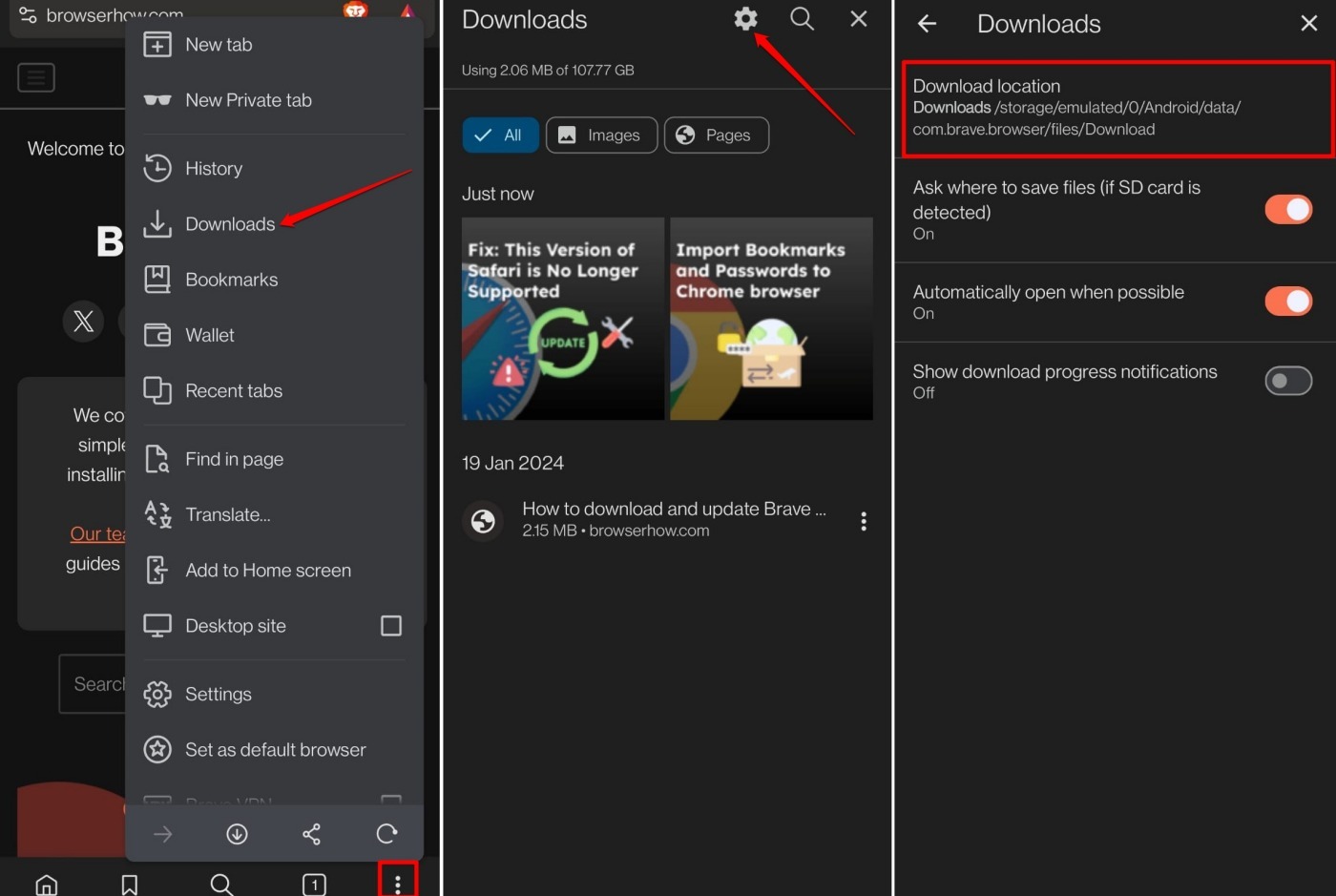

On Android devices, the default download location is typically /storage/emulated/0/Download/, which can be opened from your phone’s file manager.
Manage Files in the Brave Downloads Section
All your downloaded files live in the Downloads section, organized by type.
- Open the browser > tap the menu icon and select Downloads.
- To view only image files, tap Images.
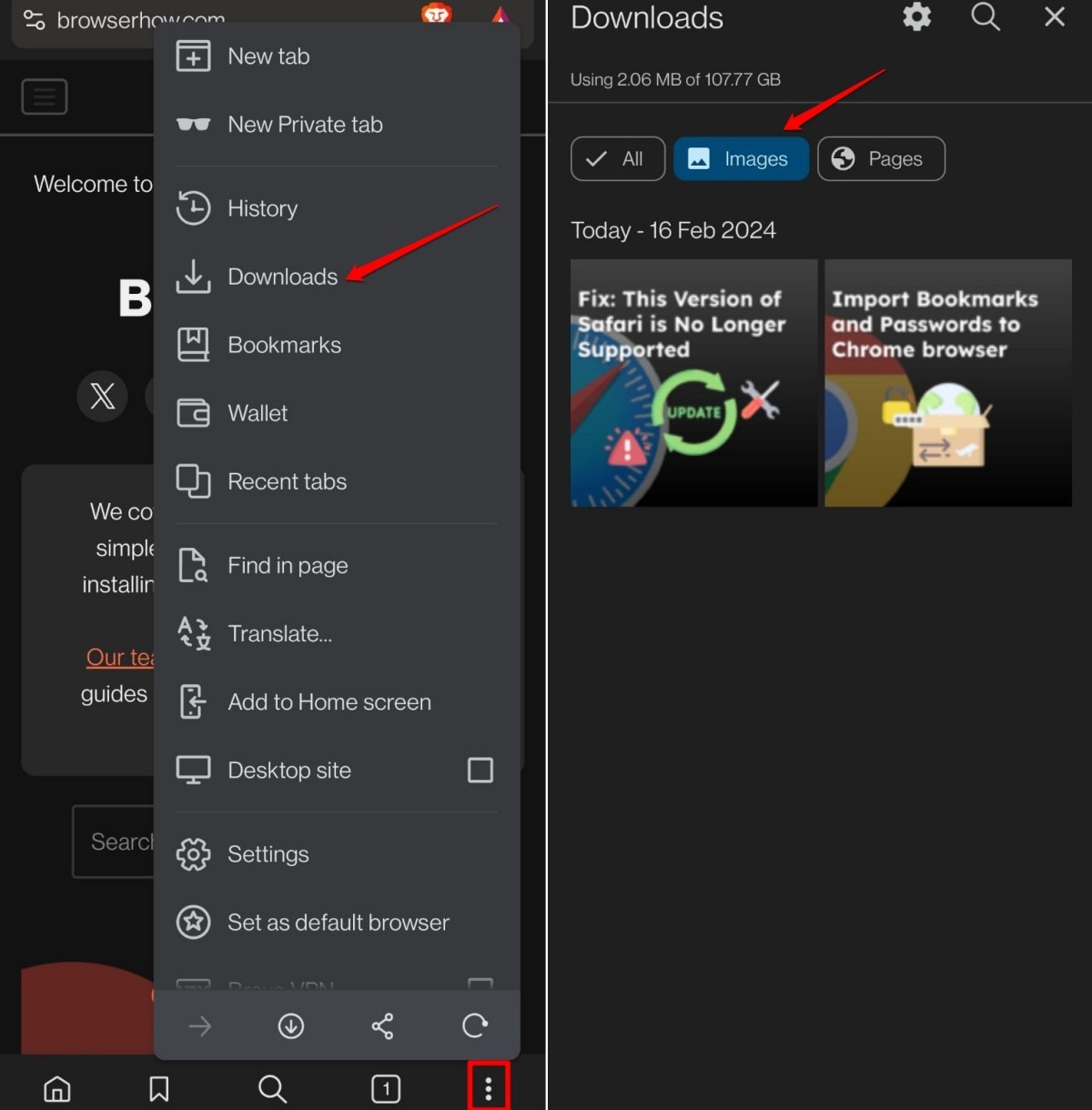
- To view offline web pages, tap Pages.
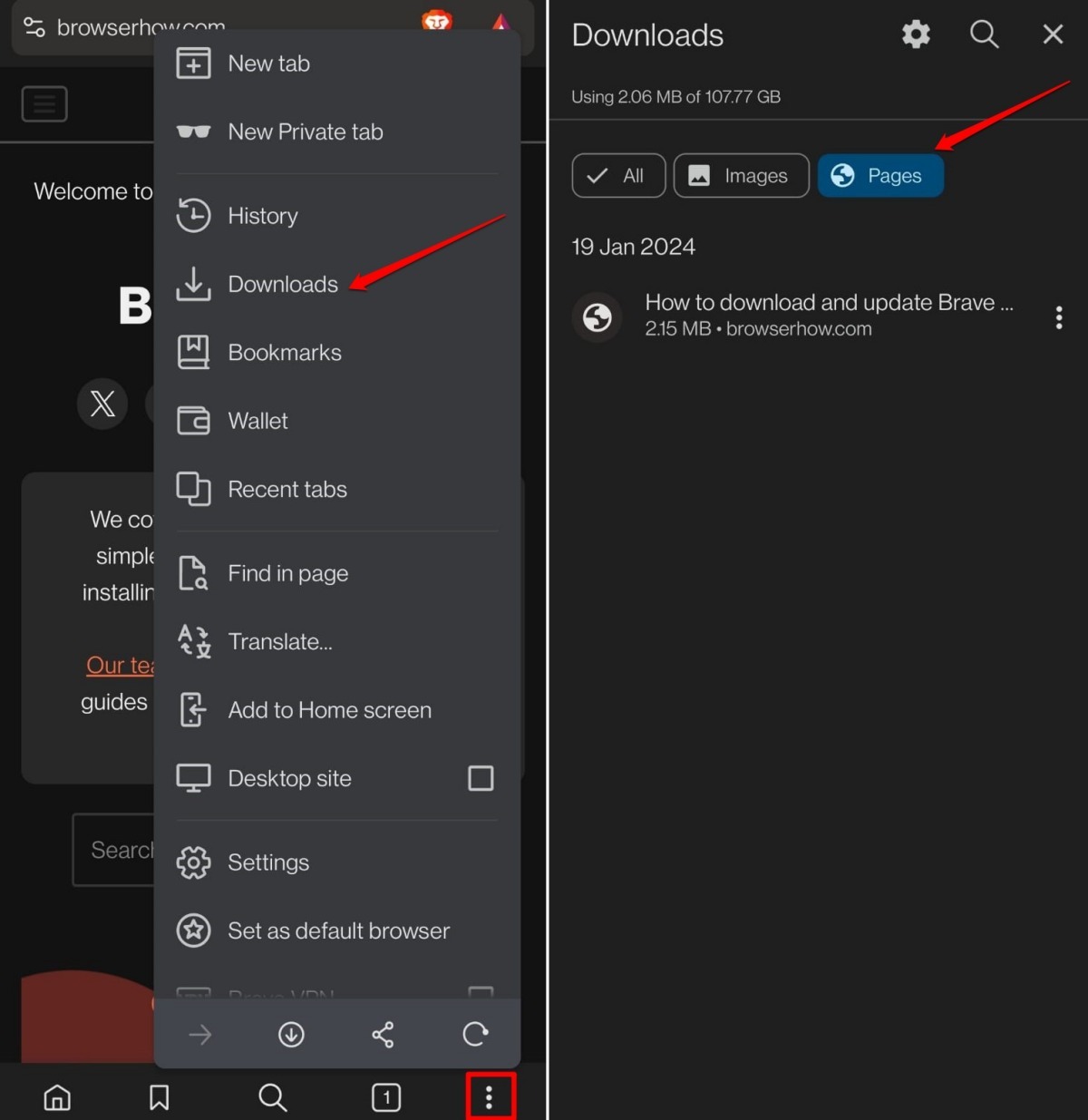
- Use the Search icon to find a file quickly when you have many downloads.
- To delete a file, long-press it to select it (you can select multiple files as well).
- Tap the Trash icon to delete.
- Tap the Share icon to send a file from the Downloads section.
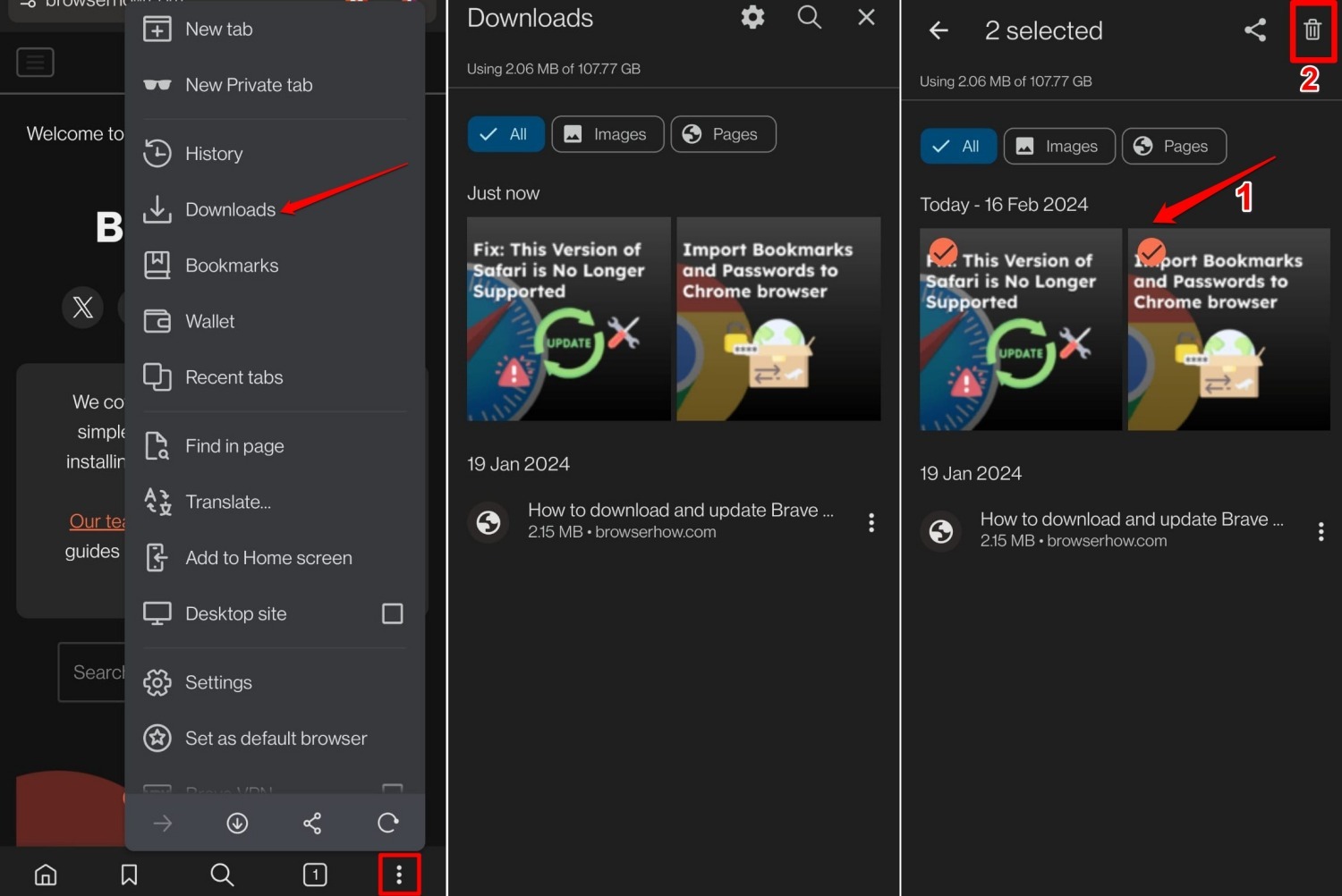
- Pick an app from the share panel to share the file.

TIP: Want to manage download settings on Brave for PC? See our detailed guide.
Bottom Line
You can’t change the default download folder in Brave for Android, but the Downloads section gives you full control over your saved files. Use it to browse, search, share, and delete anything you’ve downloaded.




