

Trying to get back to a page you just left in Brave on Android? The back and forward buttons in the address bar let you retrace your steps through a browsing session. You can also swipe from the screen edges to move between pages.
These tools work on any site, and the forward button only lights up after you've gone back. That way you always know where you are in your session.
In this guide, I have covered:
Contents
Navigate Forward in Brave app
When you’ve navigated few pages backward and need to move forward, tap the forward arrow (→) icon in the address bar. The browser loads the next page in your session.
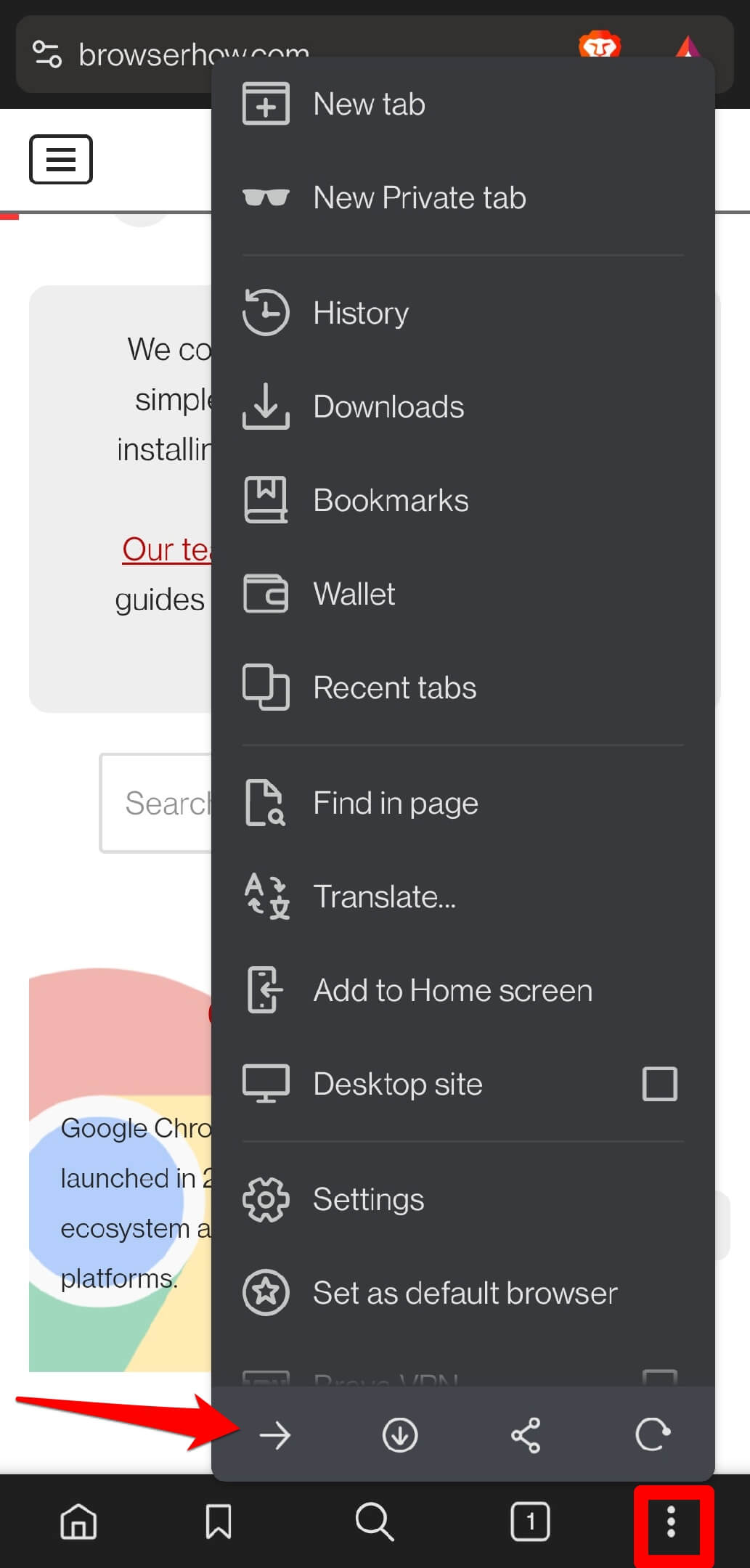

The → button appears grayed out when you land on a site in a new browsing session. Only after navigating back will the forward button become active. On the latest page of a session, you cannot use the forward navigation button.
Navigate Backward to Previous Page
When you need to return to a page you just left, tap the back arrow (←) icon in the address bar. Keep tapping to go all the way back to the first page you visited.
You can also use a horizontal swipe gesture from the edge of the screen to go back. The back button and swipe gesture will disengage once you are on the very first page.
Bottom Line
You’ll know it worked when the forward button lights up after you’ve gone back, and the swipe gesture slides you smoothly to the previous page. These two gestures and the buttons cover all your page-jumping needs. You’ll never lose your place in a browsing session again.




