

You land on a website and the text is in a language you can't read. Brave on Android can translate it automatically.
To get started, enable Brave Translate in the settings and set your preferred language. Once that's done, Brave will offer to translate any foreign-language page into a language you understand, no extra apps needed.
In this guide, I have covered:
Contents
Enable Page Translate Feature
- Open Brave on your Android device.
- Tap the
 icon, then Settings.
 - Scroll to Languages.
- Turn on the toggle next to Use Brave Translate.
- Make sure your preferred language is shown under Current Device Language.
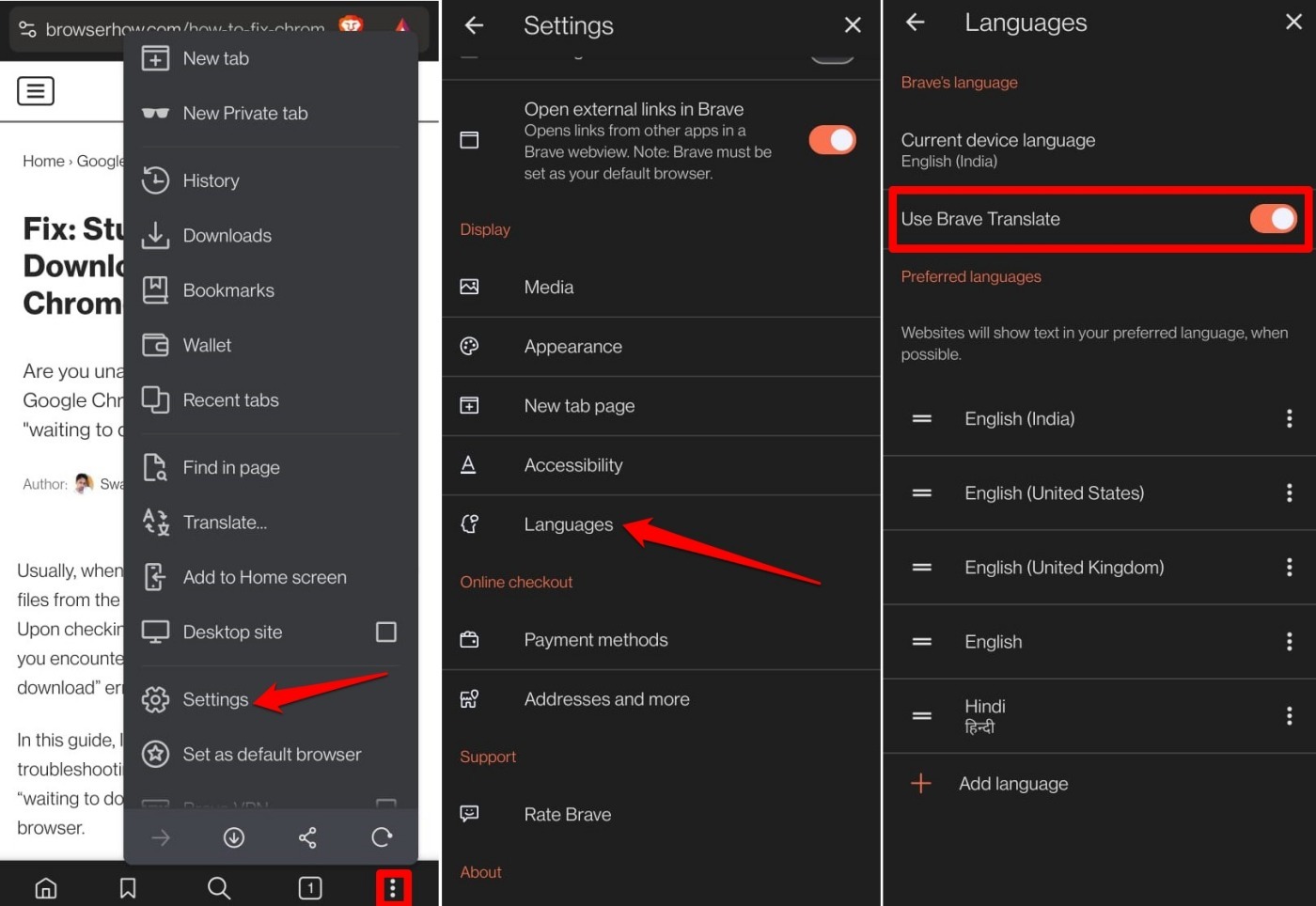 It should match your phone’s default language, but you can change it later if needed.
How Does Brave Translate Work
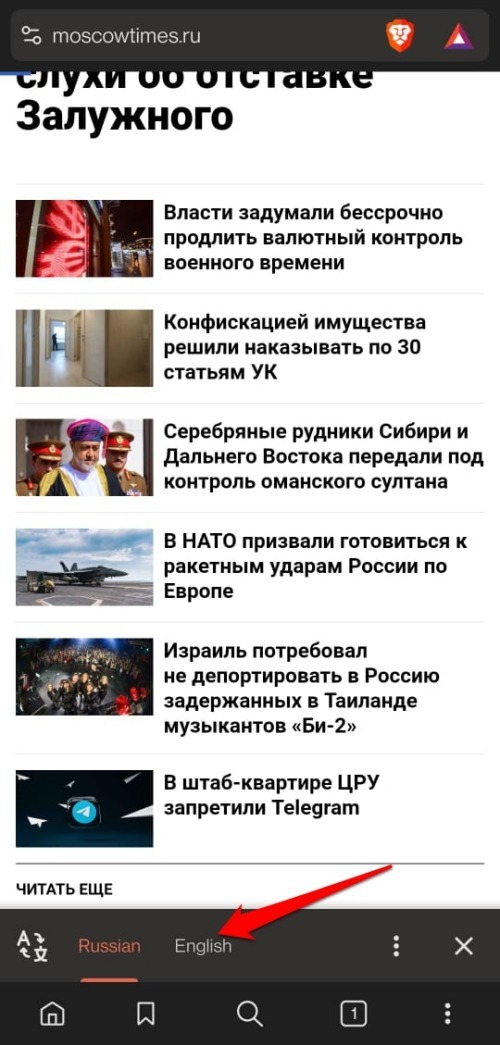
Next time you visit a page in a language you don’t know, Brave will pop up a translation prompt at the bottom of the screen. Tap your preferred language, and the page instantly reloads in that language. No digging through menus.
Setting Preferred Languages

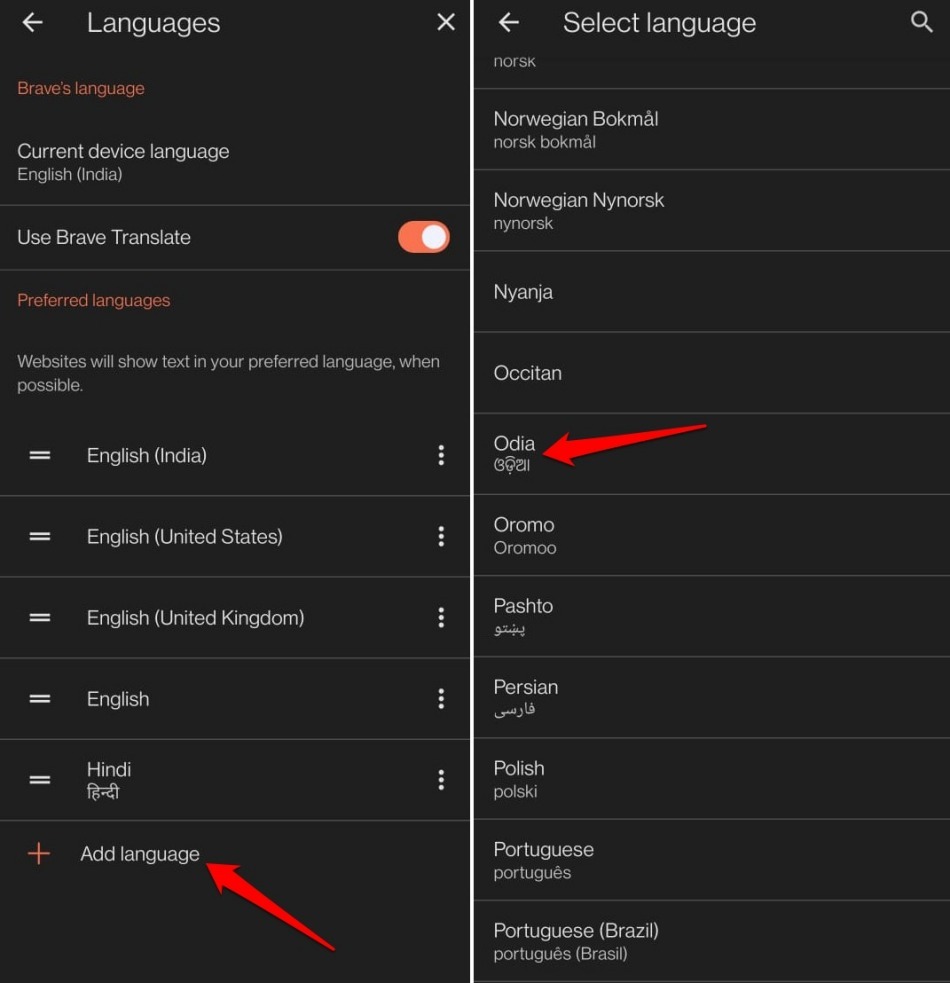
You can set more than one preferred language in which Brave will display the site content.
- Under Preferred Languages, tap Add Language.
- Pick the language you want from the list.
Removing a Preferred Language
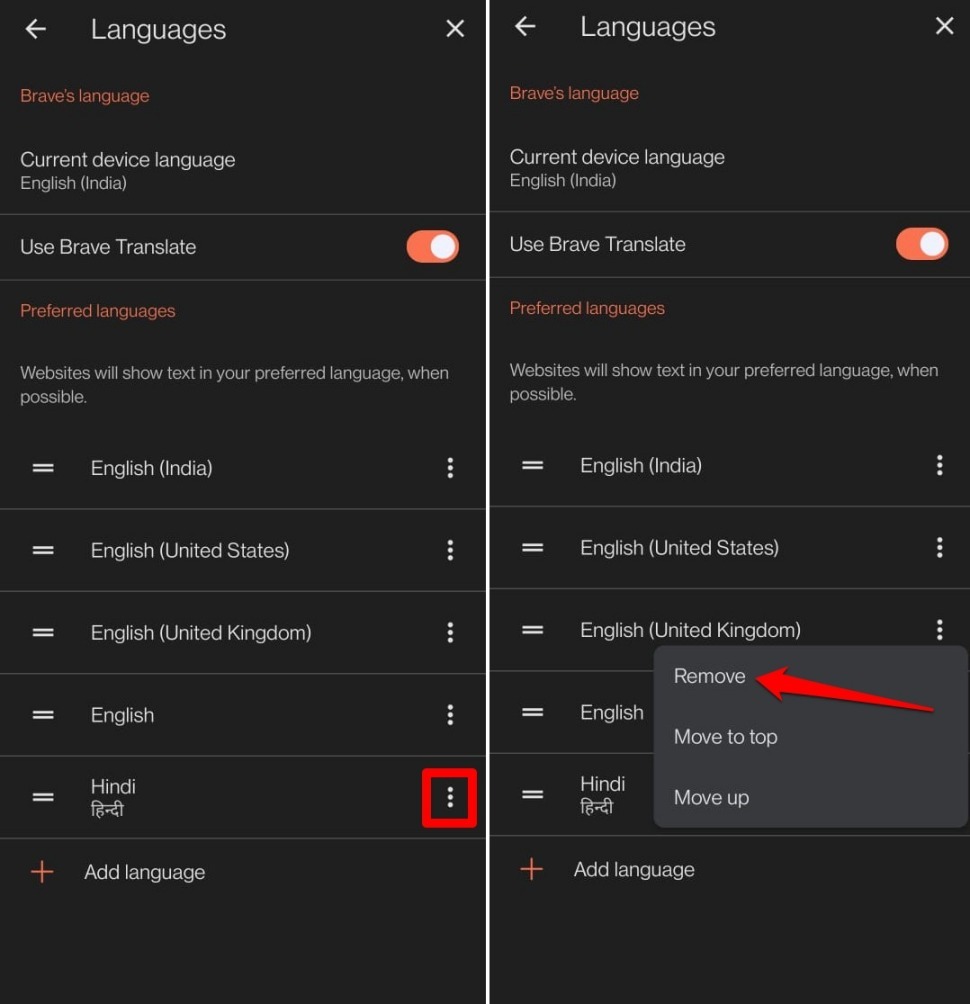
To remove a language you no longer need,
- Tap the three-dot menu next to the language you want to dismiss.
- Select Remove.
Bottom Line
You’ll know it’s working when you visit a foreign-language page and Brave immediately shows the translation prompt in your chosen language. No more copy-pasting text into a separate app. Enable Brave Translate, pick your languages, and you’re done.




