

Check connection security, certificate details, cookies, scripts, trackers, and fingerprinting protection for any website.
Knowing a site's safety and privacy details helps you make informed decisions about your data and security.
In this guide, I have covered:
Contents
View Site Information and Configure Site Settings
- Open Brave on your Android device.
- Go to any website.
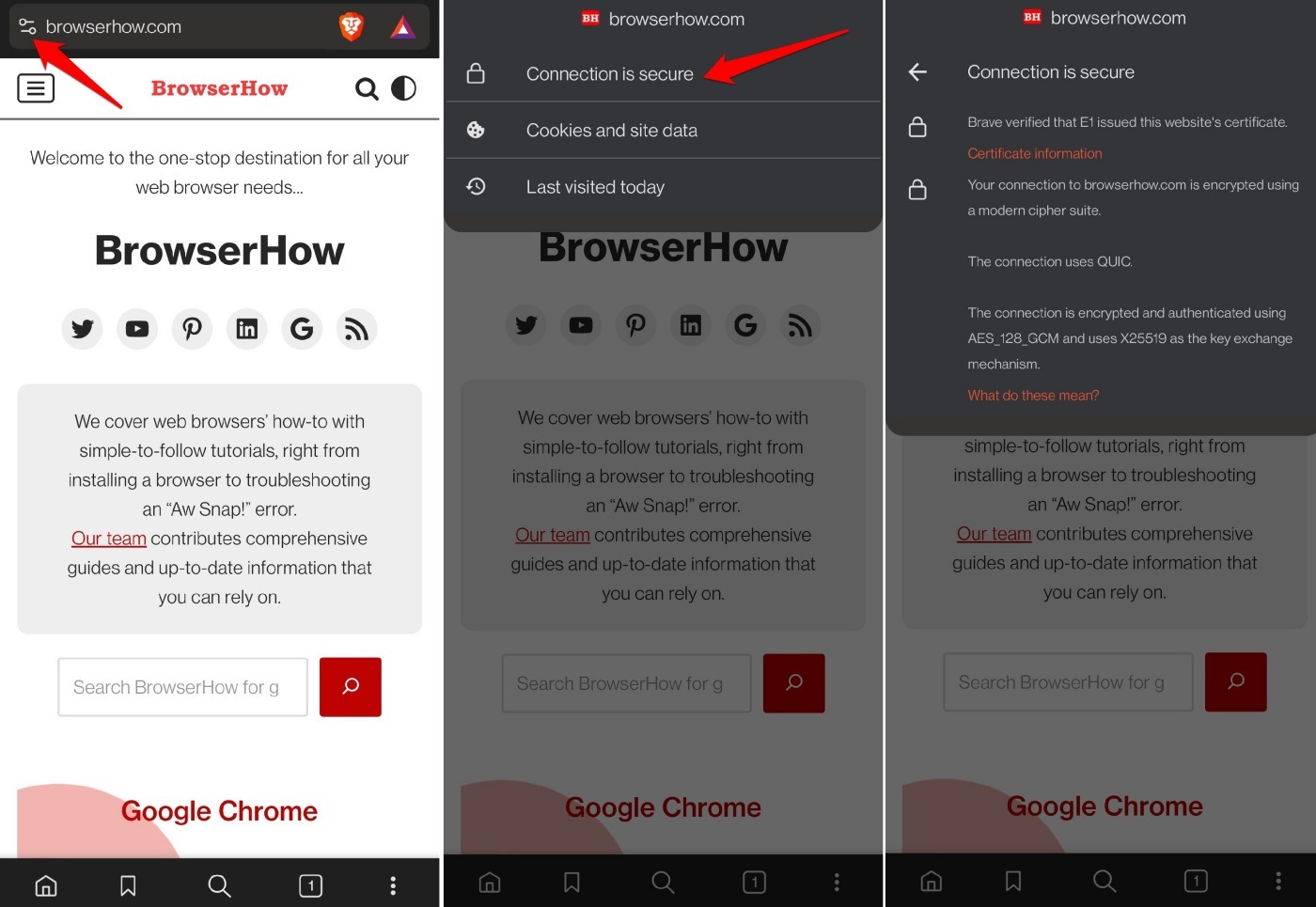
- Tap the Site Settings icon next to the address bar.
- Tap . You can view the certificate details by tapping .
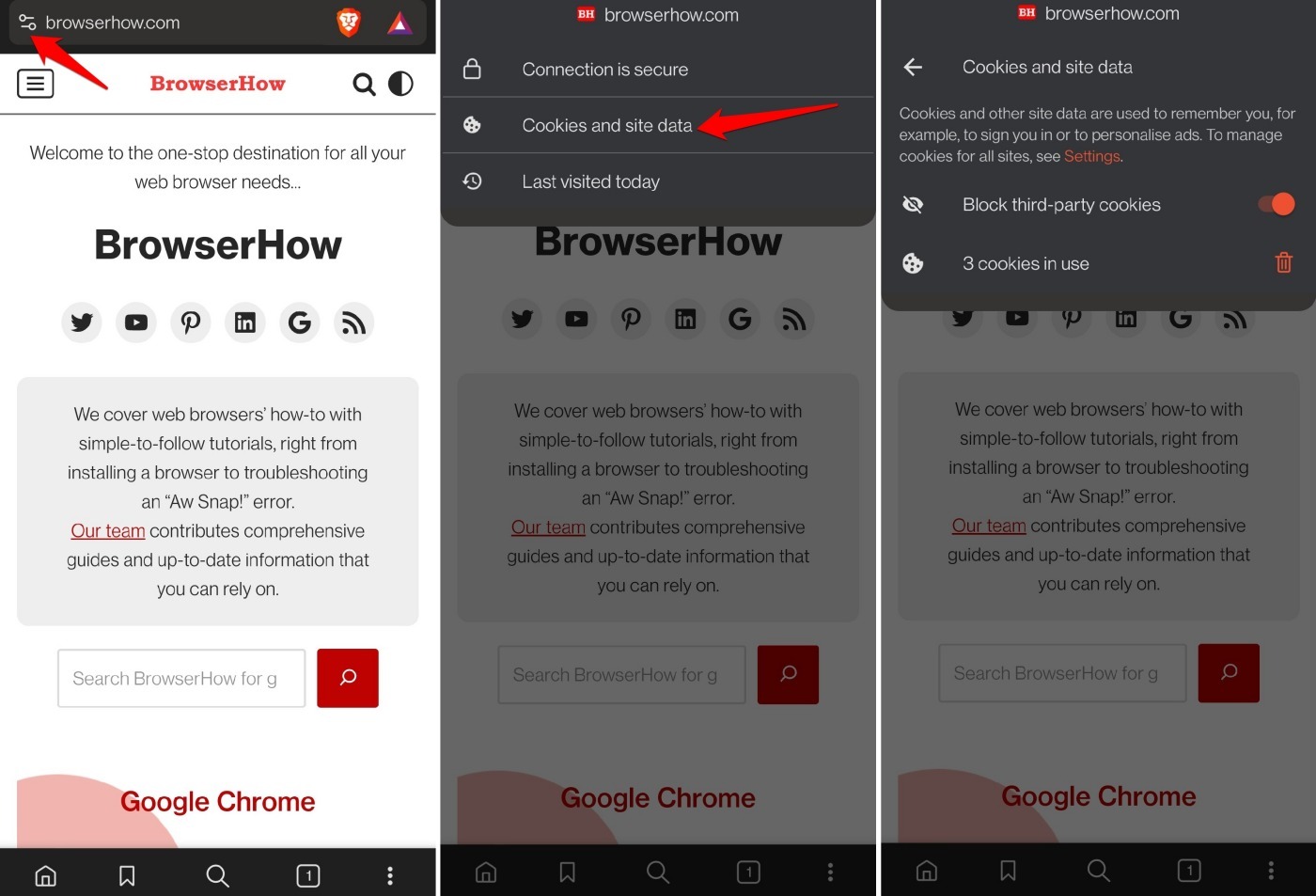
- Tap under Site Settings to block third-party cookies and delete the cookies in use.
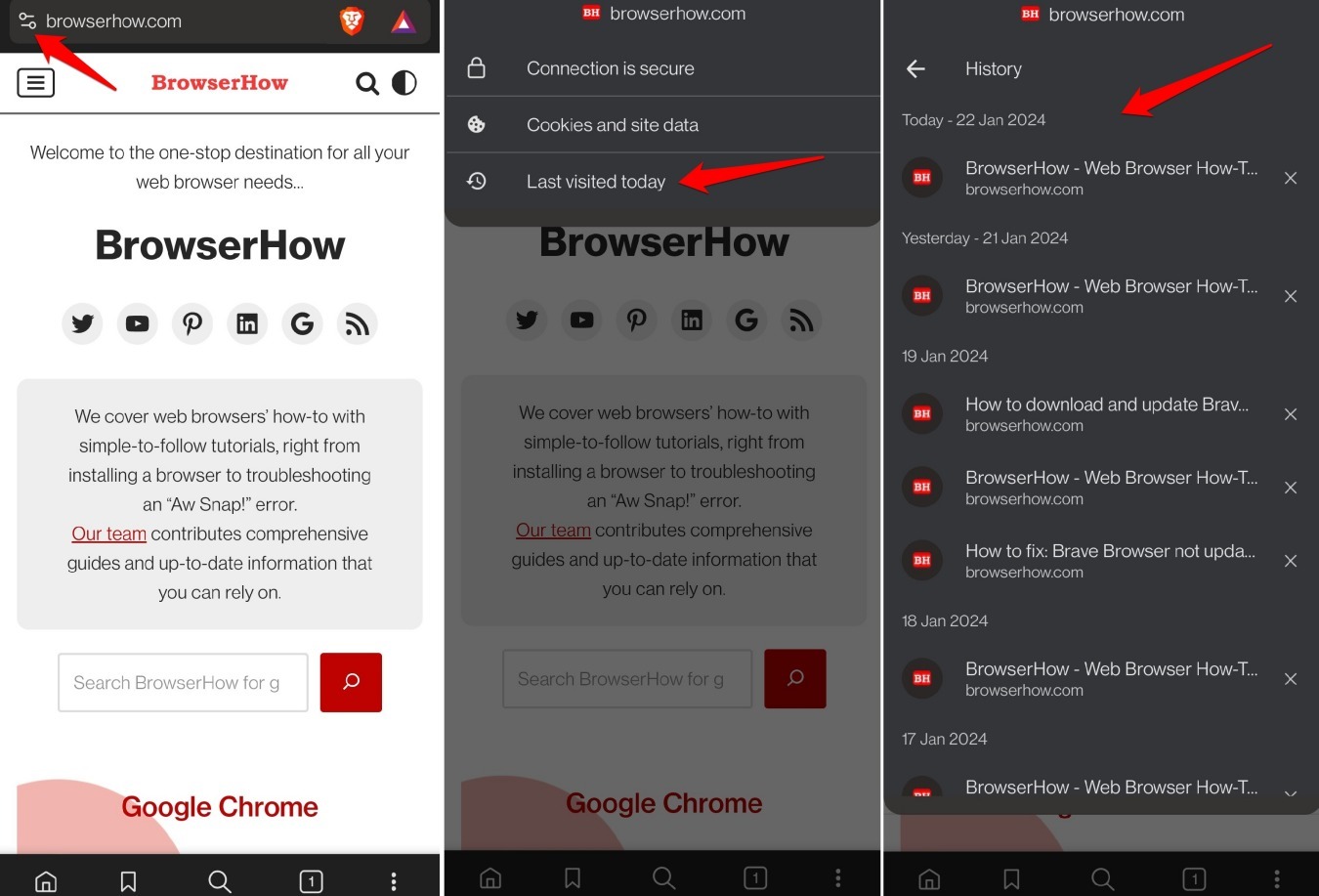
- You can also view your browsing history for this site. It lists all the pages you’ve visited recently.

Within the tab, you can check the type of encryption on the site.
Manage Site Settings
- Open any website in Brave on Android.
- Tap the Site Settings icon in the address bar.
- Tap Advanced controls.
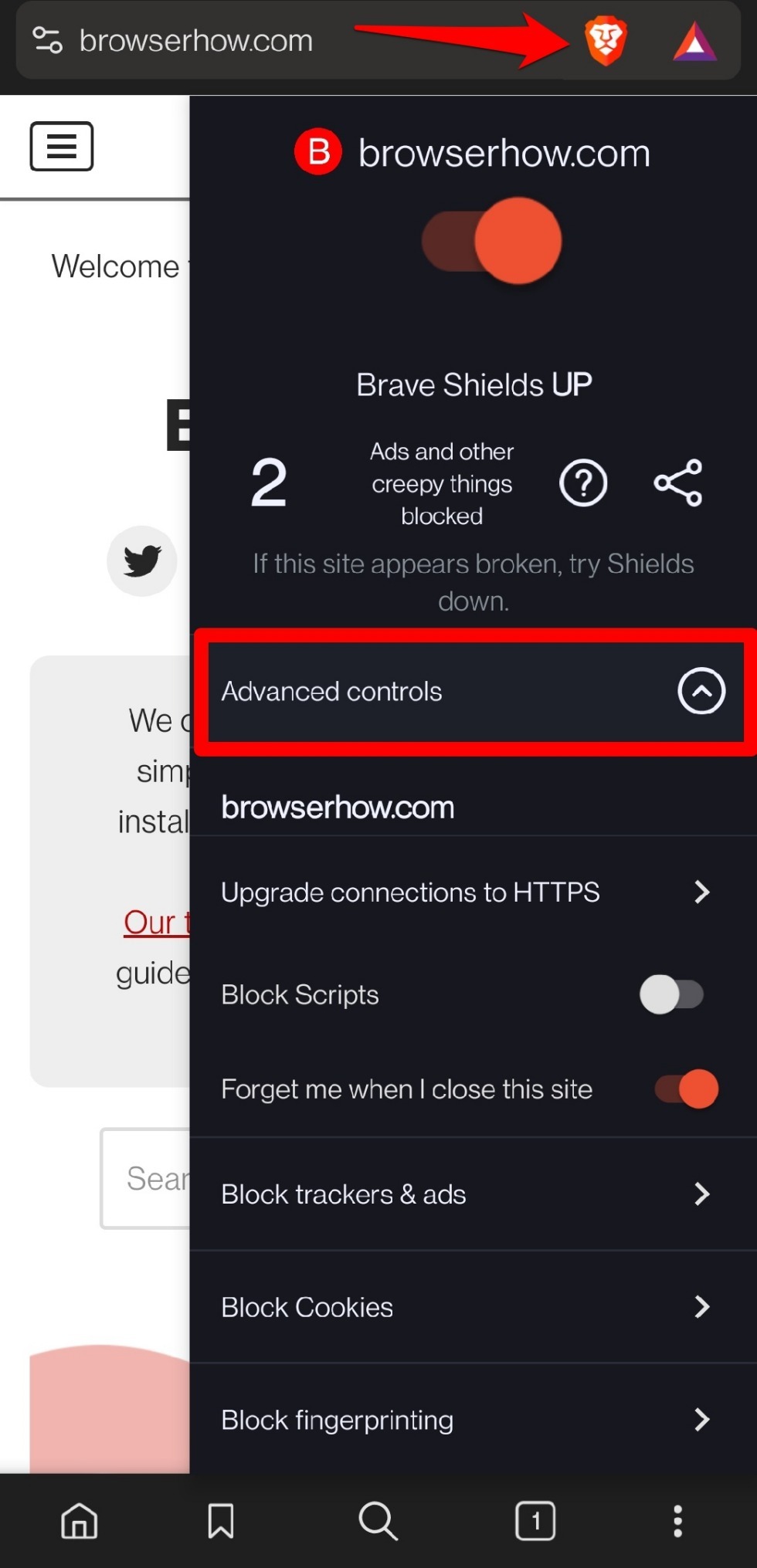
- Customize the settings according to your needs.
Choose your preferred connection type under Default connection type.
Toggle Block scripts to allow or block JavaScript on the site. Enable Forget me when I close this site. This clears all cookies and site data when you leave the site.
Tap Block cookies to manage cookie permissions, including cross-site cookies. Tap Block trackers & ads to allow or block trackers and ads for this site.
Turn on fingerprinting protection to prevent Brave from recognizing your device. We recommendStandard fingerprinting blocking.
Bottom Line
You’ll know it worked when you see the site information panel and can adjust settings per site. This gives you control over what data you share and how the site behaves.




