Chrome can sit at a hefty memory figure before you've done anything demanding, and the number you see in Task Manager is usually several processes adding up rather than one.
Start with Chrome's own Task Manager to see which tab or background page is largest, then turn on Memory Saver, cut back on extensions, and check the figure again. Compare before and after so you know whether the change helped.
In this guide, I have covered:
Contents
Find What’s Eating Your Chrome Memory
Chrome running hot on memory is easier to fix once you know which tab or background page is responsible. Chrome spreads its work across several processes, so the operating system often shows several large entries under the Chrome name instead of one clear total.
For a fuller explanation of why those entries exist, see Fix: Multiple Chrome Processes Threads on Windows Task Manager.
- Open Chrome and click the
 menu in the upper-right corner.
 - Select More tools, then select Task Manager.
- Select the Memory column to sort the listed tasks from highest to lowest memory use.
- Look for a large Background page, extension, or tab that stays near the top of the list.
- Select the task you no longer need and click .
Chrome drops the selected task from active use right away. Reopen the site if you ended its process, and save your work first, because ending a task throws away anything unsaved.

Memory readings jump around while Chrome works. Check the list again after leaving a page open for a while instead of reacting to a single reading.
Turn On Chrome Memory Saver
If Chrome slows down and the fans spin up with a dozen tabs open, Memory Saver is the first setting to try. It deactivates the tabs you aren’t using so they hold less memory, and every one of them stays in the tab strip.
- Launch Chrome.
- Click the three-dot menu and choose Settings.
- Select the Performance tab in the left sidebar.
- Toggle Memory Saver on. Recent Chrome versions also let you pick a mode (Moderate, Balanced, or Advanced) depending on how aggressively you want Chrome to reclaim memory.
With Memory Saver on, inactive tabs show as deactivated and reload when you click them. You’ll know it worked when tabs you haven’t touched in a while go quiet in Chrome’s Task Manager. Confirm the change under Settings > Performance, or open chrome://settings/performance directly.
Make Memory Saver More Aggressive
Still seeing high numbers after Memory Saver is on? A stricter mode deactivates inactive tabs sooner. Chrome currently gives you Moderate, Balanced, and Maximum.
- Open Settings > Performance.
- Expand Memory Saver.
- Select Maximum if you want inactive tabs deactivated sooner.
- Open Always keep these sites active and confirm your important sites are listed.
Go back to your tabs and watch whether idle pages get suspended faster than before. If you want finer control over which sites survive, Stop Chrome From Discarding Background Tabs in Memory Saver covers that.
Show Memory Usage When Hovering Over Tabs
Not sure which tab is the heavy one? Chrome can show a memory figure in the tab preview card before you switch to it, which saves a lot of back-and-forth guessing.
- Open Settings > Appearance.
- Find Show memory usage on tab hover.
- Turn the setting on.
- Hover over each open tab and compare the memory figure in the preview card.
A tab that consistently sits far above the others is a good candidate for closing, or for ending in Chrome’s Task Manager.
Disable Extensions That Run in the Background
An extension you installed months ago can still hold memory while every one of its pages is closed. Turning the whole set off first, then re-enabling one at a time, shows whether an extension is behind the rise.
- Launch the Google Chrome on your computer.
- Click on the More for the list menu.
- Hover on the More Tools menu and choose the Extensions sub-menu.
 It will open the Chrome Extensions Manager page with the list of installed extensions.
 - Toggle the switch to Disable the extension.

Reopen Chrome and check the Memory column in Chrome’s Task Manager. If usage drops sharply, you’ll know it worked, so switch extensions back on one by one and note which one pushes the number up again. Extensions or profiles vanishing from the toolbar have their own fix in Fix Chrome Profiles and Extensions That Keep Disappearing.
Check Chrome Performance Insights
When no single tab looks guilty, Chrome’s Performance Insights can point at pages that quietly consume more than expected.
- Open Settings > Performance.
- Find Performance Insights.
- Review the listed pages and their reported resource use.
- Close or end any listed page you don’t need, then check the memory figures again.
If Chrome flags a page, go back to Task Manager and end only the matching task, so unrelated tabs and unsaved work survive. You’ll know it worked when that page stops appearing in the next Insights check.
Compare Chrome With the Operating System
Chrome’s own Task Manager is the right tool for individual tabs and background pages. The operating system shows the total Chrome actually costs you, which is what you need for an honest before-and-after comparison.
- On Windows, open Task Manager and compare Chrome’s entries in the Memory column with total system memory usage.
- On macOS, open Activity Monitor and check the Memory tab for the combined activity of Chrome processes.
- Compare the result before and after turning on Memory Saver, disabling extensions, or ending a heavy task.
Don’t expect Chrome’s memory to fall to zero. A working browser needs memory for active pages, the interface, extensions, and background services. The useful check is whether usage drops and stays lower through a normal day of work.
Restart Chrome When Usage Does Not Drop
If nothing above moved the number, a clean restart can release memory that stuck tasks never gave back.
- Open Task Manager on Windows.
- Right-click each Google Chrome process in the list.
- Click .
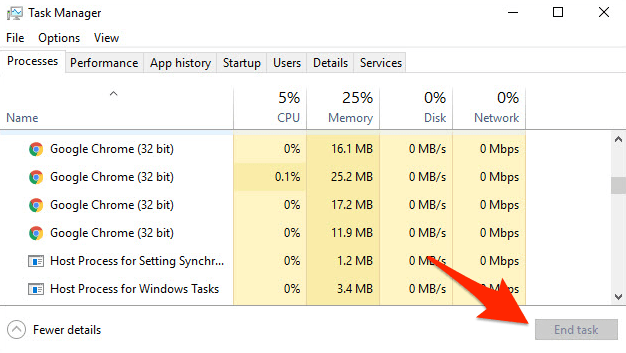
After Chrome reopens, load only the tabs you need and check Task Manager again. If memory climbs quickly, repeat the extension and Performance Insights checks instead of assuming the restart solved the underlying cause.
What to Do If Memory Usage Is Still High
You’ve been through the settings and Chrome still eats RAM. At that point the answer is usually in how you browse, not in another toggle.
- Close tabs you don’t need, especially pages with video, editors, dashboards, or other active content.
- Move rarely used sites out of Chrome and into a bookmark, or into a second browser you open when needed.
- Keep only the extensions you actively use, then check Task Manager after each change.
- Test Chrome with a shorter set of tabs to confirm whether the rise comes from websites, extensions, or a browser task that stays active.
If memory falls when you close tabs but stays high with only a few light pages open, restart Chrome and look at the operating system’s memory view again. That separates normal tab load from a background process that never lets go.

Frequently Asked Questions
Short answers to the questions that come up most while you work through the steps above.
Why does Chrome use so much RAM?
Chrome uses memory for active pages, inactive tabs, extensions, and internal browser services. Its usage is also split across several processes, so the operating system can show multiple Chrome entries.
Does Memory Saver delete my tabs?
No. Memory Saver deactivates inactive tabs to reduce their resource use, and they reload when you return to them. Sites listed under Always keep these sites active stay up.
Should I end every Chrome process shown in Task Manager?
No. End only the task you have identified as unnecessary. Ending a task discards unsaved work tied to that page or background process.
Will disabling Chrome extensions reduce RAM usage?
It can, because extensions may run in the background even when their visible pages are closed. Disable the extension group, compare memory use, then re-enable extensions one at a time to find the one responsible.
How much RAM should Chrome use?
There is no fixed amount, because it depends on the number and type of tabs you keep, the extensions you run, and whether media is playing. Compare Chrome’s use before and after the changes, and judge whether it stays stable during your normal workload.