Apple has released Safari Technology Preview 247, a developer-focused build that introduces the Safari MCP server, a new Model Context Protocol interface for web development and debugging workflows. The release also includes the usual WebKit refinements.
The build runs on macOS Golden Gate and macOS Tahoe as a standalone download, separate from the regular Safari channel. Here's what's new, who the MCP server is for, and how to install it on a Mac.
In this guide, I have covered:
Contents
What Is the Safari MCP Server?
According to the official announcement, Apple has added the Safari MCP server in Safari Technology Preview 247, a Model Context Protocol (MCP) interface aimed at web developers. The goal is to make day-to-day development and debugging faster and more powerful by giving external tools a structured way to talk to the browser.
Model Context Protocol is a standard that lets editors, AI assistants, and other developer tools query and control an application through a common interface. With the Safari MCP server, those tools can drive Safari’s web development features directly, which can cut down on the manual DevTools clicking you do during a typical build-and-debug loop.
What’s New in Safari Technology Preview 247
Safari Technology Preview 247 ships the Safari MCP server for web developers on macOS Golden Gate and macOS Tahoe.Release 247 is the build that introduces the MCP server, and it lands alongside the usual set of WebKit improvements that come with every Technology Preview release. You can read the full list of changes in the Release Notes for Safari Technology Preview 247 on the WebKit blog.
Who Should Try It
The MCP server is built for web developers, especially those already using MCP-aware editors, coding assistants, or automation tools. If you spend a lot of time in DevTools, or you maintain a build-and-debug loop across multiple tools, this is the part of the release worth testing first.
Regular Safari users will not see a direct change, since the feature is limited to Safari Technology Preview on macOS.
How to Install Safari Technology Preview on Mac
Safari Technology Preview is delivered as a separate browser app, not through the regular macOS Software Update flow. To get the build with the MCP server, download the latest package from the Apple developer site and drag Safari Technology Preview.app into your Applications folder.

Safari Technology Preview runs alongside regular Safari. Your existing Safari data, profiles, and extensions stay separate from the preview build, so installing it will not touch your day-to-day browser.
Once installed, Safari Technology Preview updates itself in the background. You can also trigger a manual check from the in-app update menu.
How to Update the Standard Safari Browser
If you also want to keep your regular Safari install current, you can pull a fresh build through macOS Software Update.
- Click on the Apple
 menu from the menu bar and select the System Settings... sub-menu.
 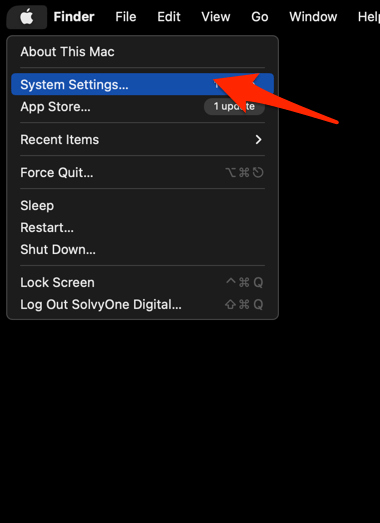 It will open the System Settings window.
 - Select the General tab in the left sidebar, and choose the Software Update tab.
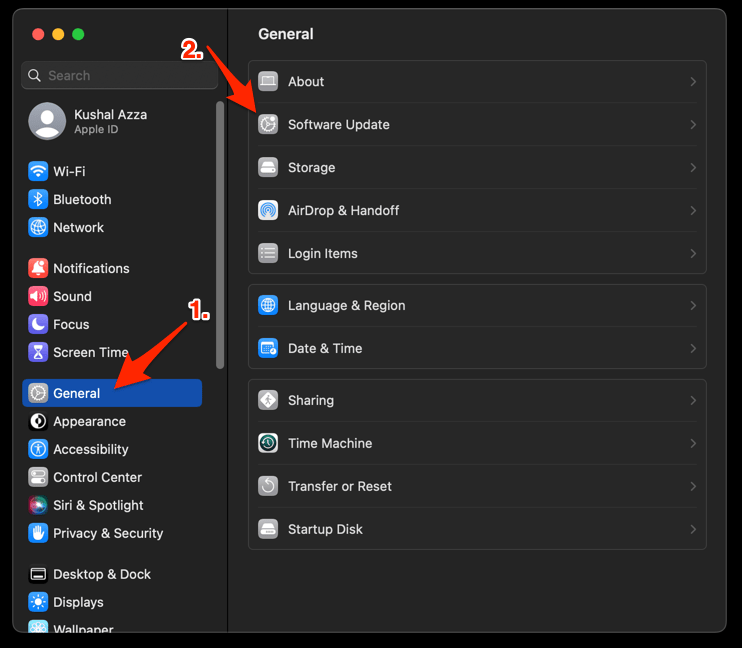 The macOS System will check for any available upgrades in the background.
 - Click on the More Info... tab and enable the checkbox for Safari updates (if any are available).
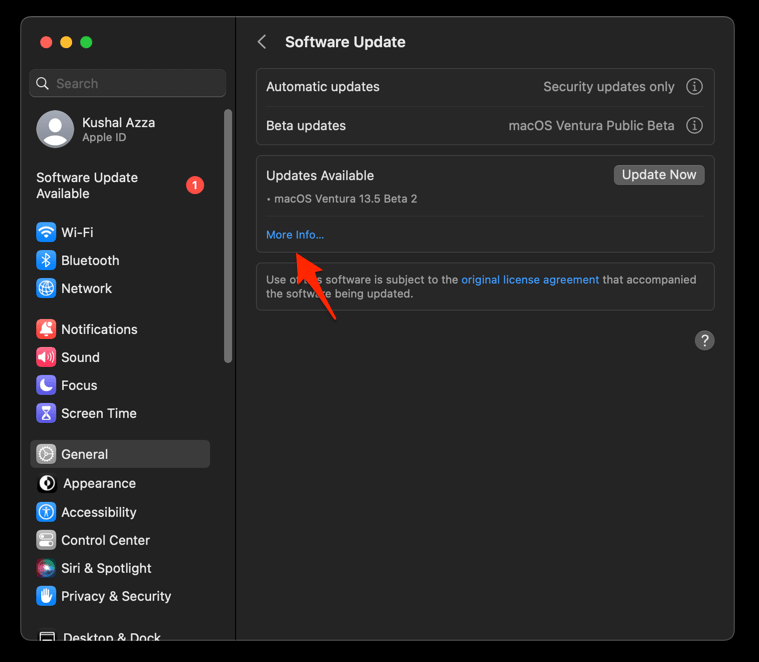
- Hit on the button.
It will update the Safari browser.
Relaunch Safari after the update and confirm the new version from the menu bar under Safari, About Safari.