Instagram can stop loading or refuse to log in inside Google Chrome on a desktop or laptop, even though the site works fine on your phone. Most of the time the cause is corrupted cookies, a stale cache, a misbehaving extension, or an outdated browser.
This guide walks through every fix in Chrome on your computer, in the order that usually solves the problem first. The steps cover Windows, macOS, and Linux, and include clearing site data, updating Chrome, disabling extensions, and resetting settings.
In this guide, I have covered:
Contents
Why Instagram Stops Working in Chrome on Your Computer
Instagram runs as a regular website inside Chrome, so anything that interferes with how Chrome loads pages can break it. The most common culprits are corrupted cookies for instagram.com, an outdated cache, a misbehaving extension (especially ad blockers), or a Chrome version that no longer matches what Instagram’s web app expects.
The fixes below work for the main symptoms: Instagram won’t load at all, the feed shows blank squares instead of images, login keeps failing, or the site throws errors like “Something went wrong”. They target Chrome on a Windows, macOS, or Linux computer.
Quick Checks Before Changing Chrome Settings
Before diving into Chrome’s settings, run through these quick checks. They take a minute and rule out problems that have nothing to do with your browser.
- Open instagram.com in a different browser (Edge, Firefox, Safari) on the same computer. If Instagram works there, the problem is Chrome-specific.
- Open Instagram on your phone using mobile data, not your home network. This confirms whether Instagram itself is up.
- Try a hard refresh of the Instagram tab with the keyboard shortcut + + on Windows or + + on macOS. This bypasses the cached version of the page.

TIP: You can also check third-party outage trackers like DownDetector to see if Instagram is having a wider service issue. If it is, no amount of tweaking will help, and you just have to wait it out.
Clear Chrome’s Browsing Data (Cookies and Cache)
Stale cookies are the single most common reason Instagram misbehaves inside Chrome. Clearing the cookies and cached files forces Chrome to re-download everything from Instagram’s servers. If you want a deeper walkthrough, see our full guide to clearing Chrome cookies and cache.
- Open the Google Chrome on your computer.
- Click on the More
 for menu options, and hover on the More Tools menu.
 - Select the Clear Browsing Data... sub-menu from the list.
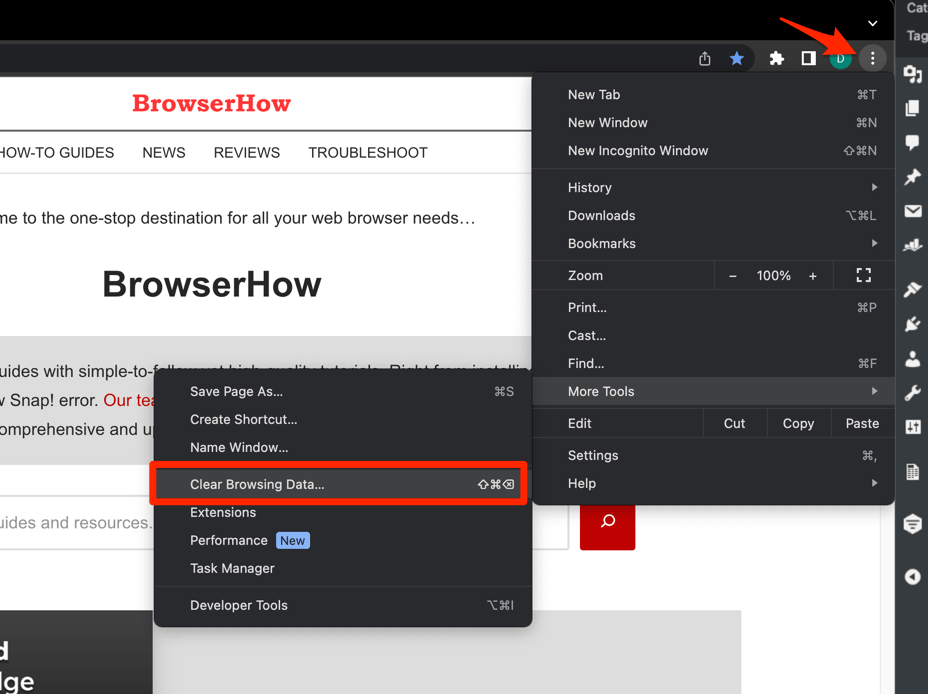 It will open the Clear browsing data settings window.
 - Choose the Time Range from the drop-down and select the checkboxes for the 'Cookies and other site data' and 'Cached images and files' options.
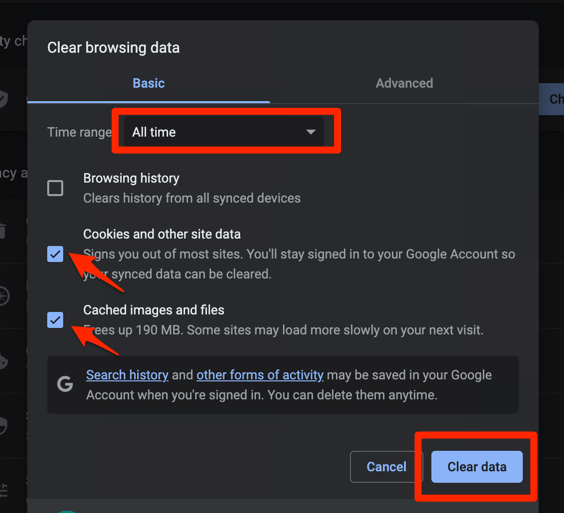
- Finally, hit the command button.
It will delete the stored cookies and cache data from your Chrome browser.
After Chrome finishes clearing, restart it, go to instagram.com, and sign in again. Most “Instagram not working” cases stop here.

Clearing cookies signs you out of every site, not just Instagram. Make sure you know your Instagram password before you do this, or use the “forgot password” flow afterward.
Clear Data for Instagram Only
If you don’t want to clear cookies for every site, you can target just Instagram. This is useful when other sites work fine and only the Instagram tab misbehaves.
Click the three-dot menu at the top right of Chrome and choose Settings. In the left sidebar, open Privacy and security, then click Third-party cookies. Choose See all site data and permissions, search for instagram.com, click the trash icon next to it, and confirm Delete. Reload the Instagram tab and sign in again.
This is the current wording in Chrome; older guides will tell you to look under “Cookies and other site data”, which has been renamed.
Update Google Chrome
Instagram frequently updates its web app to require a current browser. If your Chrome is more than a few weeks behind, the site may refuse to load parts of itself.
- Launch the Google Chrome on your computer.
- Click on More for the options list, and select the Settings menu.

- Switch to the About Chrome tab in the left sidebar pane.
 The browser should automatically start looking for the latest updates.
 - Hit on the button.
 It will complete the Chrome browser update process.
After Chrome relaunches, try Instagram again. A new Chrome version often resolves login loops and “we’re sorry, something went wrong” popups.
The “About Google Chrome” page always shows your current version. If it says “Chrome is up to date”, you’re already on the latest build and can move to the next step.
Disable Chrome Extensions
Ad blockers, privacy extensions, and “fix Twitter/Facebook” extensions are a known cause of Instagram breaking. They block scripts Instagram needs to render the feed and the login flow.
- Launch the Google Chrome on your computer.
- Click on the More for the list menu.
- Hover on the More Tools menu and choose the Extensions sub-menu.
 It will open the Chrome Extensions Manager page with the list of installed extensions.
 - Toggle the switch to Disable the extension.

With extensions disabled, reload Instagram. If it works, re-enable them one at a time to find the culprit. Common offenders include uBlock Origin with custom filters, Privacy Badger, and social-tooling extensions.
TIP: Faster way to test if an extension is to blame: open an Incognito window with + + (Windows) or + + (macOS). Extensions are off by default in Incognito, so a working Incognito tab usually means an extension is the cause.
Check Site Permissions for Instagram (JavaScript, Pop-ups, Images)
Chrome blocks things by default that Instagram relies on. If a previous permission was set to “Block” for instagram.com, the site will silently fail to load images, scripts, or login popups.
Open instagram.com in a tab. Click the tune or lock icon to the left of the address bar and choose Site settings. On the page that opens, check each of these permissions and set them to Allow:
- JavaScript – required for the feed and login to work at all.
- Images – needed to see posts. If blocked, you’ll see empty boxes.
- Pop-ups and redirects – Instagram’s share and external-login windows open as pop-ups.
- On-device site data – controls whether site storage is kept, which affects staying signed in.
You can also reach the same panel from Settings → Privacy and security → Site settings, then scroll to Content and open each permission. Reload Instagram after changing these. You’ll know it worked when images start appearing and the login page stops refreshing itself.
Try Incognito Mode or a Guest Profile
Incognito (and Guest profiles) load Chrome without your extensions, cookies, and most site data. It’s a clean-slate test to confirm whether your normal profile is the problem.
- Launch the Google Chrome on your computer.
- Click on the More menu for the list.
- Select the New Incognito Window option.
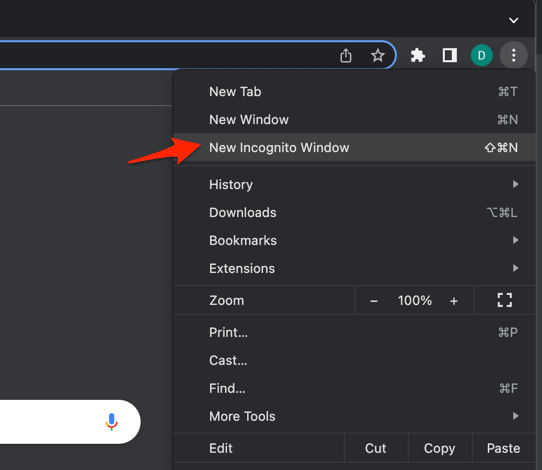 It will start a new incognito window in the browser.
If Instagram loads fine in Incognito but breaks in your regular profile, the cause is something stored in your profile, like a corrupt cookie, an extension, or a custom setting. Go back through the earlier steps and reset that one profile.
Clear Chrome’s Internal DNS Cache
Chrome keeps its own DNS cache that can hold outdated entries for instagram.com and its CDN. If your network changed recently (new router, new ISP, switched DNS), Chrome may still be reaching an old address.
- Launch Google Chrome on your Computer.
- Type in chrome://net-internals/#dns in the address bar, and hit key.
It will open the Chrome DNS network page. - Hit the command button.
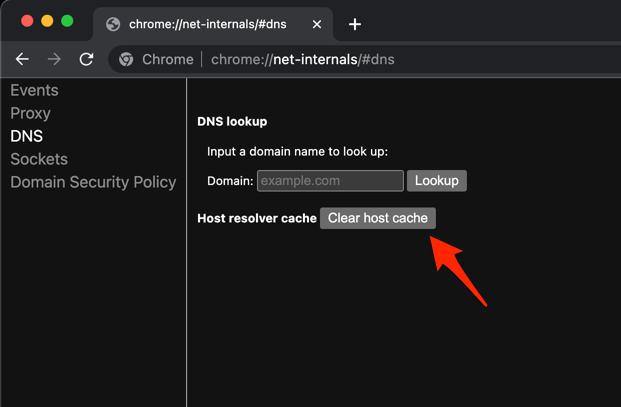
- Relaunch the Chrome browser.
It will clear the Chrome DNS host cache.
Close every Chrome tab, reopen Instagram, and test. This is fast and safe, and is worth doing before the full reset below.
Reset Chrome Settings to Default
If nothing above fixed Instagram, the last step is to restore Chrome’s settings to their factory state. This turns off extensions, clears temporary site data, and resets the homepage, search engine, and pinned tabs. Your bookmarks, history, and saved passwords stay.
- Launch the Chrome browser on the computer.
- Click on the More for menu list, and select the Settings menu.
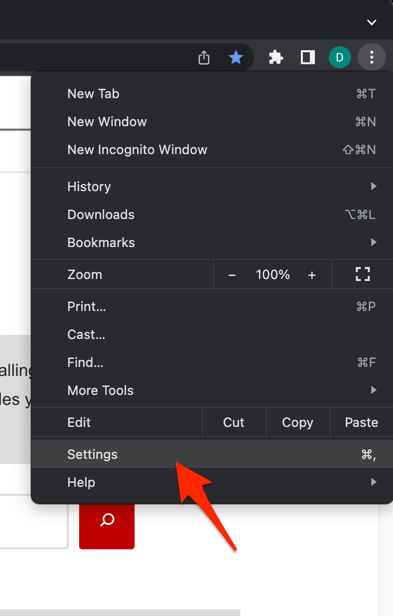 It will open the Chrome browser's Settings page.
 - Switch to the Reset settings tab in the left sidebar, and select Restore settings to their original defaults option.
- Finally, hit the command button.
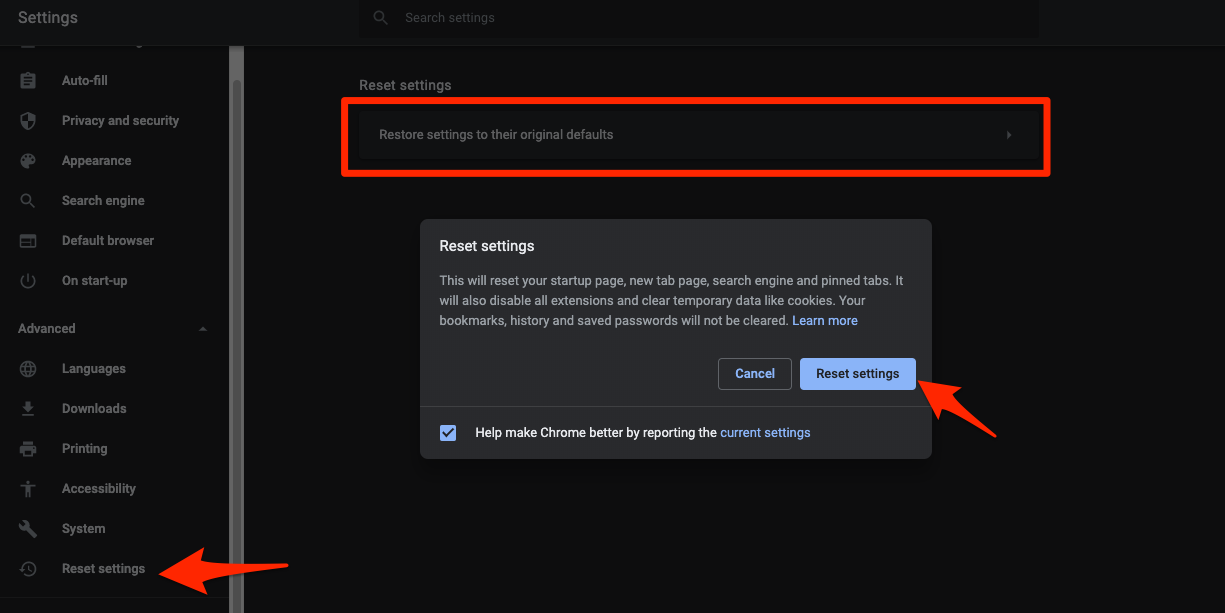 It will reset the Chrome browser settings, clear temporary data, and disable all extensions.
After Chrome restarts, open Instagram and sign in. If Instagram still fails here, the problem is almost certainly on Instagram’s end (an outage or a region-specific block), not in Chrome.
If you use a work or school Chrome profile managed by your organization, the Reset settings option may be disabled by policy. In that case, contact your IT admin, or test Instagram in a personal Chrome profile instead.
Frequently Asked Questions
Why does Instagram keep showing a blank white screen in Chrome?
A blank screen usually means a script on the page failed to run. Clear cookies and cache, allow JavaScript in site settings, and disable extensions. Updating Chrome also fixes this when Instagram has rolled out new code that older versions don’t support.
Why does the Instagram login loop keep sending me back to the login page?
The login loop is almost always caused by corrupted site cookies. Clear cookies for instagram.com from Settings → Privacy and security → Third-party cookies → See all site data and permissions, then sign in again. If the loop persists, also check that third-party cookies aren’t blocked at a system level by your antivirus or firewall.
Can Chrome extensions really break Instagram?
Yes. Ad blockers and privacy extensions routinely block scripts that Instagram needs to render posts and handle logins. Test with an Incognito window: if Instagram works there, an extension is the cause. Re-enable extensions one at a time to find the specific one.
Will resetting Chrome delete my saved Instagram password?
No. Resetting Chrome only restores settings like the homepage, search engine, and tab settings. Your saved passwords in chrome://password-manager are kept, along with bookmarks and history. You will, however, be signed out of every site, including Instagram.
Is the Instagram mobile app a workaround if Chrome won’t load?
Yes. The Instagram mobile app uses different servers and code, so it works even when instagram.com is broken in a browser. If you only need to post or check DMs, the app is the simplest temporary fix while you troubleshoot Chrome.