If Chrome shows "Blocked by your organization" on your personal computer, a managed Chrome policy is restricting what you can download, install, or visit. The trigger is usually a leftover school or work account, a third-party extension, or browser hijacker malware.
Open chrome://policy and chrome://management to confirm what is managing Chrome. Then remove the profile, extension, registry key, or macOS profile that set the policy.
In this guide, I have covered:
Contents
What “Blocked by Your Organization” Means in Chrome
Chrome shows “Blocked by your organization” when a managed policy stops the action you just tried. You may see it while downloading a file, installing an extension, or opening a specific website.
The message does not always mean a real company controls your computer. It appears whenever a Chrome policy is active. Leftover school enrollment, an extension that sets local policies, or adware that hijacked Chrome’s settings can all trigger it.

Chrome’s consumer Settings page does not expose a toggle to disable these policies. When a policy is set, the matching option is greyed out. The fix is to remove the policy itself, not to flip a setting.
Confirm Chrome Is Managed by a Policy
Open the  three-dot menu at the top right of Chrome and look at the very bottom of the menu. If you see “Managed by your organization,” a policy is in effect.
You can also navigate to chrome://management to see whether Chrome lists a managing organization. Go to chrome://policy to view every active policy and its source.
The Source column in chrome://policy is the most useful column. It tells you whether the policy came from a platform source (Windows Registry or macOS), a cloud source (your signed-in account), or an installed extension.
Identify Which Policy Is Blocking the Action
The exact warning depends on what Chrome is blocking. Downloads show “Blocked by your organization” in the download flyout, with a secondary security-check line on Windows. Extension installs show the same wording on the extensions page. Restricted sites show “This website is blocked by your organization” or “Your organization doesn’t allow you to view this website.”
Open chrome://policy and look for an entry whose name suggests the blocked action, such as downloads, extensions, or specific sites. The Source column next to each entry tells you where the policy is stored. That is the part you will need for the next steps.
Sign Out of the Managed Profile or Switch Profiles
If the policy source is Cloud or Profile, the simplest fix is to sign out of the managed account or remove that profile. Cloud policies follow the signed-in Google account. Signing out lifts them on that profile.
You can manage profiles from the profile avatar at the top of Chrome or by going to chrome://settings/people. You can also add a separate personal profile so the managed one stays signed in without affecting your downloads.
Cloud policies attached to a work or school Google account usually cannot be removed by the user. If you need that account for school or work, use a different profile or browser for personal downloads.
Remove Suspicious Extensions That Set Local Policies
Some extensions write policies directly to chrome://policy using the Storage.managed API. Coupon finders, “PDF converters,” and “video downloaders” from outside the Chrome Web Store are common culprits. Their policies show up with a Source that matches the extension’s ID.
If you want a baseline for a properly installed extension, see how to download and set up the LastPass extension.
- Launch the Google Chrome on your computer.
- Click on the More for the list menu.
- Hover on the More Tools menu and choose the Extensions sub-menu.
 It will open the Chrome Extensions Manager page with the list of installed extensions.
 - Toggle the switch to Disable the extension.

Disable every extension and see whether the message goes away. If it does, re-enable them one at a time to find the offender, then remove it permanently. You’ll know it worked when chrome://policy no longer lists a policy from that extension ID.
Reset Chrome Settings and Clear Browsing Data
Resetting Chrome restores the startup page, new tab page, search engine, and pinned tabs to their defaults. It also disables all extensions and clears temporary site data like cookies. It does not remove extensions you installed on purpose, but it does flush extensions that were added by malware.
After the reset, the “Managed by your organization” message should be gone if the policy came from an extension or local hijacker. If it is still there, the policy lives at the operating-system level and you need to keep going.
Here are the steps to reset the Chrome settings:
- Launch the Chrome browser on the computer.
- Click on the More for menu list, and select the Settings menu.
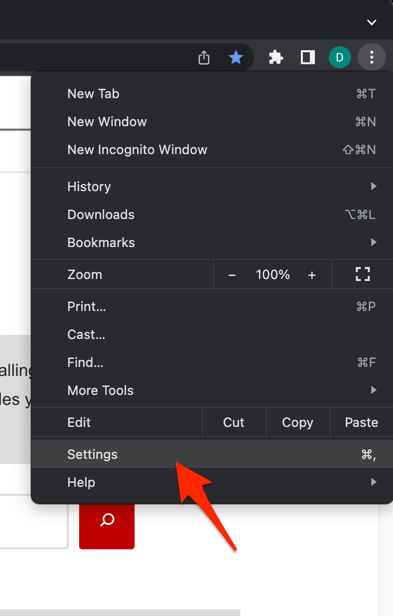 It will open the Chrome browser's Settings page.
 - Switch to the Reset settings tab in the left sidebar, and select Restore settings to their original defaults option.
- Finally, hit the command button.
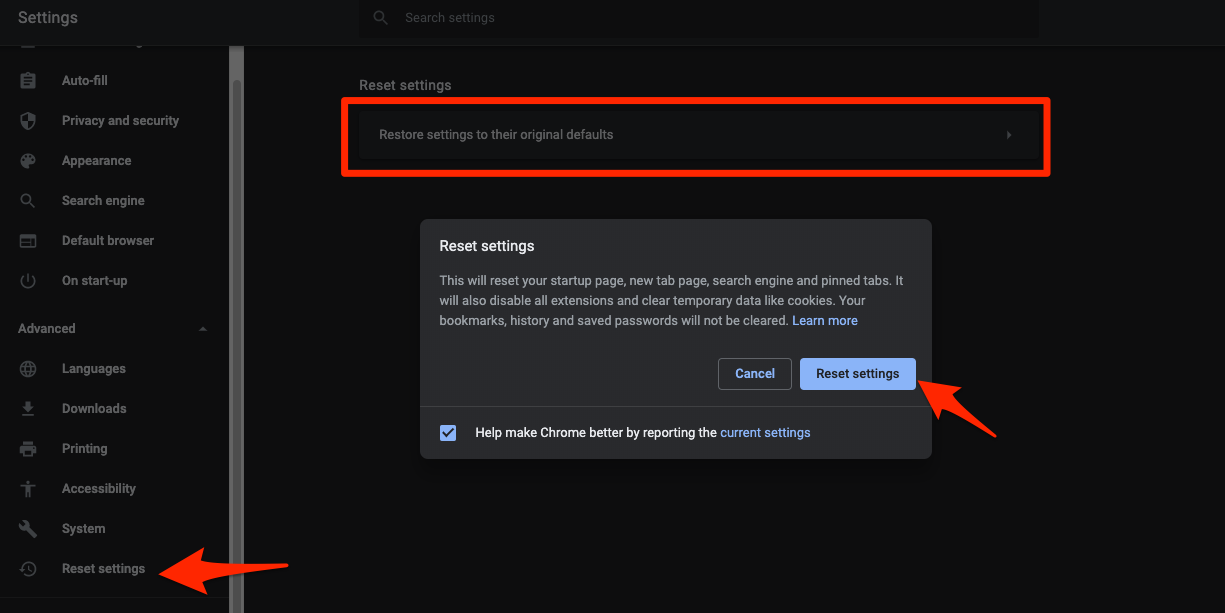 It will reset the Chrome browser settings, clear temporary data, and disable all extensions.
Here are the steps to clear the browsing data:
- Open the Google Chrome on your computer.
- Click on the More for menu options, and hover on the More Tools menu.
- Select the Clear Browsing Data... sub-menu from the list.
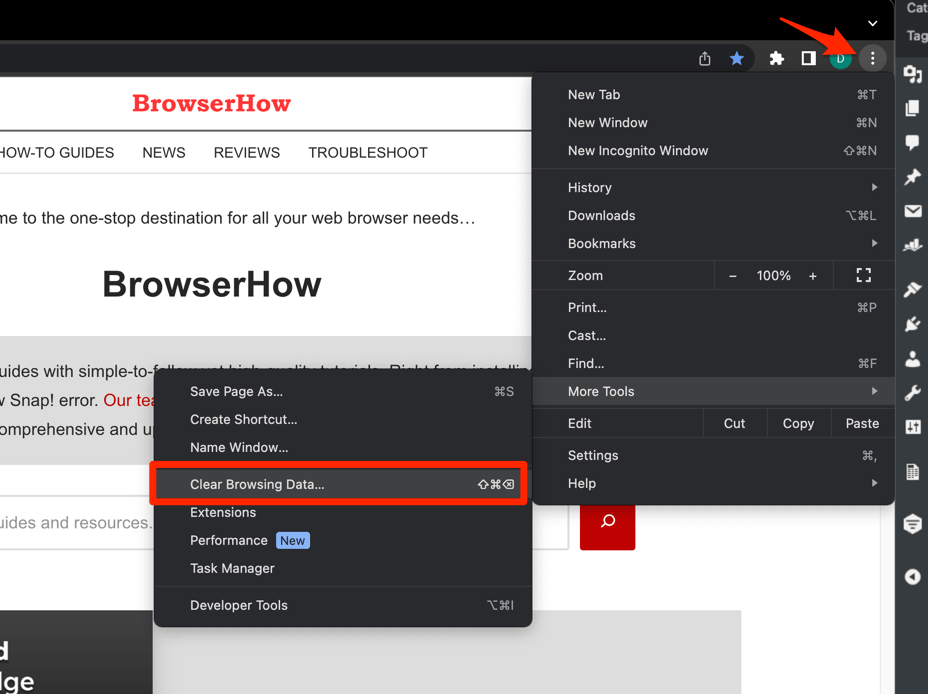 It will open the Clear browsing data settings window.
 - Choose the Time Range from the drop-down and select the checkboxes for the 'Cookies and other site data' and 'Cached images and files' options.
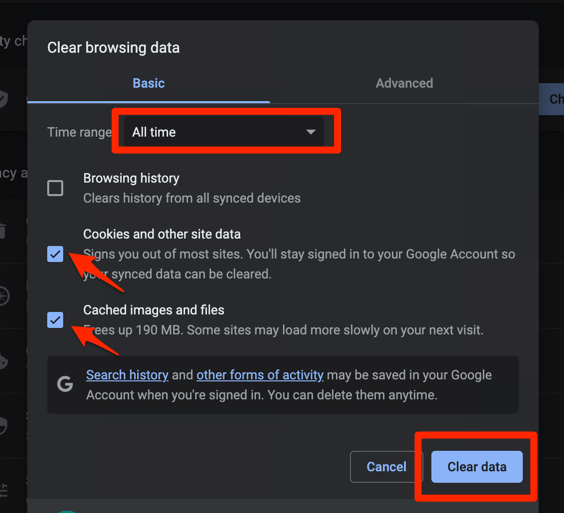
- Finally, hit the command button.
It will delete the stored cookies and cache data from your Chrome browser.

TIP: Clearing cookies signs you out of most sites. Make sure you have any saved passwords, two-factor codes, or in-progress work backed up before you run the clear data step.
Remove Chrome Enrollment from the Windows Registry
On Windows, leftover school or company enrollment stores keys in the Windows Registry. Chrome reads them on every launch, so the policy returns even after a reset. Editing the registry requires a local administrator account.
The keys to inspect live under HKEY_LOCAL_MACHINE\\SOFTWARE\\Policies\\Google\\Chrome and HKEY_CURRENT_USER\\SOFTWARE\\Policies\\Google\\Chrome. If either key exists and contains policy values, that is your source. Export the key first, then delete the Google\\Chrome subkey and restart Chrome.

ALERT: Only delete the Google\\Chrome subkeys under Policies. Do not delete the parent Policies key, and export a backup first so you can restore if anything goes wrong.
After restarting, revisit chrome://policy. The entries should be gone, and the three-dot menu should no longer say “Managed by your organization.”
Remove Chrome Profiles on macOS
On a Mac, managed Chrome is configured through configuration profiles installed by your school or employer. These live in System Settings rather than in Chrome itself. Chrome’s reset cannot remove them.
Open System Settings, then go to General, then Profiles (on macOS Ventura 13 and later) or System Preferences, then Profiles (on older versions). Select the profile that installs Google Chrome policies and click the minus button to remove it. Enter your administrator password when prompted.
TIP: If you do not see a Profiles item in System Settings, Chrome is not managed by an MDM profile on that Mac. The policy is coming from somewhere else, usually an extension or your signed-in Google account.
If you use Safari on the same Mac, its download rules are separate from Chrome. See how to allow or deny downloads from sites in Safari on Mac if you need to sort those out separately.
Scan for Malware and Adware
Browser hijackers can install Chrome policies as part of their persistence. A Chrome reset removes the in-browser half, but the Windows-side or macOS-side half can survive if the underlying malware is still running. Run a full scan with a reputable on-demand scanner before assuming the fix worked.
Chrome’s built-in cleanup tool also helps. Open chrome://settings/cleanup from the address bar and run “Find harmful software.” It uses ESET’s engine to flag known hijackers.
- Launch the Google Chrome on your computer.
- Click on More for the options list, and select the Settings menu.

- Switch to the About Chrome tab in the left sidebar pane.
 The browser should automatically start looking for the latest updates.
 - Hit on the button.
 It will complete the Chrome browser update process.
Update Chrome so the cleanup scan has the latest list of known bad actors. You’ll know it worked when chrome://policy no longer shows policies you did not create.
Reinstall Chrome as a Last Resort
If every other step still leaves “Managed by your organization” at the bottom of the menu, a full reinstall is the cleanest fix. Uninstall Chrome from Settings. Then manually delete the leftover Google folders under %ProgramFiles(x86)% and %LOCALAPPDATA% on Windows, or drag the Chrome app to the Trash on macOS.
Download a fresh copy and sign in only with the Google account you actually want to use. The new profile should not carry over any cloud policies from a removed enrollment.
- Open the system's default web browser on your computer.
- Visit the official Google Chrome website download page.
- Click the button.
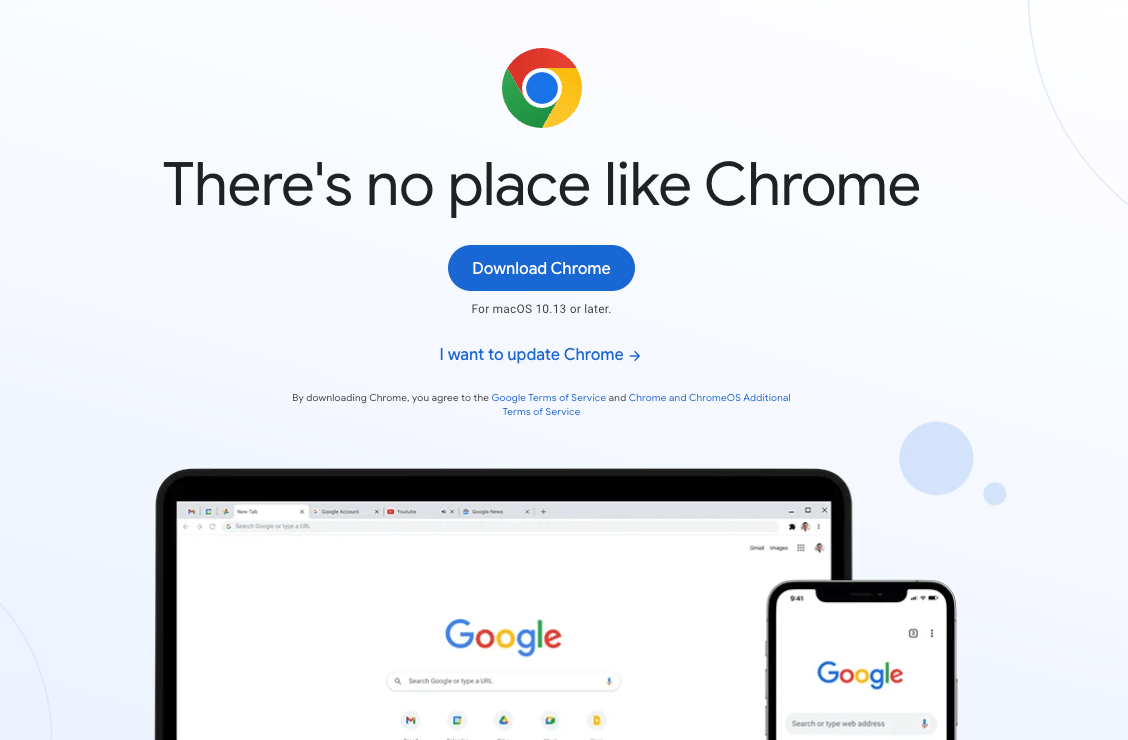 The site will automatically detect your operating system to download compatible installer files.
 - Open and run the installer file from the Downloads folder in your system.
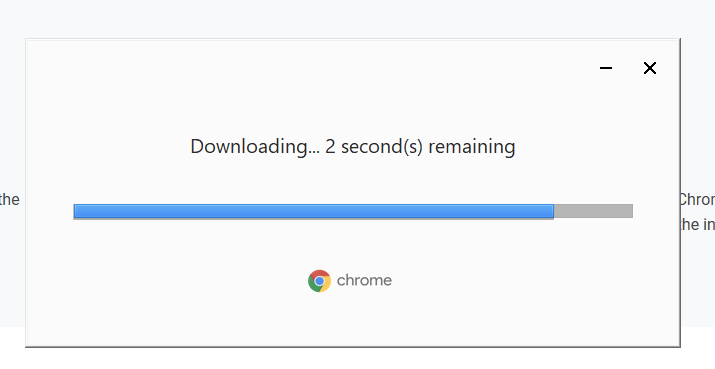
- Follow the on-screen instructions to install the latest Chrome browser.
If the same message reappears immediately after reinstall and sign-in, the policy is following your Google account. You will need to use a different account or profile for this device. The same “Blocked by your organization” message can also appear on Chrome for Android when an MDM app enforces a policy. You can confirm what is restricted through Chrome’s site settings on Android.

Frequently Asked Questions
Why does Chrome say “Blocked by your organization” on my personal laptop?
Chrome uses the same “Managed by your organization” indicator for any active policy. A leftover school or work account, an extension that sets local policies, or browser hijacker malware can trigger it. The fact that the laptop is yours does not matter. Chrome cares only whether a policy is active.
Does resetting Chrome remove organization policies?
Chrome’s reset clears settings and disables extensions, which removes policies set by extensions. It does not remove cloud policies tied to a signed-in Google account. It also leaves policies stored in the Windows Registry or macOS Profiles alone. Those need separate cleanup steps.
How do I know which specific policy is blocking me?
Open chrome://policy and look at the Policy Name and Source columns. The name tells you what is restricted. The source (Cloud, Platform, or an extension ID) tells you where the policy lives so you can remove it.
Is the “Blocked by your organization” message itself a virus?
The message is a genuine Chrome warning, not malware. It just means something on your computer or in your Google account has turned on a policy. The real risk is the underlying policy source, especially if it is an unknown extension or a hijacker.
Can I disable Chrome organization policies without an administrator account?
You can usually remove policies set by extensions and profiles without admin rights. Removing policies stored in the Windows Registry requires a local administrator account. On macOS, removing MDM profiles also requires the admin password. Without those rights, the policy will keep coming back.