When Facebook is not working in Chrome, the cause is usually local to your browser, not Facebook itself. A stale cookie, a broken cache file, or a misbehaving extension can block the News Feed, login, and chat without affecting any other site.
Work through the fixes in this order: open an Incognito window, clear Facebook's cookies and cache, disable extensions, update Chrome, turn off hardware acceleration, reset settings, and reinstall only if nothing else works. You can usually recover access without changing your Facebook password.
In this guide, I have covered:
Contents
Why Facebook Is Not Working in Chrome
When Facebook is not working in Chrome (pages that won’t load, a stuck News Feed, a login loop, or broken images), the cause is almost always local to your browser, not Facebook itself. Chrome stores cookies, cached images, JavaScript files, and service worker data for facebook.com. Any one of those can fall out of sync after an update, an extension change, or a power outage.
The usual culprits are corrupted cookies, outdated cached files left over from a previous Facebook version, an over-aggressive ad blocker or privacy extension, an outdated Chrome build, or a hardware acceleration conflict on certain GPUs. You can fix all of them without leaving Chrome, and you do not need to delete your Facebook account or reset your password.

TIP: Before changing any settings, open Facebook in a Chrome Incognito window with extensions disabled. If Facebook works there, the problem is your stored data or an extension, not Facebook’s servers.
Quick Checks Before Changing Chrome Settings
You may not need to change any Chrome settings yet. Two quick checks catch the most common culprits.
1. Test Facebook in an Incognito Window
Incognito mode loads Facebook with no cookies and no extensions active. If Facebook works there, the issue lives in your main Chrome profile’s data or extensions.
- Launch the Google Chrome on your computer.
- Click on the More
 menu for the list.
 - Select the New Incognito Window option.
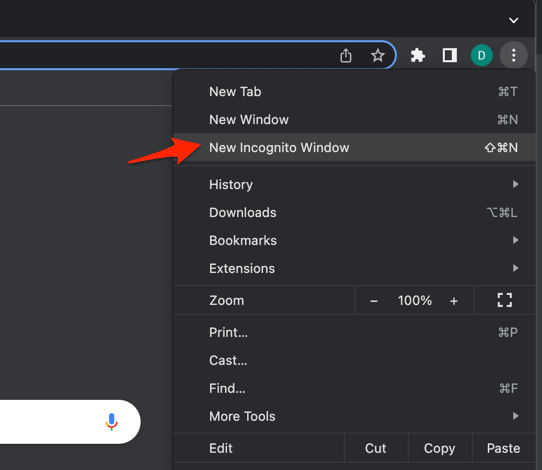 It will start a new incognito window in the browser.
Press + + (Windows, Linux, Chromebook) or + + (Mac) at any time to open one quickly. Visit Facebook and look for a normal login page. You’ll know it worked when the News Feed loads without the errors you saw before.
2. Check Whether Facebook Is Down for Everyone
If Facebook still fails in Incognito, the outage may be on Facebook’s side. Open facebook.com in another browser on the same computer, or on your phone. If it loads there but not in Chrome, move to the fixes below.
Verify Your Internet Connection Works
A weak or throttled connection can look like Facebook is broken because videos and images stall while part of the page loads. Run a quick speed test to confirm your network is delivering enough traffic to facebook.com.
- Launch the web browser on your device.
- Open the https://fast.com in the address bar.
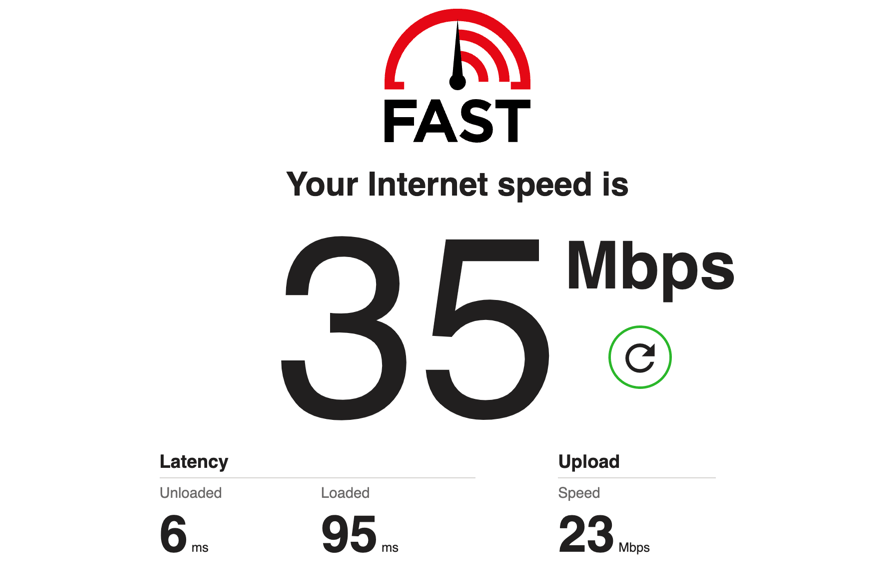
The internet speed test will begin and display the results after completion of the test.
If the test reports a healthy connection but Facebook still will not load, the problem is inside Chrome. Move on to the next fix.
Clear Facebook’s Cookies and Cached Files
If Facebook signs you out, loads slowly, or shows a stale feed after a Chrome update or Facebook rollout, corrupted cookies and cache are the usual cause. Clearing them forces Chrome to download fresh data from facebook.com.
- Open the Google Chrome on your computer.
- Click on the More for menu options, and hover on the More Tools menu.
- Select the Clear Browsing Data... sub-menu from the list.
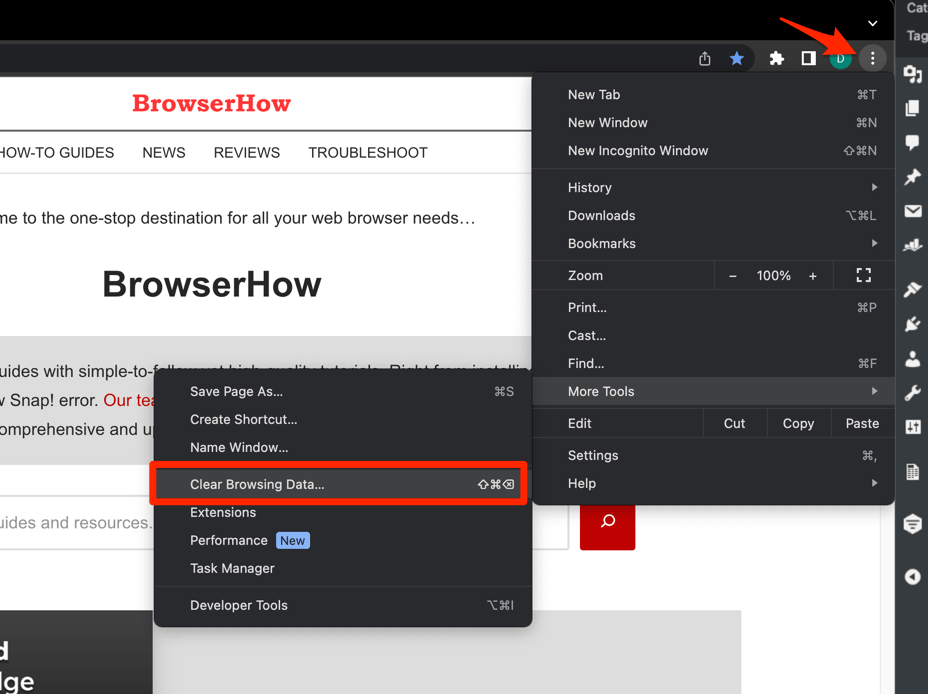 It will open the Clear browsing data settings window.
 - Choose the Time Range from the drop-down and select the checkboxes for the 'Cookies and other site data' and 'Cached images and files' options.
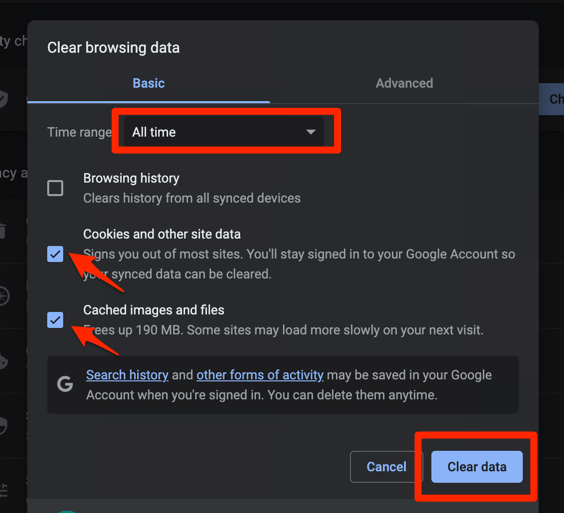
- Finally, hit the command button.
It will delete the stored cookies and cache data from your Chrome browser.
After clearing, close every Chrome window and reopen Facebook. You will need to sign in again because your session cookie has been removed. You’ll know it worked when Facebook asks for your login and then loads the News Feed normally.

If you only want to remove Facebook’s data and keep cookies for every other site, open chrome://settings/cookies, search for facebook.com, and delete just those entries. This is faster and avoids signing you out of every site you use.
Disable Chrome Extensions That May Block Facebook
If Facebook works in Incognito but not in your normal Chrome profile, an extension is likely to blame. Ad blockers, privacy tools, and translation extensions often stop the JavaScript files Facebook needs for the News Feed, chat, and login.
- Launch the Google Chrome on your computer.
- Click on the More for the list menu.
- Hover on the More Tools menu and choose the Extensions sub-menu.
 It will open the Chrome Extensions Manager page with the list of installed extensions.
 - Toggle the switch to Disable the extension.

Reload Facebook after disabling each extension. You’ll know it worked when the page loads correctly after one particular extension is off. Then keep it disabled for facebook.com or remove it entirely.
Update Google Chrome to the Latest Version
If Facebook stops loading after you have put off Chrome updates, the old browser build may be the problem. Facebook relies on modern web APIs that older Chrome builds no longer support.
- Launch the Google Chrome on your computer.
- Click on More for the options list, and select the Settings menu.

- Switch to the About Chrome tab in the left sidebar pane.
 The browser should automatically start looking for the latest updates.
 - Hit on the button.
 It will complete the Chrome browser update process.
Relaunch Chrome after the update, then open Facebook again. You’ll know it worked when Facebook loads without the previous error.
Turn Off Hardware Acceleration in Chrome
If Facebook videos freeze or the feed goes blank on an older computer, Chrome’s hardware acceleration may be at fault. Turning it off forces Chrome to use the CPU for those tasks, which is slower but more reliable.
- Open Chrome Settings.
- Click System in the left sidebar. (If your Chrome still groups it under an expandable Advanced section, the path is Settings > Advanced > System.)
- Toggle Use graphics acceleration when available on or off, then relaunch Chrome.
Reload Facebook after the relaunch. You’ll know it worked when videos play and the feed scrolls smoothly instead of freezing.
Reset Chrome Settings to Default
If nothing above worked, a corrupted setting inside Chrome (a bad startup page, a hijacked search engine, a misconfigured site permission) may be the culprit. Resetting Chrome returns all settings to their factory state without deleting your bookmarks or saved passwords.
- Launch the Chrome browser on the computer.
- Click on the More for menu list, and select the Settings menu.
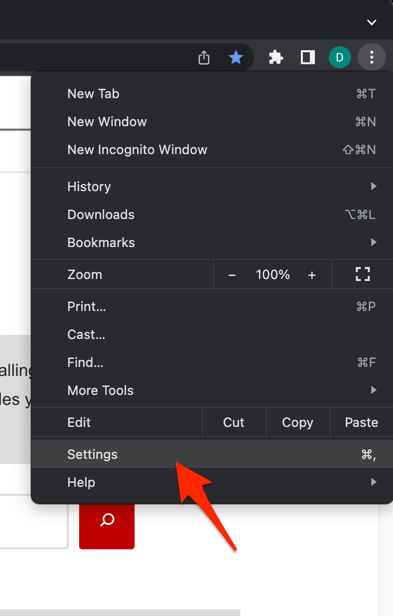 It will open the Chrome browser's Settings page.
 - Switch to the Reset settings tab in the left sidebar, and select Restore settings to their original defaults option.
- Finally, hit the command button.
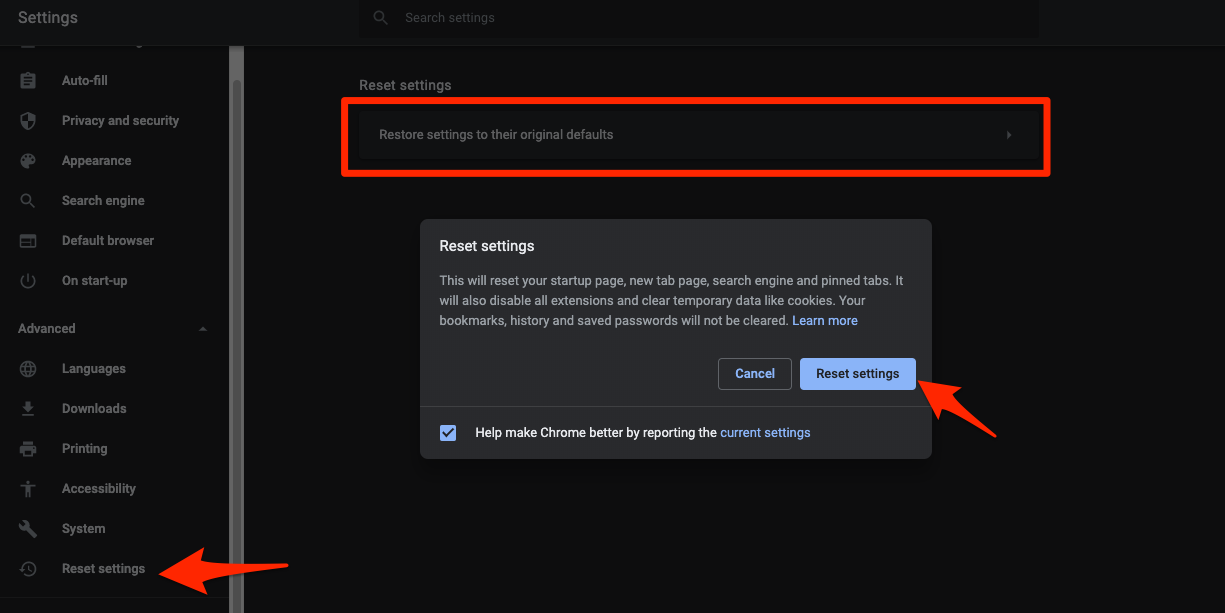 It will reset the Chrome browser settings, clear temporary data, and disable all extensions.
After the reset, reopen Chrome and go to Facebook. You’ll know it worked when the News Feed loads and you can log in normally.
Chrome’s reset does not remove your bookmarks, history, or saved passwords. It only resets startup pages, pinned tabs, extensions, themes, and site permissions back to defaults.
Reinstall Google Chrome as a Last Resort
If Facebook still will not load after every step above, your Chrome installation itself may be damaged. Uninstalling and reinstalling Chrome replaces every core file with a fresh copy and almost always clears up stubborn issues.
- Open the system's default web browser on your computer.
- Visit the official Google Chrome website download page.
- Click the button.
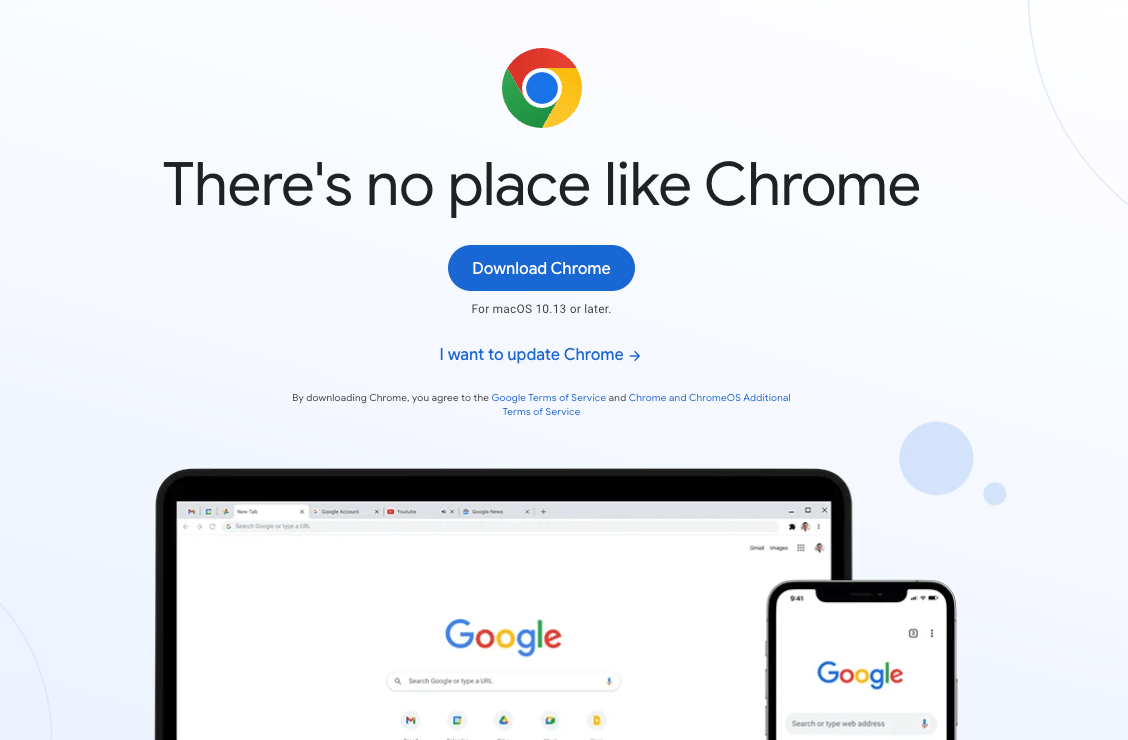 The site will automatically detect your operating system to download compatible installer files.
 - Open and run the installer file from the Downloads folder in your system.
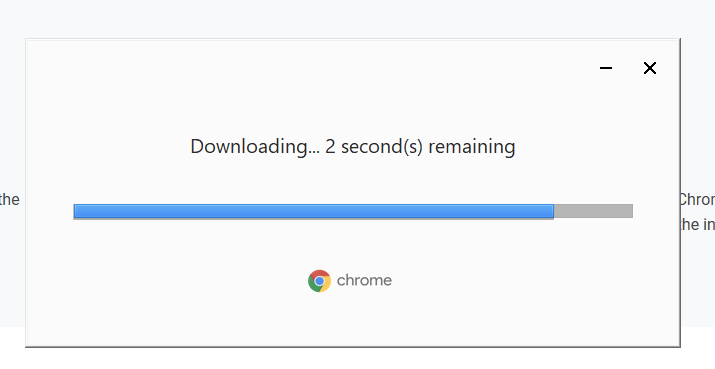
- Follow the on-screen instructions to install the latest Chrome browser.
Sign in to Chrome before you reinstall so your bookmarks, passwords, and extensions sync to your Google account. After you reinstall and sign back in, your data reappears automatically.
Open Facebook after the fresh install. You’ll know it worked when the News Feed loads and login behaves normally.

Frequently Asked Questions
If you have already tried the fixes above and still have questions, these answers clear up the most common points.
Why does Facebook work in Chrome on my phone but not on my computer?
The desktop Chrome stores its own cookies and cache, separate from the mobile app or Chrome on Android. When the desktop Chrome data goes stale, only that profile is affected. Clearing cookies and cache on the desktop Chrome, as described above, fixes the mismatch.
Will clearing Chrome’s cookies log me out of every site?
Only if you use the full option. To log out of Facebook alone, use the targeted method above: open chrome://settings/cookies, search facebook.com, and remove just those entries.
Do I need to reset my Facebook password to fix this?
No. Chrome-side issues with cookies, cache, extensions, and updates are unrelated to your Facebook account itself. Changing your password is only needed if Facebook itself reports a login problem, not a Chrome loading problem.
Can a Chrome extension really break Facebook completely?
Yes. Extensions like ad blockers, privacy guards, and script blockers routinely intercept the JavaScript Facebook needs to render the News Feed. Disabling them and reloading is the fastest way to confirm whether an extension is at fault.
What if Facebook still does not work after reinstalling Chrome?
The cause is almost certainly outside Chrome by then, such as a router-level block, a corporate firewall, or an actual Facebook outage. Try Facebook on a different device on the same network, then on a different network entirely, to narrow it down.