Chrome 154 stable is now rolling out to Windows, Mac, and Linux. Google has promoted the build to the stable channel, and desktop users will receive it over the coming days and weeks.
The update ships the usual set of fixes and improvements tracked in the Chromium changelog. Chrome and Chromium blog posts with feature details are expected after broader rollout completes.
In this guide, I have covered:
Contents
Chrome 154 Rolls Out to Stable for Windows, Mac, and Linux
Google has promoted Chrome 154 to the stable channel for Windows, Mac, and Linux. The official stable channel announcement lists a number of fixes and improvements, with the full set documented in the Chromium changelog. Chrome and Chromium blog posts will follow with more details on new features and larger efforts delivered in this release.
Chrome 154 Desktop Build Numbers
Desktop build numbers for Chrome 154 are:
- Windows: 154.0.8037.57 or 154.0.8037.58
- Mac: 154.0.8037.57 or 154.0.8037.58
- Linux: 154.0.8037.57

Chrome stable updates roll out in phases over several days or weeks, so your browser may not update immediately. If the new version has not reached your device, wait a few hours and try again.
How to Update Chrome on Your Computer
If Chrome has not updated on its own, open the About page to start the update check or follow the steps below.
- Launch the Google Chrome on your computer.
- Click on More
 for the options list, and select the Settings menu.
- Switch to the About Chrome tab in the left sidebar pane.
 The browser should automatically start looking for the latest updates.
 - Hit on the button.
 It will complete the Chrome browser update process.
Relaunch Chrome when prompted and confirm the new version on the About Chrome page. If no update shows up, give it some time. Desktop rollouts are always phased.
How to Update Chrome on Android
Android usually gets the matching Chrome 154 update a little later than desktop. If you want it as soon as it lands on your device, use the steps below.
- Open the Google Play Store on your Android device.
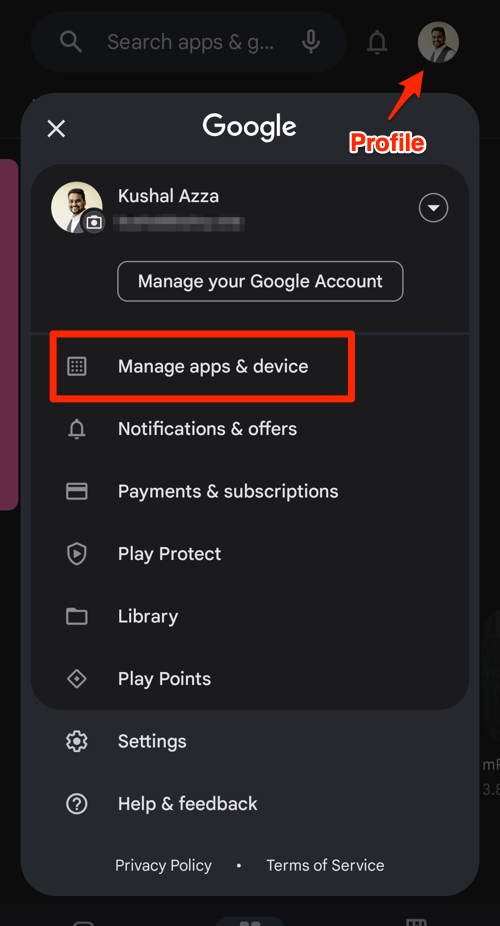
- Tap the Profile icon from the top right corner, and select the Manage apps & device menu.
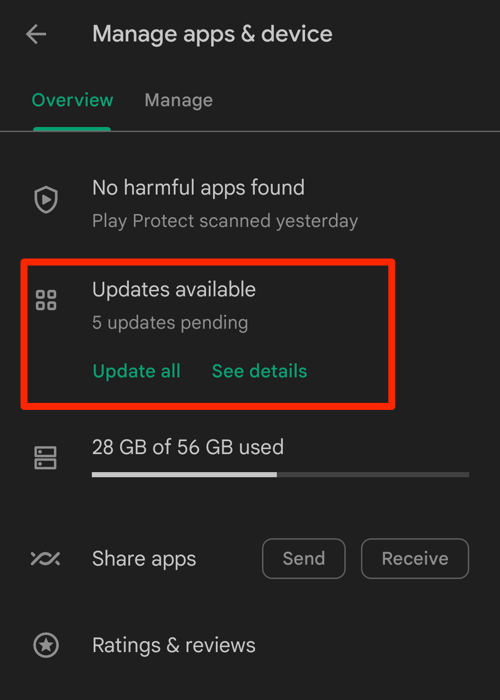
- Tap on the See details command under the Updates available menu.
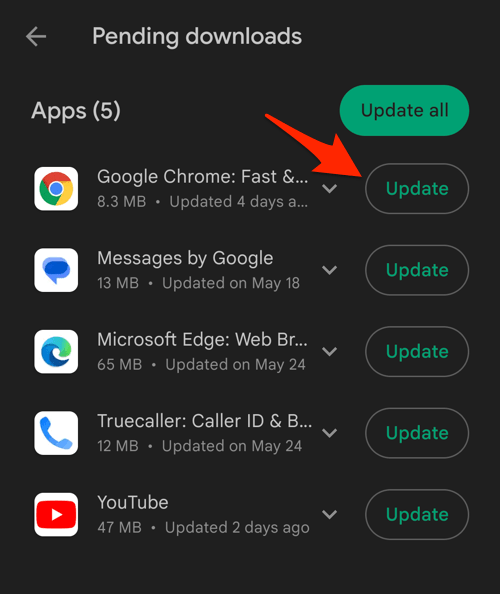
- If Chrome is on the list of apps with available updates, tap on next to it.
Open Chrome after updating to confirm the new version is running. If the Play Store still lists the previous build, the rollout has not reached your account yet.
How to Update Chrome on iPhone
iPhone and iPad users typically receive the matching Chrome 154 build shortly after desktop. Use the App Store steps below to check.
- Open the App Store on your iPhone.
- Tap on your Profile icon in the top right corner.
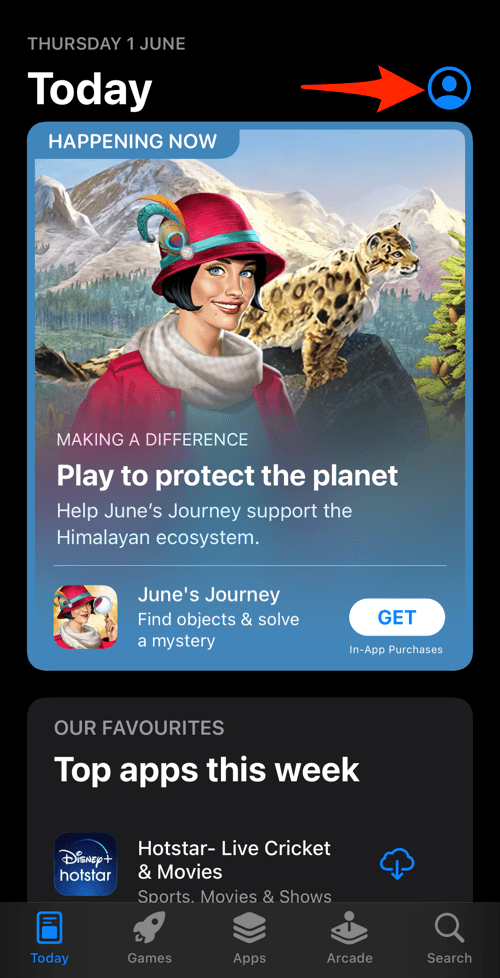
- Scroll down to the Available Updates section.
- If an update for Chrome is available, tap on next to it.
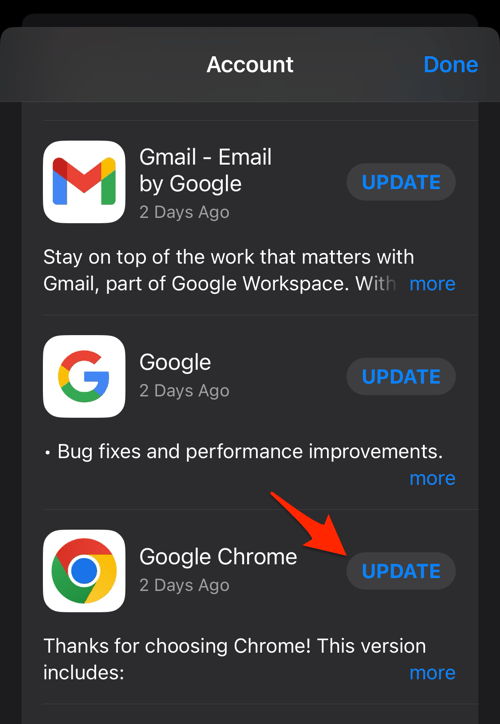
Relaunch the app after updating and verify the new version under Settings. iOS rollouts are staggered, just like desktop.
Check Your Chrome Version
You can confirm which Chrome build is installed by opening chrome://settings/help on desktop or by going to Chrome Settings, then About Chrome, on mobile. The page will show the current version and trigger an update check on desktop.