A blank Pinterest feed, pins that never load, or a sign-in that loops back on itself all look like Pinterest is down. Most of the time the site is fine and Safari is the one getting in the way.
Run a private-window test first, then check cookies, pop-ups, and stale Pinterest website data. Mac steps come first, with separate iPhone steps further down.
In this guide, I have covered:
Contents
Pinterest Not Working? Check Whether the Site or Safari Is at Fault
A blank feed, pins that never appear, or buttons that do nothing all look identical from the outside. What you need to know first is whether Pinterest is down or Safari is blocking it.
Run this separation test before you touch a single setting.
- Open a different website in Safari to confirm that other pages load.
- Open pinterest.com in a new tab.
- Complete the sign-in prompt if Pinterest displays one.
- Reload the Pinterest tab.
If other websites fail too, your connection is the problem, not the browser. If everything else loads and Pinterest does not, work through the checks below.
Test Pinterest in Private Browsing
If Pinterest loads in a Private Browsing window but fails in a normal tab, you just learned something specific: your saved site data is the suspect. A private window keeps its own cookies and temporary data, apart from your everyday browsing.
- Open a new Private Browsing window in Safari.
- Go to pinterest.com.
- Complete the sign-in prompt if Pinterest asks for it.
Pinterest working here sends you straight to the website-data cleanup. If it still fails in private mode, extensions, permissions, or your Safari version are the likelier causes.

TIP: Private Browsing is a diagnostic test, not a fix. If Pinterest works there, remove its saved website data next.
Turn Off Safari Extensions on Mac
Did Pinterest start misbehaving around the time you installed a content blocker? Extensions are the usual reason scripts and Save buttons go dead.
One exception is worth knowing up front: Pinterest’s Save extension supports Chrome, Firefox, and Edge, not Safari. If you depend on it, one of those browsers is your answer.
- Launch the Apple Safari app on your Mac computer.
- Click on the Safari menu from the menu bar at the top, and select Settings... sub-menu.
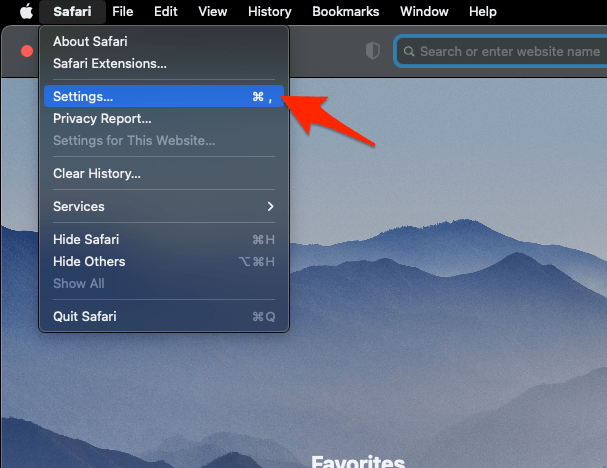 It will open the Safari Settings window.
- Switch to the Extensions tab in the Settings window.
It will display the list of all the Safari extensions installed. - Uncheck the checkbox in the left side pane to Disable the extension.
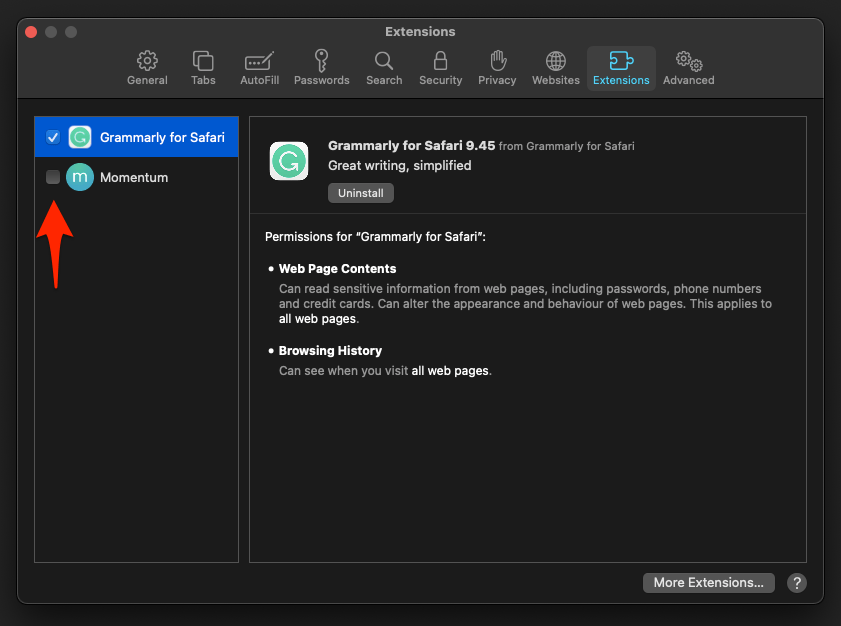
Reopen Pinterest and try a pin. You’ll know it worked when the feed and buttons come back with extensions off. Switch them on one at a time to find the one that breaks it.
Allow Cookies and Pop-ups for Pinterest on Mac
A sign-in that loops back to the login page, or a Save button that silently does nothing, usually comes down to blocked cookies or blocked pop-ups. Pinterest needs both to work.
- Open the Safari menu.
- Select Settings….
- Select Websites.
- Open pinterest.com in another tab if Pinterest is not listed.
- Return to the Websites list.
- Select pinterest.com.
- Set Pop-ups to Allow Pop-ups.
- Select Privacy.
- Turn off Block all cookies if it is enabled.
- Close the Settings panel.
- Reopen Pinterest in a new tab.
You’ll know it worked when the feed fills in and Save buttons open the way they should.
For the full set of cookie controls, see Block or Allow Browser Cookies in Safari on Mac.
Remove Pinterest Website Data on Mac
A reload does nothing for Pinterest? Safari may be holding onto cookies and cached site data from an earlier visit. Removing that data resets Pinterest only, so nothing else on your Mac is affected.
- Open the Safari menu.
- Select Settings….
- Select Privacy.
- Choose Manage Website Data.
- Search for pinterest.com.
- Select the Pinterest entry.
- Click .
- Click if a confirmation appears.
- Reopen Pinterest in a new tab.
If the Website Data window opens blank or refuses to open at all, fix that first: Fix Safari Manage Website Data Not Showing or Blank on Mac.
Pinterest should now behave like a first visit. Sign in again if the removal ended your session.
Clear All Safari Cache and Cookies on Mac
Still broken after the targeted cleanup? A full cache and cookie clear is the next step, and a blunt one: it wipes data for every website, not just Pinterest.
Reopen Pinterest and sign in again. You’ll know it worked when the site loads normally with a fresh session. If it does not, move on to updates.

Clearing cookies can sign you out of Pinterest and other websites. Save any open work before running this full cleanup.
Clear Safari Cache and Cookies on iPhone
On iPhone, the same stale-data problem looks like a Pinterest page that half-loads or spins on the sign-in screen. Safari’s website data controls are where you clear it.
Open Pinterest in Safari and sign in if prompted. The page should load as if you had never visited it before. Apple’s Safari privacy guide shows where the Website Data controls sit in current iOS versions.
This cleanup can sign you out of Pinterest and other websites, so sign in again after it finishes.
Turn Off Safari Extensions on iPhone
When Pinterest text and images load but chunks of the page go missing on iPhone, a content blocker is usually behind it. Turn them off temporarily before changing anything else.
- Open the Settings app.
- Select Apps.
- Select Safari.
- Select Extensions.
- Turn off the switch beside each content blocker or extension that could block page content.
- Open Pinterest in Safari.
- Reload the Pinterest page.
If Pinterest starts working, you have found the cause. Re-enable the blockers one by one and stop at the one that breaks the page. If no extensions appear in the list, skip this check.
Update Safari on Mac
If none of the earlier checks brought Pinterest back, the next thing to rule out is an outdated browser. Safari updates arrive with macOS, so an old Safari usually means an old system.
- Click on the Apple
 menu from the menu bar and select the System Settings... sub-menu.
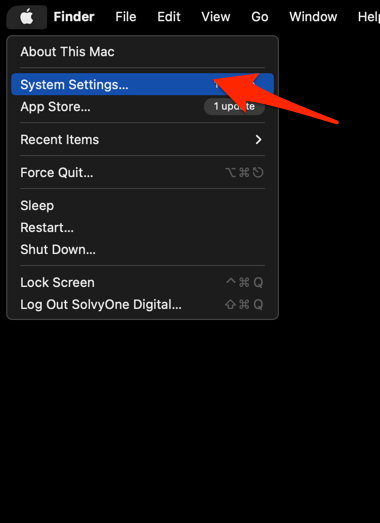 It will open the System Settings window.
- Select the General tab in the left sidebar, and choose the Software Update tab.
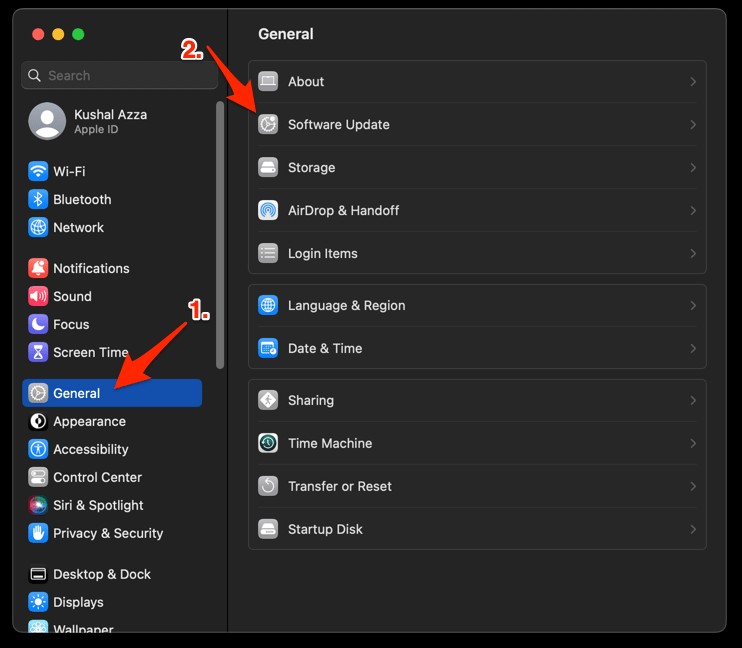 The macOS System will check for any available upgrades in the background.
- Click on the More Info... tab and enable the checkbox for Safari updates (if any are available).
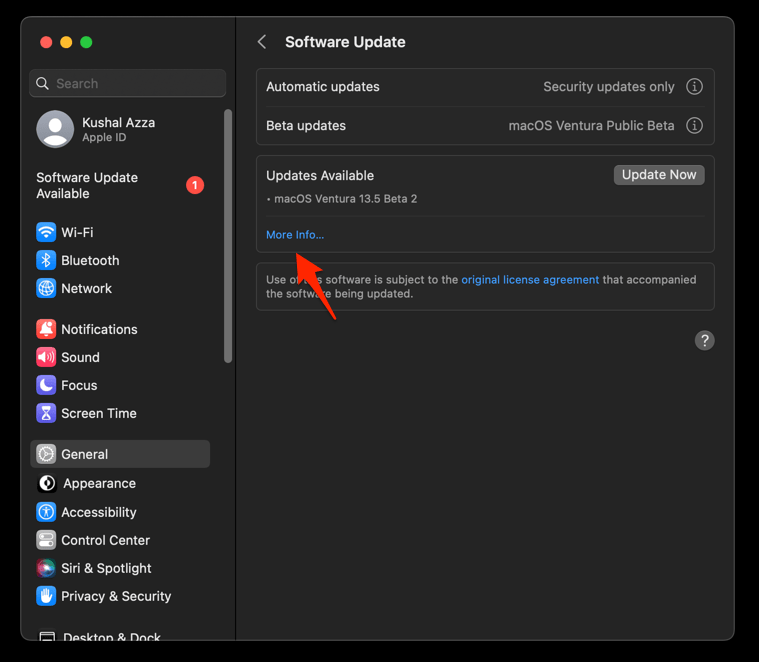
- Hit on the button.
It will update the Safari browser.
You’ll know it worked when Pinterest loads without the earlier symptoms. If nothing changes, Safari is probably not the faulty piece, and the browser comparison below confirms it.
Update Safari on iPhone
Pinterest still broken on your iPhone after the data and extension checks? Install the system update.
- Open Settings on your phone, and head on to the General section.
- Select Software Update to open the screen.
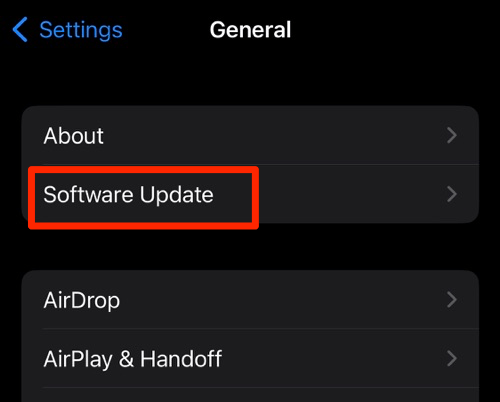 The device will automatically start looking for updates.
- Tap the button.
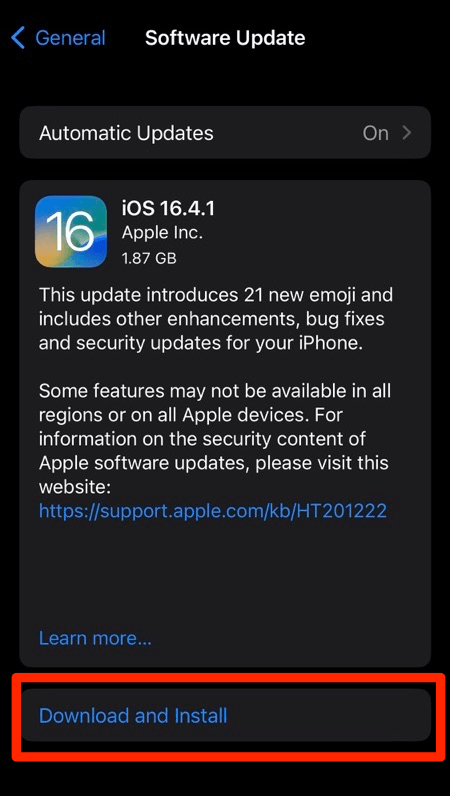 The update will download and install the latest Safari on your device, if available.
Then repeat the Pinterest test: same page, same sign-in, and watch whether the feed, images, and Save buttons respond.
Check the Problem in Another Browser
One last test settles the question of who is at fault. Open Pinterest in a different browser on the same Mac and the same network.
- Open a different browser on the same computer.
- Go to Pinterest.
- Complete the sign-in prompt if one appears.
- Check whether the feed and buttons work.
If Pinterest works there, Safari’s settings or extensions are responsible. If it fails in every browser, the problem sits with Pinterest or your connection, and no Safari setting will fix it.

Frequently Asked Questions
Why is Pinterest not working in Safari?
Stale website data, blocked cookies or pop-ups, a Safari extension, a content blocker, or an outdated installation can all break it. Test in Private Browsing first, then remove Pinterest’s website data and check your extensions.
Does the Pinterest Save extension work in Safari?
No. Pinterest’s Save extension supports Chrome, Firefox, and Edge, not Safari. Use one of those browsers when you need that workflow.
Why did clearing Safari data sign me out?
Cookies hold your saved sign-in sessions, Pinterest’s included. Delete the cookies and you start fresh.
Should I disable all Safari extensions?
Temporarily, yes. It is the fastest way to learn whether one of them is blocking Pinterest. If the site recovers, leave the offending extension off while you update or remove it.
What does it mean if Pinterest works in Private Browsing?
It points to stale cookies or website data rather than a connection failure. Remove Pinterest’s website data, then give the site the cookie and pop-up permissions it needs.