Yahoo Mail hangs on a blank page, loops back to sign-in, or refuses to load in Safari. Usually it's a blocked consent pop-up, stale Yahoo website data, or an extension getting in the way.
Run a Private Browsing test first, then work through the fixes for Mac, iPhone, and iPad until the sign-in page and your inbox load normally again.
In this guide, I have covered:
Contents
Why Yahoo Mail Stops Loading in Safari
Your inbox hangs on a blank page, the sign-in screen keeps looping back to itself, or Safari reports that Yahoo is unavailable. Those are the three shapes this problem usually takes.
Yahoo Mail leans on cookies and a separate consent window during sign-in. When Safari blocks that window or holds damaged Yahoo data, the page freezes even though the site itself is fine.
Extensions, cross-site tracking protection, outdated security software, and DNS trouble produce the same symptoms. That’s why the order below starts with an isolation test before you touch a single Safari setting.
Most of this guide covers Yahoo Mail, where Safari’s cookie and pop-up controls matter most. If a Yahoo search or the homepage is the part that fails, the Private Browsing and network checks are the sections that apply.
Confirm the issue with a Private Browsing test
Before changing anything, find out whether Yahoo works without your stored Safari data. A Private Browsing window uses temporary site data, so it answers that question in under a minute.
- Press ++ to open a Private Browsing window in Safari.
- Go to mail.yahoo.com.
- Sign in with your Yahoo account.
- Complete any consent prompt that opens.
You’ll know it worked when the inbox opens in the Private window. That result means stored data, a pop-up setting, or an extension is in the way, and one of the fixes below will clear it.
If Yahoo fails in the Private window too, skip ahead to the service and account checks near the end.

TIP: Yahoo working in Private Browsing but not in your normal window? Go straight to the Yahoo website-data removal below. That single result is the shortcut.
On iPhone and iPad, the same test uses the app’s private-tab option described in Open New Tabs and Private Tabs in Safari on iPhone & iPad.
Allow Yahoo pop-ups in Safari
Yahoo’s sign-in often hands off to a consent page at guce.yahoo.com. Safari’s pop-up blocker can stop that page dead, which leaves the main Yahoo window sitting there looking frozen.
- Choose Settings… from the Safari menu.
- Select the Websites tab, then Pop-up Windows.
- Allow mail.yahoo.com and guce.yahoo.com if they appear in the blocked list.
- If Yahoo is not listed, temporarily turn off Block pop-ups for the test.
- Return to Yahoo Mail and reload the page.
- Complete the consent prompt in the pop-up window.
Yahoo Mail should now show its sign-in page instead of a blank screen or a repeated redirect. You’ll know it worked when the consent window appears and the inbox opens right after you accept.

If you turned off the global pop-up blocker, turn it back on once Yahoo works. Keep any permanent exception limited to Yahoo’s sign-in and consent pages.
Remove stale Yahoo website data on Mac
If Yahoo was blocked, or the tab was closed halfway through sign-in, Safari may still be holding old cookies and site records for it. Delete Yahoo’s records first so the next attempt starts from a clean sign-in state.
- Choose Settings… from the Safari menu.
- Select Privacy, then choose .
- Search for yahoo.com.
- Select the Yahoo entries, including mail.yahoo.com and guce.yahoo.com.
- Choose .
- Close the Yahoo Mail tab.
- Open Yahoo Mail again and sign in.
You’ll know it worked when the sign-in page loads and your inbox opens without the redirect. If nothing changes, move on to the full reset.
Clear all Safari cookies and cache
Removing Yahoo’s own records didn’t help? Then clear everything Safari has stored. It signs you out of other sites, but it does not touch the messages in your Yahoo account.
- Launch the Safari app on your Mac computer.
- Click on the Safari menu from the menu bar, and select the Settings... sub-menu.
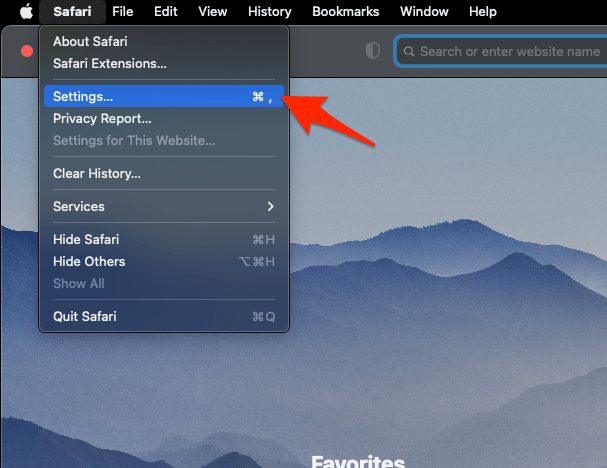 It will open the Safari Settings window.
 - Switch to the Privacy tab, and click to open the button.
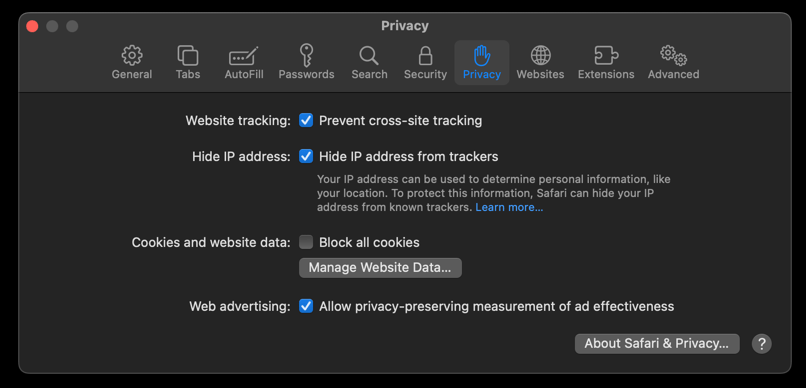 It will load the list of websites currently storing the cache and cookies in the browser.
 - Hit on the command and then the button.
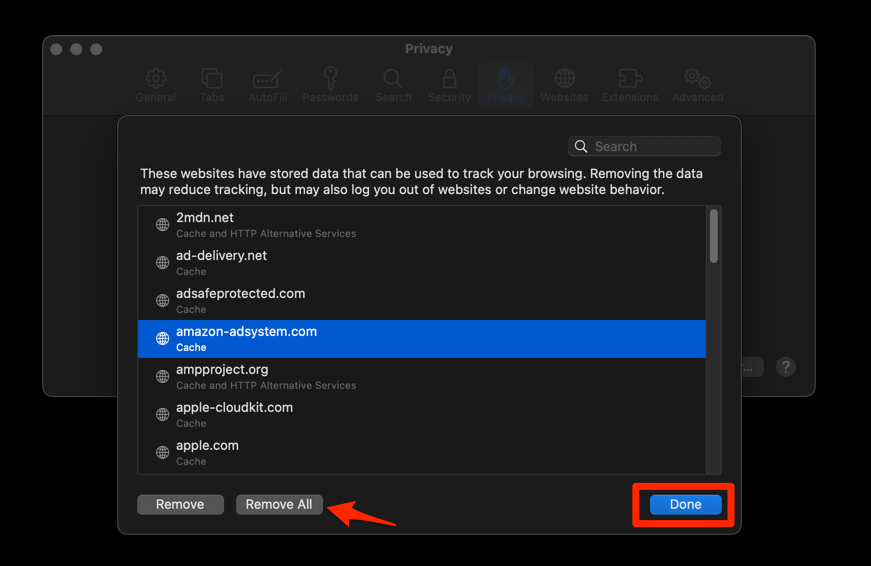 It will flush the cookies and cache for all sites in Safari.
Reopen Safari and load Yahoo Mail. You’ll know it worked when the inbox appears after a single sign-in, with no bounce back to the password screen.
Disable Safari extensions
Ad blockers, script blockers, privacy tools, and security extensions all change what a page is allowed to load, and Yahoo’s login pages are a common casualty. Switch them off, then retest.
- Launch the Apple Safari app on your Mac computer.
- Click on the Safari menu from the menu bar at the top, and select Settings... sub-menu.It will open the Safari Settings window.
- Switch to the Extensions tab in the Settings window.
It will display the list of all the Safari extensions installed. - Uncheck the checkbox in the left side pane to Disable the extension.
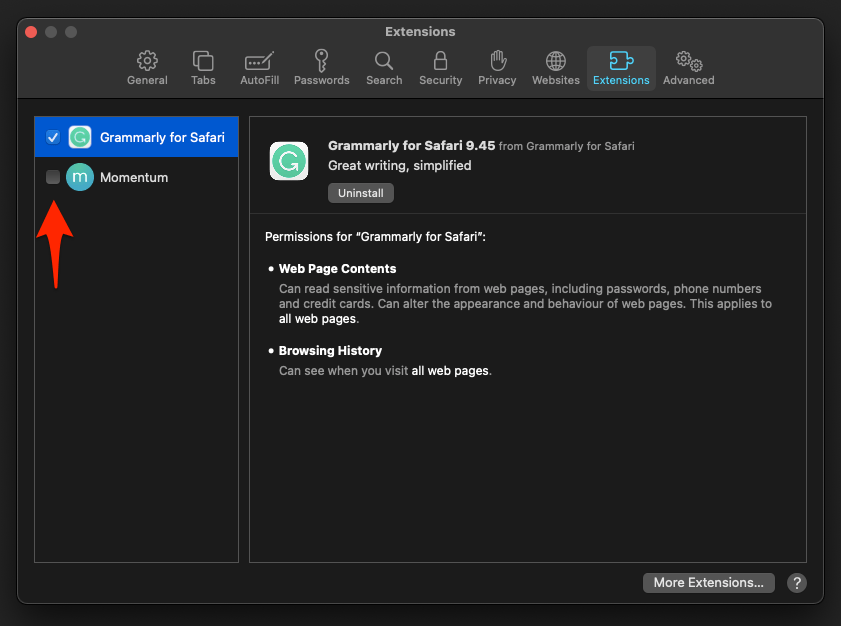
You’ll know it worked when Yahoo Mail loads with the extensions off. That one result points the finger at your extension set rather than at Safari or Yahoo.
Find the extension that conflicts with Yahoo
Yahoo works with everything disabled? Bring the extensions back one at a time until the failure returns.
- Re-enable one Safari extension.
- Reload Yahoo Mail.
- Repeat with the remaining extensions until one restores the failure.
The extension that brings the failure back is the one to disable, or limit, while you use Yahoo.
Test cross-site tracking protection
Safari’s Prevent Cross-Site Tracking setting should not block ordinary Yahoo Mail use, but a short test will tell you whether a sign-in conflict exists. Treat it as a diagnostic, not a permanent change.
- Choose Settings… from the Safari menu.
- Select Privacy.
- Turn off Prevent Cross-Site Tracking.
- Reload Yahoo Mail.
- Sign in to Yahoo Mail.
- Turn Prevent Cross-Site Tracking back on after the test.
You’ll know it worked when Yahoo signs you in with tracking protection off but fails again once you switch it back on. That pattern confirms the conflict.
On iPhone and iPad, the same control is covered in Disable Cross-Site Tracking in Safari on iPhone & iPad.
This is a diagnostic, not a permanent recommendation. Restore the setting unless you deliberately choose to accept the reduction in privacy protection.
Update Safari and macOS
Yahoo can reject outdated security protocols, so update Safari and macOS before you try anything more invasive.
- Click on the Apple
 menu from the menu bar and select the System Settings... sub-menu.
  It will open the System Settings window.
 - Select the General tab in the left sidebar, and choose the Software Update tab.
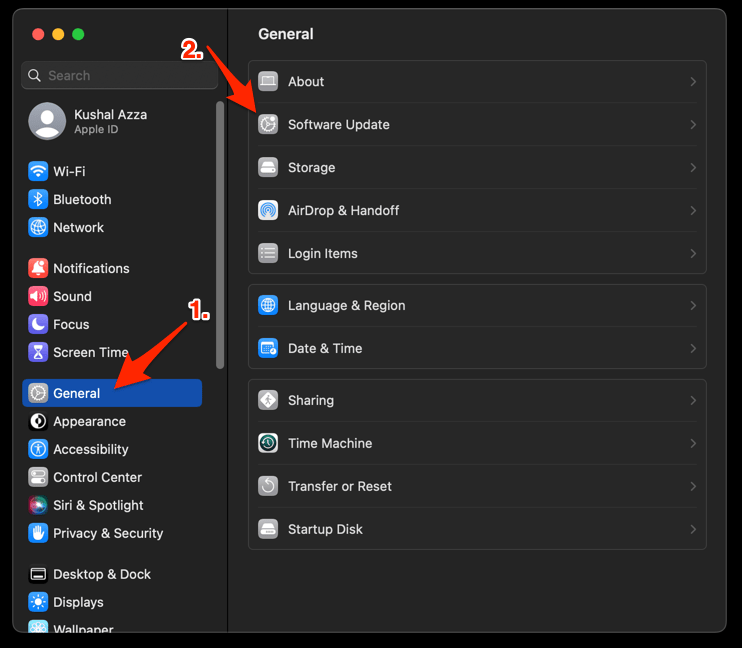 The macOS System will check for any available upgrades in the background.
 - Click on the More Info... tab and enable the checkbox for Safari updates (if any are available).
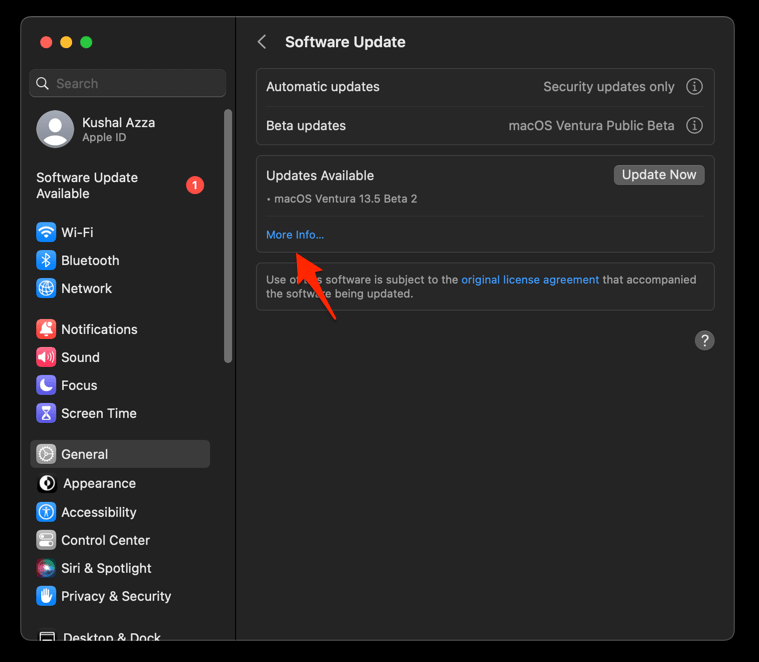
- Hit on the button.
It will update the Safari browser.
After the update and any required restart, open Yahoo Mail and sign in again. You’ll know it worked when the inbox opens on the first attempt, with no connection or protocol error.
Clear the Mac DNS cache
Yahoo slow to load, or other sites throwing connection errors too? Clear the Mac DNS cache to flush stale network records.
- Open the Apple Safari app on your Mac, and select Safari > Settings... from the menu bar.It will open the Safari Settings window.
- Switch to the Advanced tab, and enable the checkbox for the Show Develop menu in the menu bar option.
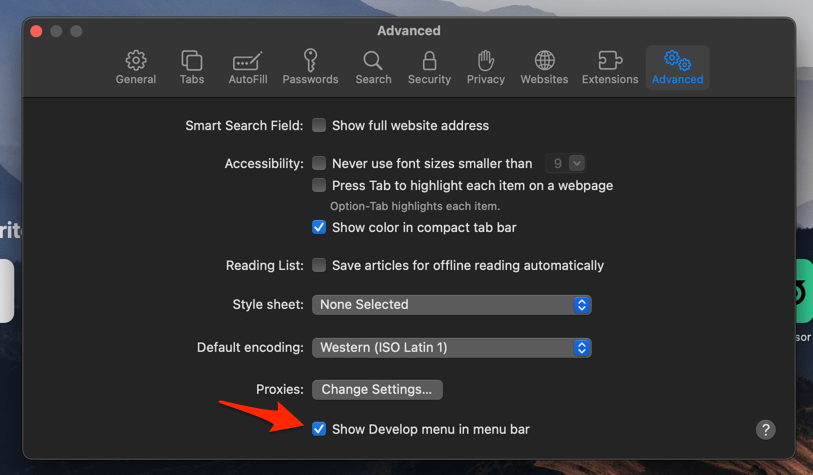 It will enable a new Develop menu in the Safari menu bar.
 - Click on the Develop menu and select the Empty Caches command.
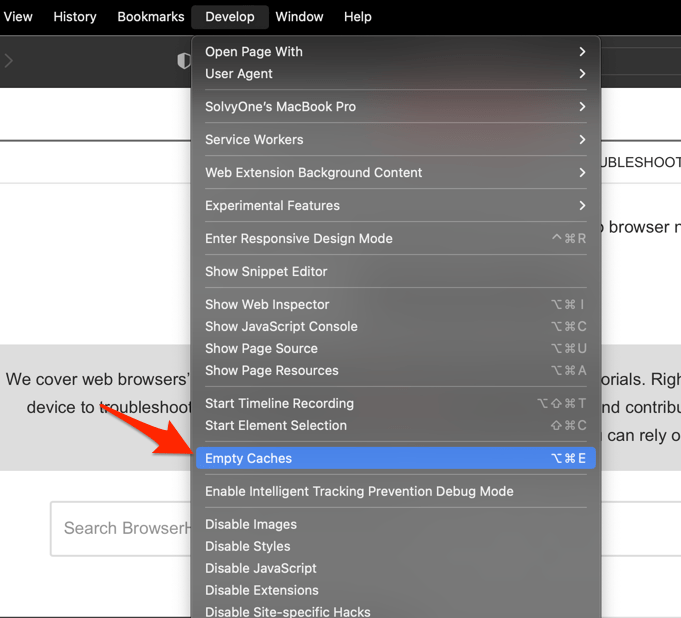 It will clear all cache, including the Safari DNS host cache.
Reopen Safari and load Yahoo Mail. You’ll know it worked when pages resolve quickly instead of stalling on a blank screen.
If other websites fail as well, your network connection is the likelier culprit, not Safari.
Fix Yahoo Mail on iPhone or iPad
On iPhone and iPad, check Safari’s pop-up setting first. Yahoo’s consent page opens separately there, and the blocker can swallow it before you ever see it.
- Open Settings.
- Tap Apps.
- Tap Safari.
- Open Security.
- Turn off Block Pop-ups.
- Return to Safari.
- Open mail.yahoo.com.
- Complete the Yahoo consent prompt.
- Turn Block Pop-ups back on after a successful sign-in.
You’ll know it worked when the Yahoo consent prompt opens on its own and the inbox loads after you accept. Still blank? Continue with the reset below.
For the full cookie controls on these devices, see Block or Allow Browser Cookies in Safari on iPhone & iPad.
Clear Safari data on iPhone or iPad
Yahoo still blank, or still bouncing you back to sign-in? Clear Safari’s cookies and cache on the device. You’ll lose saved sessions for every site, but not one Yahoo message.
- Launch the iPhone or iPad's Settings app.
- Select Safari in settings and scroll to the bottom to choose the Advanced option.
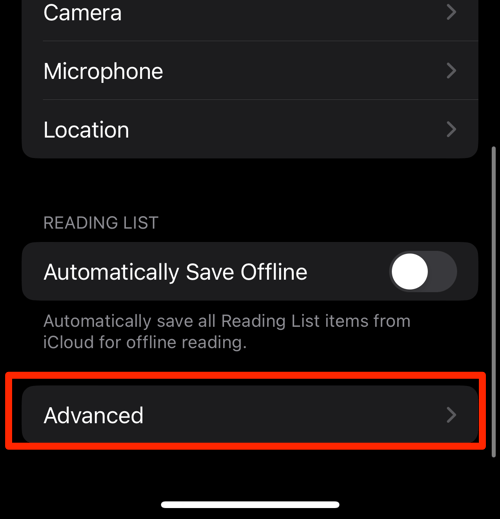
- Tap on the Website Data option.
It will display the list of all websites and corresponding data. - Tap on the command.
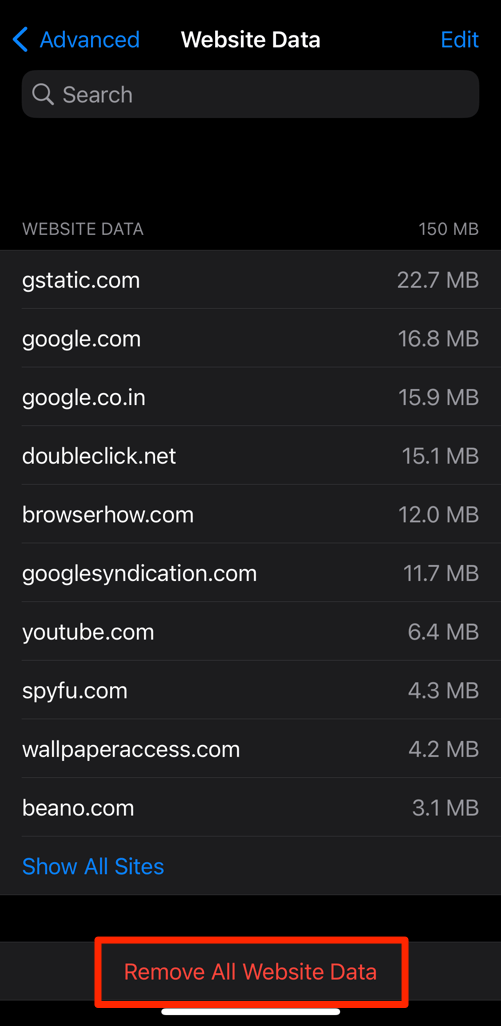 It will delete all the stored website data from the Safari browser.
Open Yahoo Mail and sign in. You’ll know it worked when the inbox loads without the sign-in loop.
Update Safari on iPhone or iPad
Yahoo can reject outdated security protocols, so install any Safari or iOS update that’s waiting on the device.
- Open Settings on your phone, and head on to the General section.
- Select Software Update to open the screen.
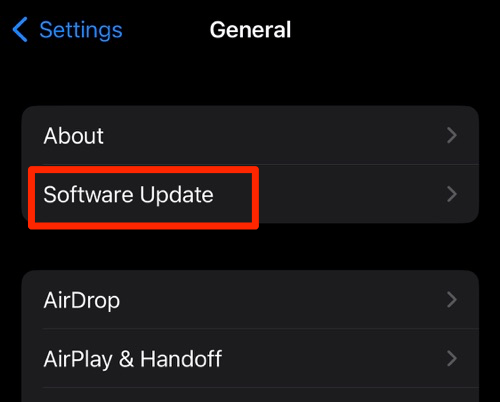 The device will automatically start looking for updates.
 - Tap the button.
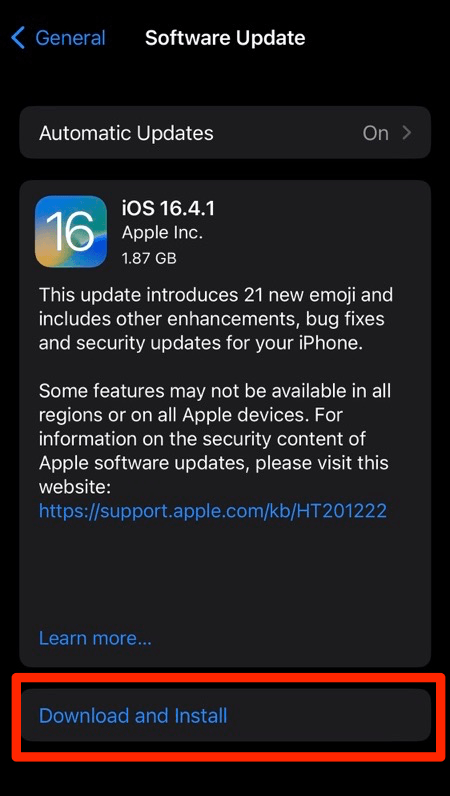 The update will download and install the latest Safari on your device, if available.
Reopen Yahoo Mail and sign in. You’ll know it worked when the page loads and the sign-in sticks after the update.
Complete Yahoo’s account checks
Safari says the password is wrong even though it works somewhere else? An outdated AutoFill entry may be typing the wrong password for you. A skipped verification step can also bounce you back to sign-in.
- Open Yahoo Mail in a fresh tab.
- Select the password field and type the password manually instead of accepting an AutoFill suggestion.
- Complete any verification code or security check that Yahoo requests.
- Open the inbox.
A successful sign-in here tells you Safari was submitting stale credentials, or that Yahoo still wanted its verification prompt completed.
Check Yahoo outside Safari
Two quick tests will settle whether this is Safari or Yahoo. Run Yahoo Mail in another browser on the same Mac, then on another device connected to a different network.
- Open Yahoo Mail in another browser on the same Mac.
- Try Yahoo Mail on another device connected to a different network.
If Yahoo fails in both, wait and retry later. If it works in the other browser, go back through the pop-up, website-data, and extension checks above to fix Yahoo Mail in Safari.
For an account or third-party access check, see Yahoo Help for third-party app access.

Frequently Asked Questions
Why is Yahoo Mail not working in Safari?
The usual causes are a blocked Yahoo consent pop-up, stale website data, an extension, or a network and DNS issue. The Private Browsing test narrows it down fast.
How do I allow Yahoo pop-ups in Safari?
On Mac, open Settings… from the Safari menu, choose Websites, then Pop-up Windows, and allow Yahoo’s sign-in and consent domains. On iPhone and iPad, go to Settings > Apps > Safari > Security and turn Block Pop-ups off for a temporary test.
Why does Yahoo Mail keep returning me to the sign-in page?
A blocked consent window or old Yahoo cookies can send the sign-in back to its first page. Complete Yahoo’s verification and remove Yahoo’s stored website data before retrying.
Does clearing Safari cookies and cache delete my Yahoo emails?
No. The reset clears Safari’s stored sessions and website data on that device, not the emails stored in your Yahoo account.
Should I leave Prevent Cross-Site Tracking turned off?
Only long enough to test Yahoo. Turning it off reduces a privacy protection, so switch it back on and look at the pop-up and stored-data checks instead.