When a mobile site hides the menu you need or refuses to load, the desktop view often fixes it. Opera for Android lets you toggle the full desktop layout for any website with a single tap.
The setting sticks for that site until you switch back, so you can browse the wider view without constantly re-enabling it. It helps when a site's mobile layout breaks, or when you simply want the full desktop experience.
In this guide, I have covered:
Contents
View Desktop Site in Opera on Android
When a mobile site hides the menu you need or a page refuses to load properly, the desktop view often solves it. Here’s how to switch.
- Open the Opera browser on your phone.
- Go to the website you need.
- Tap the
 menu icon at the bottom right corner.
 - From the menu, tap Desktop site.
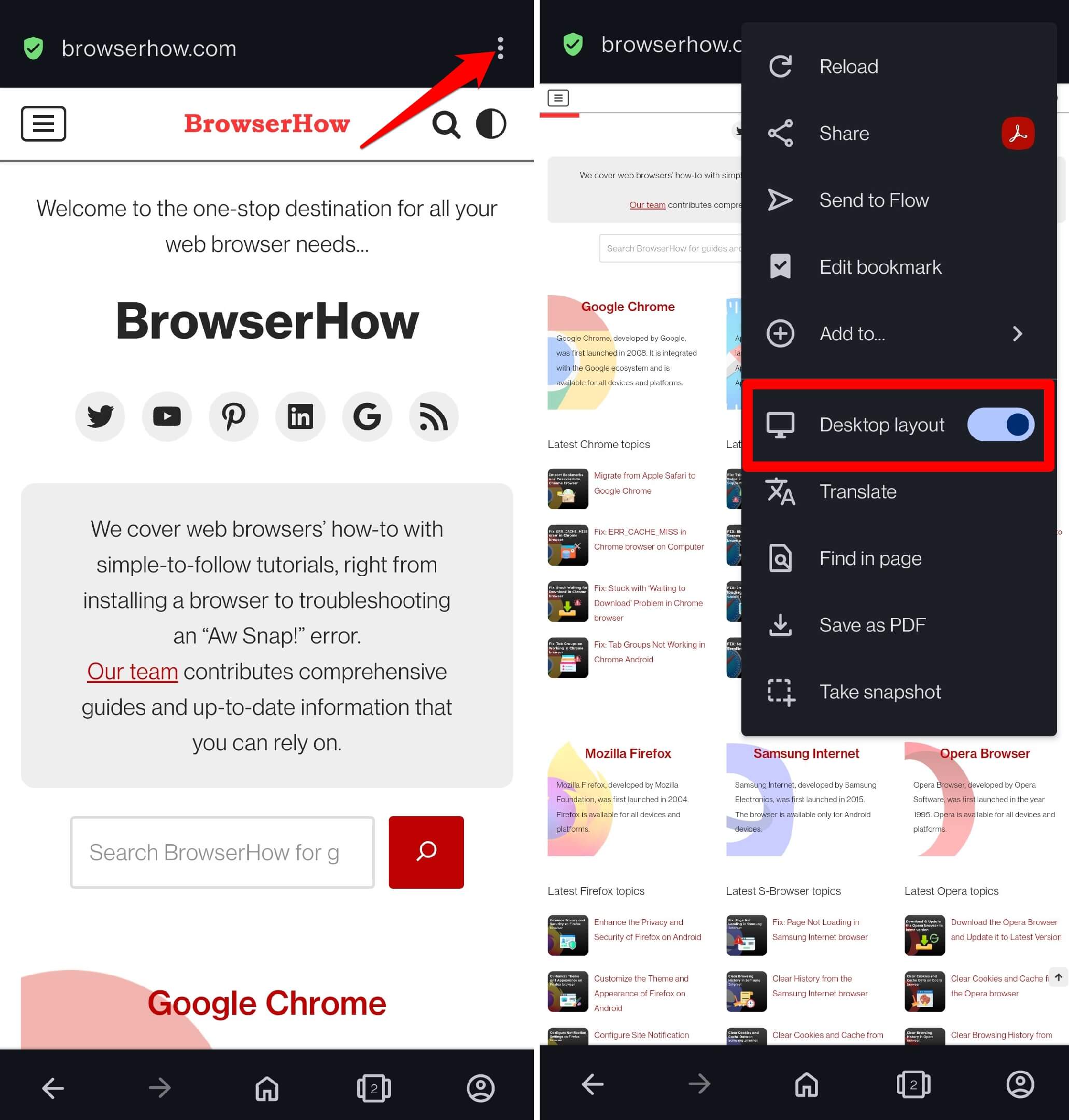
- To switch back, open the menu icon again.
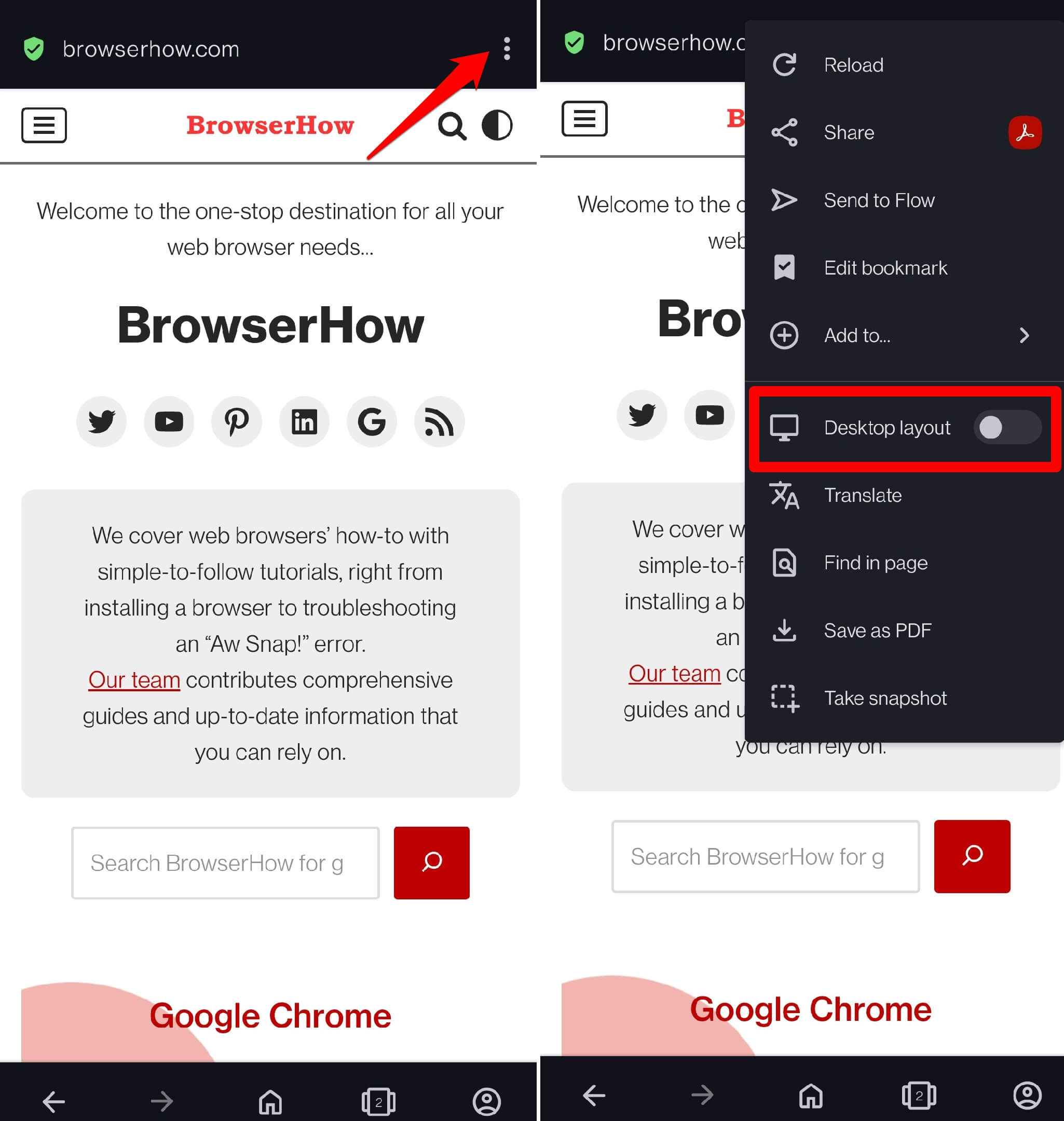
- Press the toggle switch beside Desktop site to return to the mobile view.

TIP: If you want a magnified view of a section in desktop mode, pinch out with your fingers to zoom in on that spot.
Bottom Line
Enable the desktop view in Opera for Android when a site feels cramped or its mobile layout breaks. The desktop layout gives you a wider view of the page. You’ll know it worked when the site reloads with smaller text and the layout you normally see on a computer.