Cluttered articles with autoplay videos and sidebars can make reading on your phone a chore. Opera for Android includes a Reader Mode that turns any article into a clean, text-focused page with one tap.
This guide shows you how to toggle the simplified view on and off, and how to spot when it is active by the icon color. No add-ons needed, it is built right into the address bar.
In this guide, I have covered:
Contents
Enable Reader Mode in Opera on Android
- Launch Opera on your Android device.
- Open any text heavy website like browserhow or wikipedia.
You will noticed a reader mode icon if it’s supported for that webpage. - Tap the Reader mode icon next to the URL to switch to a simplified view.
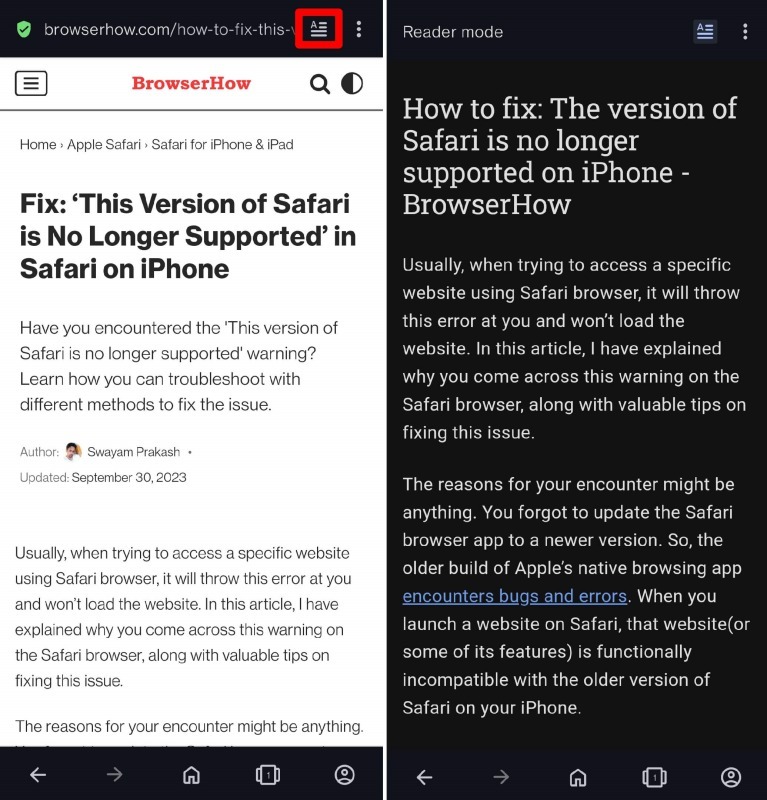
To go back to the standard page, tap the same Reader mode icon again.

When Reader Mode is enabled, the icon will become blue. When in standard mode, the icon will be white.
Bottom Line
The next time you land on a busy article page, tap the Reader Mode icon. You will see the layout switch to plain text and the icon turn blue. That confirms you are reading distraction free.