You can stop third-party elements on the websites you visit from tracking your internet usage by blocking cookies in the browser.
This guide walks you through the Opera Android settings to manage cookies. You can choose to allow all cookies, block all cookies, or block only third-party cookies to balance privacy and website functionality.
In this guide, I have covered:
Contents
Block or Allow Browser Cookies in Opera app
Websites feel broken. Login screens loop. Shopping carts empty themselves. If that sounds familiar, your cookie settings might be too strict.
- Launch Opera on your phone.
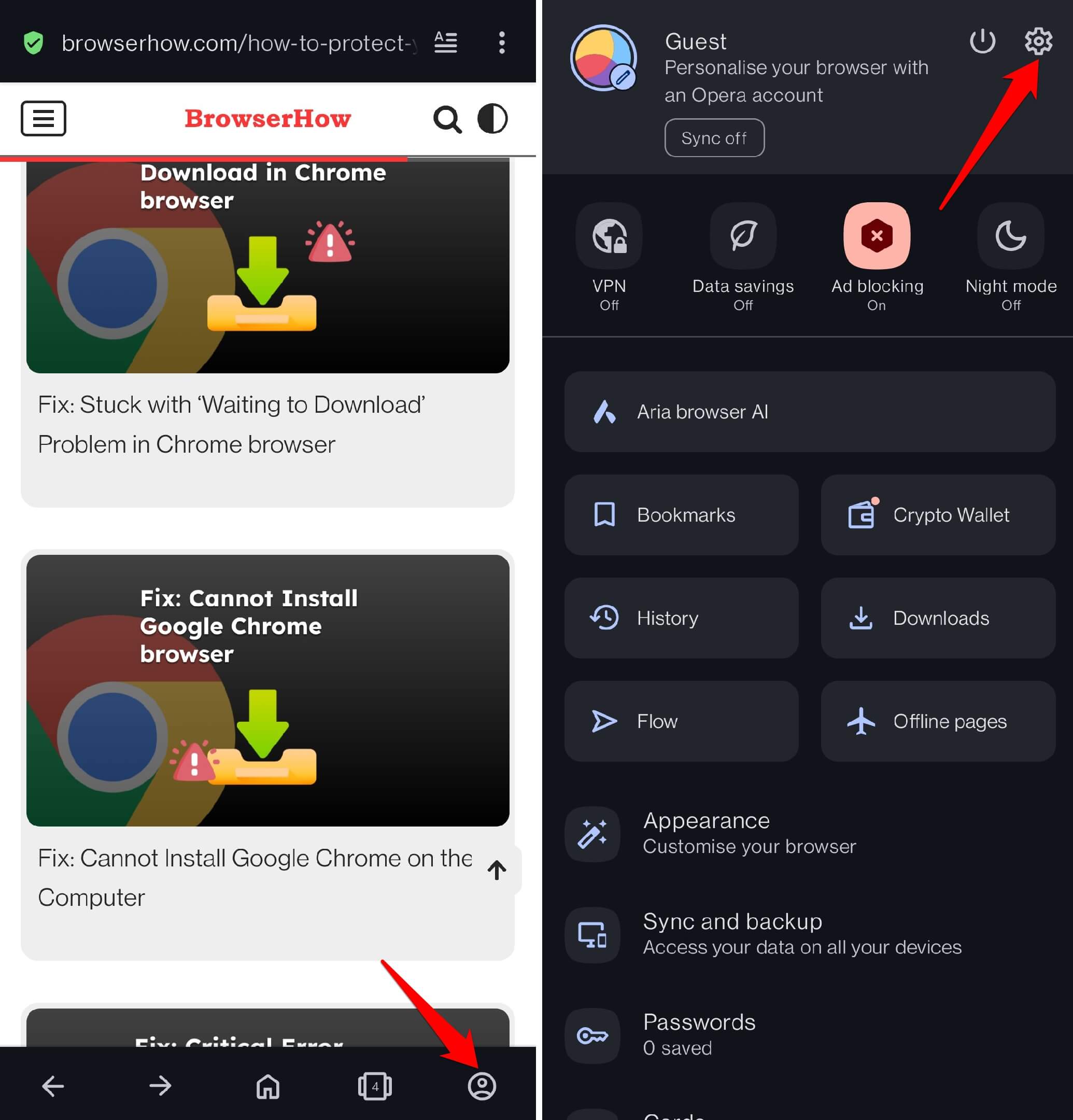
- Tap the profile icon (Opera logo) at the bottom of the screen, then tap the gear icon to open Settings.
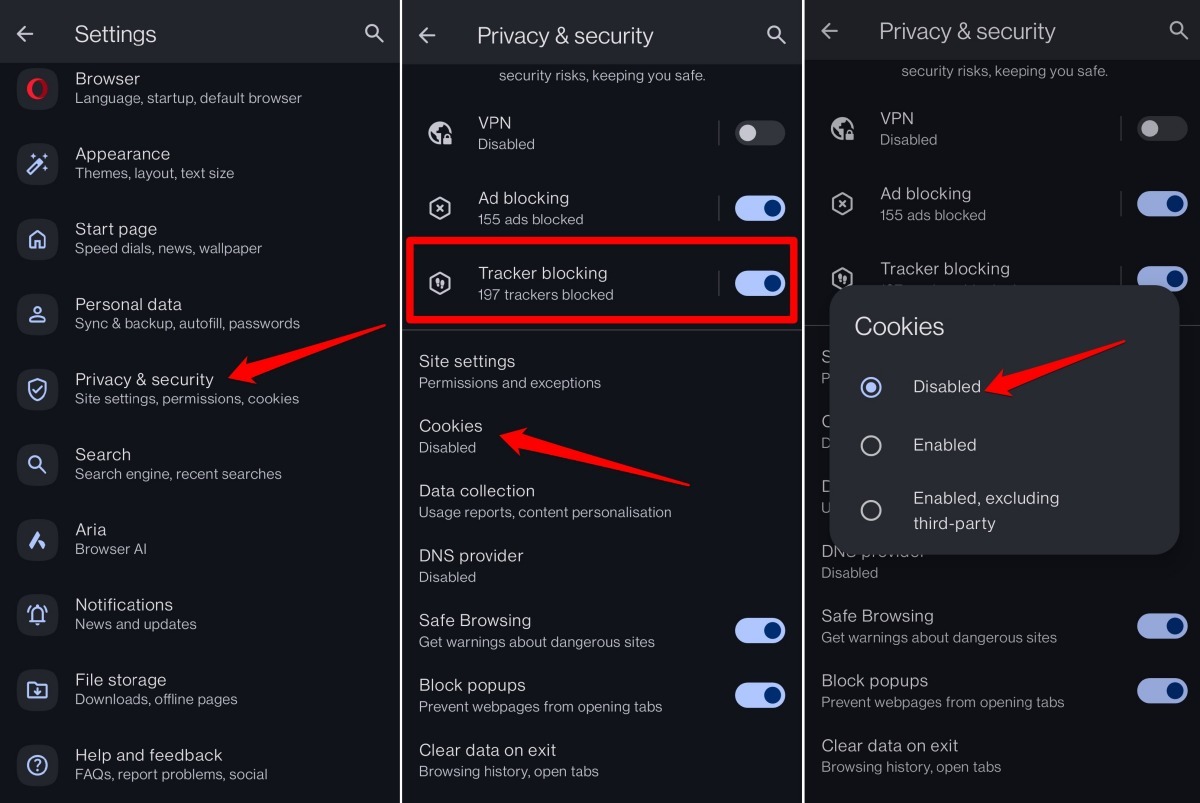
- Select Privacy and Security in the settings menu.
- Enable the toggle switch beside Tracker Blocking to block trackers on websites (optional).
- Scroll down and tap on Cookies.
- Select your preferred cookie option:
- Enabled – allow all websites to save cookies on your device.
- Disabled – block all websites from saving cookies on your device.
- Block third-party cookies – allow first-party cookies but block cookies set by third-party elements (recommended for privacy).
Bottom Line
Cross-site tracking lets sites follow your usage and show you personalized ads. If you have privacy concerns and do not want user data collected by the sites you visit, block cookies in the Opera browser. Enabling Tracker Blocking adds another layer of protection against online trackers.
You’ll know it worked when you revisit a site that was acting up. If pages start remembering your preferences again or stop logging you out, you landed on the right setting. Still seeing issues? Try stepping up from Disabled to Block third-party cookies. That middle ground fixes most site breakage without handing your browsing history to ad networks.