Opera for Android saves files to your device's default Downloads folder by default. If you want to keep things organized, you can change that location at any time, right before a download starts.
This guide walks you through accessing the Downloads section, searching for a specific file, and sorting the list by name, size, type, or date. You'll also see how to open, share, hide, or delete any downloaded item on the spot.
In this guide, I have covered:
Contents
Save and Download a Image in Opera browser
- Launch Opera on your Android device.
- Visit any website inside the browser.
- Touch and hold an image you want to save.
- Select Save image from the menu that appears.
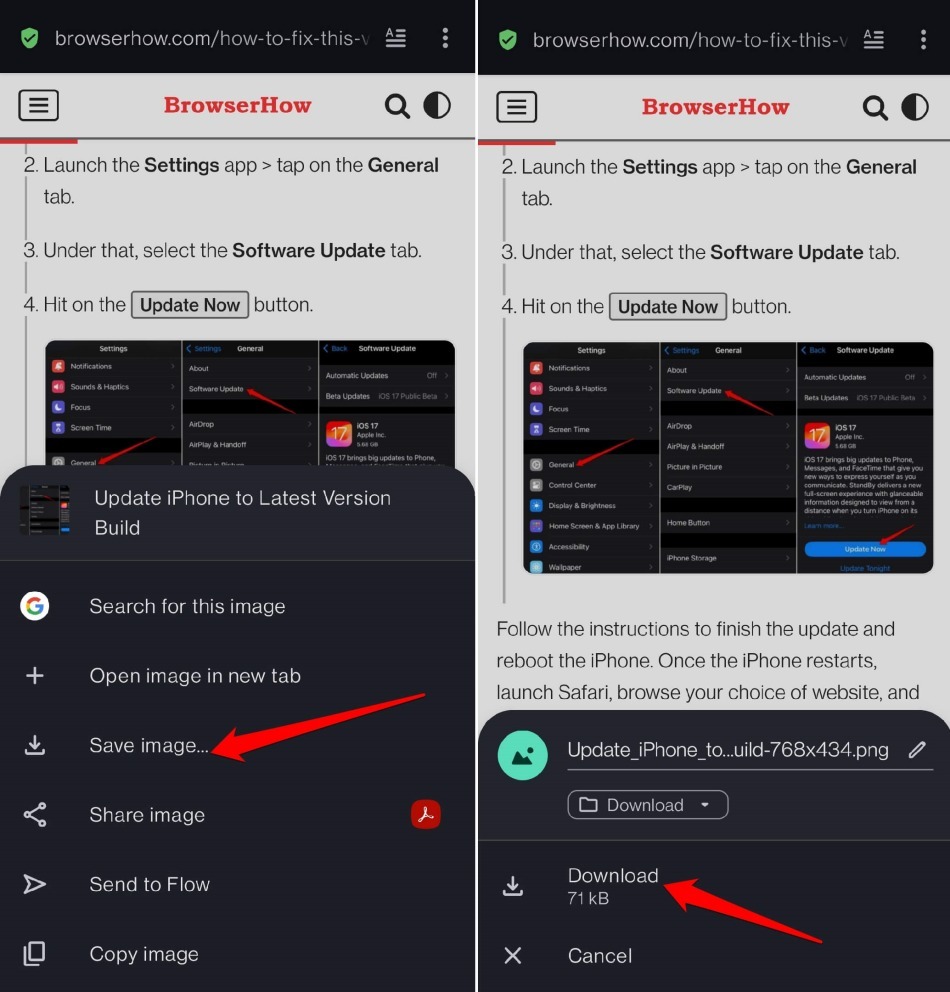

ALERT: By default, Opera sends every downloaded item straight to the Downloads folder on your phone. You can open that folder any time through your phone’s File Manager.
Change the Download Location
- Start a download using the steps above.
- When the download prompt appears, tap the change download location button.
- Your File Manager opens. Tap Create New Folder, give it a name, and confirm.
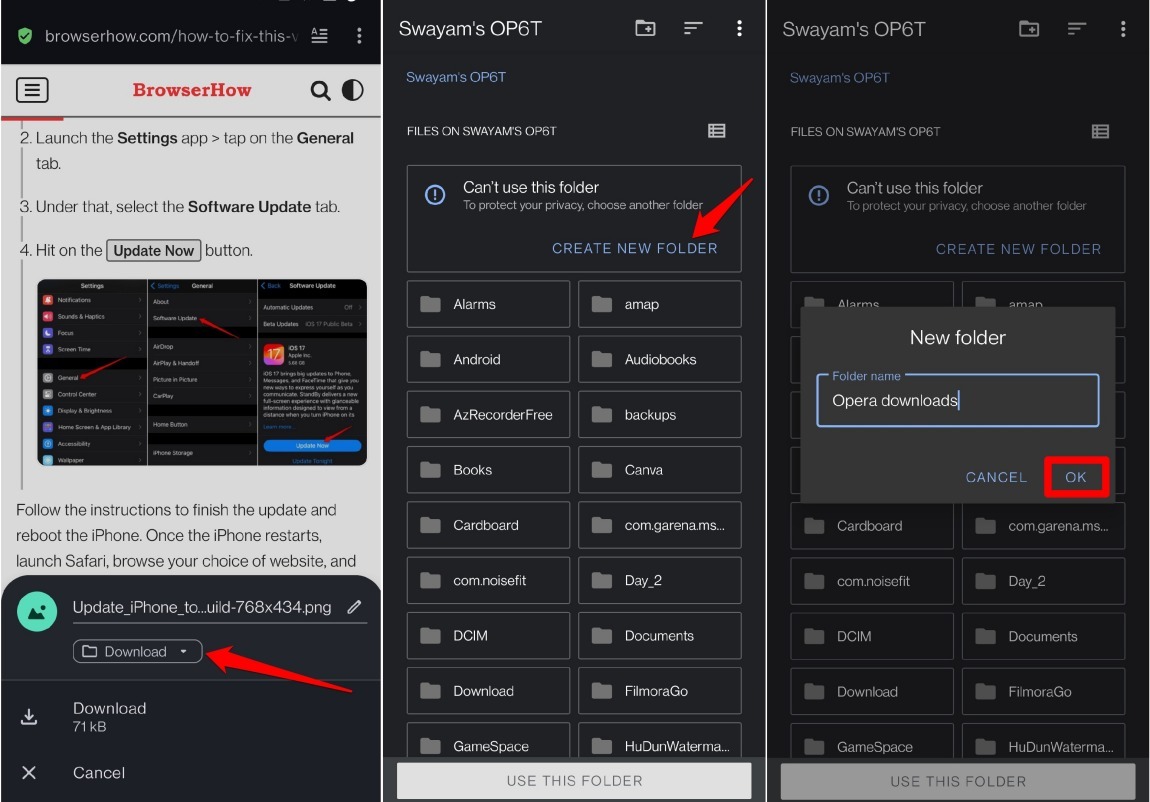
From that point on, any file you download with Opera will land in the folder you just created.

TIP: You don’t need to dig into settings to change where a file lands. Opera lets you pick a different folder right on the download prompt.
Managing Downloaded Items
- Launch Opera on your Android device.
- Tap the Opera menu (O icon), then tap Downloads to see everything you’ve saved.
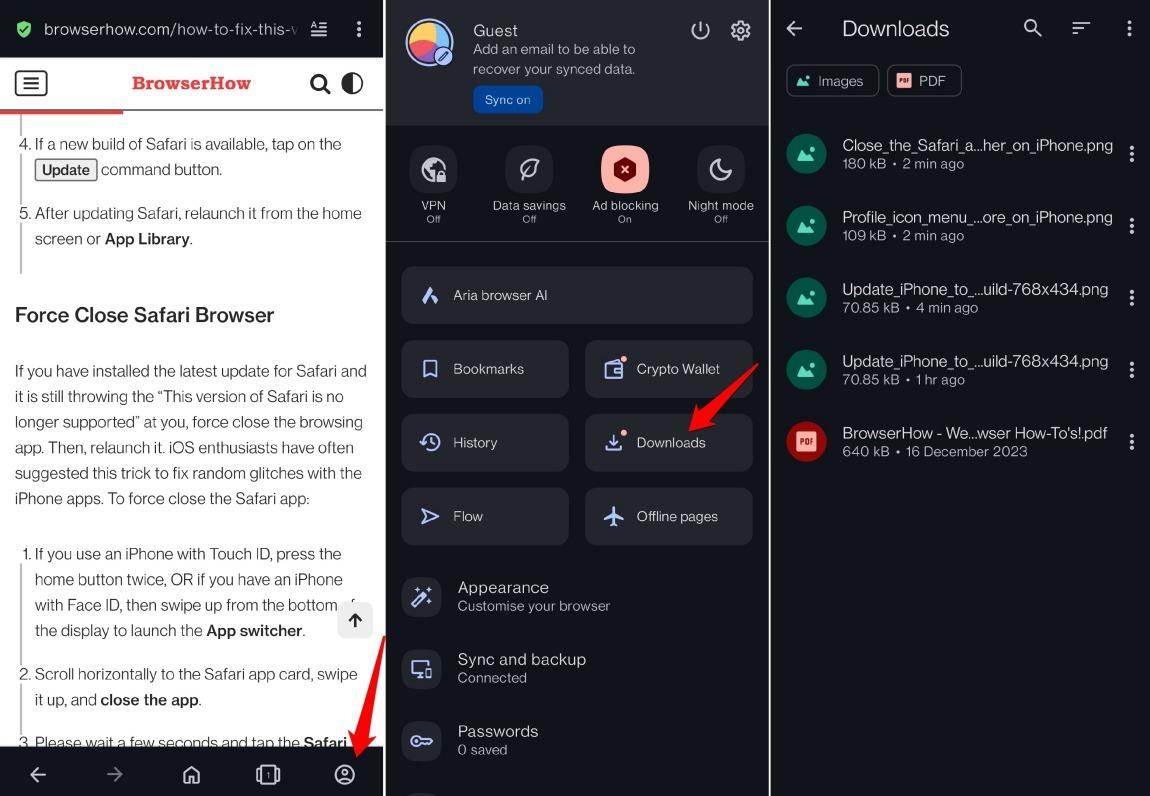
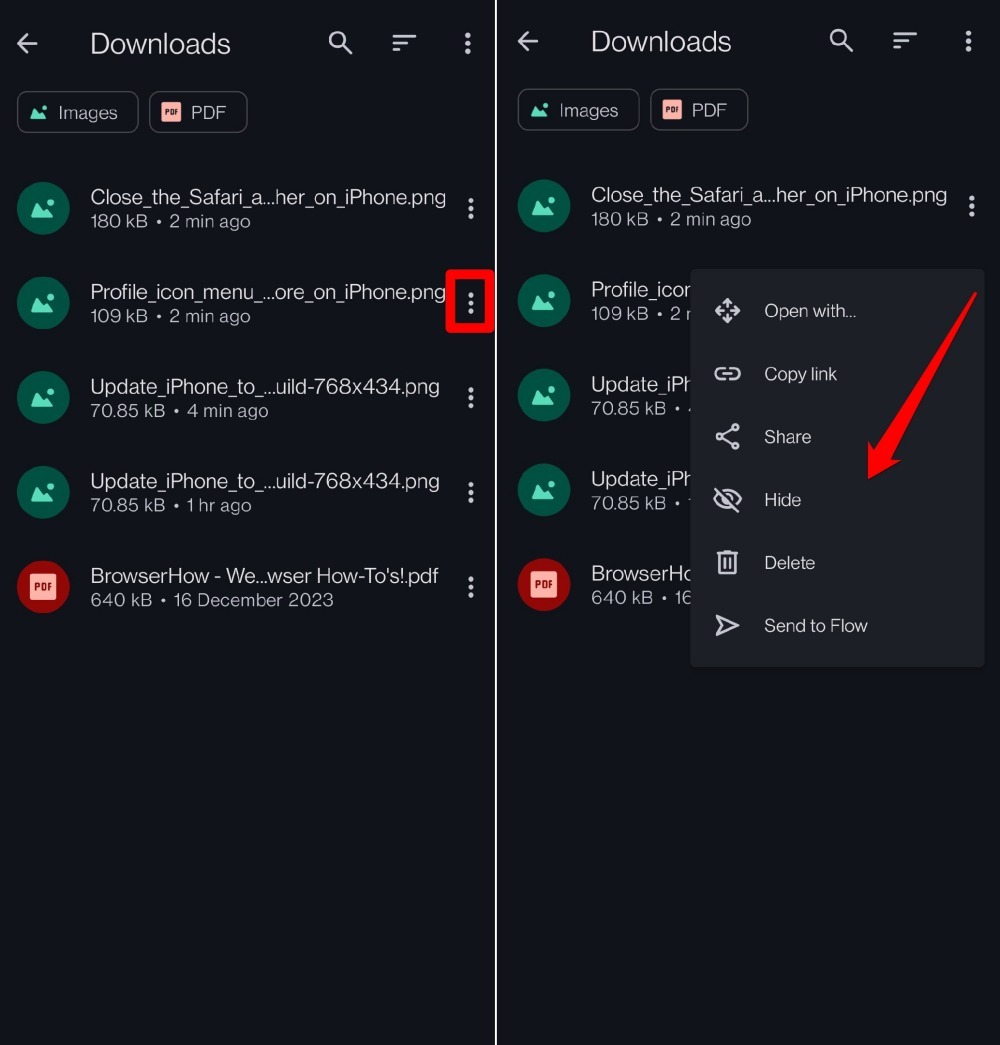
- Tap the menu icon next to any downloaded item to see what you can do with it.
- You can open the file, share it, hide it from the list, or delete it.
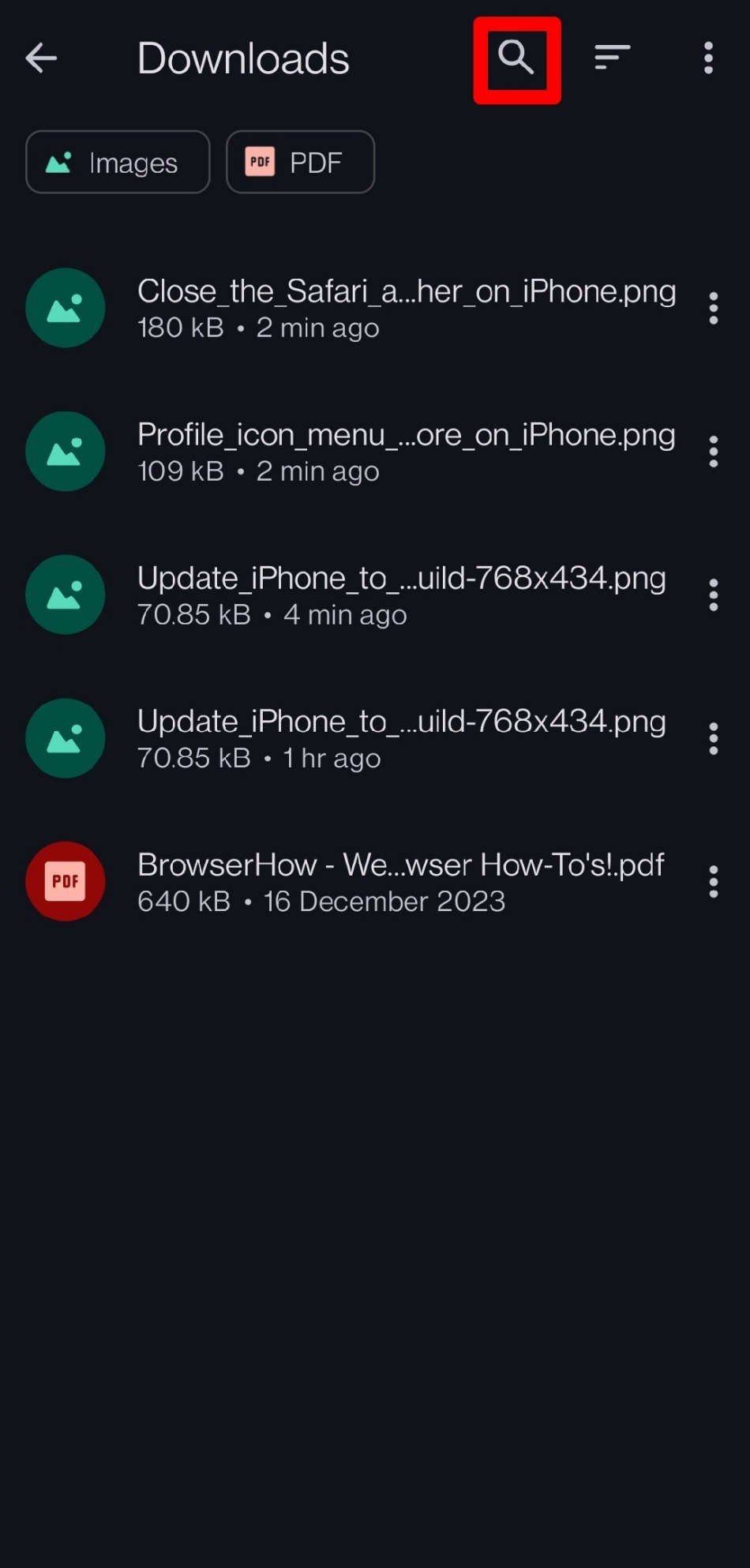
- If your Downloads section is getting crowded, tap the search bar icon and type a file name to jump straight to it.
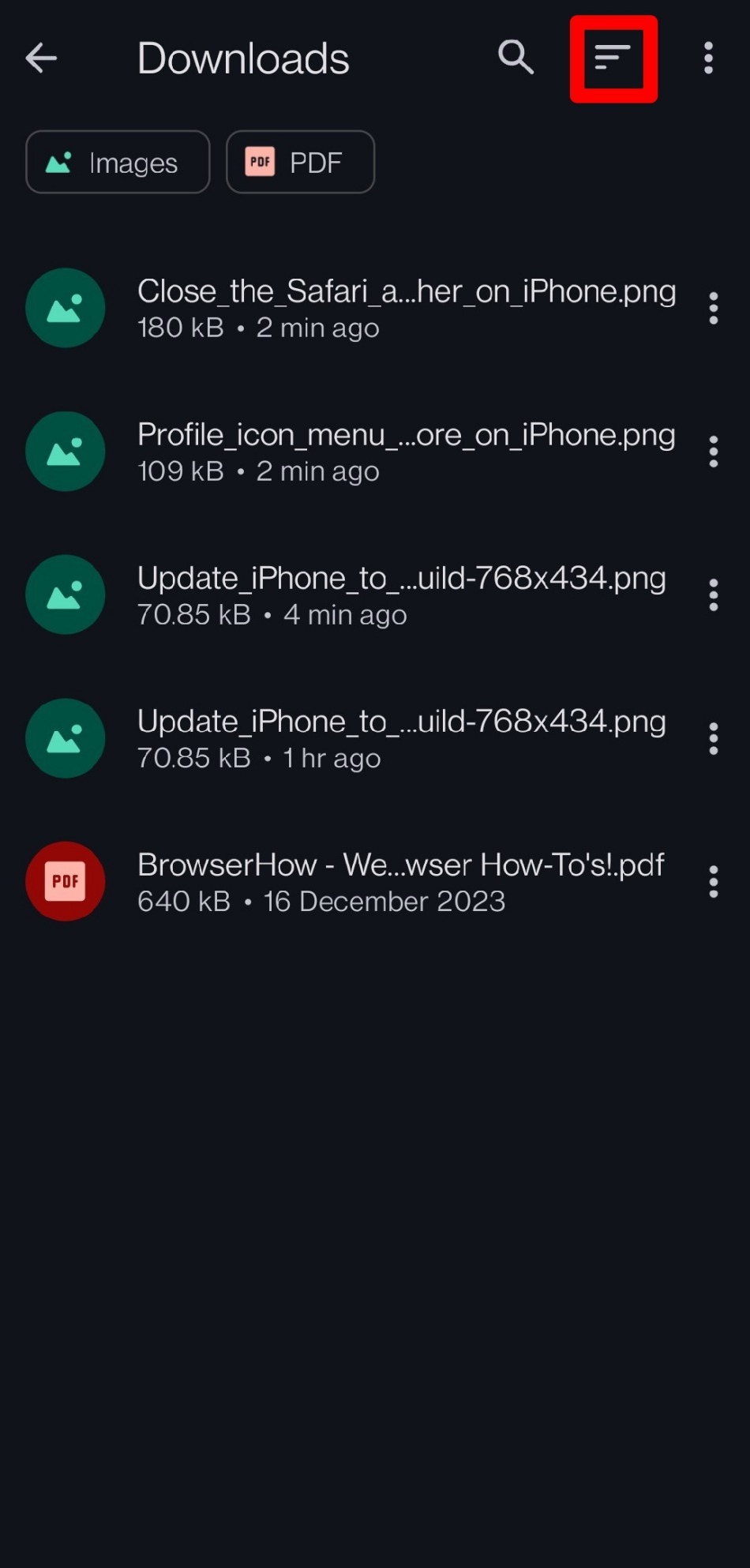
- Tap the Sort By icon to arrange your download list by name, size, type, or most recently saved.

A dot on the Downloads tab means a file was recently added and you haven’t opened it yet.
Bottom Line
Create a dedicated folder so downloaded items don’t pile up in your phone’s main Downloads directory. You can manage saved files from Opera’s Downloads section or from the File Manager on your phone. Both work the same way.