Opera app on Android gives you plenty of ways to make the browser look the way you want.
Switch themes, set wallpapers, turn on night mode, or adjust text size, all from the Appearance menu.
In this guide, I have covered:
Contents
Changing Color Theme
If the default theme feels too bright or doesn’t match your style, you can switch to something darker or more colorful.
- Launch the Opera app.
- Tap on Profile > go to Settings.
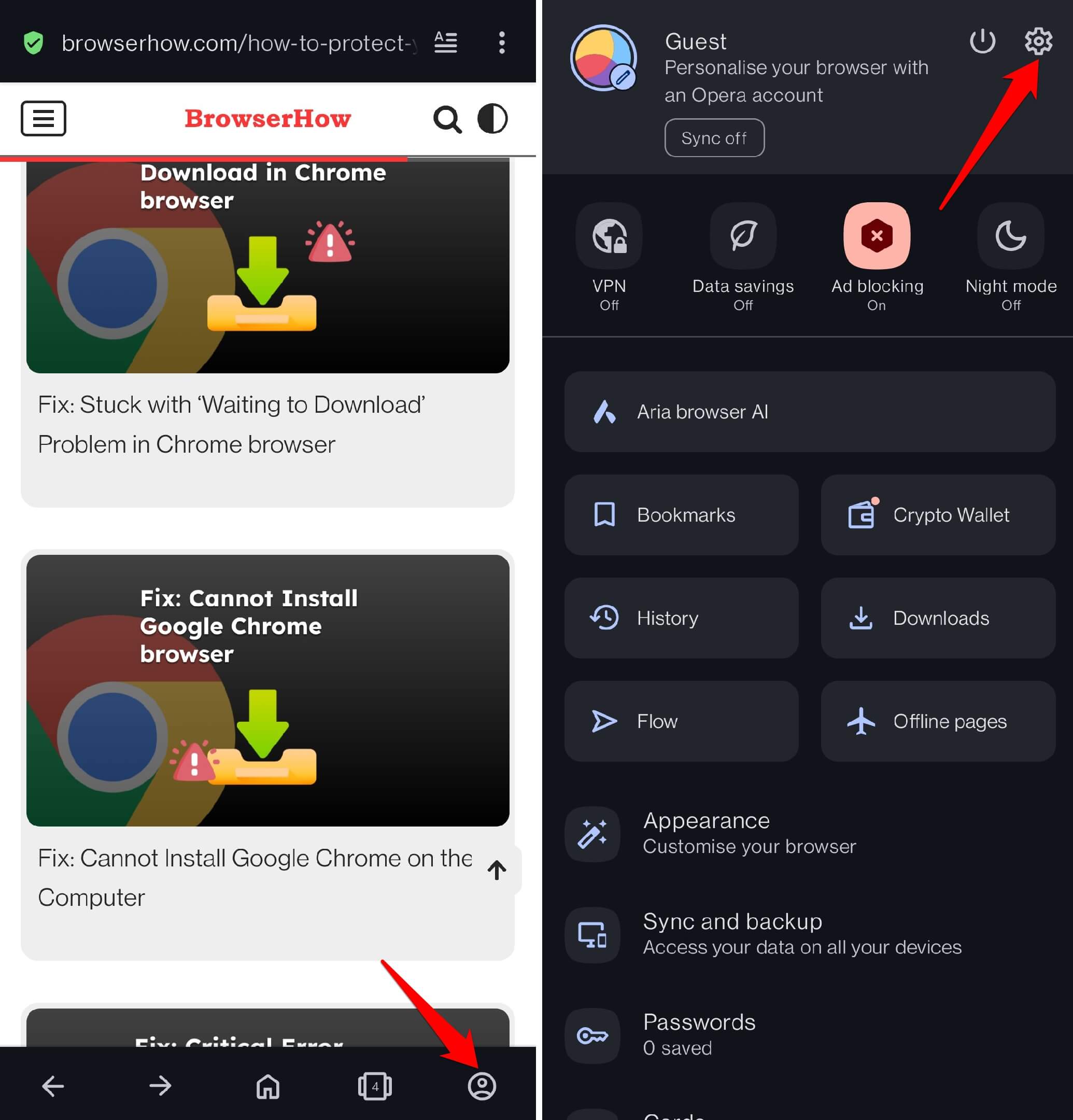
- Scroll down to select Appearance.
- Select a theme of your choice.
- Set a color pattern for the interface from the available choices.
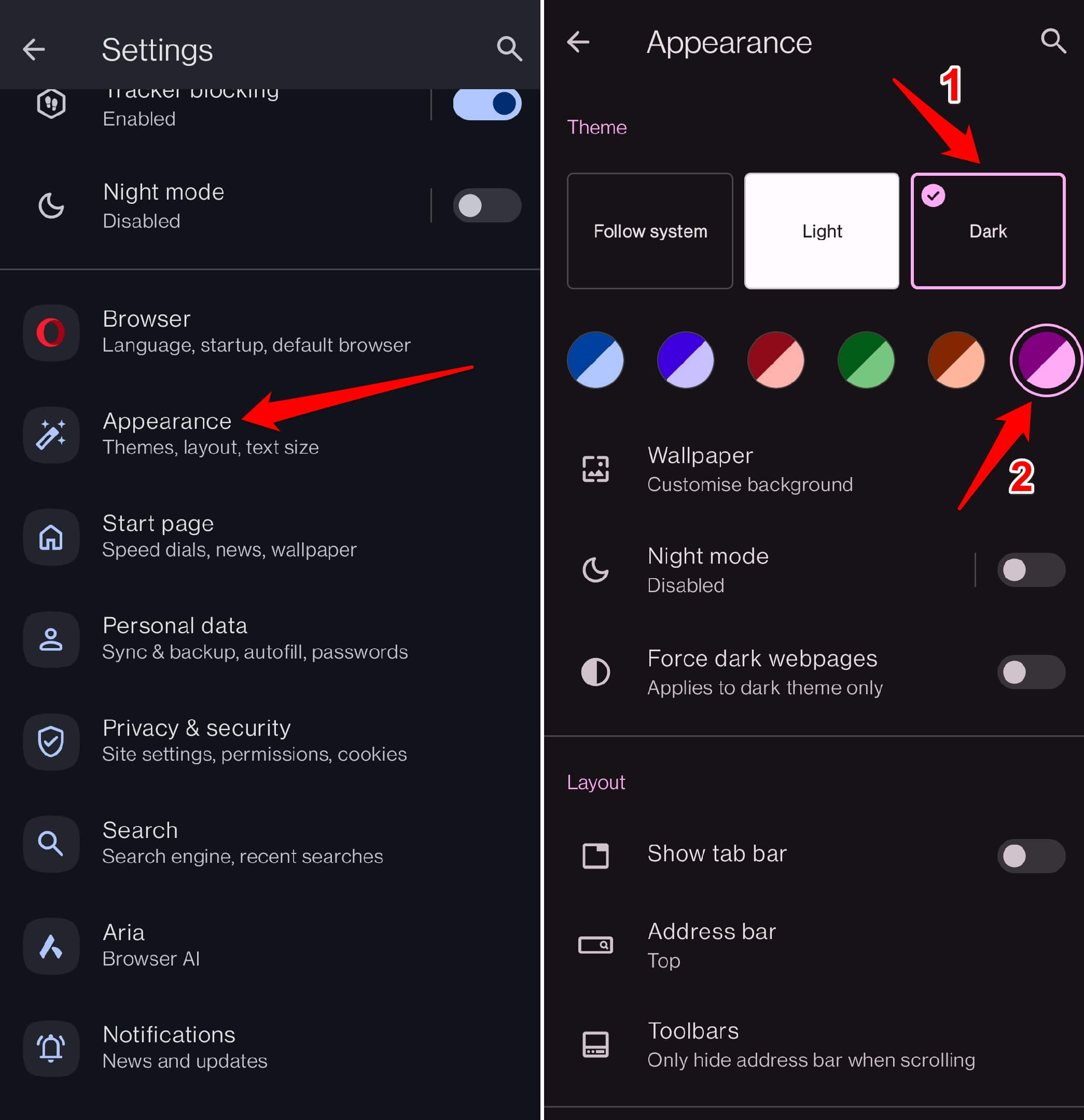

Under the Theme section, enable the option Force Dark Webpages. When a page loads on Opera, it will use a dark theme.
Once you pick a theme, the interface updates instantly.
Set a Background Wallpaper
A custom wallpaper can make the start page feel more personal. You can pick from Opera’s gallery or use your own photo.
- Launch the Opera app.
- Tap on Profile > go to Settings.
- Scroll down and select Appearance.
- Tap on Wallpaper to select from the various stock wallpapers offered by Opera.
- Alternatively, go to My Photos to set a photo from your phone gallery as the Opera wallpaper.
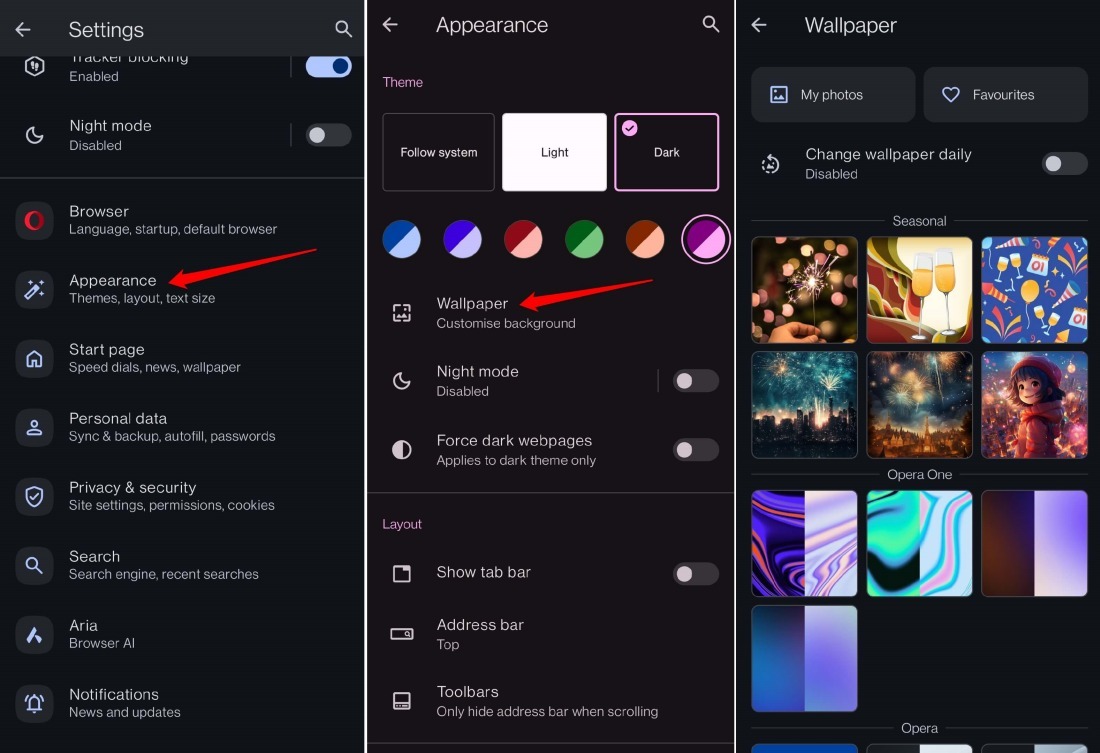

TIP: Within the Wallpaper settings, you can enable Change Wallpaper Daily to allow Opera to set a new wallpaper automatically.
The new wallpaper appears on the start page immediately.
Enable Night Mode
Night mode is handy when you’re browsing in a dark room. It tones down the bright whites to reduce glare.
- Open the Opera browser app.
- Tap on Profile > go to Settings.
- Scroll down and select Appearance.
- Tap the switch beside Night Mode to enable it.
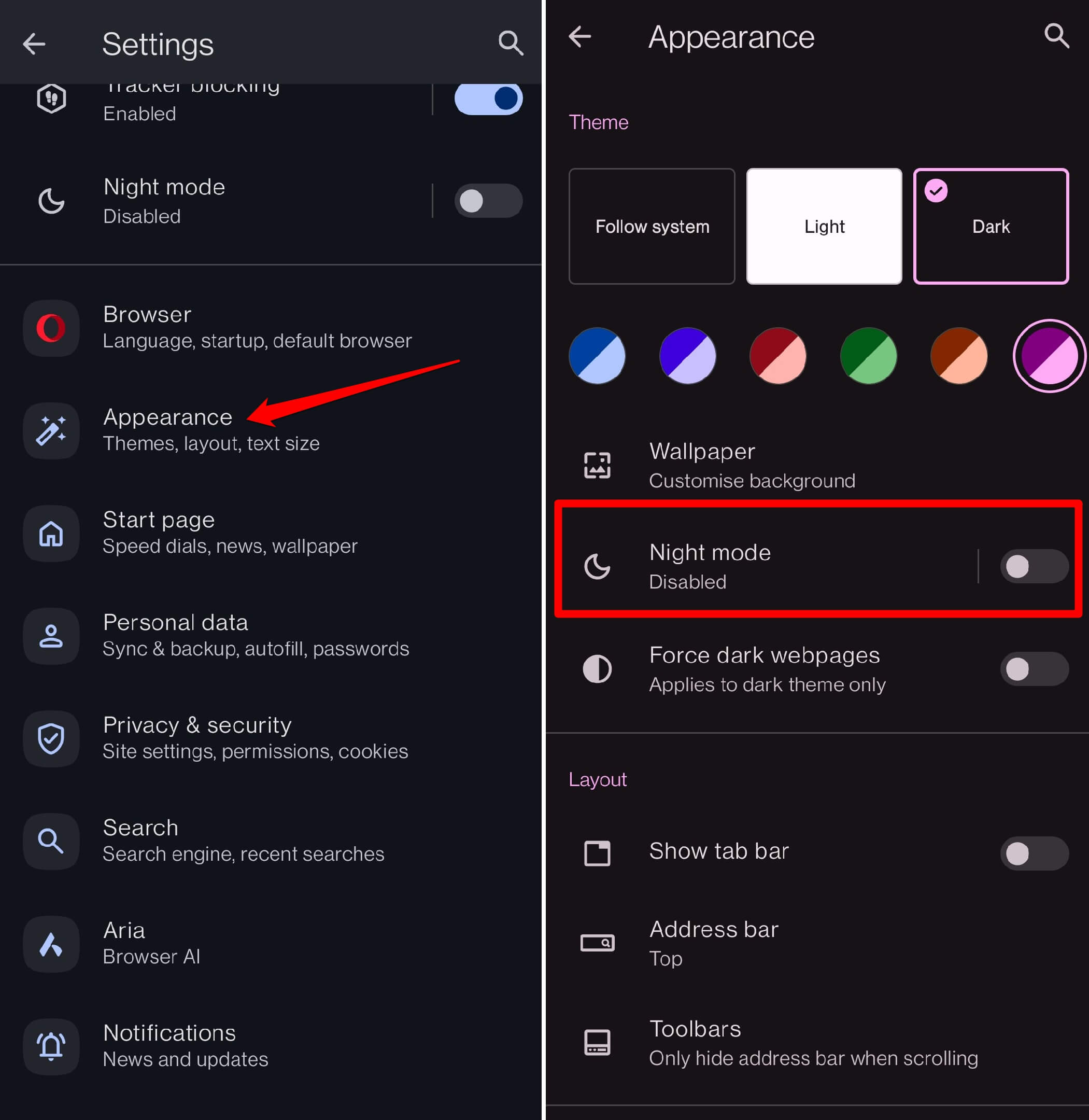
Night Mode darkens the interface for comfortable browsing in low-light conditions, helping reduce eye strain during late-night sessions.
You’ll notice the difference as soon as you toggle it on.
Customize Layout View
If you prefer having tabs always visible or want the address bar at the bottom, the layout settings let you rearrange things.
- Open the Opera browser app.
- Tap on Profile > go to Settings.
- Scroll down and select Appearance.
- Under the Layout section, tap Show tab bar to enable it.
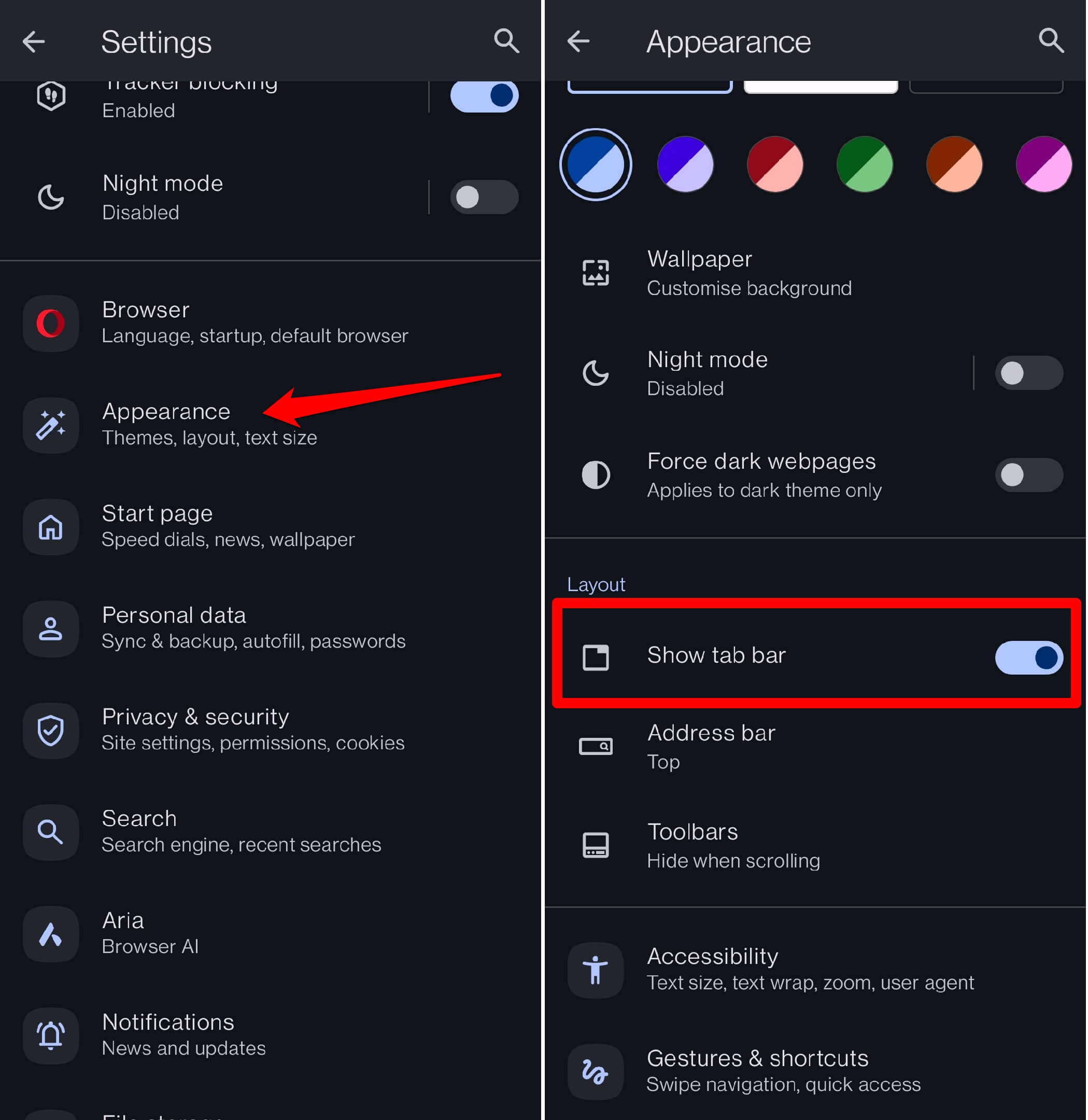
- Tap on Address bar to set the address bar to display either at the top or bottom of the page.
- Go to Toolbars and select an option to keep the toolbar visible, hide it during scrolling, or only hide the address bar while scrolling.
The changes take effect right away, so you can test different setups quickly.
Personalize Text Size
Text too small to read comfortably? You can scale it up or down without affecting the rest of the interface.
- Open the Opera browser app.
- Tap on Profile > go to Settings.
- Scroll down and select Appearance.
- Go to Accessibility and tap on it.
- Drag the slider back and forth to adjust the text to a suitable size depending on your visual comfort.
- Enable Text Wrap to streamline the size of text to avoid the issue of hidden text on the screen.
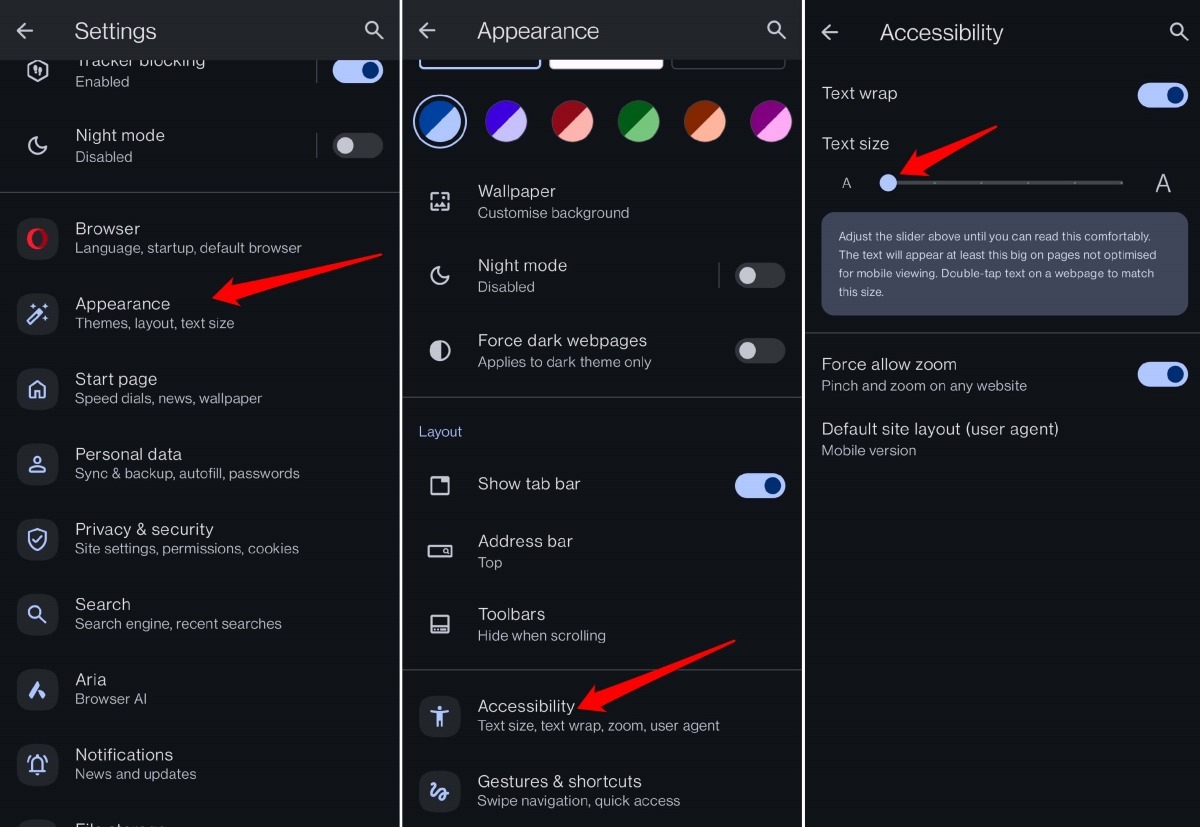
You’ll see the text size change on the current page as you drag the slider.
Bottom Line
Once you’ve set up the theme, wallpaper, and text size the way you like, Opera should feel easier on the eyes. If something still looks off, revisit the Appearance menu and tweak a setting or two.