Typing card numbers on a phone screen is tedious. Opera for Android can save your payment details and fill them in automatically at checkout. Once you add a card, the browser handles the heavy lifting.
You can also edit saved cards when details change or delete ones you no longer use. Opera stores the data securely, so checkouts complete quickly without retyping anything.
In this guide, I have covered:
Contents
Add Payment Methods and Cards in Opera Android
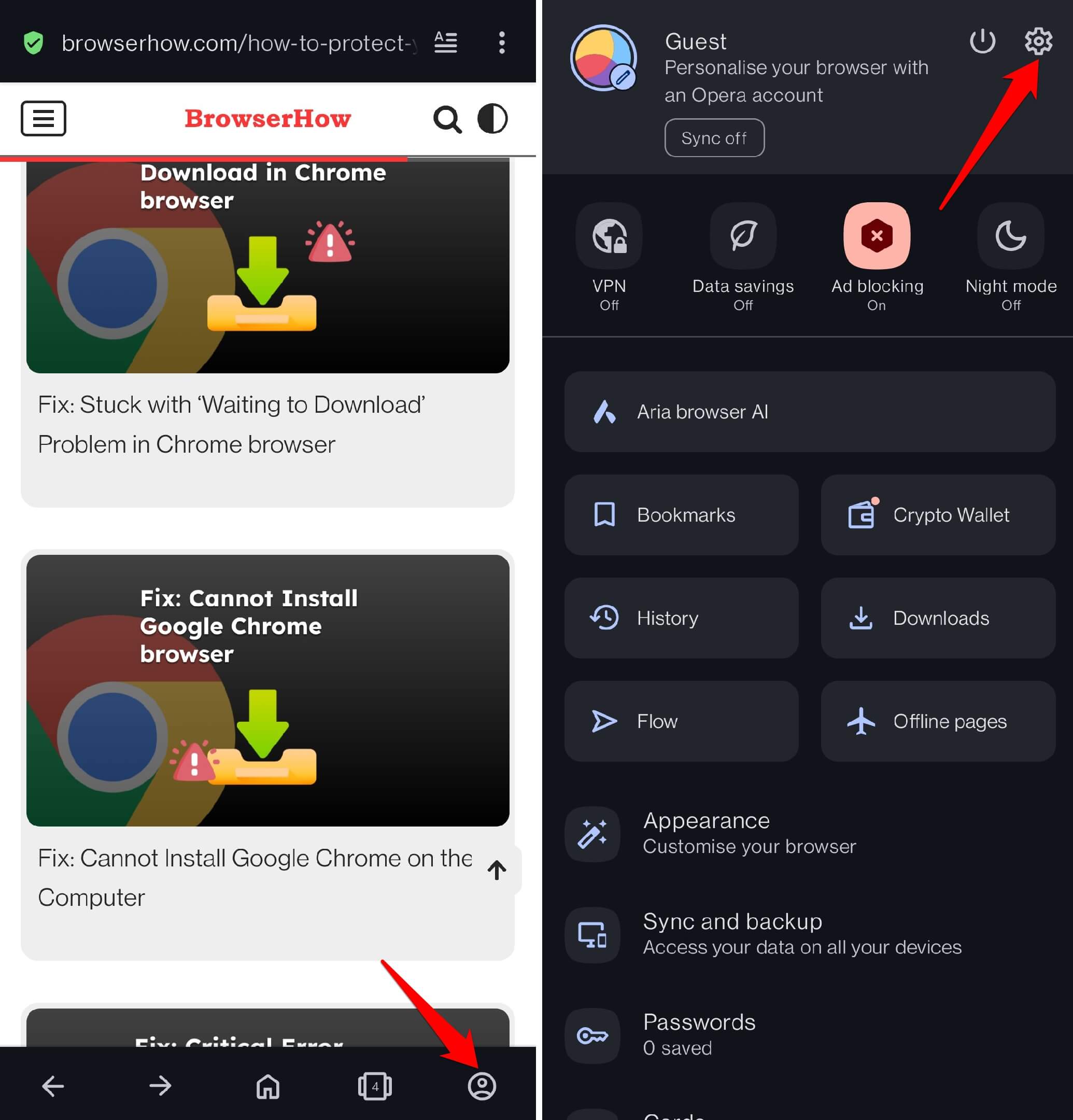
- Launch Opera on your phone.
- Tap the Profile icon.
- Tap the
 icon to open Opera settings.
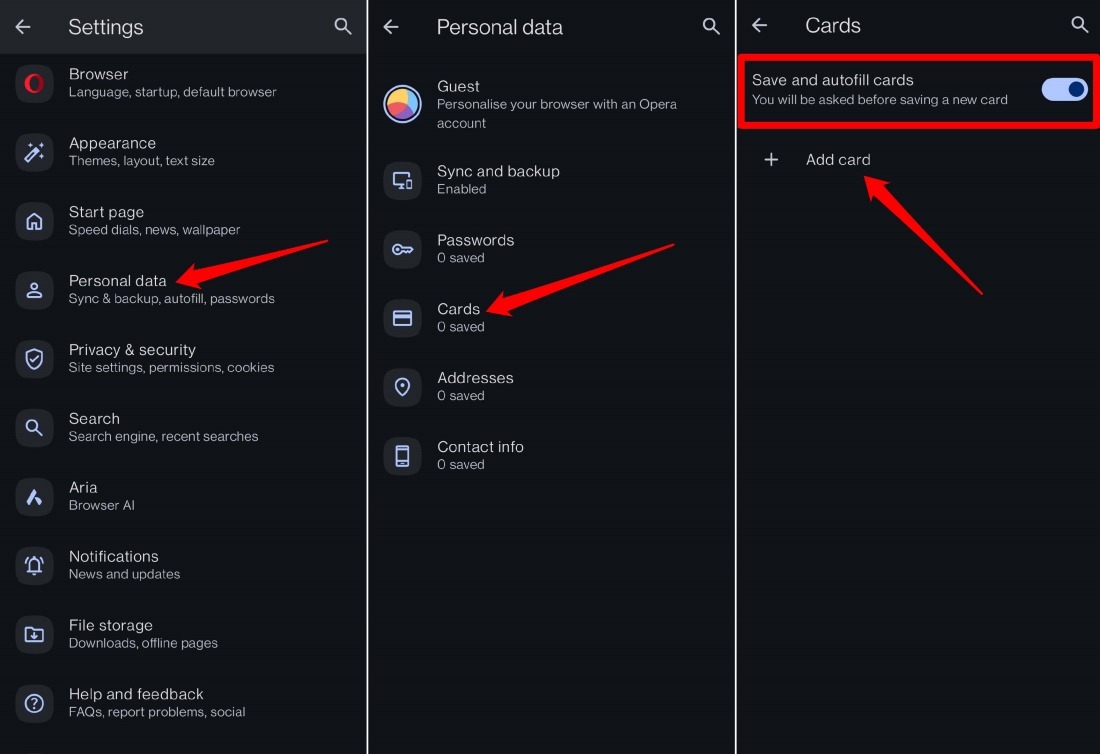
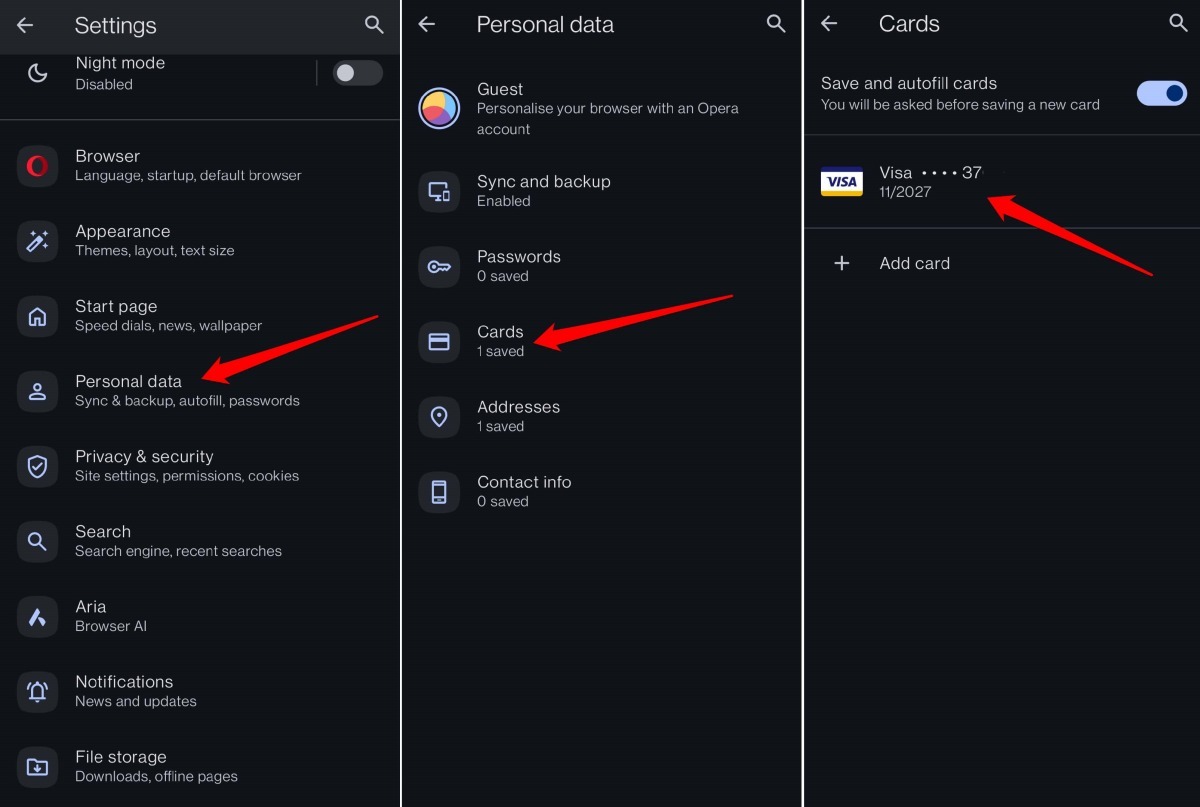
- Choose Personal Data > Cards.
- Enable Save and autofill cards by tapping the switch beside it.
- Tap Add Card.
- Enter the card details: name, credit/debit card number, expiry date, and address.
- Press Save to add the card information to Opera.
Edit a Saved Payment Method
- Open the Opera browser app on your Android device.
- Go to Profile > Settings.
- Tap Personal Data.
- Select Cards.
- Tap the saved card you want to edit.
- Make the necessary updates to the payment method.
- Tap Save.
Delete a Saved Payment Method on Opera
- Launch the Opera browser app on your Android phone.
- Go to Profile > Settings.
- Tap Personal Data.
- Select Cards.
- Tap the saved card you want to remove.
- Press the trash icon at the top to delete the payment method details you no longer need.
Bottom Line
You’ll know it worked when you tap a payment field on a website and Opera offers to fill in your saved card. No more typing numbers on a tiny screen. If you ever need to update your card or remove an old one, just head back to Settings > Personal Data > Cards.