Opera's notification dots won't quit? Getting pinged by every site? You can take back control with a few taps. We'll show you where the master switch lives and how to fine-tune each alert category through your Android's system settings.
You'll end up with a calmer phone, and the alerts that do break through will be the ones you actually want.
In this guide, I have covered:
Contents
Configure Notification Settings in Opera on Android
When every other site begs for notification permission, your phone’s status bar turns into a mess. Maybe you need a full stop: a single switch to kill all browser pings. Just head into Opera’s own settings.
- Launch the Opera browser app on your phone.
- Tap your profile icon, then the
 icon to open Opera settings.
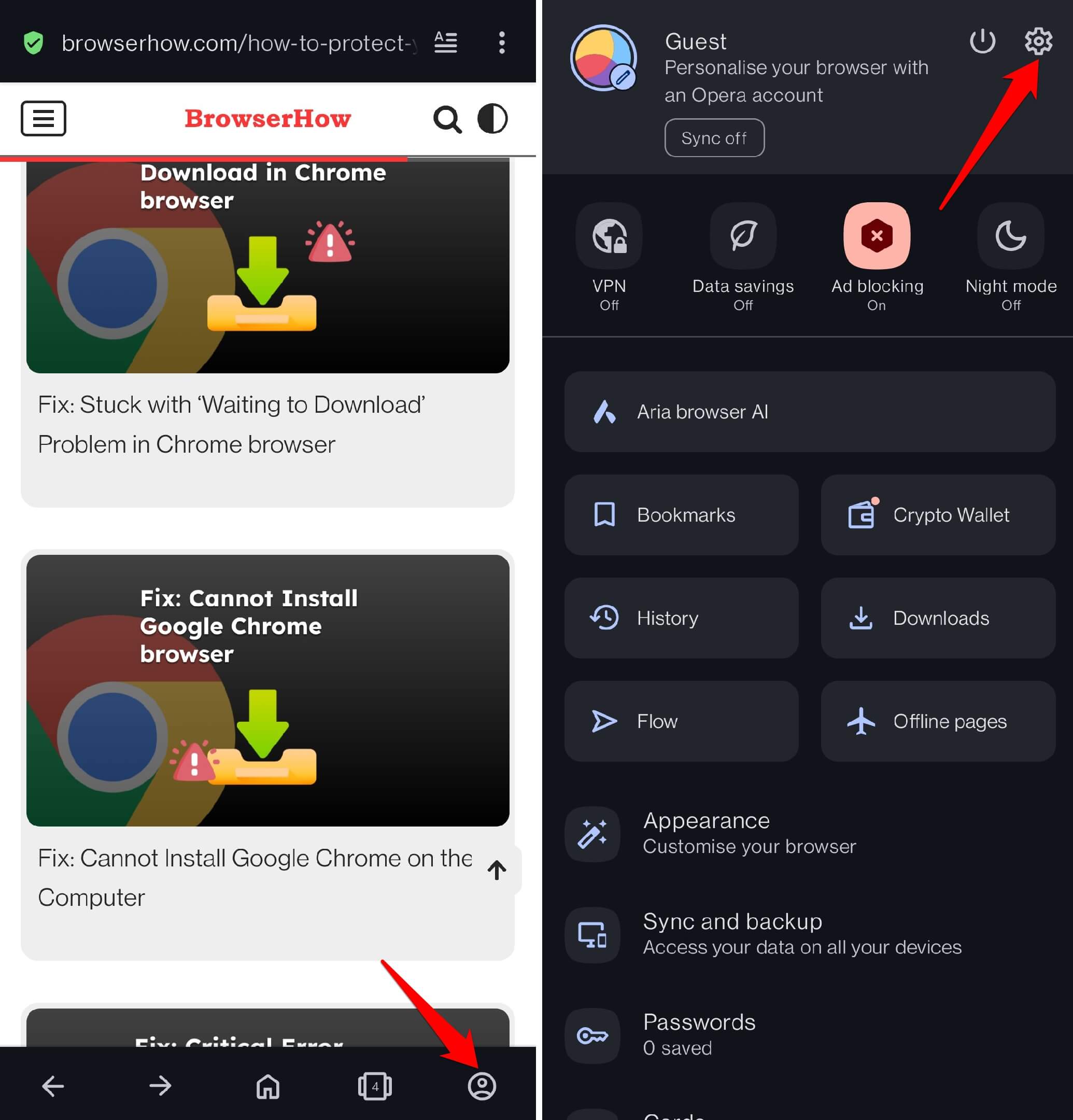
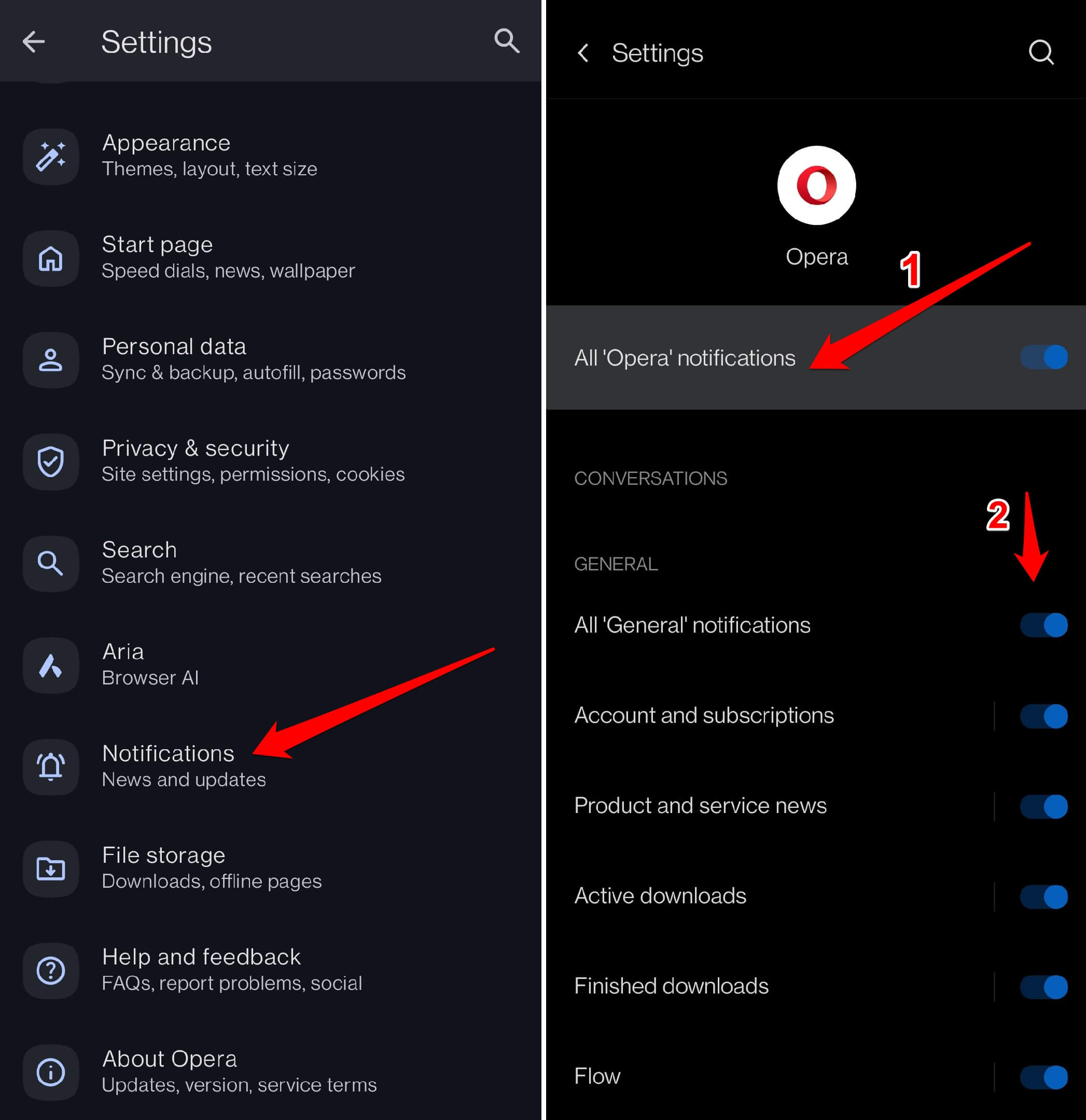
- Scroll down and tap Notifications.
- Toggle the Notifications switch to enable or disable all incoming notifications from the browser.
Customize Individual Notification Categories
If you’d rather keep some alerts but tweak how they arrive, Android’s system notifications give you per-category levers. You can change sounds, pop-ups, vibration, and more.
- Open your phone’s Settings app and go to Apps > Opera.
- Tap Notifications to view the available categories (such as General, Sites, Other, and Advanced).
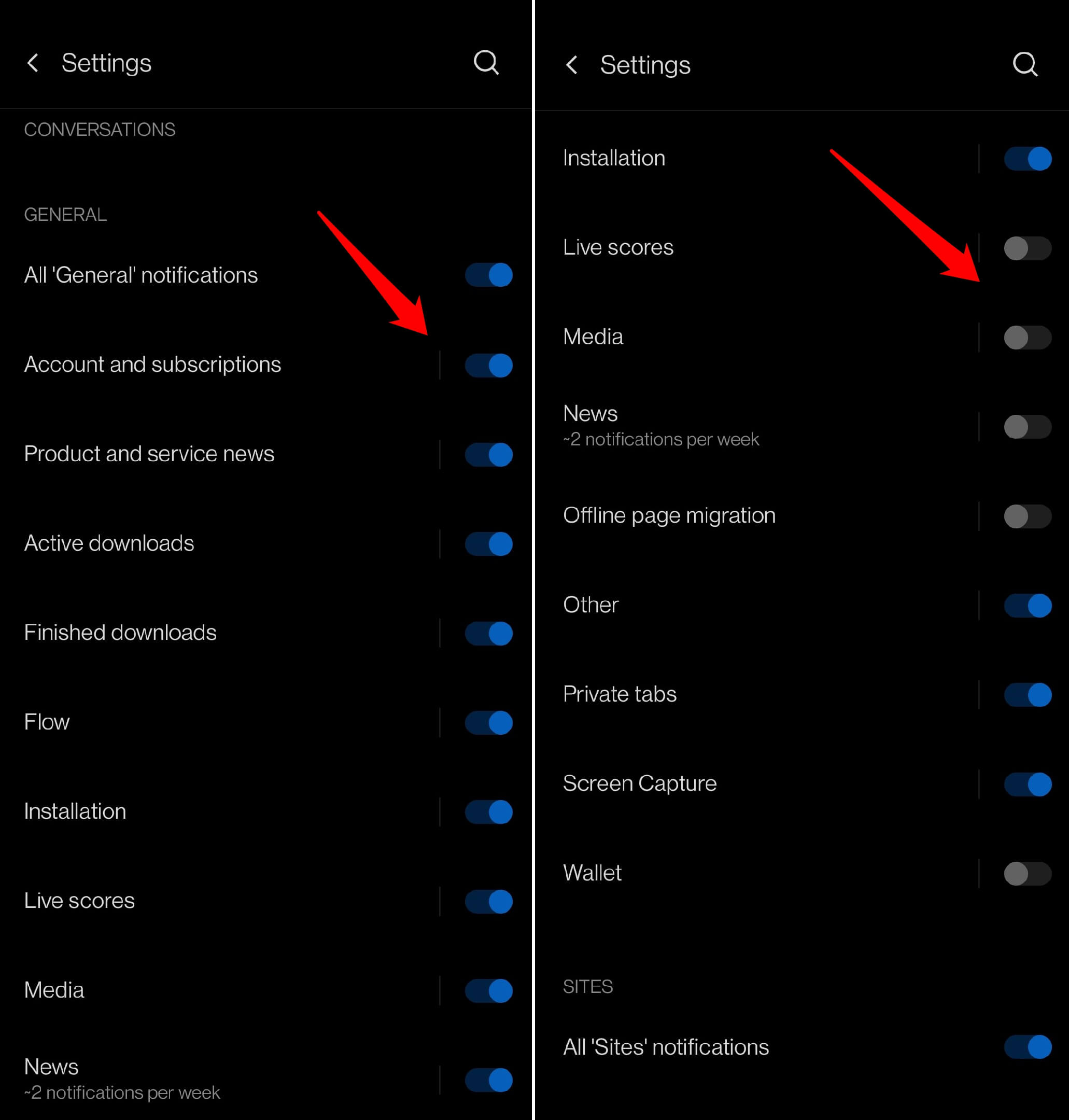
- Select a category (for example, Product and Service News under General Notifications) to customize it. Inside each category you can:
- Choose whether the notification plays a sound or appears silently on the notification panel.
- Enable or disable Pop on screen to allow notifications to flash on your display.
- Open Advanced to enable or disable vibration alerts for incoming notifications.
- Enable the notification dot to indicate new notifications.
- Toggle Override Do Not Disturb so notifications still appear when DND is enabled on the phone.
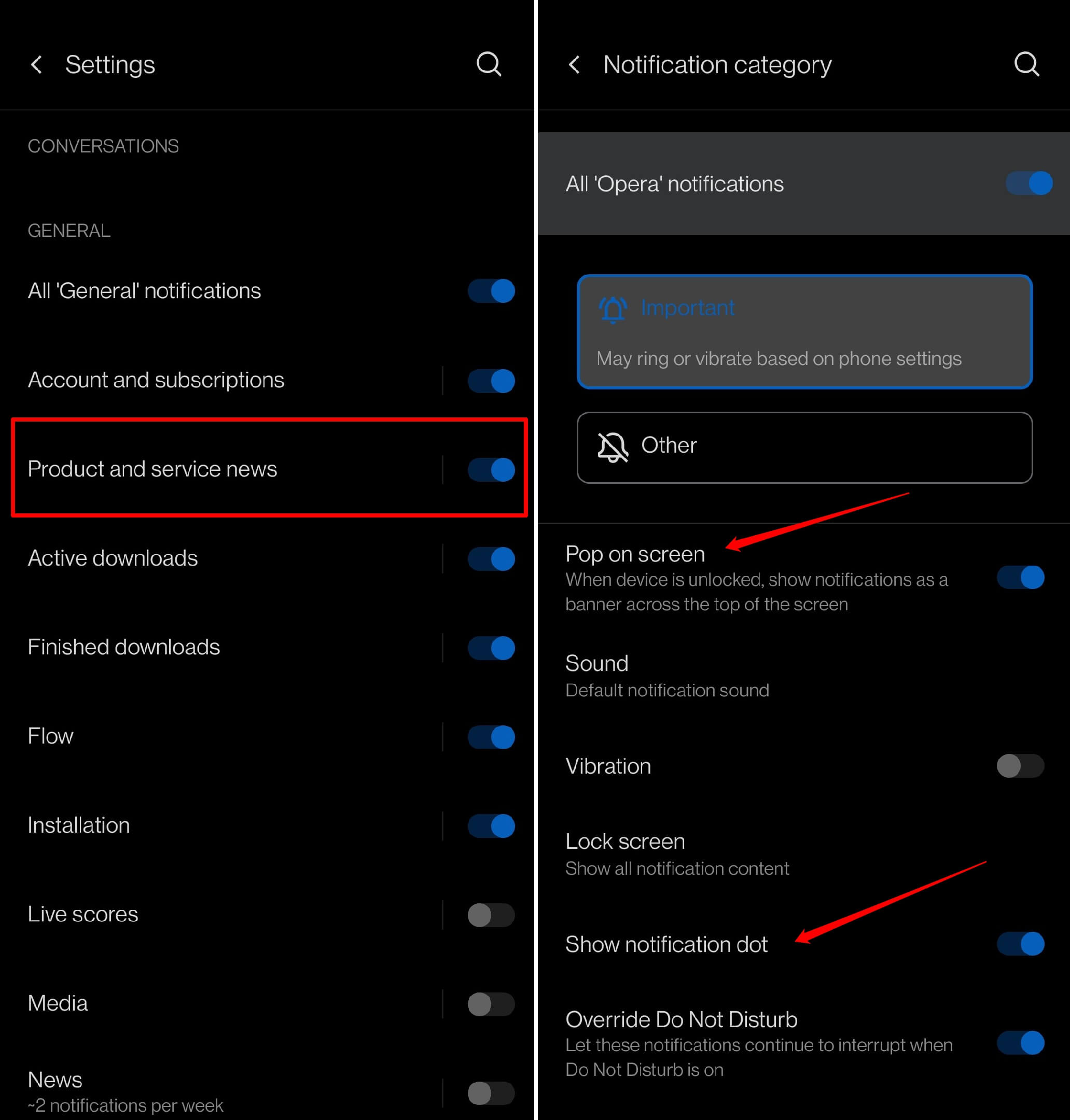

The customization options remain largely the same for any category available in Opera’s Android notification settings.
Bottom Line
You’ll know it worked when your notification shade finally stays clean, or when you get a ping only for the things you actually care about. Turning off unnecessary alerts means fewer distractions and more focus.