Some mobile websites block pinch-to-zoom, leaving tiny text you can’t read. Opera for Android includes a Force Allow Zoom setting that overrides that block. Turn it on, and you’ll be able to pinch-zoom any page.
The option sits inside Accessibility, not the main view settings. Once you flip the switch, every site lets you spread two fingers to magnify what’s on screen.
In this guide, I have shared written instruction about:
Enable Forced Zooming
- Open the Opera browser on your Android phone.
- Tap your Profile icon and select Settings.
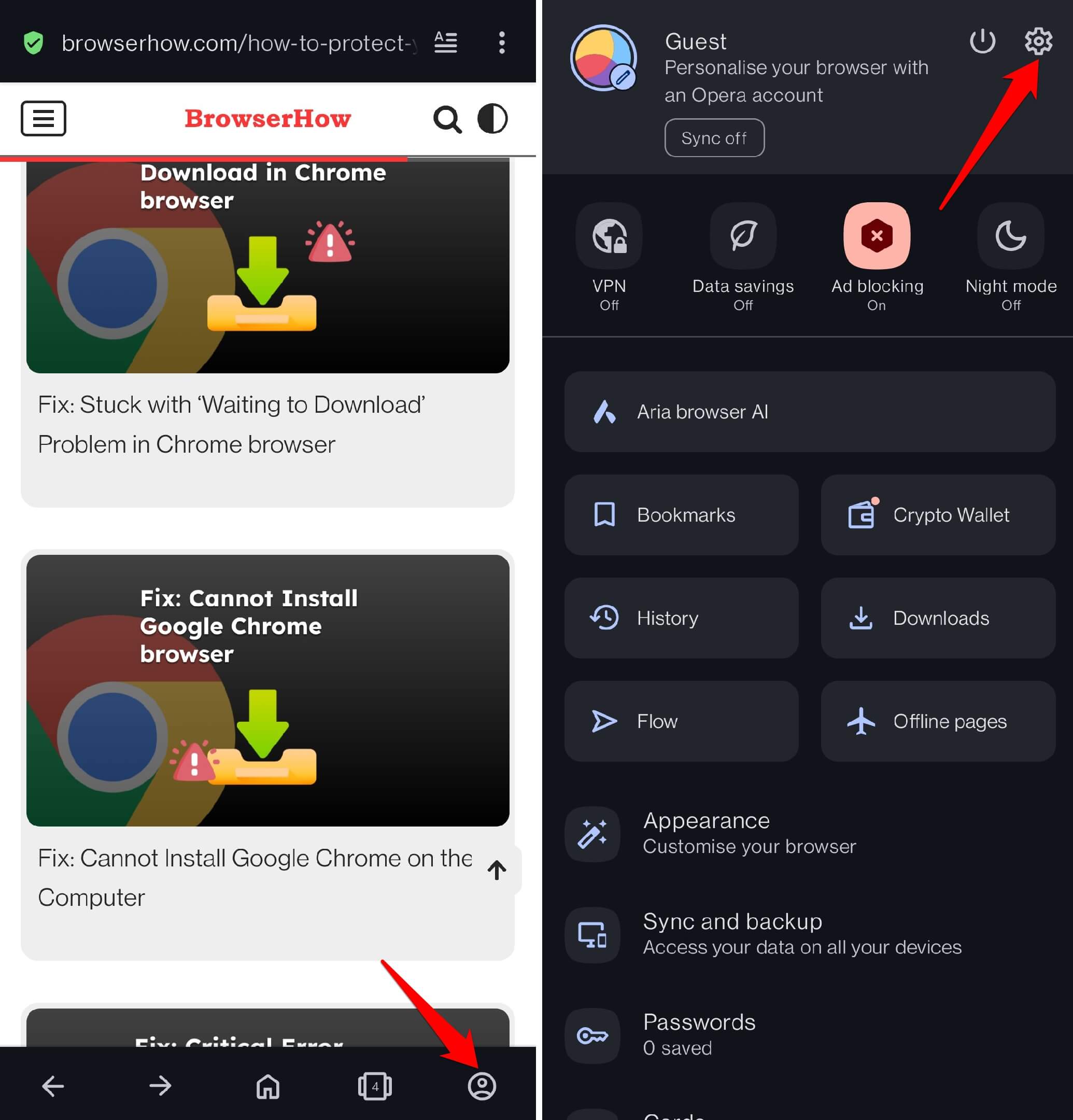

- Tap Appearance.
- Scroll down and choose Accessibility.
- Turn on the switch next to Force Allow Zoom.
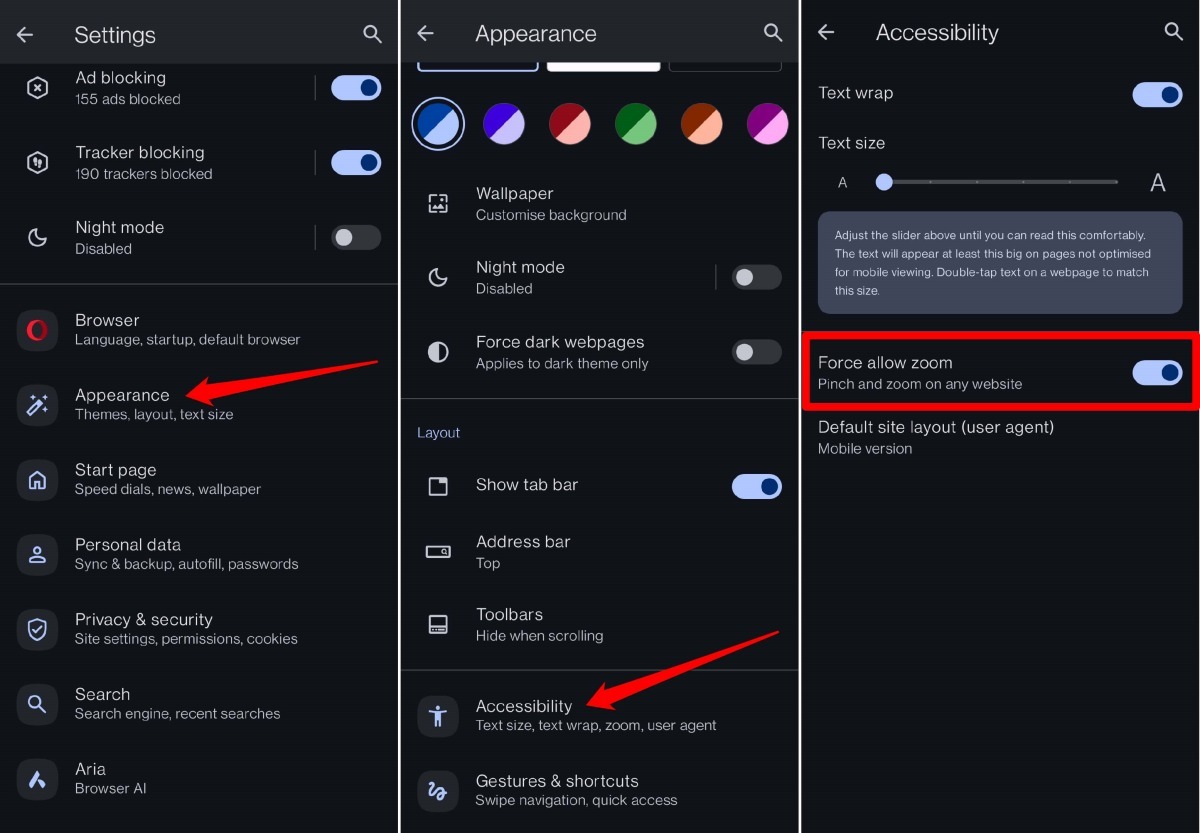

After you enable the toggle, visit any site that previously blocked pinch-to-zoom. Spread two fingers on the screen. If the page magnifies, forced zoom is working. Opera now ignores the site’s request to lock the view, so you can adjust the size of text and images on all mobile layouts.
Bottom Line
You’ll know it’s active when a two-finger spread zooms in on a formerly stubborn site. No more squinting at tiny type: Opera’s forced zoom puts you in control of the view on every page you open.
Lastly, if you've any thoughts or feedback, then feel free to drop in below comment box. You can also report the outdated information.