Firefox app puts forward and backward buttons right on the toolbar. Tap them to move through pages you visited earlier in the same session.
Long-press either button and a list of recently browsed pages appears. That list lets you jump directly to a page without tapping the arrow over and over. It's a fast way to retrace your steps when you've gone deep into a site.
In this guide, I have covered:
Contents
Navigate Backward in Firefox app
Firefox puts forward and backward buttons right on the toolbar. Use them to step through pages you visited earlier in the same session.
The buttons light up once you’ve browsed a few pages on a site. If you started on a homepage and clicked through three other pages, you can jump back to any of them.
Tap the backward navigation button on the current page. Each tap moves you one step back.
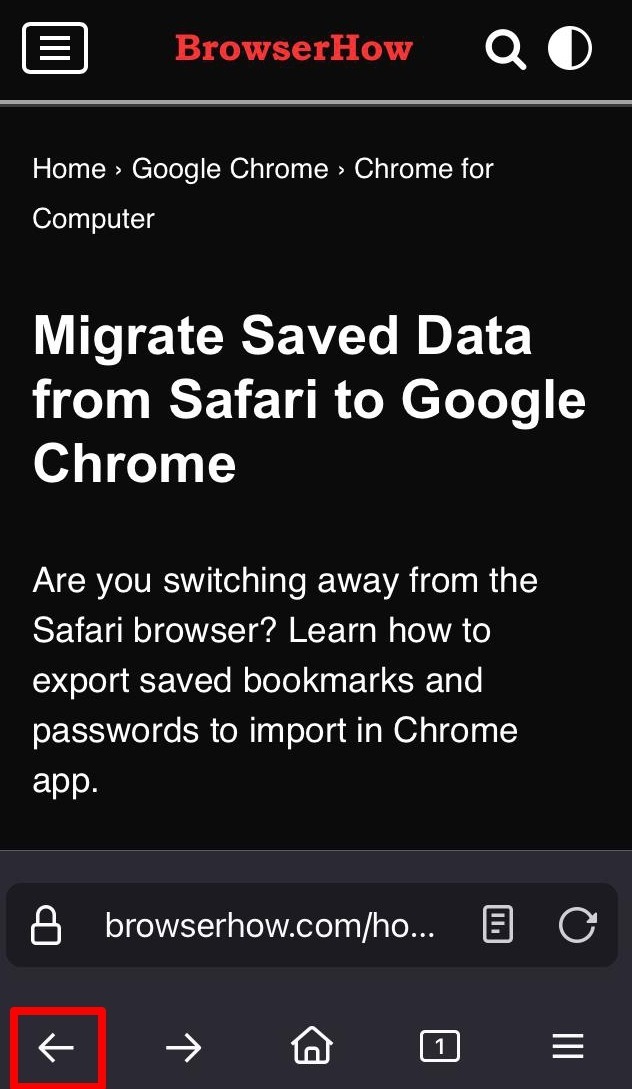

Once you land on the page where you started, the backward button greys out. You cannot go back any further.
Long-press the backward button instead of tapping repeatedly. A list of pages from the start of your session drops down.
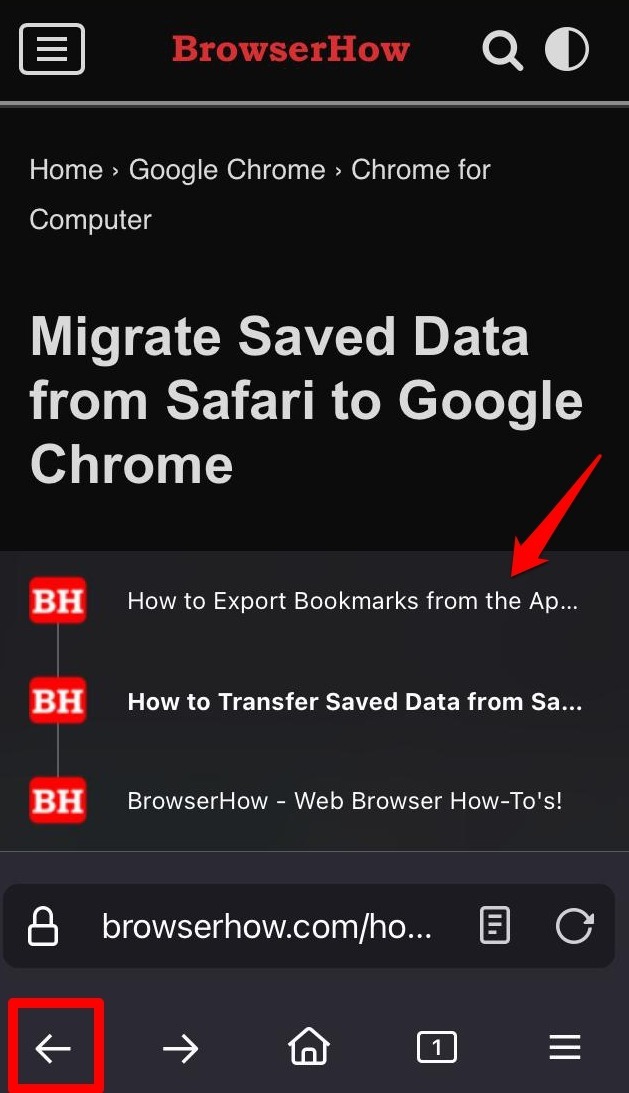
Tap any page in that list to jump straight to it. No need to wear out the back arrow.
Navigate Forward in Firefox app
After browsing five or six pages, you might tap back a couple of steps. Then you want to return to the pages you just left.
Tap the forward navigation button. Each tap advances you one page.
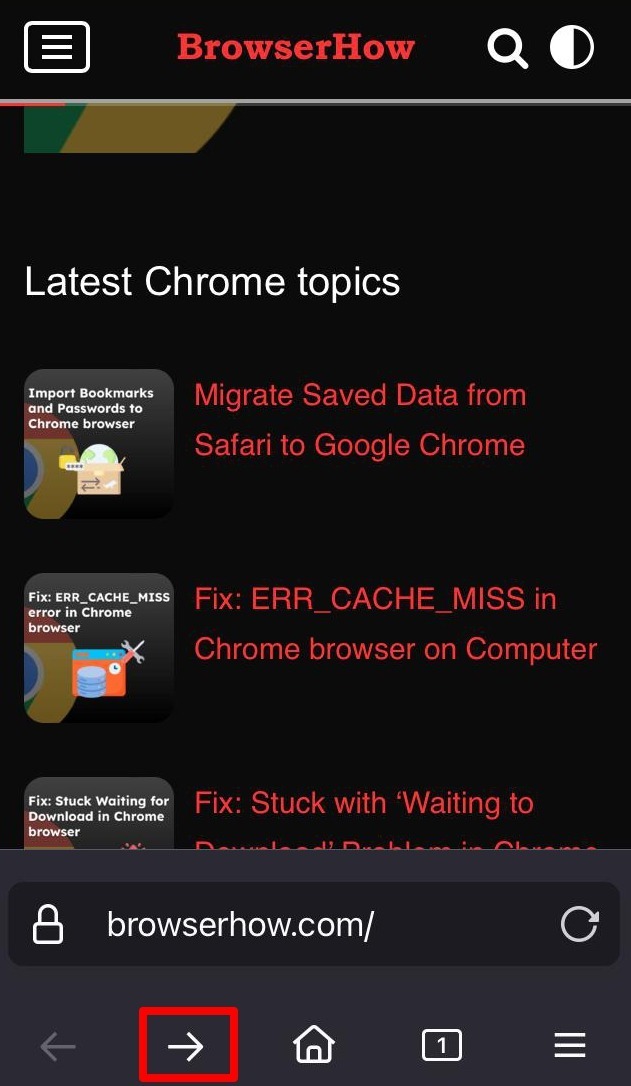
When you reach the last page, the forward button greys out. You cannot advance any further.
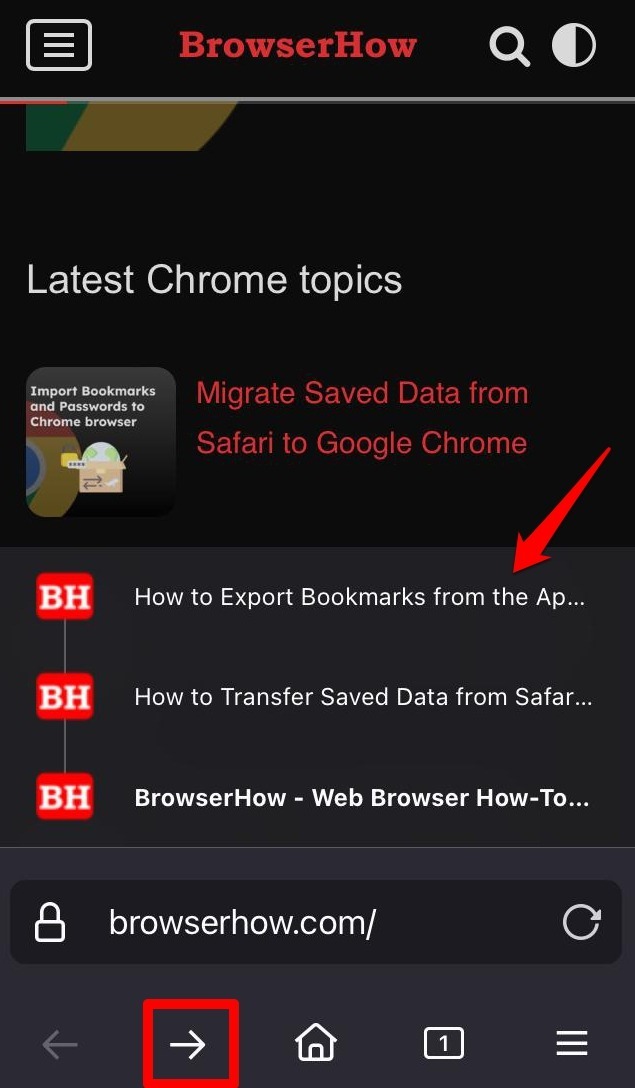
Long-press the forward button to see a list of pages you browsed recently. Tap the page you want and Firefox jumps ahead to it.
Bottom Line
Stop searching for pages you already opened or retyping URLs. The forward and backward buttons retrace your steps inside a session.