You can print any webpage straight from Firefox app. Need a hard copy of a boarding pass or a recipe? Send it to a nearby printer in moments. Or, if you'd rather keep a digital copy, the same share menu lets you save the page as a PDF file to your iPhone's Files app.
The steps are short and use iOS's built-in print preview. This guide covers both the print and save-as-PDF workflows, so you never lose an important page.
In this guide, I have covered:
Contents
Print a Web Page from Firefox app
- Open Firefox on your iPhone.
- Go to the page you want to print.
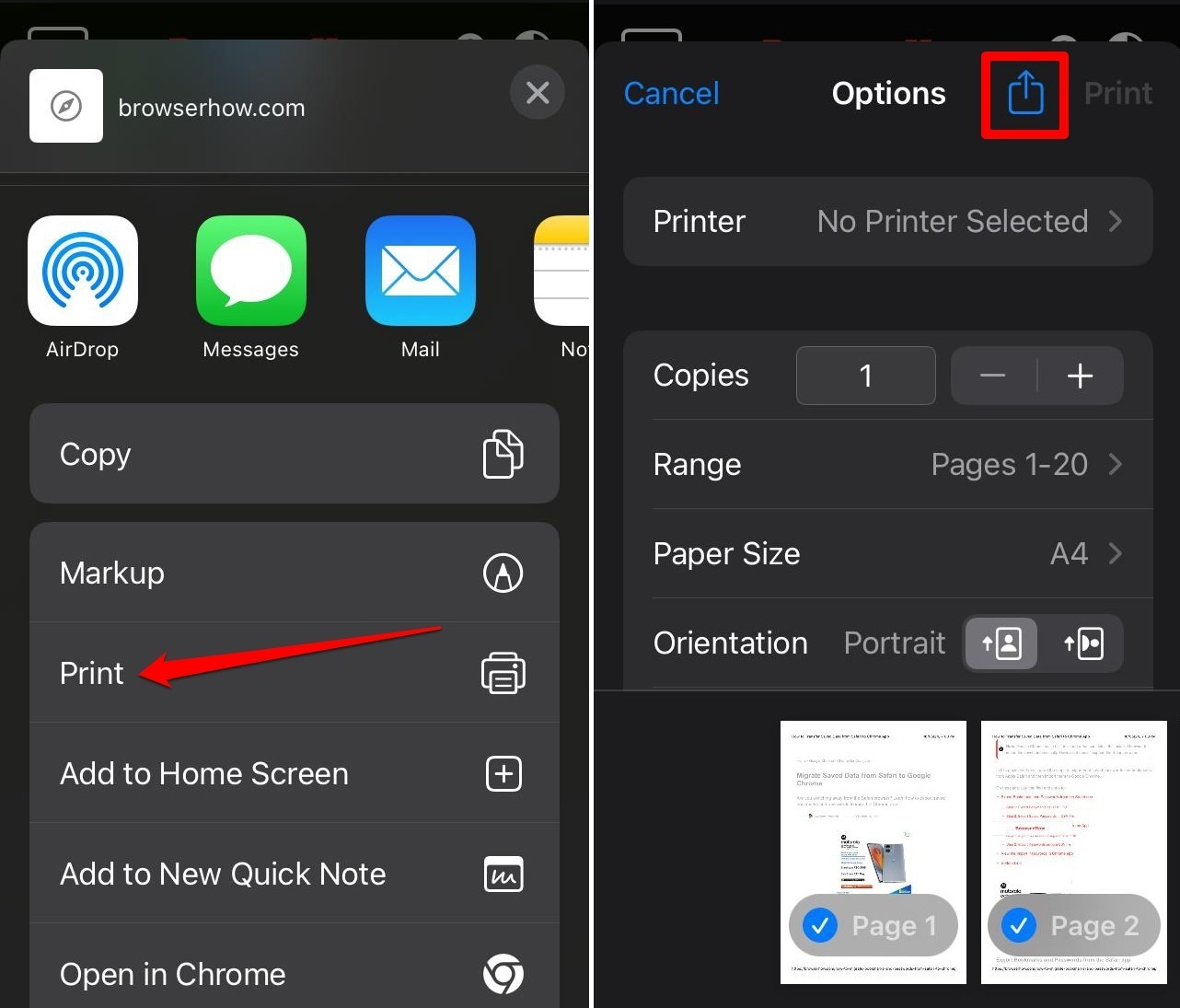
- Tap
 More > Share.
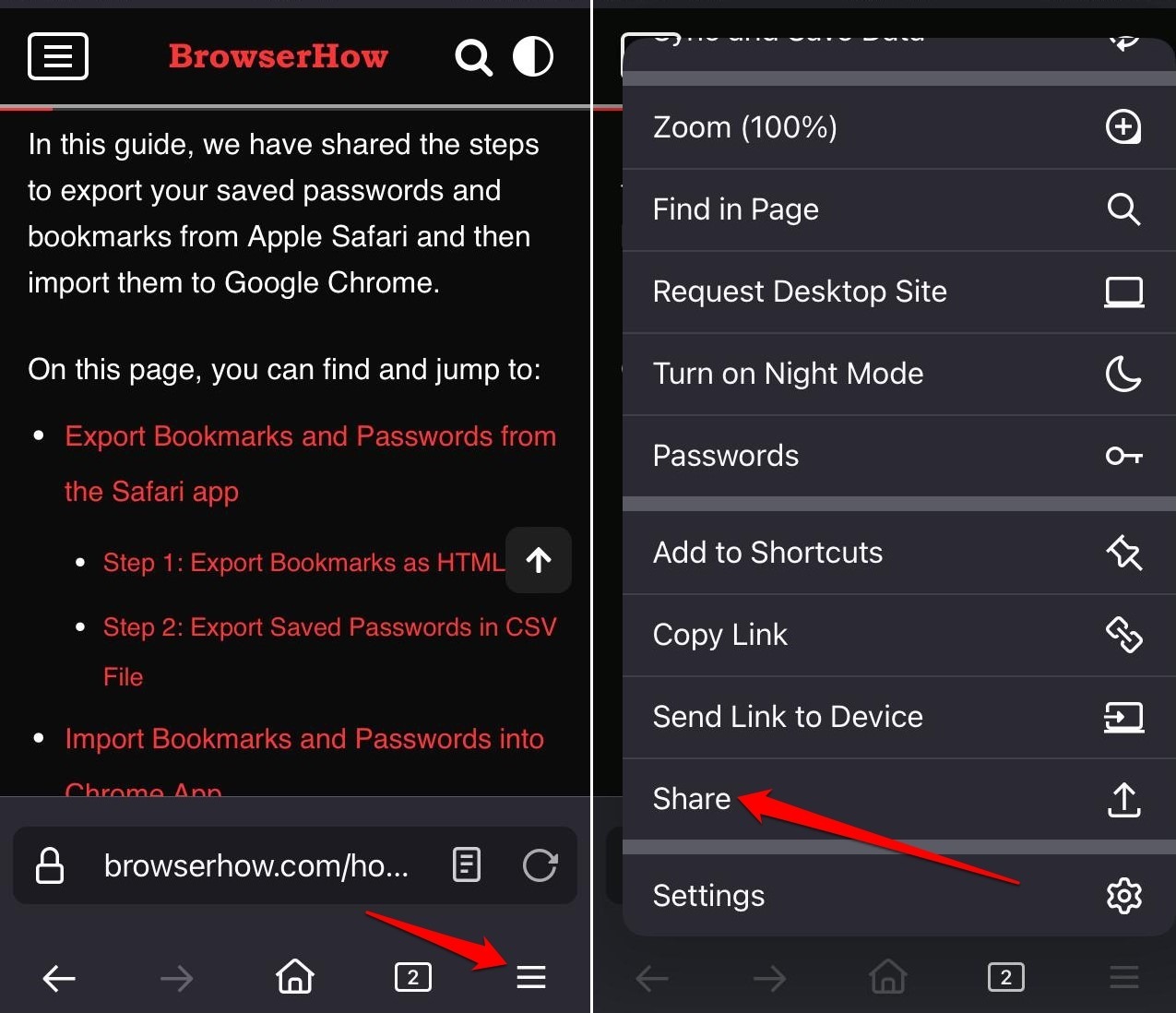
- Select in the Share menu.
- Choose your printer.
- Set the number of copies you need.
- Check Range, Paper Size, and Orientation if needed.
- Tap to start printing.
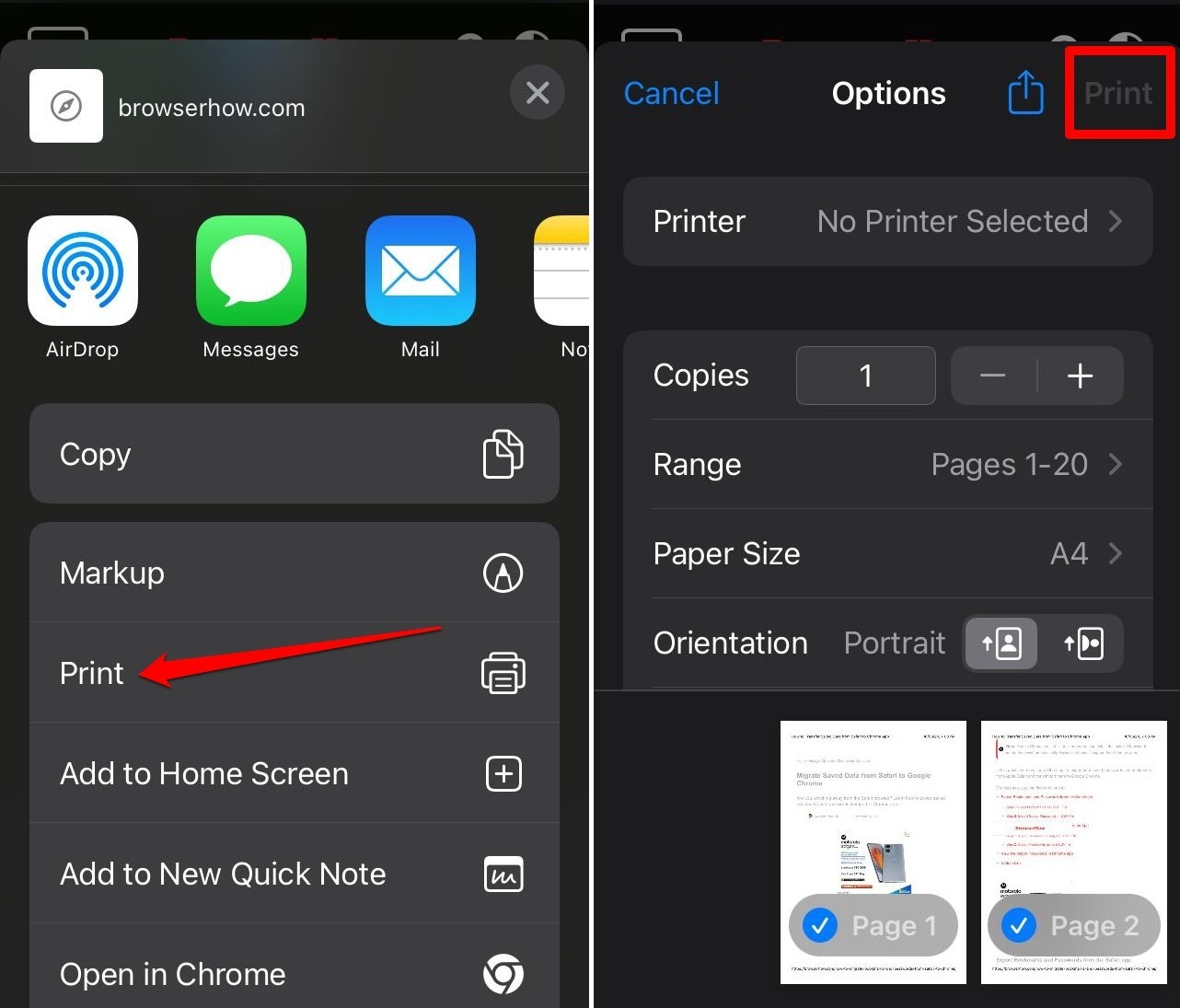
Your printer should begin printing the selected pages right away.
Save a Page as a PDF
You can use a saved webpage in PDF format to print later by following the steps above.
- Open Firefox on your iPhone.
- Go to the page you want to save.
- Tap More > Share.
- Select in the Share menu.
- On the Print Preview screen, tap the icon.
- Choose Save to Files option.
- Tap .
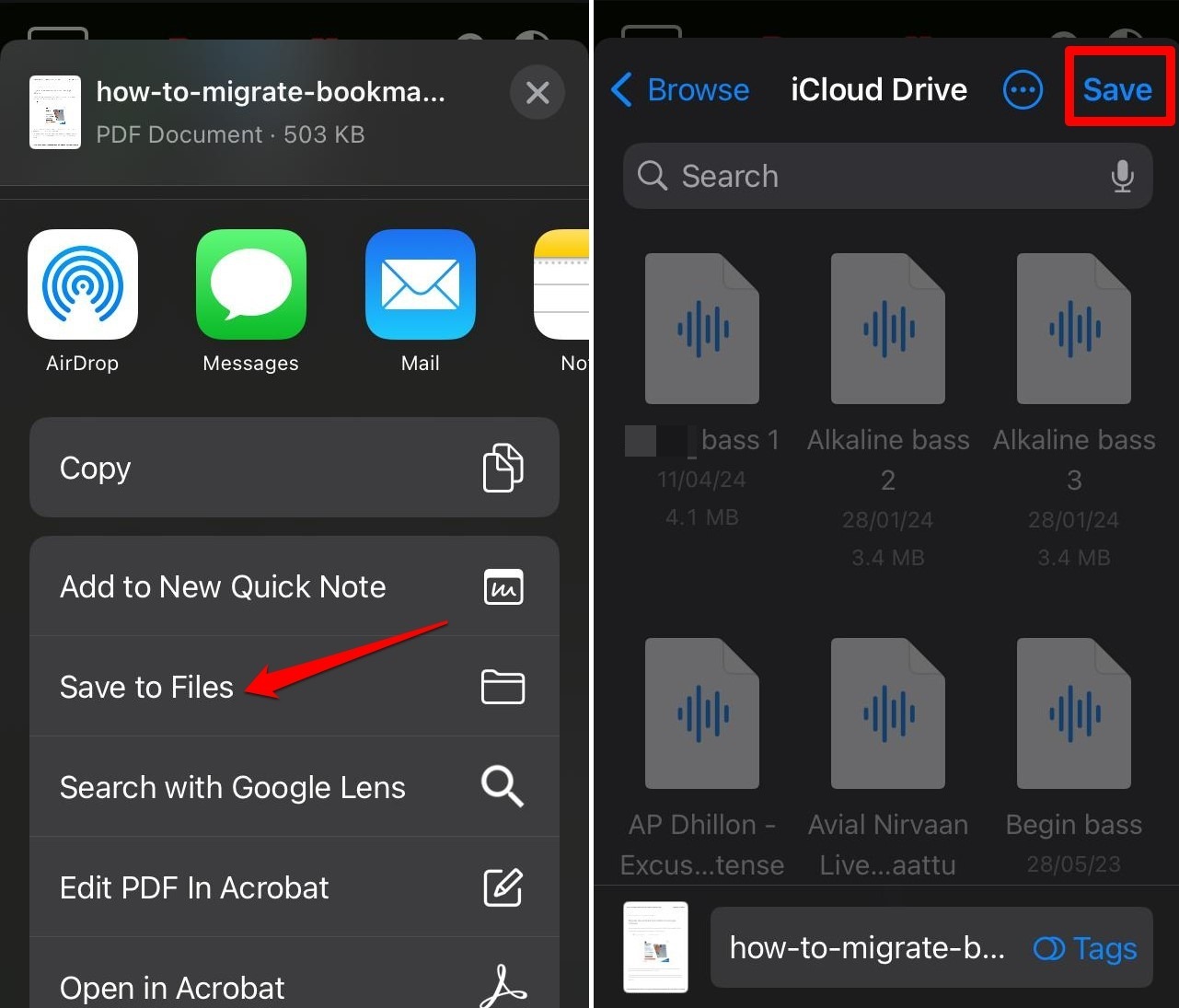

The webpage will be saved to the iPhone Files app. You’ll know it worked when you see the file appear in the Files app.
Bottom Line
A saved PDF is perfect for offline reading or sending a snapshot that won’t change. The print workflow works the same across iOS, so you can pick a printer, check the settings, and go.