Pop-ups can be a nuisance, especially when they redirect you to scam sites or flood your screen with ads. Firefox browser blocks them automatically, which is great, until you need a legitimate pop-up from your bank or a government portal.
Here's how to turn the pop-up blocker on or off in Firefox on iPhone and iPad, and when you should (or shouldn't) allow pop-ups.
In this guide, I have covered:
Contents
Block Pop-ups in Firefox app
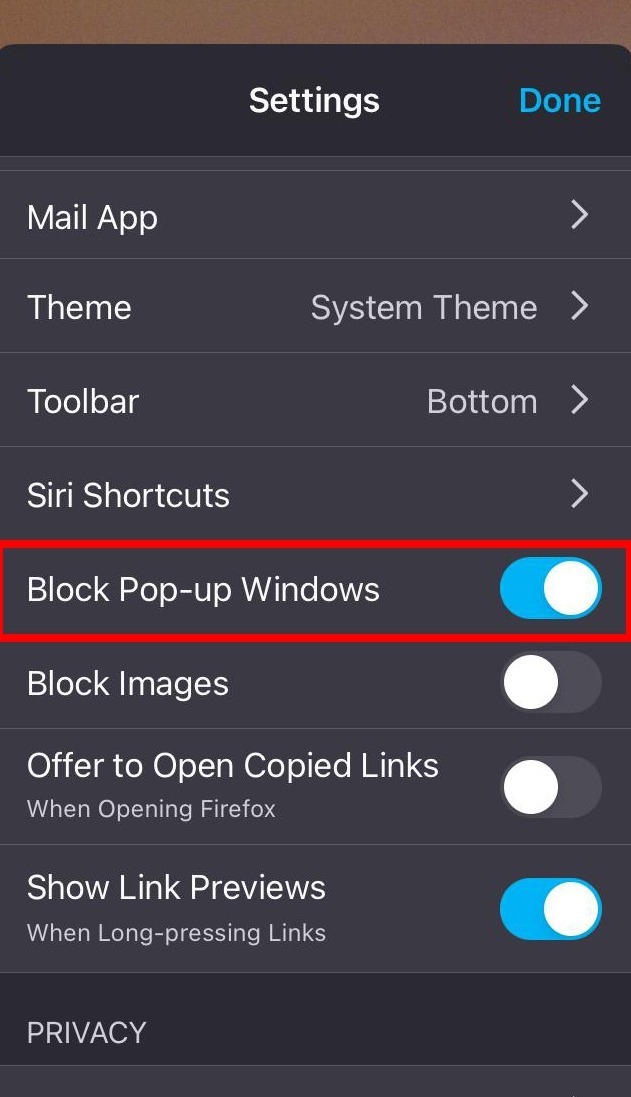
Firefox for iOS blocks pop-ups by default. If you’ve turned the blocker off and want to turn it back on, here’s how.
- Open the Firefox app on your iPhone or iPad.
- Tap the
 menu and choose Settings.
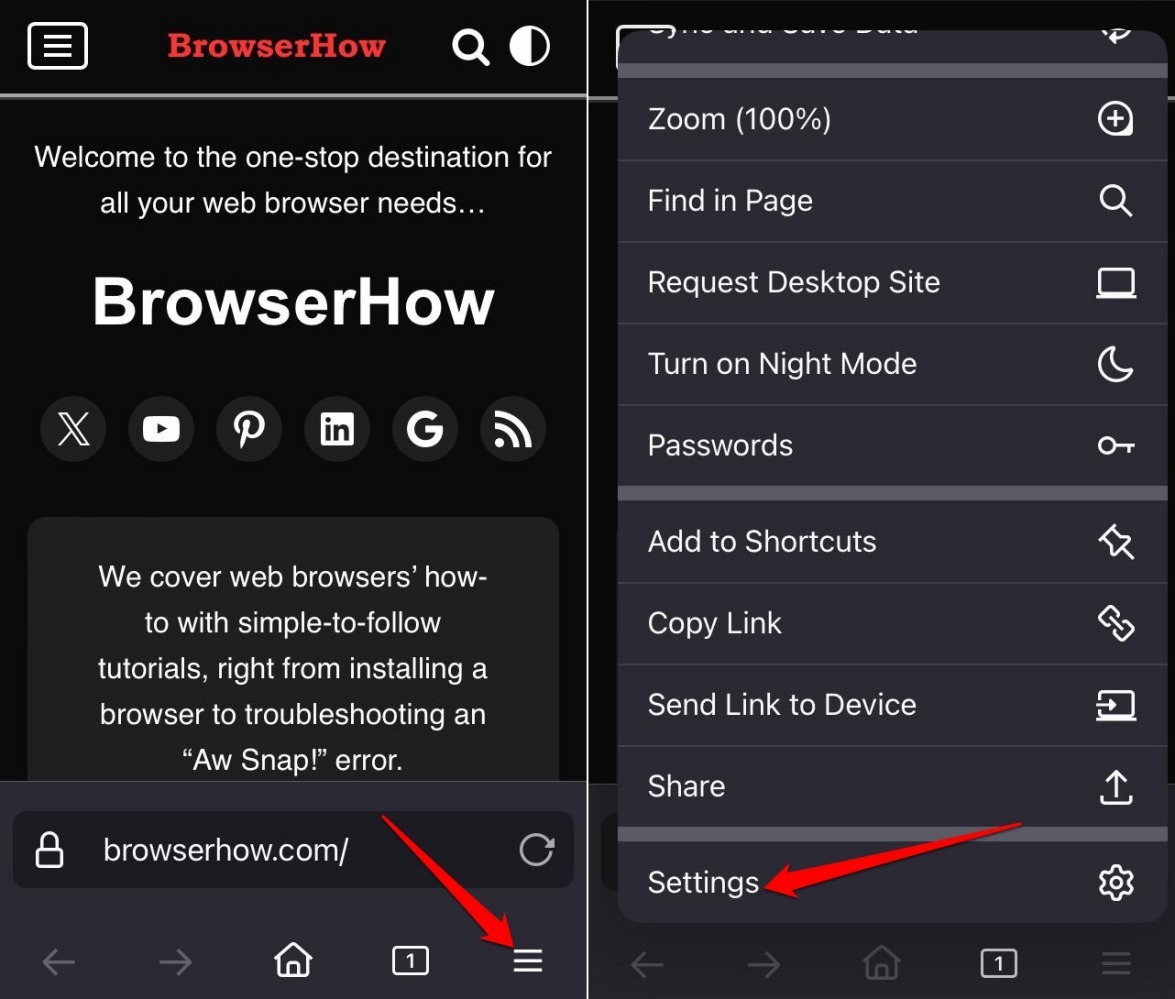
- Under the Privacy section, tap Block Pop-up Windows.
- Toggle the switch on to block pop-ups.
Allow Pop-ups in Firefox browser
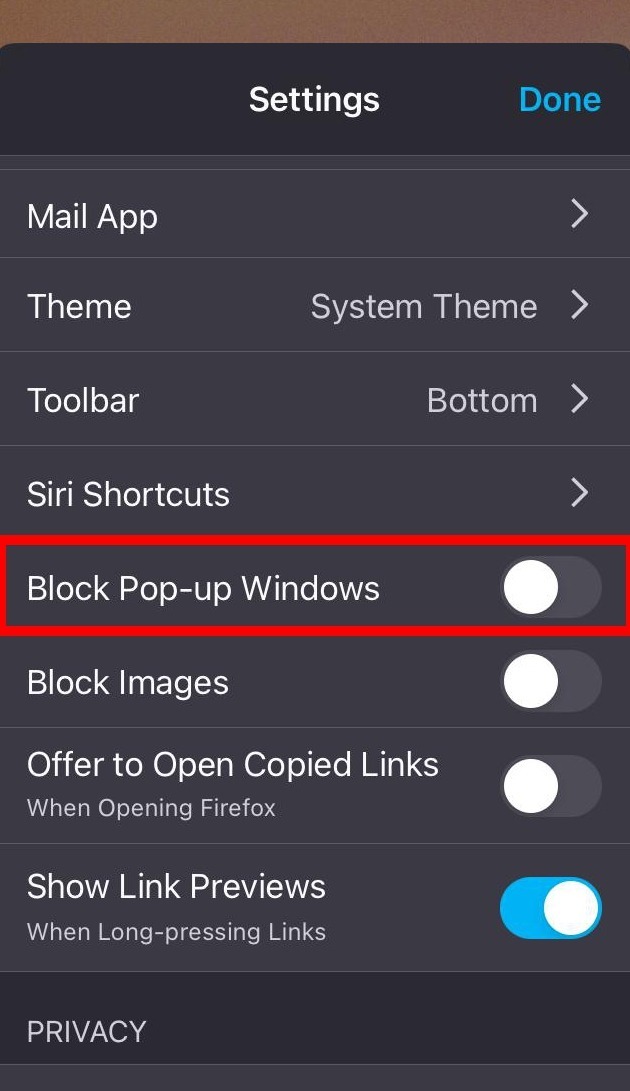
Banking sites, government portals, and some payment processors use pop-ups for verification. If a site you trust isn’t working, you can temporarily allow pop-ups.
- Launch Firefox on your iPhone or iPad.
- Tap the menu and select Settings.
- Under Privacy, tap Block Pop-up Windows.
- Toggle the switch off to allow pop-ups in Firefox for iOS.
Bottom Line
Only allow pop-ups on trusted sites, such as official banking or government pages. On untrusted sites, pop-ups may redirect you to phishing pages or online scams.
You’ll know you’ve got it right when your bank’s login window appears, but random sites stop throwing pop-ups at you.
If you’re unsure about a site, keep the blocker on. It’s safer to manually allow pop-ups only when you need them, then turn the blocker back on.