Videos that blast sound the moment you open a page ruin the browsing experience. Firefox app includes a built-in setting to block autoplay audio, or stop videos from playing automatically.
You can allow both audio and video, block audio only so videos stay muted, or block both media types entirely. Pick the option that fits your tolerance for noise.
In this guide, I have covered:
Contents
Block Sound Autoplay
Autoplay audio is a nuisance. Firefox for iOS gives you control over whether videos play sound automatically. You can block audio only, or stop both audio and video from auto-playing.
- Open Firefox on your iPhone.
- Tap the
 menu at the bottom-right of the screen.
 - Tap Settings.
- Under the General section, tap Autoplay.
- Choose one of these options:
- Allow Audio and Video – Media plays automatically with sound.
- Block Audio Only – Videos auto-play but stay muted.
- Block Audio and Video – Media does not auto-play at all.
Pick Block Audio Only if you want videos to play without sound, or Block Audio and Video to stop auto-play completely.
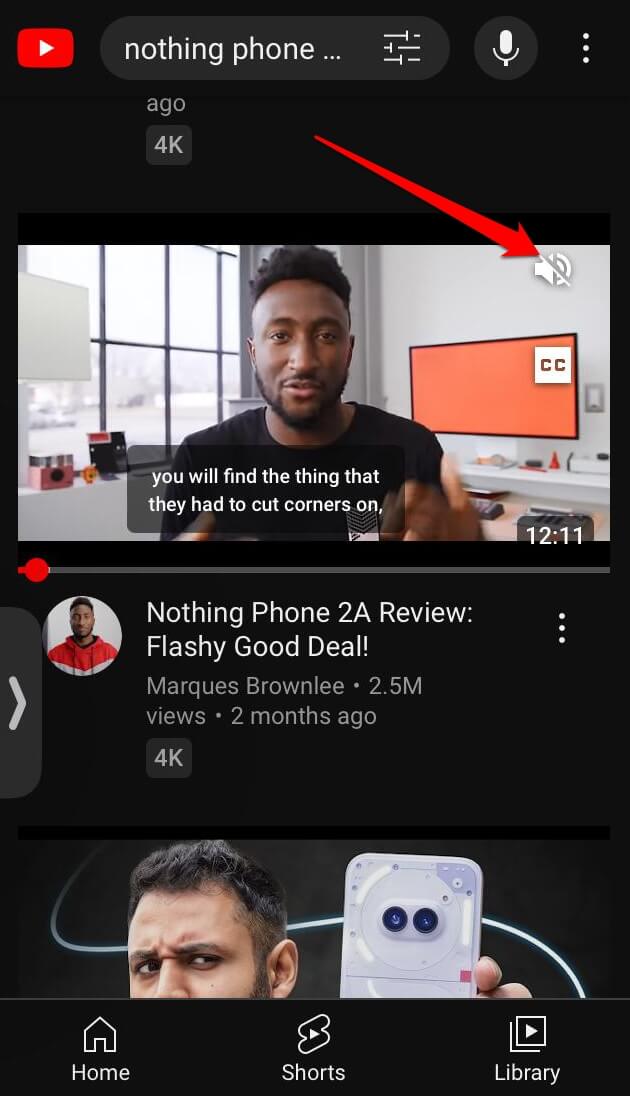
If a site still manages to play unwanted audio, you can press the mute button on the video player itself to silence it.
Bonus Tip
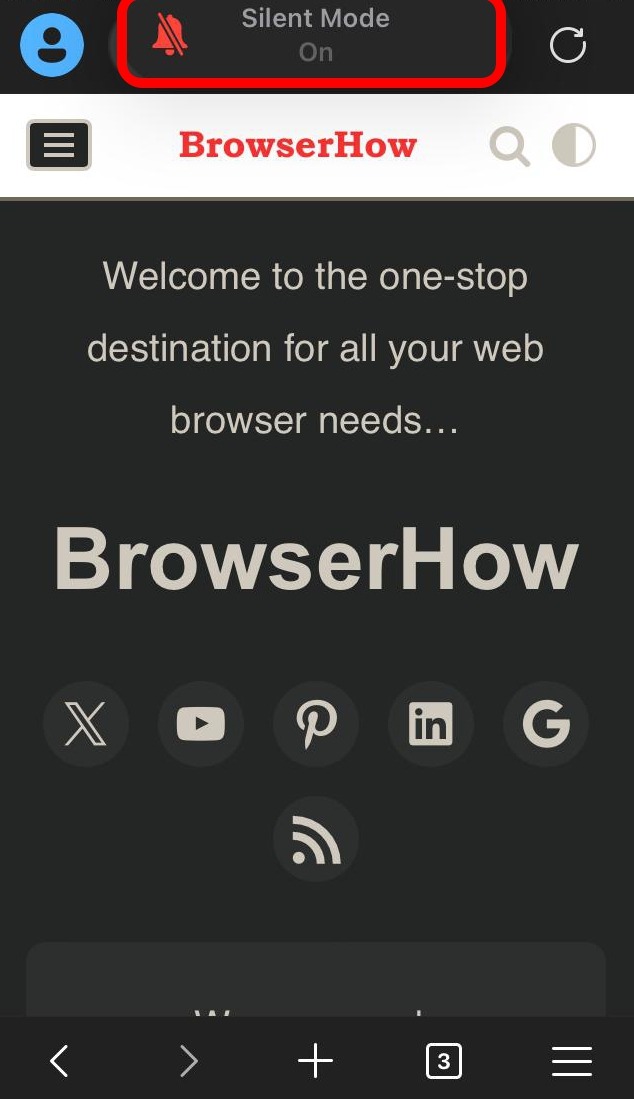
Want to silence every sound on your device? Flip the physical mute switch on the side of your iPhone. Silent mode mutes all audio, including notifications and calls.
Bottom Line
The Autoplay setting in Firefox keeps unwanted audio at bay. Choose your preferred level and browse without interruptions.