Opera for Android has reached version 100, a major version milestone for the mobile browser. The latest stable release started rolling out to users on July 9, 2026, following the usual phased schedule.
The Opera Mobile team is marking the moment with an OFA Rewind post that walks through the last hundred releases. Here is how to check which version you have installed and how to grab the update manually if the Play Store has not pushed it yet.
In this guide, I have shared written instruction about:
Opera for Android ships version 100
Opera for Android has rolled out version 100 as of July 9, 2026, marking a major version milestone for the mobile browser.
According to the official Opera Mobile blog, the team is treating the number as a milestone. The launch post is part of an OFA Rewind that walks readers through the last hundred releases: features, redesigns, late-night bug fixes, experiments, and a few decisions the team quietly walked back.
How to check your Opera for Android version
You can confirm which build is installed on your phone in a few taps. Open the Opera app, tap your profile icon at the bottom of the screen, choose , then tap to view the current version number.
How to update Opera for Android
If the Play Store has not pushed version 100 to your device yet, you can trigger the update manually.
- Open the Google Play Store on your Android device.
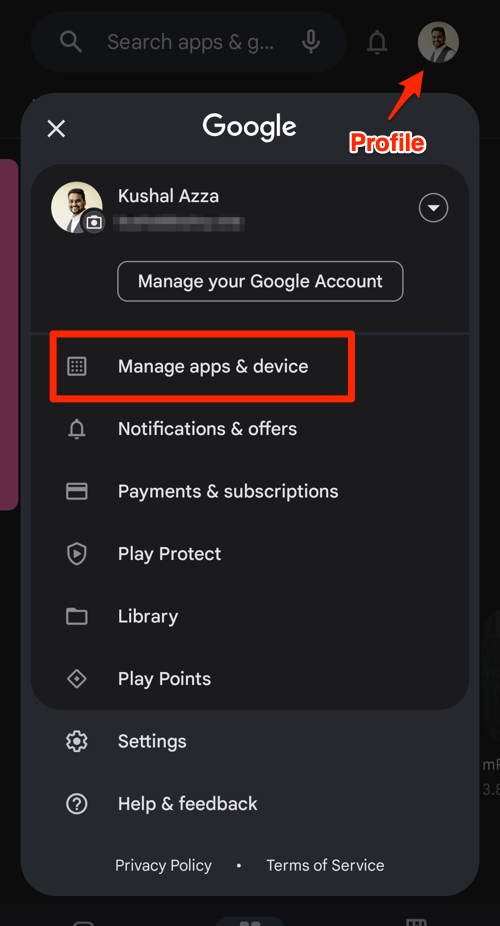
- Tap the Profile icon from the top right corner, and select the Manage apps & device menu.

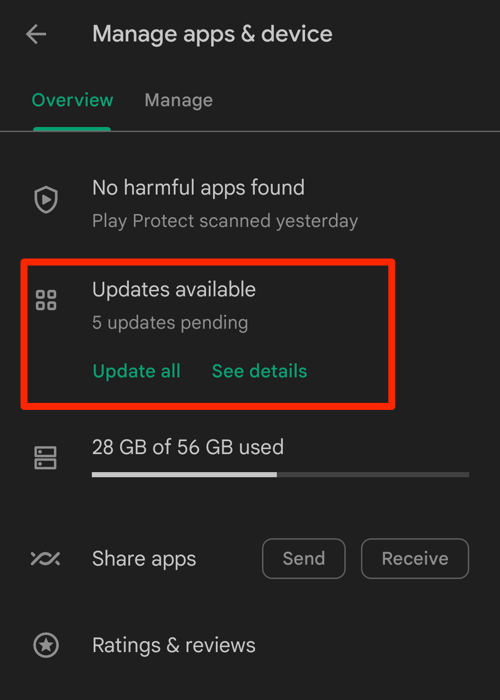
- Tap on the See details command under the Updates available menu.

- If Opera is on the list of apps with available updates, tap on next to it.
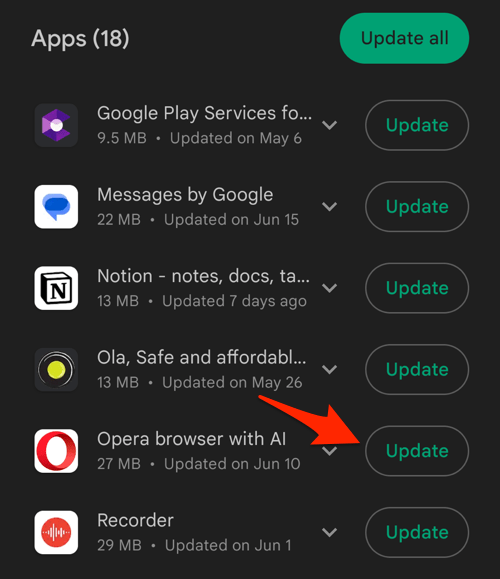
 It will complete the browser update on your Android device.
Relaunch Opera after the update and confirm the new version on the About Opera screen. If the Play Store still shows an older build, give it a few hours. Updates roll out gradually.

Opera for Android updates ship in phases. It can take a few days before every account sees version 100.
Lastly, if you've any thoughts or feedback, then feel free to drop in below comment box. You can also report the outdated information.