
Apple has released Safari Technology Preview 253 for its developer channel. According to the WebKit blog, the new build is available for download and supports macOS Golden Gate and macOS Tahoe.
Safari Technology Preview is Apple's standalone test browser that runs next to regular Safari on macOS. Release 253 includes WebKit engine changes, JavaScript updates, and CSS or Web API tweaks. Here is how to install or update it on your Mac.
In this guide, I have covered:
Contents
Safari Technology Preview 253 Is Out
If you build or test sites in Safari, a new preview build is ready to download. Apple has shipped Safari Technology Preview Release 253 to its developer channel. According to the WebKit release announcement, the new build is available for download on the two most recent macOS releases: macOS Golden Gate and macOS Tahoe.
Safari Technology Preview, or STP, is a standalone test browser. It runs next to the regular Safari you use every day. Apple ships WebKit engine changes early so developers and QA testers can verify sites against the upcoming web platform before those changes reach stable Safari.
What Changed in Release 253
If you want the exact patch list, the WebKit team publishes full release notes on its blog. Release 253 follows the usual STP pattern: a batch of WebKit engine refinements, JavaScript runtime updates, and CSS or Web API tweaks. Check the WebKit post for the complete list of changes in this build.

Safari Technology Preview is a separate app from the system Safari. Installing STP does not replace the Safari that ships with macOS, and your everyday Safari is still updated through System Settings, not through the STP updater.
Platforms Supported by Release 253
Before you install, make sure your Mac is on the supported list. This build targets the two newest macOS releases named in the WebKit announcement.
macOS Golden Gate
macOS Golden Gate is the current shipping desktop OS. If your Mac is already on Golden Gate, STP 253 installs alongside system Safari without touching your regular browser profile.
macOS Tahoe
macOS Tahoe is the next major desktop release Apple is preparing. If you run the Tahoe preview, you can test upcoming WebKit changes against the newest OS build at the same time.

TIP: If you are not sure which macOS you are running, click the Apple menu and choose . The version name appears just under the macOS label at the top of the window.
How to Update Safari Technology Preview on Mac
If you installed STP from the Mac App Store, the App Store handles updates just like any other Mac app.
If you downloaded a build directly from Apple’s developer site, grab Release 253 from the same page. Install it over the existing copy to keep the test browser current.
How to Update Regular Safari on Mac
If you keep stable Safari next to the preview, check System Settings for regular updates too. WebKit changes that land in Safari Technology Preview eventually roll out to stable Safari.
- Click on the Apple
 menu from the menu bar and select the System Settings... sub-menu.
  It will open the System Settings window.
 - Select the General tab in the left sidebar, and choose the Software Update tab.
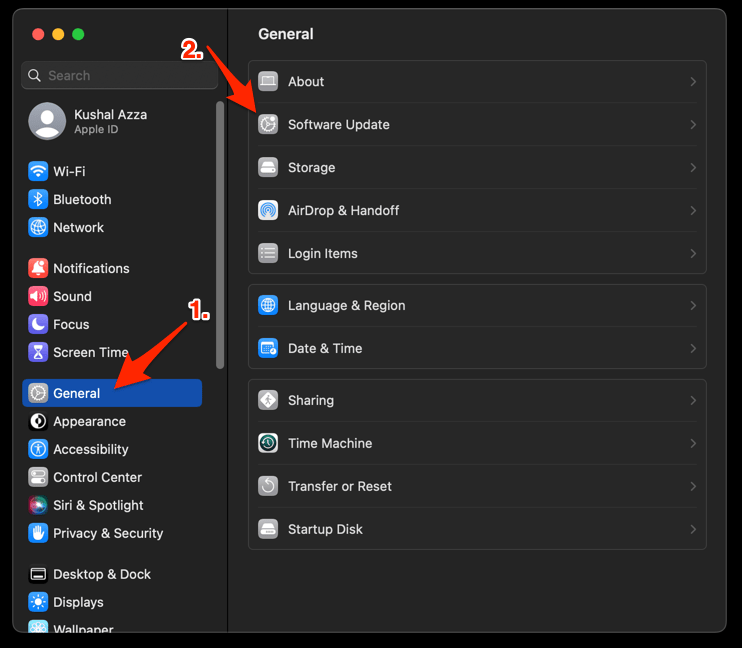 The macOS System will check for any available upgrades in the background.
 - Click on the More Info... tab and enable the checkbox for Safari updates (if any are available).
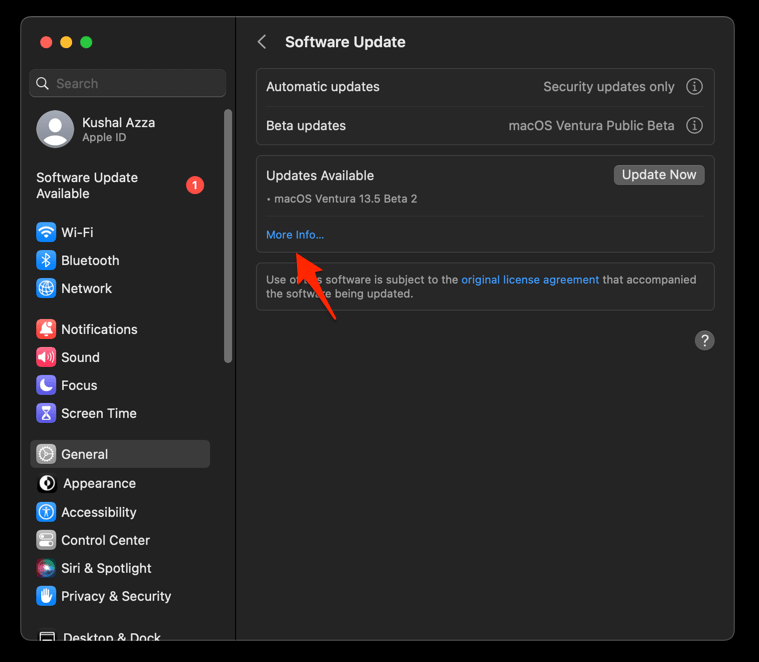
- Hit on the button.
It will update the Safari browser.
Relaunch Safari after the update and confirm the new version from the About Safari entry in the Safari menu. Updates roll out in phases, so it can take a few days before every Mac sees a new build.
Why Developers Use Safari Technology Preview
STP runs as a separate process with its own settings, history, and extensions. That keeps test work isolated from your everyday browsing profile.
Isolation helps when you need to clear cache and cookies between test runs. You can do that through Safari’s cache and DNS controls without disturbing your main session.
When you test responsive layouts, you can also switch to a mobile site view in Safari on Mac without leaving the desktop app. That gives you a quick check against the layout users see on smaller screens.
Once a feature behaves correctly in STP and the WebKit team signs off, Apple can move the change into stable Safari. Watching Safari privacy settings on iOS and iPadOS shows which upstream controls tend to land first.

See also: View Mobile Site Layout in Apple Safari on Mac.
Frequently Asked Questions
Is Safari Technology Preview 253 the same as regular Safari?
No. Safari Technology Preview is a separate app with its own bundle identifier. It runs side by side with system Safari, so its settings, history, and extensions stay isolated from the everyday Safari profile.
Who should install Safari Technology Preview 253?
Web developers, QA testers, and anyone who wants early access to WebKit changes. Regular users do not need STP and should keep their system Safari updated through System Settings instead.
Which macOS versions support Safari Technology Preview 253?
According to the WebKit blog, Release 253 supports macOS Golden Gate and macOS Tahoe. Earlier macOS releases are not listed as supported targets for this build.
Where can I download Safari Technology Preview 253?
You can grab the latest build from Apple’s developer site or install it through the Mac App Store. Once installed via the Mac App Store, future STP releases update automatically through the App Store.
Will features from STP 253 reach regular Safari?
Most WebKit changes that land in Safari Technology Preview eventually reach stable Safari. Apple uses STP to surface issues and refine behavior before changes roll out to the broader user base.