A video plays once, then freezes or refuses to start the next time you open the tab. Most Safari playback failures on Mac come down to four things: a per-site Auto-Play override, stale cookies, a blocking extension, or a denied site permission.
Start with Auto-Play, the usual culprit. Then clear the site's data, switch extensions off, and check JavaScript and media permissions. A Private Window test shows whether your saved data is at fault.
In this guide, I have covered:
Contents
Videos Keep Breaking in Safari? Start Here
A video plays once, then stalls or refuses to start the next time you open the tab. That pattern points to one of four things in Safari on Mac: a per-site Auto-Play override, stale cookies, a content blocker, or a denied site permission.
The checks below run from quickest to most disruptive. Work through them in order and stop as soon as playback returns. Most people never need the last two.
Check Auto-Play Settings for the Site
Auto-Play is stored per site in Safari, and one wrong value there explains why a video that worked yesterday now sits silent. Try this one first.
- Click Safari in the menu bar, then choose Settings… (or press +).
- Click the Websites tab at the top of the window.
- Select Auto-Play in the left column.
- Click the website in the list, then open the pop-up menu next to its name.
- Choose Allow All Auto-Play to let the site start videos with sound, or Stop Media with Sound if only silent auto-play is failing.
- To set the default for sites you have never customized, open the When visiting other websites pop-up menu at the bottom of the pane and pick the same option.
Reload the tab and start the video again. According to Apple’s Safari Auto-Play guide, the three values you can pick are Allow All Auto-Play, Stop Media with Sound, and Never Auto-Play.
Clear Cookies and Cache
Players pull tokens and player code out of stored site data, so cookies left over from an earlier session can leave you watching a spinner on a site that is otherwise healthy. Clearing that data makes Safari fetch everything fresh.
After Safari reloads, sign back into any site that logged you out, then play the video again. If it starts cleanly, stored data was the problem.

If the video fails on one site only, scope the clear to that domain instead of wiping everything. Open Safari → Settings → Privacy, click , select the site, then click .
Disable Extensions and Content Blockers
Content blockers match network requests by URL pattern, and a video player’s requests can look like ad traffic. One blocked request is enough to leave a frozen or blank player behind.
- Launch the Apple Safari app on your Mac computer.
- Click on the Safari menu from the menu bar at the top, and select Settings... sub-menu.
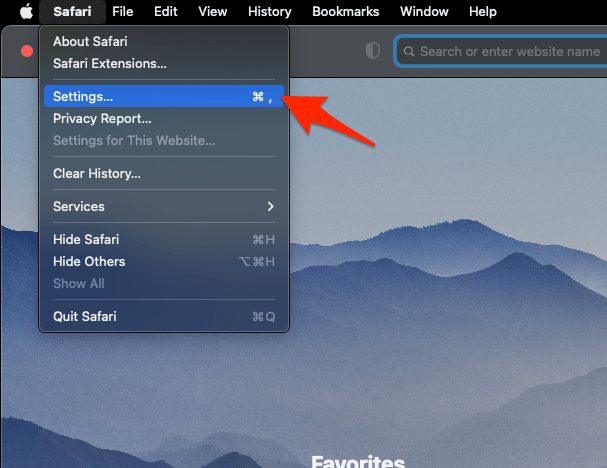 It will open the Safari Settings window.
 - Switch to the Extensions tab in the Settings window.
It will display the list of all the Safari extensions installed. - Uncheck the checkbox in the left side pane to Disable the extension.
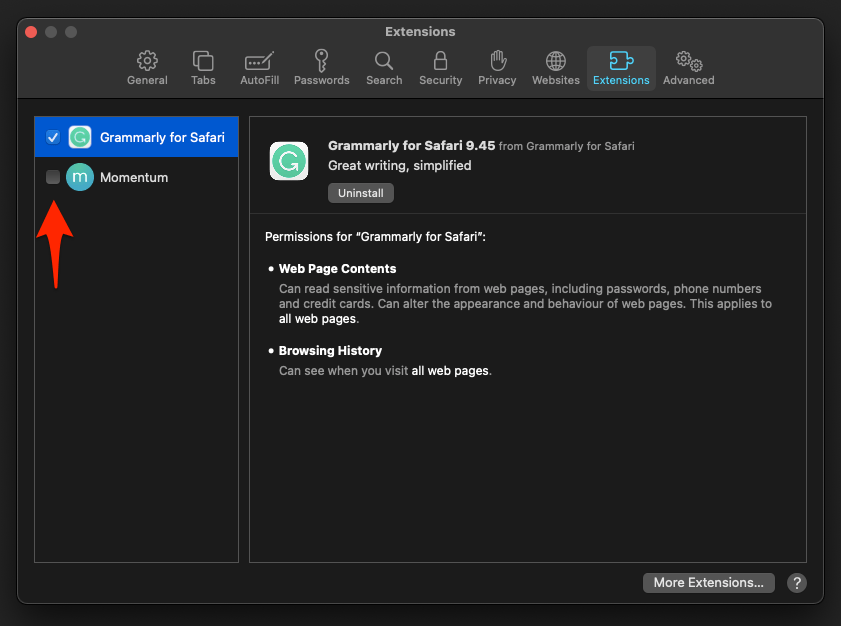
Reload the video tab. You’ll know it worked when the video plays with extensions off, which also tells you an extension is the culprit. Switch them back on one at a time, reloading the video after each, until playback breaks again.
Allow JavaScript and Required Site Permissions
An embedded player is JavaScript. Turn JavaScript off and the player never loads at all. Deny a permission it needs, such as camera, microphone, or pop-ups, and the player loads and then dies.
- Open Safari → Settings…, then click the Security tab.
- Confirm Enable JavaScript is checked.
- Switch to the Websites tab.
- In the left column, click each category the player needs: Camera, Microphone, Pop-up Windows, and anything else the site asks for.
- Select the site in each list and set its pop-up menu to Allow when needed.
Reload the tab once the permissions are updated and try the video. Notification permissions sit in that same Websites pane, and our guide to allowing or stopping site notifications in Safari on Mac shows where that switch lives.
Test Playback in a Private Window
You need a fast way to separate a broken site from a broken Safari profile. A Private Window answers that in about ten seconds, because it ignores extensions, cached site data, and saved Auto-Play overrides.
- Click File in the menu bar, then choose New Private Window (or press ++).
- Open the same site and play the same video.
If the video plays in a Private Window but not in your normal session, the site is fine and your saved data or an extension is the problem. Clear that site’s data, or remove the extension that keeps breaking playback.
Clear the DNS Cache
A video site that moved to new servers can leave your Mac asking for an address that no longer answers, and the player never gets past loading. Flushing the DNS cache forces a new lookup.
- Open the Apple Safari app on your Mac, and select Safari > Settings... from the menu bar.It will open the Safari Settings window.
- Switch to the Advanced tab, and enable the checkbox for the Show Develop menu in the menu bar option.
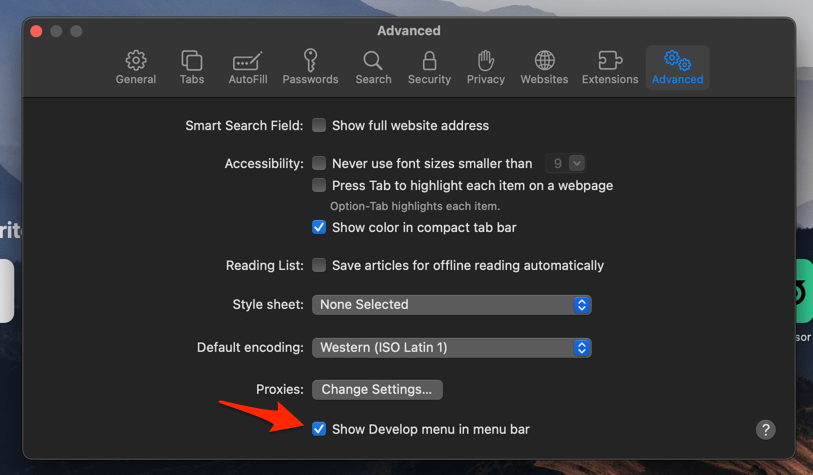 It will enable a new Develop menu in the Safari menu bar.
 - Click on the Develop menu and select the Empty Caches command.
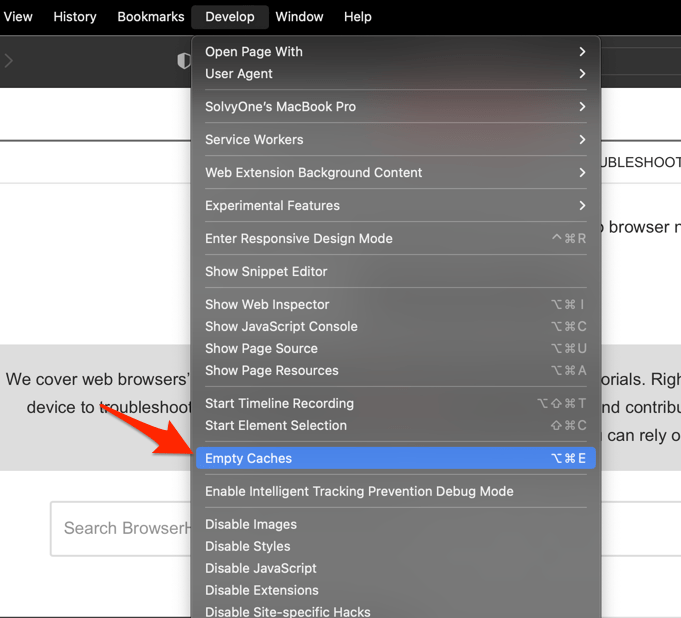 It will clear all cache, including the Safari DNS host cache.
Reopen the video tab after the flush. You’ll know it worked when the player starts without the long stall before the first frame. If it hangs again, the cause is somewhere else in this list.
Install Safari and macOS Updates
Streaming services roll out DRM changes that older Safari builds cannot handle, which is why one site can stop playing while every other site behaves normally. Those fixes arrive through software updates.
- Click the Apple menu in the menu bar, then choose System Settings.
- Click General in the sidebar, then Software Update.
- Install any available updates for macOS or Safari, then restart the Mac when prompted.
On older macOS versions, Safari appears as a separate item under Software Update. On recent releases, Safari ships with the system update.
After the restart, load the video again. If it still fails, the last section is your next stop.
Reset Safari’s Saved Website Data as a Last Resort
Nothing above worked, so the next move is wiping Safari’s stored website data. That resets every site’s Auto-Play choice along with cookies, caches, and per-site permissions, and it signs you out everywhere. Treat it as the final step.
- Open Safari → Settings…, then click the Privacy tab.
- Click .
- Select the site that breaks, then click . To reset everything, click instead.
- Click , then quit Safari and reopen it.
After this reset you are signed out of every site in Safari and all Auto-Play preferences return to the global default. Re-enable Auto-Play per site, one at a time, if you still want a strict default.
That is the whole ladder: Auto-Play first, then stored data, extensions, permissions, DNS, and updates. If a video still will not play after a full data reset on an up-to-date Safari, the site’s own player is the remaining suspect. Test the same page in another browser to confirm.

Frequently Asked Questions
Why does Safari keep blocking videos on a specific site?
Start with the per-site Auto-Play override in Safari → Settings → Websites → Auto-Play. Switching it to Allow All Auto-Play usually fixes it. Content blockers and denied permissions (camera, microphone, pop-ups) can stop a player too.
Does clearing Safari’s cache sign me out of websites?
Yes. Sign-in is stored in cookies, and clearing them removes the token that holds your session. Expect to sign back into any site that keeps you logged in that way. Bookmarks and saved passwords are not removed.
Can an ad blocker or content blocker break Safari video playback?
Yes. Blockers match against the same network requests a player uses, which leaves the player stuck on a spinner or playing with no audio. Turn every extension off to confirm one is responsible, then re-enable them one by one.
Is “Safari Settings” the same as the older “Preferences”?
Yes. Apple renamed that window from Preferences to Settings on current macOS releases. The shortcuts and the contents moved with the name, so older instructions that point to Preferences still work.
Will updating Safari delete my saved website data?
No. macOS and Safari updates keep your bookmarks, history, saved passwords, per-site Auto-Play settings, and stored website data. Everything carries across.