Edge is testing a way to install some security updates in the background, so your tabs, downloads, and sign-ins stay where they are instead of closing for a restart.
That work is still a prototype, and the same blog post points to an update feature you can use now. Until background updates reach your device, the fastest way to stay protected is a manual check on your computer, Android phone, or iPhone.
In this guide, I have covered:
Contents
Why Edge keeps interrupting you to update
If Edge has ever asked you to relaunch in the middle of something, you know the tradeoff. You get the security patch, but you lose your place while the browser restarts.
According to a new post on the Microsoft Edge Dev Blog, the Edge team is working on faster ways to deliver security updates while cutting back on those restarts.
The reasoning in the post is simple. Protection only helps if it reaches you before threats do, and an update only helps if it does not force a full restart in the middle of a task. Edge wants to get closer to both.
What the seamless-updates prototype changes
One part of the new approach is a seamless-updates prototype. The idea: Edge applies certain updates in the background while your tabs, downloads, and active sessions stay open. No relaunch prompt, nothing to save first.
This is early work, not default behavior. The post walks through the design and asks for feedback from people who test early builds. On the standard release, you will not see it yet.

Seamless updates are a prototype, not a default. If you do not see the behavior described in the post, you are on the standard update path and nothing is broken. Wait for a wider rollout before testing.
What is available today
The post also points to an update-related feature you can use now, separate from the prototype. The summary we saw did not include the exact name, so check the original post for specifics before you go hunting through settings.
What you can do today is simpler: make sure Edge is running the newest build. The steps below cover each platform.
How to update Microsoft Edge on your computer
Edge does not always pull a new build the moment it ships, so a manual check is worth doing when a patch matters to you. On Windows and macOS, open edge://settings/help or follow the steps below.
- Launch Microsoft Edge on your computer system.
- Click on the More
 for the menu list, and select the Settings menu.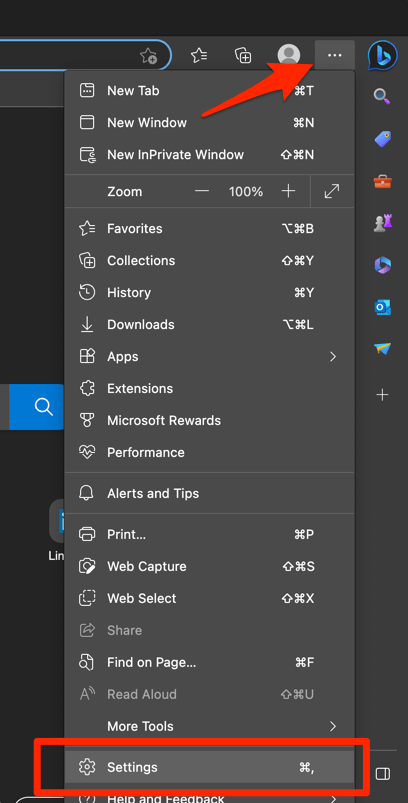
- Switch to the About Microsoft Edge tab from the left side pane.
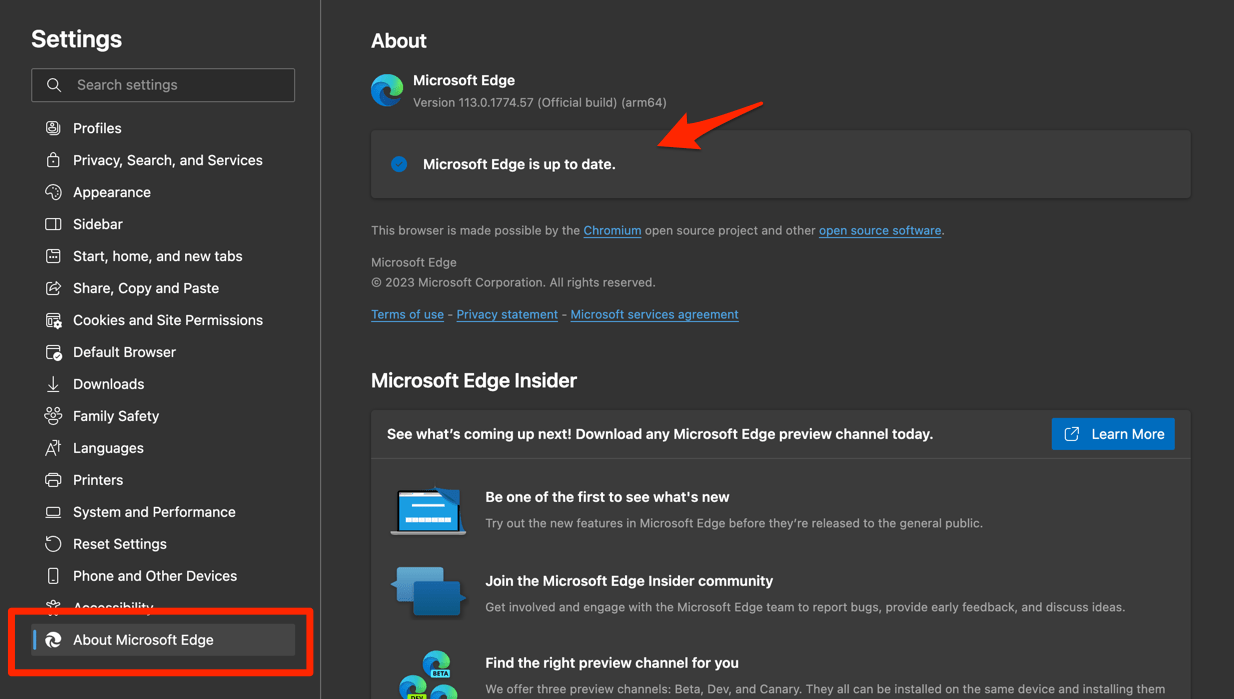 The Edge will automatically start checking for updates and installs, if any are available.
 - Finally, hit the button if available after the (major) update.
Edge browser will be updated to the latest version.
Click when Edge asks, then look at the version number on the same page. You’ll know it worked when Edge reports that it is up to date.
How to update Microsoft Edge on Android
On Android, Edge takes its updates from the Play Store, not from inside the browser. Open the Edge listing there and install any update it offers.
- Open the Google Play Store on your Android device.
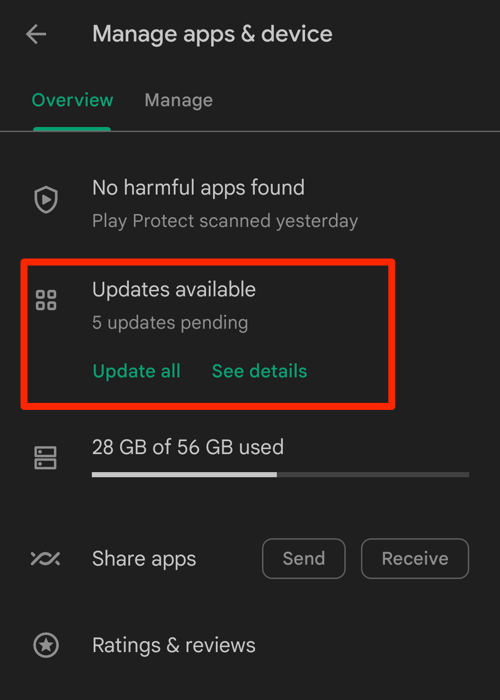
- Tap the Profile icon from the top right corner, and select the Manage apps & device menu.
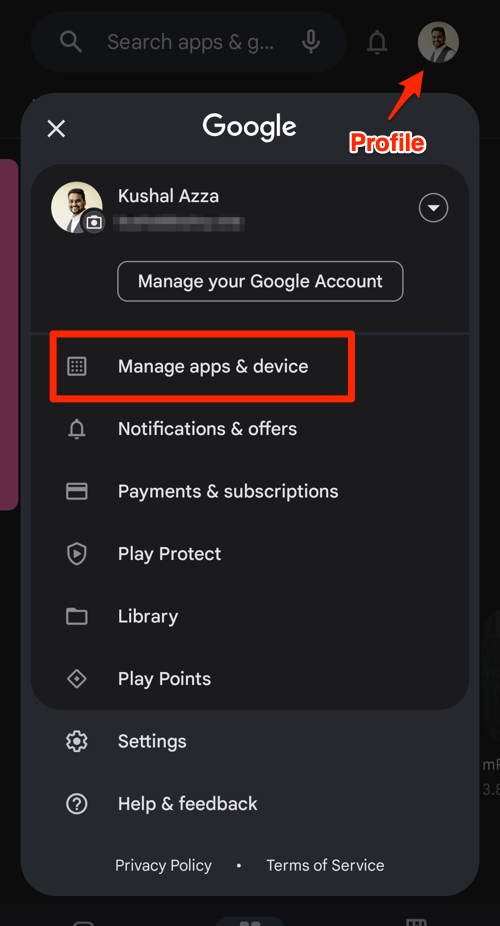
- Tap on the See details command under the Updates available menu.
- If Edge is on the list of apps within the available updates, tap on the command next to it.
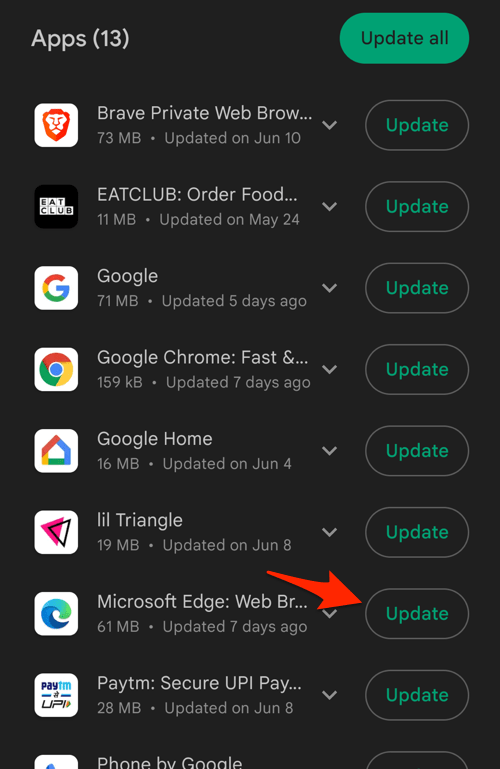 It will display the update progress for the Edge browser.
Reopen Edge and open Settings → About Microsoft Edge to confirm the build number. You’ll know it worked when it matches the version the Play Store just installed.
Updating keeps the browser itself current. What each site is allowed to do on your phone is a separate setting, and if you want to review it, here is how to view site information and change per-site settings in Edge on Android.
How to update Microsoft Edge on iPhone
On iPhone and iPad, Edge updates the same way other Microsoft apps do: through the App Store. Open the Edge page there and install the update if one is listed.
- Open the App Store on your iPhone or iPad.
- Tap on your Profile icon in the top right corner.
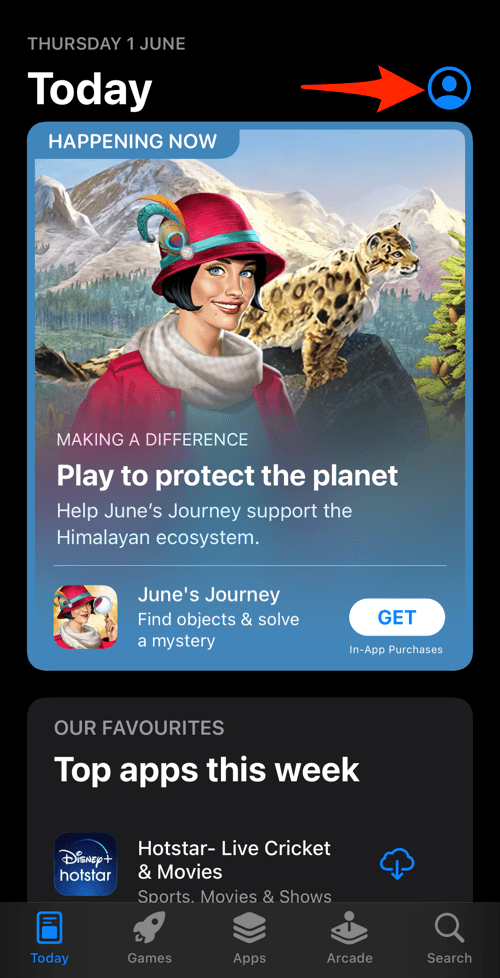
- Scroll down to the Available Updates section.
- If an update for Edge is available, tap the button next.
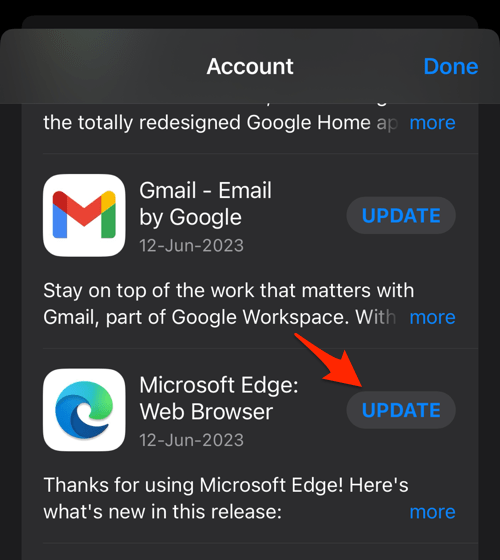 It will begin the update, and you can see the progress.
Reopen Edge and confirm the version under Settings → About Microsoft Edge. You’ll know it worked when the App Store lists no update for Edge.

TIP: If no update appears on your device yet, give it a few hours. Edge rollouts are phased, so the same build can take time to reach everyone.

Frequently Asked Questions
What is the seamless-updates prototype in Edge?
It is an experimental feature described in the Edge Dev Blog post. Edge would apply certain changes in the background while you keep using the browser. It is not enabled by default, and Microsoft is gathering feedback on the design.
Will I still need to restart Edge after updates?
On the current stable build, yes. Edge still asks you to relaunch when a new version installs. Cutting those prompts down is what the prototype explores, but it is not the default experience yet.
How do I check my current Edge version?
On a computer, open edge://settings/help. On Android or iPhone, open Settings → About Microsoft Edge inside the Edge app.
Where can I read the original announcement?
The full post is on the Microsoft Edge Dev Blog. It covers the design goals behind the change and the seamless-updates prototype in more detail.
Nothing about your routine changes today. Check for a new build when you want the latest fixes, and watch for background updates to arrive on your device later.