Video that stutters on one monitor and plays smoothly on the other is usually a refresh-rate mismatch, not a bad stream. Chrome switches graphics paths as the window moves, and frames land unevenly.
Check each display's refresh rate in Chrome's GPU report, then assign Chrome to one NVIDIA processor. If that control is missing, test Chrome's graphics acceleration setting and relaunch.
In this guide, I have covered:
Contents
Why Chrome video stutters across two monitors
Your video plays smoothly on one screen and judders the moment you drag the Chrome window to the second display. That is the classic multi-monitor stutter pattern, and it is usually about timing, not a bad stream.
Chrome’s hardware-accelerated video decode and its compositor can end up locked to different display clocks when your monitors run at different refresh rates. Frames then land unevenly even though the source video is perfectly steady.
This is a graphics-path problem, not a download problem. One quick clue: the same video stutters in Edge but stays smooth in Firefox. That points at Chromium’s rendering path rather than the video service.
Check your refresh rates and GPU path first
Get a baseline before you change anything. Chrome’s GPU report lists the refresh rate of every active display and shows whether video decoding and compositing run on the GPU.
- Open a new Chrome tab and enter chrome://gpu in the address bar.
- Open Display(s) Information and note the Refresh Rate in Hz value for each monitor.
- Open Graphics Feature Status and check Video Decode and Compositing.
- Confirm whether both features show Hardware accelerated.
- Review Problems Detected and Driver Bug Workarounds for a message related to the display or GPU.
Two different values, say 144 Hz and 60 Hz, confirm a mixed-refresh-rate setup. Leave the tab open so you can compare the same numbers after the restart.
Chromium’s issue about multi-monitor video stutter traces the same hardware-accelerated decode and compositing path. If Edge stutters too while Firefox stays smooth, you are looking at a Chromium graphics issue.
Assign Chrome to one NVIDIA GPU
If your Windows PC can choose between graphics processors, the most reliable fix is to give Chrome the high-performance NVIDIA processor. Chrome then stops switching its rendering path as the window moves between displays.
This method is NVIDIA-only. On Intel or AMD graphics, skip ahead to the Chrome acceleration test.

Some newer NVIDIA driver packages omit the legacy NVIDIA Control Panel, and the NVIDIA App may not provide the same per-program processor control. If Manage 3D Settings is unavailable, the preferred fix is not yet in place, so use the Chrome-only fallback below.
- Open NVIDIA Control Panel.
- Open Manage 3D Settings.
- Select the Program Settings tab.
- Click if Google Chrome is not already listed.
- Select Google Chrome in the list, or click to locate its chrome.exe file.
- Open Select the preferred graphics processor for the program.
- Choose High-performance NVIDIA processor.
- Click .
Restart Chrome to load the new GPU assignment
Chrome reads its graphics configuration at startup, so the new processor choice does nothing until the browser fully quits and reopens.
- Open Task Manager on Windows.
- Right-click each Google Chrome process in the list.
- Click .
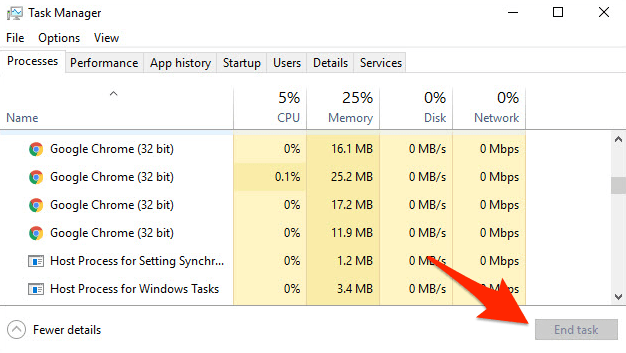
Open Chrome again and play the same video on the display that stuttered. You’ll know it worked when the judder is gone and stays gone after you drag the window back and forth between monitors.
Test Chrome’s graphics acceleration as a fallback
No NVIDIA control panel, or the stutter survived the assignment? Turn Chrome’s graphics acceleration off as a test. This moves playback away from the hardware-accelerated path so you can see whether that path is responsible.
- Open Chrome Settings.
- Click System in the left sidebar. (If your Chrome still groups it under an expandable Advanced section, the path is Settings > Advanced > System.)
- Toggle Use graphics acceleration when available on or off, then relaunch Chrome.
Play the same clip after Chrome relaunches. Smooth playback means the accelerated path is involved, so keep acceleration off only as a temporary workaround while you restore the preferred NVIDIA assignment.
The acceleration change takes effect only after Chrome relaunches. Test the video in the new session, not the current one.
Test a clean Chrome profile
The GPU report looks fine, yet your everyday profile still judders. Open a Guest profile and replay the same video. Nothing in your normal profile changes, so this is a cheap way to check whether an extension or a profile setting is mixed up in it.
- Click the Profile icon in the top-right corner of the Chrome window.
- Click Guest profile.
Smooth playback in Guest narrows the problem to your normal profile. If Guest stutters too, go back to the GPU assignment and compare both monitor entries in chrome://gpu, field by field.
Disable extensions when Guest plays smoothly
If Guest cured the stutter, the extensions in your normal profile are the next suspects. Switch them all off, then bring them back one at a time.
- Launch the Google Chrome on your computer.
- Click on the More
 for the list menu.
 - Hover on the More Tools menu and choose the Extensions sub-menu.
 It will open the Chrome Extensions Manager page with the list of installed extensions.
 - Toggle the switch to Disable the extension.

Reload the video with everything off. If playback is smooth, re-enable extensions one at a time until the judder returns. The last one you turned on is the conflict.
Still smooth with every extension back on? Then extensions are not the cause, and you should return to the graphics path.
Skip the unverified frame-rate flags
Command-line switches like --disable-gpu-vsync or --disable-frame-rate-limit look tempting here. Their effect on this mixed-refresh-rate symptom is not verified, and neither one replaces a proper Chrome GPU assignment.
Stick with chrome://gpu, the supported graphics acceleration setting, and the per-program NVIDIA control. That keeps the comparison focused on changes known to affect your setup.
Confirm the fix holds
You think it is fixed. Now prove it with these checks:
- The same video plays smoothly on the monitor that previously stuttered.
- Moving Chrome between displays does not reintroduce the judder.
- In chrome://gpu, Video Decode and Compositing still show Hardware accelerated when you used the NVIDIA assignment.
- If you used the acceleration-off fallback, Chrome has relaunched with that setting active and the video remains smooth.
If only one display still stutters, compare its refresh rate, scale, color space, and buffer format in Display(s) Information. The GPU assignment changes which processor Chrome uses, while those fields can expose a remaining display-specific difference.

Frequently Asked Questions
Is Chrome video stutter on a multi-monitor setup caused by different refresh rates?
Different refresh rates can expose the problem, but they do not confirm it on their own. chrome://gpu shows each display’s rate plus the video decode and compositing status, so you can compare Chrome’s graphics path.
Should I disable hardware acceleration to fix Chrome video stutter?
Use it as a diagnostic or a fallback, not the preferred long-term fix. If playback is smooth after the relaunch, the graphics path is involved, and you can move back to the NVIDIA assignment once it is available.
Do I need to reinstall Chrome or clear site data?
Not as a first step. The checks here target display synchronization and graphics processing. Clearing site data does not change Chrome’s GPU assignment.
Why does Chrome need to restart after a graphics setting changes?
Chrome loads its graphics configuration when it starts. Relaunching is what makes the new acceleration or processor choice active during playback.
What if the stutter remains after I assign Chrome to the NVIDIA GPU?
Recheck the GPU report, compare the two display entries, and test the video in a Guest profile. If only one display stutters, look into that display’s refresh rate and buffer details instead of changing Chrome settings at random.