Chrome signs you out of a site you use daily, even though the password still autofills, so it looks like a login problem instead of a cookie problem. On Mac, the usual cause is a site data setting, a blocked sign-in cookie, or an extension clearing the session.
Start with Chrome's On-device site data control, then check third-party cookies, the active profile, and extensions. Stop as soon as the site stays signed in.
In this guide, I have covered:
Contents
Why Chrome keeps signing you out on Mac
You sign in, close the Mac lid, come back later, and the same site asks for your password again. Chrome has not lost your account. The website can no longer read the session cookie that proves you are signed in.
That gap explains a detail most people miss: Chrome may still autofill a saved password while the site’s session cookie is missing or blocked. An autofilled login does not mean the session survived.
Four things cause most of these logouts. Chrome may be deleting on-device site data, blocking a third-party sign-in cookie, running an extension that scrubs sessions, or opening a different profile. On a work or school Mac, a managed policy can enforce any of them.
Allow Chrome to keep site data
Start with the one setting that deletes sign-ins on purpose. Open Chrome’s current On-device site data control and read what it is set to.
If it says Delete data sites have saved to your device when you close all windows, every quit wipes your logins, which is the exact behavior you are trying to stop. The older Clear cookies and site data when you quit Chrome option has been replaced, so skip any guide that still points to it. Google’s On-device site data help confirms the current path and wording.
- Click the
 menu at the top right of Chrome.
 - Select Settings.
- Select Privacy and security.
- Select Site settings.
- Select Additional content settings.
- Select On-device site data.
- Select Allow sites to save data on your device.
- Sign in to an affected website.
- Close all Chrome windows.
- Reopen Chrome.
- Confirm that the website still shows you as signed in.
Chrome also lists Don’t allow sites to save data on your device, which Google marks as not recommended because sites may not work as expected. Pick the first option for normal website sign-ins.
You’ll know it worked when the site accepts your sign-in right away and still shows you signed in after you close every Chrome window and reopen the browser. That second test is the one that matters.

If the settings page is missing or the choices are greyed out, update Chrome and check for an organization-managed policy. A managed policy can override your local choice.
Review third-party cookies for embedded sign-ins
Some sign-in flows do not load from the site you are on. A “Sign in with” button, an embedded account panel, or a support widget all depend on a cookie from another domain, and blocking that cookie breaks the session after the login has already looked successful.
Open Privacy and security, then Third-party cookies, and review Chrome’s third-party cookie guidance.
- Click at the top right of Chrome and choose Settings.
- Select Privacy and security in the left sidebar.
- Click Site settings.
- Click Third-party cookies.
- If the toggle is set to Block third-party cookies, switch it to Allow third-party cookies or Block third-party cookies in Incognito mode.
- Close the tab and reload reddit.com.
You’ll know it worked when the affected site stays signed in after its sign-in window closes. Still logging out? Move on to the site data, profile, and extension checks.

TIP: For a single affected site, add an exception for that service instead of allowing third-party cookies everywhere.
Reset one affected website’s stored data
When the logouts stay with one site, start there. Clear that site’s cookies and site data before resetting Chrome globally, because a full reset signs you out everywhere and rarely helps a single-domain problem.
The all-sites reset is covered in Clear Cookies and Cache from the Google Chrome browser, and it should wait until the narrower checks are done.
- Open the affected website.
- Click the tune
 icon beside the address bar.
 - Select Cookies and site data.
- Select Manage on-device site data.
- Remove the affected website from the list.
- Reload the website.
- Sign in again.
- Confirm that you remain signed in.
If the site does not offer that site-data panel, skip ahead to the third-party cookie, profile, and extension checks. Do not clear all Chrome data for a problem limited to one site.
You’ll know it worked when you sign in again and the session survives a reload and a full Chrome restart.
Test the site in Incognito
If the site signs you out in your normal window, try it in a clean one. Incognito starts with no extensions, no cookies, and no profile data, so it separates your Chrome setup from the website’s own behavior.
- Launch the Google Chrome on your computer.
- Click on the More menu for the list.
- Select the New Incognito Window option.
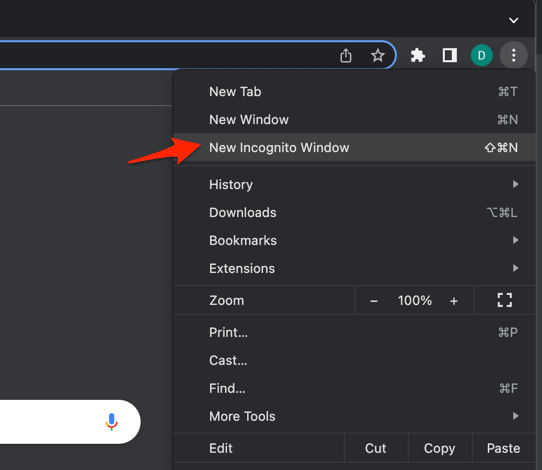 It will start a new incognito window in the browser.
You’ll know it worked when the site stays signed in for the whole Incognito session. If it fails there too, your Chrome settings are probably not the cause, and the website’s own session or security rules are.
Closing the last Incognito window deletes its temporary site data, so a logout afterwards is expected. Treat Incognito as a comparison test, not a fix.
Confirm Chrome is using the expected profile
An account can look signed out when it is simply open in another Chrome profile. Check the active profile whenever the logout appears only after a restart or a new window.
- Click the Profile icon in the top-right corner of the Chrome window.
- Choose the profile you want to switch to from the list.
Each profile keeps its own site data, so the sign-in state differs between them. You’ll know it worked when the affected site stays signed in as soon as your usual profile opens again.
Disable extensions temporarily
Cookie cleaners, privacy tools, and tab managers can end a session without announcing it. Turn extensions off to see whether one is deleting cookies or interrupting the sign-in flow.
- Launch the Google Chrome on your computer.
- Click on the More for the list menu.
- Hover on the More Tools menu and choose the Extensions sub-menu.
 It will open the Chrome Extensions Manager page with the list of installed extensions.
 - Toggle the switch to Disable the extension.

You’ll know it worked when the affected site stays signed in with every extension disabled. If the behavior changes, restore them one at a time.
- Re-enable one extension.
- Test the affected website.
- Repeat those two steps for the remaining extensions.
A logout that repeats right after you enable one extension identifies the cause. Remove that extension, or add the site to its allow list.
Update Chrome before a full reset
A logout that starts right after a Chrome update is often fixed by the next build. Install the latest update before you reset site data or change more settings.
- Launch the Google Chrome on your computer.
- Click on More for the options list, and select the Settings menu.

- Switch to the About Chrome tab in the left sidebar pane.
 The browser should automatically start looking for the latest updates.
 - Hit on the button.
 It will complete the Chrome browser update process.
After Chrome restarts, run the sign-in test again. You’ll know it worked when the site survives a quit and reopen on the new build.
Check for managed Chrome settings
On a work or school Mac, an administrator can enforce Chrome settings from above your account. Local changes may look like they work and then revert at the next launch, so check this before you spend more time on cookie options.
- Click the menu.
- Select Settings.
- Look for a Managed by your organization notice.
- If it appears, ask the administrator to review policies for on-device site data and third-party cookies.
No Managed by your organization notice means you can keep going with the remaining checks. If the notice is there, the administrator has to change the enforced policy before any browser-level setting will hold.
Clear Chrome browsing data as a last resort
Nothing above worked, so the remaining option is a clean slate. Use a full browsing-data reset only after the narrower checks have failed.
- Go to chrome://history/clearBrowserData in the address bar.
- Select the Time range from the drop-down.
- Enable the checkboxes for Browsing history, Cookies and other site data, and Cached images and files.
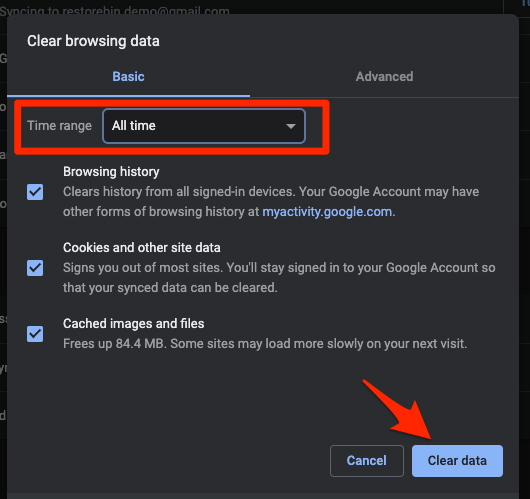
- Hit the Clear data button.
This reset removes cookies and stored site data for every site, so expect to sign in everywhere again. It can rule out stale local data, but it will not fix a session problem on the website’s side.

ALERT: Do not use a full reset as the first test. You will have to sign in to every affected site again afterwards.
- Sign in to one affected website.
- Close all Chrome windows.
- Reopen Chrome.
- Check whether the website still shows you as signed in.
If the logouts continue
You have run the checks and something is still signing you out. Match the next step to the pattern you see.
- A missing or locked site-data setting points to a Chrome update or a managed policy.
- A failure limited to one website points to that site’s stored data and its third-party sign-in.
- A failure in Incognito points to the site’s own session or security behavior.
- Success with extensions disabled points to an extension conflict.
- No change after a full data reset points to a site-side problem or a policy you cannot change.

Frequently Asked Questions
Why does Chrome log me out every time I close it on Mac?
If Chrome is set to Delete data sites have saved to your device when you close all windows, that is the expected behavior. Set On-device site data to Allow sites to save data on your device, then sign in again.
Is the old Clear cookies and site data when you quit Chrome setting still available?
No. That older instruction is outdated. The current control is On-device site data, including the option to delete data when all Chrome windows close.
Why does one website log me out but other sites do not?
That site may depend on a third-party sign-in cookie, or it may be enforcing its own session rules. Test it in Incognito and review its third-party cookie needs before resetting all Chrome data.
Does Incognito keep me logged in after I close the window?
No. Incognito uses temporary site data, and closing the last Incognito window removes it. Use it as a comparison test, not as a way to hold a permanent session.
Should I clear all Chrome browsing data?
Only after checking On-device site data, third-party cookies, profiles, and extensions. A full reset removes cookies and stored site data for all sites, so it can sign you out everywhere and still leave the original problem in place.