Chrome can stop responding on one page, or every window can lock up at once. If audio cuts out for a moment and minimizing then reopening the tab brings it back, the trigger is often a busy tab, an extension, or a browser setting.
Start with Chrome's Task Manager, pending updates, extensions, cache, and graphics acceleration. If the freeze survives those checks, reset Chrome's settings and finish with a clean reinstall on Windows.
In this guide, I have covered:
Contents
Chrome freezes at random: why it happens and what to check first
You’re typing in a form or scrolling a page, and Chrome stops responding. The freeze can hit one tab or every Chrome window. Audio may pause for a second, and minimizing then reopening the tab may bring it back.
That symptom does not name the cause. A heavy tab, an extension, cached page data, graphics acceleration, an outdated Chrome build, or a damaged setting can each produce the same stall, so work from the least disruptive check to the most drastic.
These checks are for desktop Chrome. The clean reinstall at the end uses Windows, but the menu and settings steps also work on other desktop systems.
Force Chrome to close when the whole browser is stuck
If Chrome is completely frozen, force it to close before continuing, but unsaved form text or other work in open tabs may be lost.
- Open Task Manager on Windows.
- Right-click each Google Chrome process in the list.
- Click .
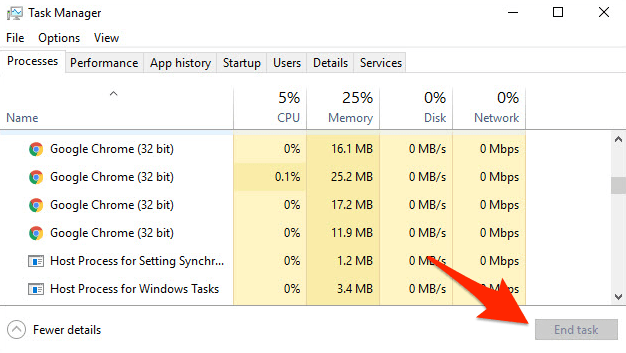
Reopen Chrome and return to the site that caused the freeze. Repeated force quits are a temporary recovery, not a fix for the underlying problem.
Install any pending Chrome update
If Chrome freezes on a site that used to work, rule out a pending update first. Open Help → About Google Chrome and apply any update.
- Launch the Google Chrome on your computer.
- Click on More
 for the options list, and select the Settings menu.
- Switch to the About Chrome tab in the left sidebar pane.
 The browser should automatically start looking for the latest updates.
 - Hit on the button.
 It will complete the Chrome browser update process.
After the update check, reopen the affected site and reproduce the freeze. If no update was available or the freeze remains, continue with the Task Manager check.
Check which tab or extension is consuming resources
When the freeze feels tied to one site or a heavy session, Chrome’s Task Manager shows what is using CPU or memory. Chrome’s official performance troubleshooting guide explains how to find tabs, extensions, and background pages using CPU or memory.
- Open Chrome’s menu.
- Select More tools.
- Select Task Manager.
- Select the Memory column heading to sort the list by memory use.
- Identify any high-use tab, extension, or Background page entry.
- Close unnecessary tabs in the regular Chrome window.
- Select the stuck task only if it must be ended.
- Choose for that task.

ALERT: Ending a Chrome task can discard unsaved work in the associated tab.
You’ll know it worked when the same task no longer stays at the top of the memory list and the page remains responsive. If no entry stands out, continue with the extension test instead of ending unrelated tasks.
Temporarily disable extensions
If the freeze began after you added an extension, or you cannot tie it to one site, disable extensions for a test. Open Extensions → Manage Extensions and turn them off temporarily.
- Launch the Google Chrome on your computer.
- Click on the More for the list menu.
- Hover on the More Tools menu and choose the Extensions sub-menu.
 It will open the Chrome Extensions Manager page with the list of installed extensions.
 - Toggle the switch to Disable the extension.

Reopen the affected site with extensions disabled. You’ll know it worked when the site stays responsive with the add-ons off. Then turn them back on one at a time and stop at the one that brings the freeze back. If nothing changes, re-enable everything and continue.
Test the same site in Incognito
If only one site freezes, an Incognito window is the quickest way to separate extension and profile problems from cached files. Open an Incognito window and repeat the exact page or action that usually causes the freeze.
- Launch the Google Chrome on your computer.
- Click on the More menu for the list.
- Select the New Incognito Window option.
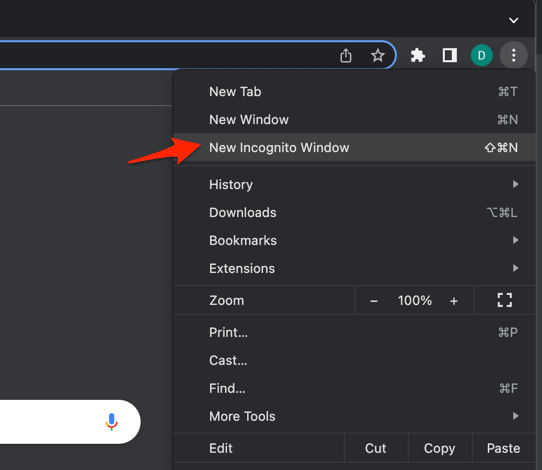 It will start a new incognito window in the browser.
Compare the affected site in the Incognito window with the same site in a normal window. If it works only in Incognito, focus on extensions and profile settings. A freeze in both points you toward cached files and graphics acceleration.

TIP: Test the exact page and action that caused the freeze. A home page alone may not trigger the same behavior.
Clear Chrome’s cached files
If the freeze returns on the same site, old cached files may be the reason. Open chrome://settings/clearBrowserData and set the time range to All time. Clear only Cached images and files so cookies and sign-in data remain.
- Go to chrome://history/clearBrowserData in the address bar.
- Select the Time range from the drop-down.
- Enable the checkboxes for Browsing history, Cookies and other site data, and Cached images and files.
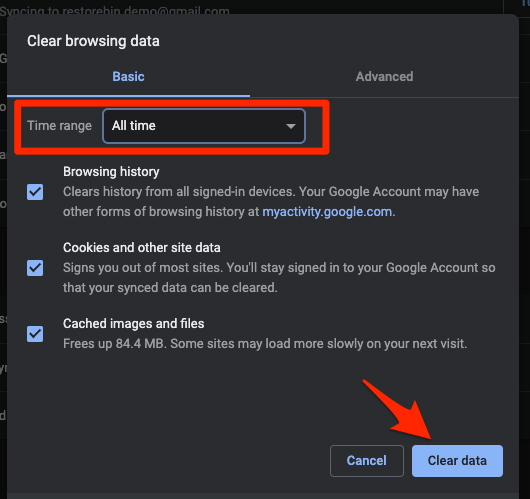
- Hit the Clear data button.
Reopen the affected site after the cache is cleared. You’ll know it worked when the site loads without the old stall and your sign-ins are still in place. If the freeze remains, continue with the graphics acceleration test.
For a broader cleanup, see our guide to Clear Cookies and Cache from the Google Chrome browser.
Turn off graphics acceleration for a test
If the freeze looks like a display glitch, or it hits during scrolling and video, test Chrome without graphics acceleration. Under Settings → System, follow Chrome’s graphics acceleration guidance to turn off Use graphics acceleration when available. The same option may appear as Use hardware acceleration when available. Then relaunch the browser.
- Open Chrome Settings.
- Click System in the left sidebar. (If your Chrome still groups it under an expandable Advanced section, the path is Settings > Advanced > System.)
- Toggle Use graphics acceleration when available on or off, then relaunch Chrome.
Test the affected pages after the relaunch. You’ll know it worked when the same pages scroll and play video without locking up. Leave acceleration off only if they remain stable. If there is no improvement, turn it back on and continue.
Enable Memory Saver
If Chrome slows down after you keep many tabs open, Memory Saver can reduce pressure from inactive tabs and background work. Open Settings → Performance and turn on Memory Saver.
- Launch Chrome.
- Click the three-dot menu and choose Settings.
- Select the Performance tab in the left sidebar.
- Toggle Memory Saver on. Recent Chrome versions also let you pick a mode (Moderate, Balanced, or Advanced) depending on how aggressively you want Chrome to reclaim memory.
Open the affected site again and check whether Chrome remains responsive. You’ll know it worked when switching between several tabs no longer makes Chrome stall. If it still freezes, keep Memory Saver on or restore your previous preference and move to a full settings reset.
Reset Chrome’s settings
If the tab, extension, cache, and graphics checks all fail, reset Chrome’s settings as the next major step. Use Settings → Reset settings → Restore settings to their original defaults, following Chrome’s official reset guide.
- Launch the Chrome browser on the computer.
- Click on the More for menu list, and select the Settings menu.
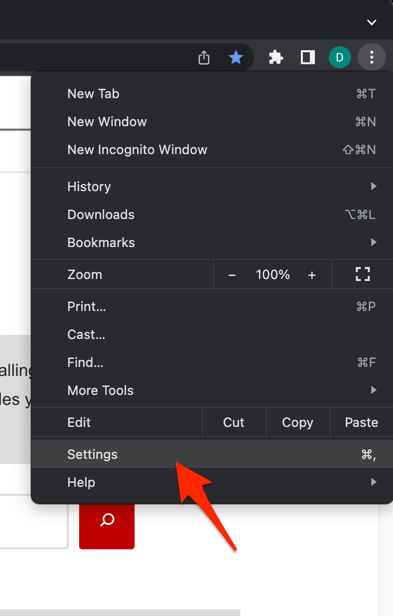 It will open the Chrome browser's Settings page.
 - Switch to the Reset settings tab in the left sidebar, and select Restore settings to their original defaults option.
- Finally, hit the command button.
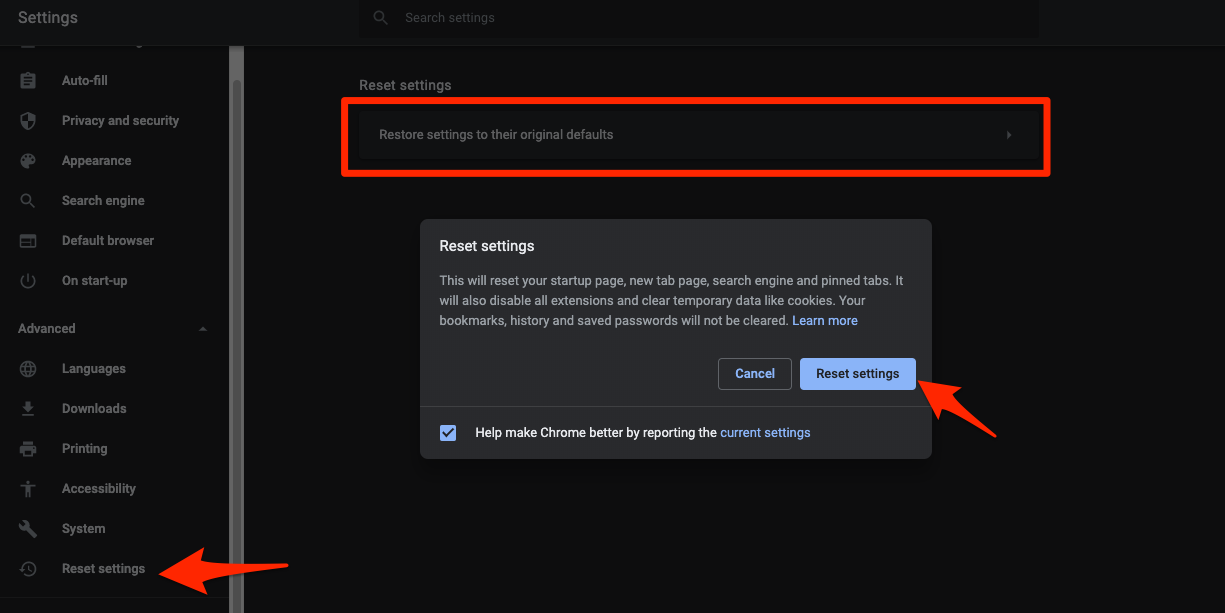 It will reset the Chrome browser settings, clear temporary data, and disable all extensions.
After the reset finishes, reopen the affected site and test Chrome with the same tabs and extensions you used before. You’ll know it worked when the same site stays responsive after the reset. If the freeze remains, move to a clean reinstall.

Resetting settings is broader than changing one option. Save your work before continuing, and expect Chrome’s preferences to return to their default state.
Reinstall Chrome on Windows
If Chrome still freezes after the reset, do a clean reinstall on Windows as the last browser-level repair.
- Uninstall Chrome through Settings
 → Apps → Installed apps.
 - If the profile folder remains at %LOCALAPPDATA%GoogleChromeUser Data, delete it manually.
- Restart Windows.
- Download a fresh copy of Chrome and install it.
- Set Chrome as your default browser, then set your default search engine again.
Launch the fresh installation and test the previously affected sites before adding back extensions or changing settings. You’ll know it worked when a fresh install stays stable through the same test pages. If the freeze returns, note which extension or setting was restored and change that item first.
Confirm the freeze is really fixed
You made a change, but one clean page load does not prove the freeze is gone. After each change, test the page that originally caused the freeze and then repeat normal browsing for a while. A quick recovery after relaunching is not enough if the same tab, extension, or action makes Chrome freeze again.
- The affected page scrolls, clicks, and loads normally.
- The same heavy task no longer sits at the top of Task Manager.
- Chrome stays responsive while using several ordinary tabs.
If those three checks hold through a normal browsing session, the fix is doing its job. If not, go back to the last change you made and undo it before trying the next step.

Frequently Asked Questions
Still stuck after the checks? These are the questions that come up most often when Chrome freezes.
Why does Chrome randomly freeze and become unresponsive?
A freeze can come from a resource-heavy tab or background page, an extension, cached page data, graphics acceleration, or a damaged browser setting. The symptom alone cannot reveal the cause, so use Task Manager and the Incognito comparison to narrow it down.
Should I disable all Chrome extensions to test the fix?
Yes, temporarily. If Chrome becomes stable with extensions disabled, turn them back on one at a time and leave off the one that causes the freeze to return.
Does clearing Chrome’s cache remove my passwords?
No, if you clear only Cached images and files. Cookies and other browsing data are separate choices, so keep them unchecked unless you intentionally want to remove them.
Should I leave graphics acceleration off?
Only if turning it off stops the freezes and Chrome remains stable after the required relaunch. If it makes no difference, turn the setting back on.
What should I do if only one website freezes?
Close and reopen the tab, then test the same site in Incognito. If it still freezes, clear cached files, test graphics acceleration, and temporarily disable extensions to identify the trigger.