Safari can list your matching open tabs in tab search and then ignore every tap on the cards, including the close buttons. The websites themselves are fine. The tab grid is stuck.
Start by rotating the iPhone into landscape and running the search again. If taps still do nothing, open the page from the address bar, then restart Safari, update iOS, and test it once more.
In this guide, I have covered:
Contents
Why Safari tab search shows results but won’t open them
You search your open tabs in Safari, the matching cards appear, and then nothing happens when you tap. The results are real. The taps just don’t register, and the close buttons inside the grid often stop responding too.
That pattern points to a stuck display state in Safari’s tab search view, not to a broken website. The pages in those results usually load fine the moment you reach them another way.
No Safari setting has been confirmed to repair it. Two workarounds are worth trying first: rotate the iPhone into landscape, or open the page from the address bar instead of the tab grid.
Open the tab in landscape orientation
Rotating the phone is the quickest thing to try, and it takes a few seconds.
- Open Safari and tap the tabs button
 to show the tab grid.
- Rotate the iPhone into landscape orientation.
- Search for the tab again.
- Tap the matching tab to open it.
If the tab opens, keep using landscape for tab search until the issue clears up. If taps still do nothing, move on to the address bar method.

If tab search was already open when you rotated the iPhone, close it and open it again before testing the results. This workaround is tied to iPhone behavior.
Open the page from the address bar instead
When the tab grid refuses to respond, the address bar still works.
- Return to the normal Safari browsing view.
- Tap the address bar.
- Type a word or phrase that appears in the title of the tab you want.
- Look for the matching page in the address-bar suggestions.
- Tap the matching suggestion to open the page.
The suggestion opens the page directly, which makes this the most dependable fallback when tab cards are visible but dead to the touch. If the page doesn’t turn up in the list, try a shorter or more distinctive phrase from its title.
Restart Safari
A stuck display state often clears when the app is fully closed and opened again. Nothing gets deleted: bookmarks, saved passwords, and history all stay put.
- Open the app switcher and close Safari.
- Wait a few seconds.
- Open Safari again.
- Return to the tab search view.
- Search for a tab and tap the matching result.
On an iPhone with a Home button, double-press the Home button. On newer models, swipe up from the bottom of the screen, pause in the middle, then swipe Safari away from the app switcher.
You’ll know it worked when a searched tab opens on the first tap. If it doesn’t, use the address-bar route for now and check for an iPhone update.
Update the iPhone
Safari is updated through iOS, so any fix from Apple arrives as an iPhone software update rather than a separate app download.
- Open Settings on your phone, and head on to the General section.
- Select Software Update to open the screen.
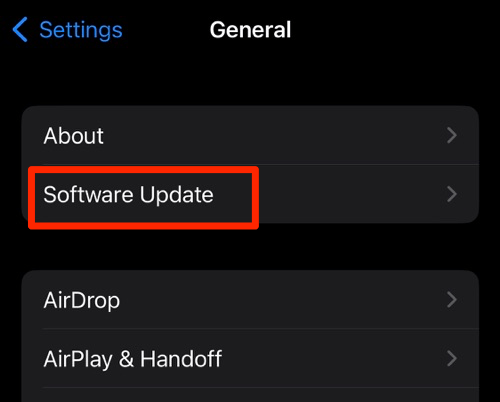 The device will automatically start looking for updates.
- Tap the button.
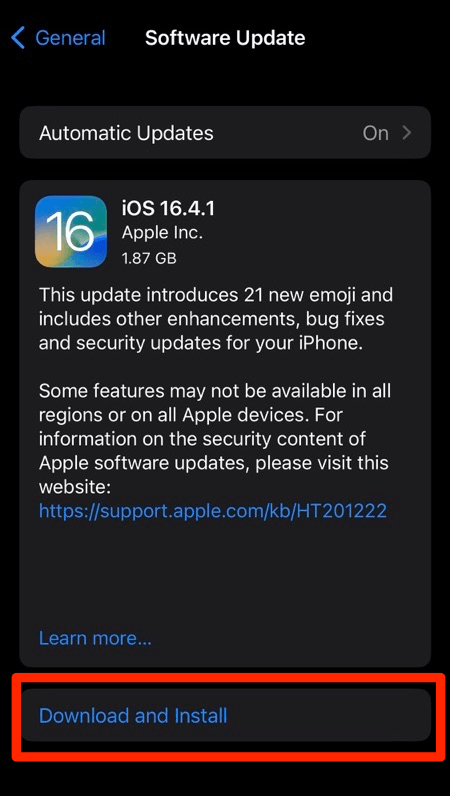 The update will download and install the latest Safari on your device, if available.
After the update finishes, restart the iPhone if iOS asks you to, open Safari, and test tab search again. Keep the tab grid open while you check so you can see right away whether the tap registers.
Clear Safari’s stored website data
This is the last step to try, and the only one on this page that costs you something. Clearing Safari’s cookies, cache, and stored website data resets older data that may be interfering with the interface. Here’s how to clear browsing data in Safari on iPhone.
It doesn’t usually fix a tab search display problem. Treat it as a final troubleshooting step rather than a likely cure.
- Launch the iPhone or iPad's Settings app.
- Select Safari in settings and scroll to the bottom to choose the Advanced option.
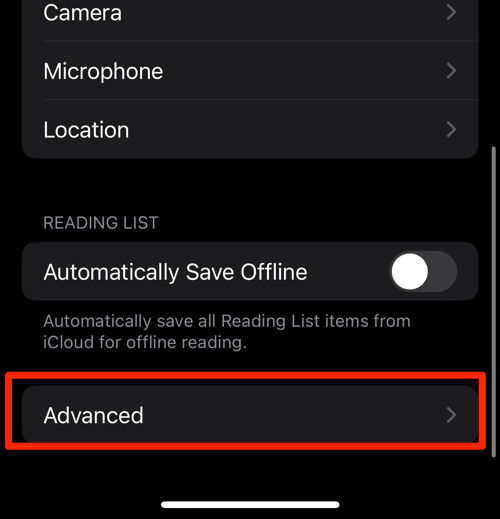
- Tap on the Website Data option.
It will display the list of all websites and corresponding data. - Tap on the command.
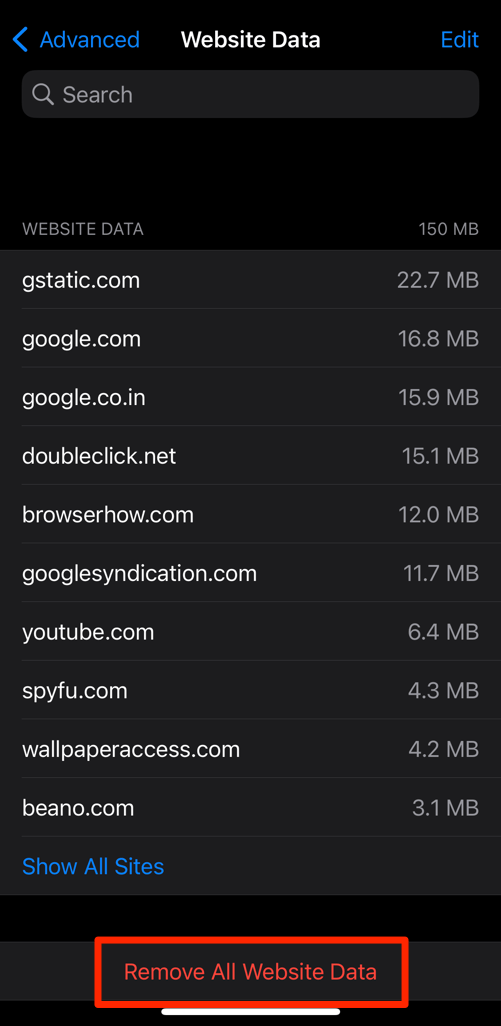 It will delete all the stored website data from the Safari browser.
Open tab search again and test a matching result. If Safari is still unresponsive, keep using the landscape or address-bar workaround until Apple ships a correction.

ALERT: Clearing Safari data removes stored cookies and website information. You may need to sign in to websites again, and offline website data may also be removed.

Confirm whether the problem affects only tab search
Not every tab problem starts in tab search, and the difference decides your next move. This check takes about two minutes.
- Open a new Safari page normally.
- Enter a website address and load the page.
- Return to the tab grid without using the search field.
- Tap a visible tab that was not part of the search results.
- Open the tab search view again and test a matching result.
Ordinary tabs that open on the first tap mean tab search is the culprit, and the workarounds above stay your best option. If even a plain tab fails, open a fresh one (here’s how to open new and private tabs in Safari on iPhone) and check your connection before restarting Safari again.
What to do if no workaround works
The original iPhone report didn’t include a confirmed repair from Safari settings, and the same report described close buttons failing inside the tab search grid. Changing tab layout, search engine, or content blocker settings is not a reliable fix.
Use the address bar to open matching pages, or switch browsers temporarily until Apple corrects it. You can also add your details to an Apple Support Community discussion: iPhone model, iOS version, and whether rotating the device brings tab search back.
Frequently Asked Questions
Why won’t tabs open when I tap them in Safari tab search?
Safari may display the matching tab results but fail to register taps on the tab cards or close buttons. That’s an interface or display-state issue, so the websites listed in those results can still load normally.
Does rotating the iPhone fix Safari tab search?
Changing from portrait to landscape is a known workaround for the unresponsive tab search screen on iPhone. Close and reopen the tab search view after rotating if the results stay unresponsive at first.
Can I open a tab from Safari search without the tab grid?
Yes. Tap the address bar, type part of the page title, and select the matching address-bar suggestion. This bypasses the tab grid and opens the page directly.
Will clearing Safari cookies fix tabs that will not open from search?
Clearing cookies, cache, and website data may help reset Safari, but it is not a confirmed fix for the tab search problem. You will need to sign in to affected websites again after clearing this data.
How do I know if the issue is limited to Safari tab search?
Open a page normally and try a visible tab outside the search results. If those tabs work while searched results don’t, the problem is confined to tab search, and the landscape or address-bar workaround remains the right call.