Safari keeps listing a website under Manage Website Data, or the Remove button does nothing, and you want the entry gone for good. Usually an open tab, a background refresh, or a device restriction is holding it there.
Quit Safari, remove the site again from Privacy settings, then check Screen Time or a work profile if the controls stay gray. A restart clears the stubborn cases.
In this guide, I have covered:
Contents
Safari Website Data Won’t Delete? Why It Happens
You select a site in Manage Website Data, click Remove, and the entry is still there. Maybe it vanishes and returns a minute later. Safari stores cookies, cached files, and other information for each website separately, so one open tab, a background refresh, or a content restriction is enough to keep that record alive.
Close the site first, then retry Safari’s own privacy controls. If the Remove buttons are gray, the cause is usually outside Safari: Screen Time content restrictions or a profile installed by your school or employer.
Clear Safari Cookies and Cache on Mac
You want the data gone and you don’t care which site caused the mess. This is the blunt reset, and it’s the right first move when a site keeps serving an old login or a stale page.
- Launch the Safari app on your Mac computer.
- Click on the Safari menu from the menu bar, and select the Settings... sub-menu.
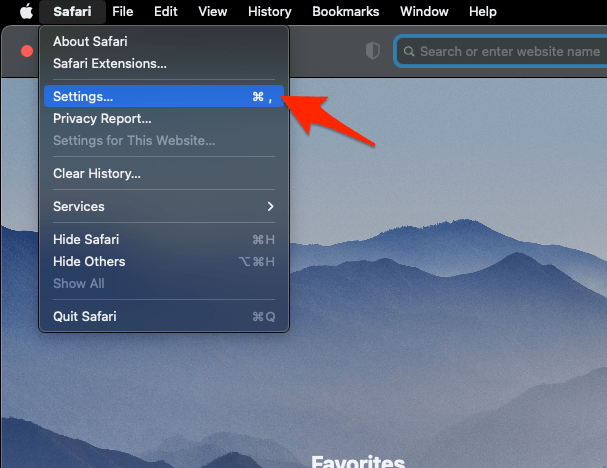 It will open the Safari Settings window.
- Switch to the Privacy tab, and click to open the button.
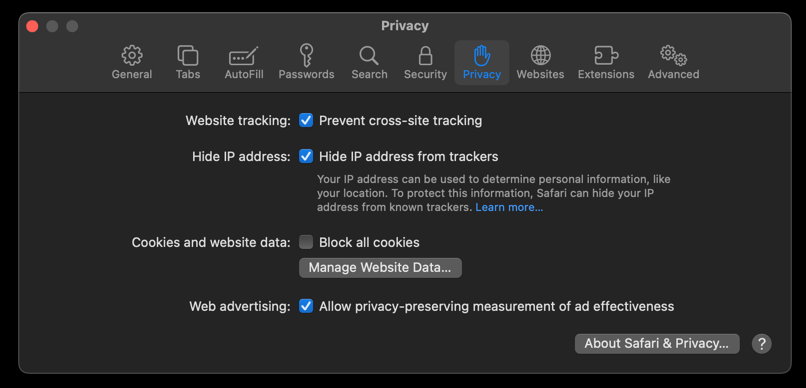 It will load the list of websites currently storing the cache and cookies in the browser.
- Hit on the command and then the button.
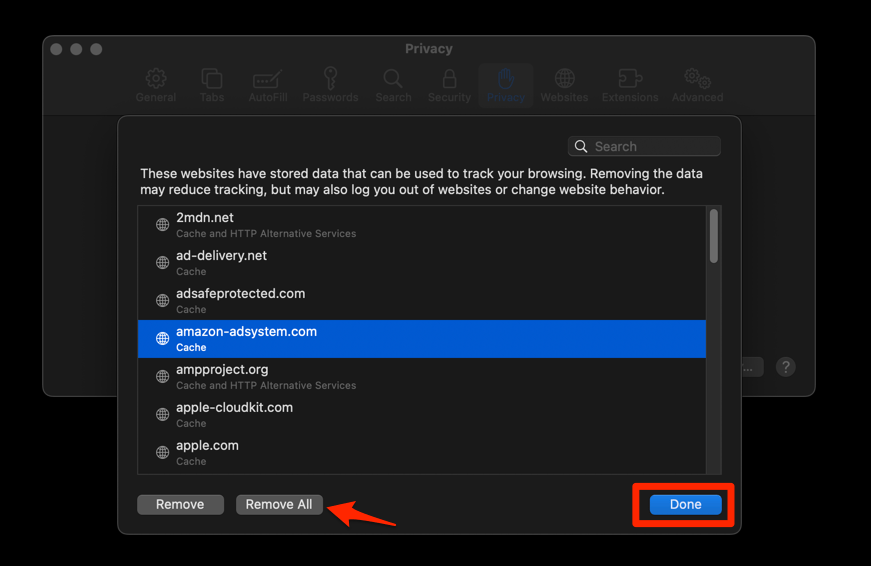 It will flush the cookies and cache for all sites in Safari.
Reopen the site afterward and sign in again if you were logged in before. You’ll know it worked when the site treats you as a new visitor and asks for your password or shows current content.

Clearing cookies and website data in Safari can also change or remove related information in other Apple apps. Plan to sign back in to the accounts you care about.
Remove Data for a Specific Website
One site is misbehaving and you would rather not wipe the other hundred entries. The website data manager deletes that single record. Apple’s Safari guide for managing cookies and website data documents the same route.
- Quit Safari by selecting Quit Safari from the Safari menu.
- Open Safari again.
- Select Settings from the Safari menu.
- Select Privacy in the settings window.
- Select Manage Website Data.
- Find the affected website in the list.
- Select the website and click .
- Close the Manage Website Data window and reopen the website.
You’ll know it worked when the site is gone from the list the next time you open Manage Website Data, and the site asks you to sign in again. If it reappears within a minute, skip ahead to the restart steps.
If the manager opens empty, or never lists the site you are chasing, that is a different fault. A blank Manage Website Data screen has its own fix.
Remove All Safari Website Data
The single entry will not budge, or it comes back within minutes. Clearing everything is the heavier option, and it removes data for every site in the manager, not just the one you are fighting.
- Open Safari and select Settings from the Safari menu.
- Select Privacy.
- Select Manage Website Data.
- Select .
- Confirm the removal if Safari displays a warning.
- Reopen the affected website and check whether its old data remains.

ALERT: Remove All signs you out of every website whose data appears in the manager. Check that you can get back into any account protected by two-step verification.
Check Restrictions That Block Deletion
Safari will not clear the data, and the Remove buttons are gray. A restriction is the likely cause. Screen Time content restrictions and web content filters installed through device management can both gray out that control.
- Open System Settings.
- Select Screen Time.
- Select Content Restrictions.
- Review the restrictions for web content and the affected website.
- Change the restriction if you are allowed to manage it.
- Return to Safari and repeat Privacy → Manage Website Data.
On a Mac owned by your school or workplace, ask the administrator to review the web content filtering policy. A managed restriction can stay in place even when the hardware is yours.

What to Do If the Website Data Still Remains
You have removed it twice and the entry is still sitting there. Quit every tab for that site, restart the Mac, then open Safari and check Settings > Privacy > Manage Website Data before you load the site in a tab.
If the entry clears this time, an open tab or background activity was recreating it. If the button is still gray, the cause is Screen Time or managed policy, not Safari’s data store, and repeating the same command will not change anything.
Check the Same Site on iPhone or iPad
You browse the same site on an iPhone or iPad and want that copy of the data gone too. Open Settings → Apps → Safari, then find the website data controls under Advanced.
For a wider reset, see View Cache and Clear Site Storage in Safari on iPhone & iPad. A gray clearing button there can mean there is no stored data or that a restriction is active.
Frequently Asked Questions
Why does Safari website data keep coming back?
An open tab, a background website process, or the site restoring its own cookies can recreate the data after deletion. Quit Safari, remove the entry again, and load the site only when you actually need it.
Does removing Safari website data sign me out?
It can. Cookies are what keep many sites signed in, so expect to enter your password again and complete two-step verification.
Why is the Remove button gray in Safari?
Nothing may be selected, there may be nothing left to remove, or Screen Time and managed web content restrictions may be blocking deletion. Review the restrictions before you try again.
Does clearing Safari website data affect other Apple apps?
Yes, it can. Apple notes that removing cookies and website data in Safari may change or remove related information in other apps, so plan on signing in again.
Most stuck entries come down to an open tab or a restriction you did not know about. Work through the checks in that order and Safari will let the data go.