A Chrome window that only appears after you force close the browser is usually being blocked by a process that never exited.
End the stuck process first, then work through the shortcut, extensions, profile, and settings tests until Chrome opens on the first click.
In this guide, I have covered:
Contents
Why Chrome only opens after you force close it
You click Chrome, nothing happens, and then it appears only after you end the process and start over. That pattern usually means the browser never really quit the last time you closed it.
A background Chrome process stays alive, so your click wakes the old instance instead of drawing a new window. A damaged profile, an extension that stalls on startup, or a stale shortcut produces the same symptom.
Work through the checks below in order. Stop as soon as Chrome opens on the first click, because every later test changes more of your setup.
Force close the stuck Chrome processes
Nothing else will work while a hidden instance is holding Chrome open. Force closing ends it, including background processes that never drew a window.
- Open Task Manager on Windows.
- Right-click each Google Chrome process in the list.
- Click .
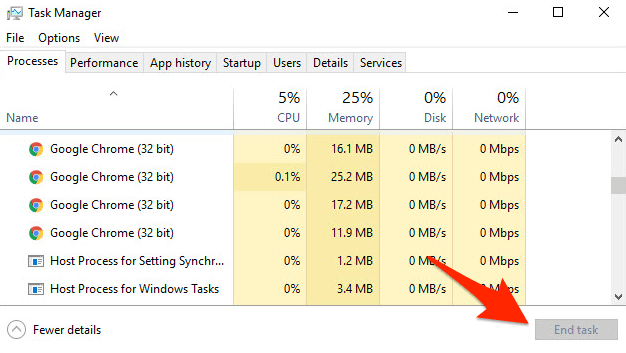
Now click Chrome again from the desktop icon, the Start menu, or the taskbar. A window appearing on the first click is your confirmation that a leftover process was the whole problem.

Force closing Chrome can discard tabs you never saved. Give it a moment after relaunch, then check Recently closed in the Chrome  menu if a window did not come back on its own.
Check for a broken Chrome shortcut
Chrome still does nothing when you click? Look at where the shortcut points. A shortcut left over from an older install can aim at a file path that no longer exists, so Windows spins for a moment and gives up.
- Right-click the Chrome shortcut you normally use (Desktop, taskbar, or Start menu).
- Choose Properties.
- On the Shortcut tab, look at the Target field.
- The target should end with chrome.exe only. If anything follows it, especially a URL with "yahoo" in it, delete the extra text.
- Click Apply, then OK.
- Repeat for every Chrome shortcut on your PC: Desktop, taskbar pinned icon, and Start menu.
Repair the target or build a new shortcut, then launch Chrome from it. You’ll know it worked when the window opens from that shortcut and not just from a fresh forced launch.
Test Chrome without extensions
An extension that hangs during startup can stop Chrome’s window from ever appearing. Turning them all off takes a minute and rules the whole category out.
- Launch the Google Chrome on your computer.
- Click on the More for the list menu.
- Hover on the More Tools menu and choose the Extensions sub-menu.
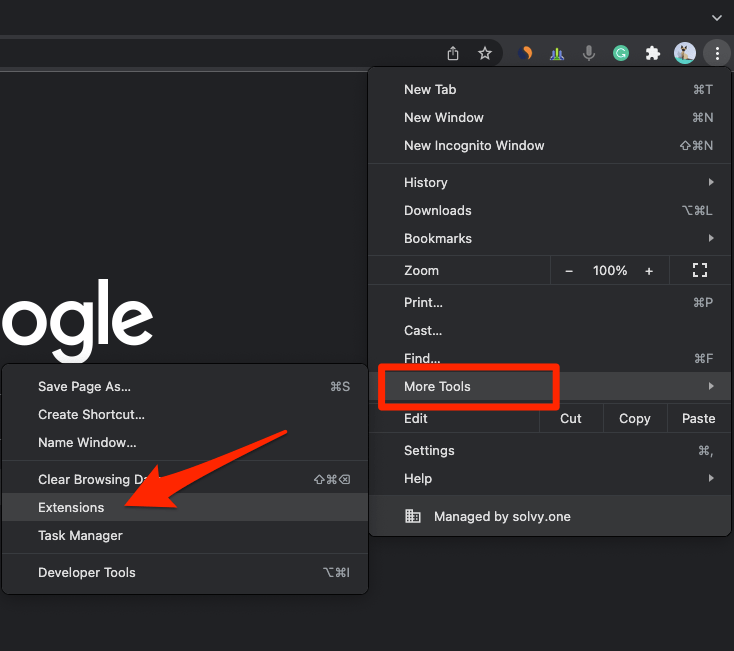 It will open the Chrome Extensions Manager page with the list of installed extensions.
- Toggle the switch to Disable the extension.
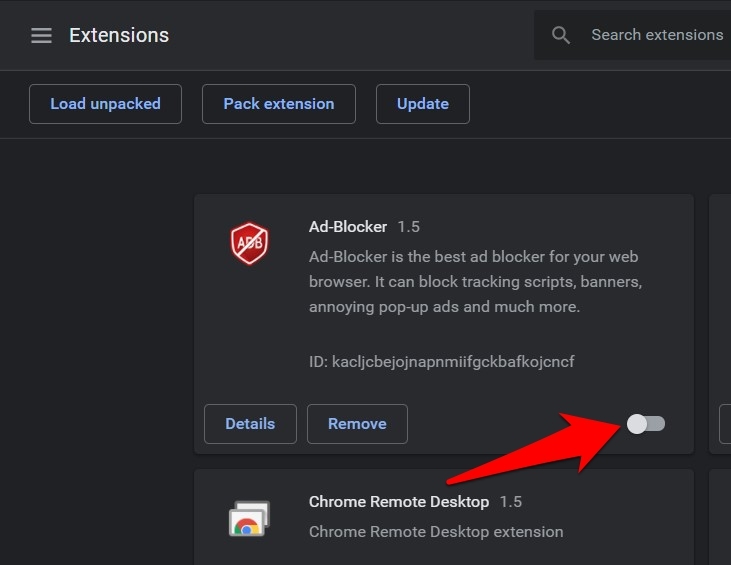
If Chrome launches with extensions off, switch them back on a few at a time and restart Chrome after each batch. The extension that brings the delay back is the one to update or remove.
Not sure where the toggle lives? This walkthrough on enabling or disabling installed extensions in Chrome shows both directions.
Test whether a Chrome profile is causing the problem
Still nothing with extensions off? The profile is the next suspect. Profile files can be damaged, and Chrome may stall before it draws a window instead of showing you an error.
- Open the Profile menu from the Chrome toolbar.
- Choose Add, or pick a profile that already appears in the list.
- Launch Chrome with that profile and see whether a window appears.
- If it does, back up the affected profile before you switch back to it.
Opening fine in a different profile tells you the original one is the culprit. Check the profile path at chrome://version, then rename that folder temporarily and relaunch Chrome.
Keeping work and personal accounts in separate profiles makes this kind of test easier next time. Here’s how to add a Chrome profile for multiple Google accounts.
Do not delete the profile folder until you have confirmed that Chrome starts in a different profile. Renaming it first leaves you a way back to the data.
Reset Chrome settings
A startup preference or a hijacked setting can block the window even though Chrome is technically starting. Resetting settings is the fastest way to rule that out.
- Launch the Chrome browser on the computer.
- Click on the More for menu list, and select the Settings menu.
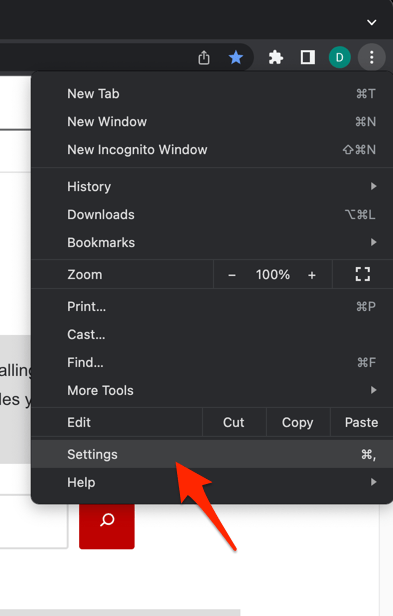 It will open the Chrome browser's Settings page.
- Switch to the Reset settings tab in the left sidebar, and select Restore settings to their original defaults option.
- Finally, hit the command button.
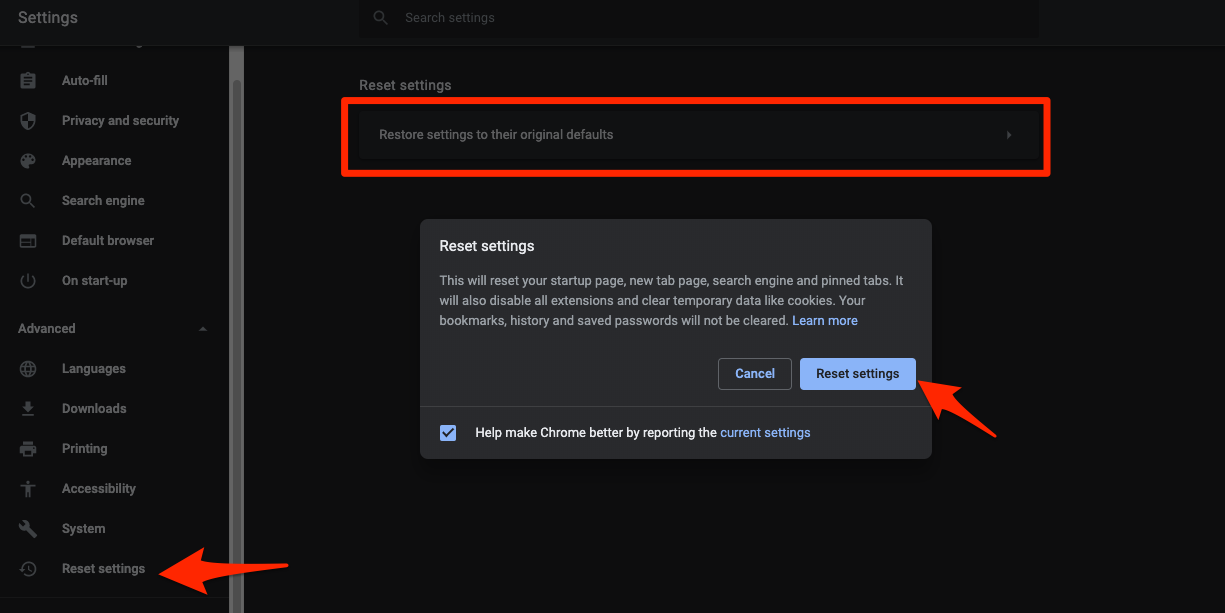 It will reset the Chrome browser settings, clear temporary data, and disable all extensions.
Your bookmarks, history, and saved passwords stay where they are. Only the configuration returns to defaults.
Restart Chrome and click its icon again. If it opens without the force-close step, add your extensions back one at a time and watch for the delay to return.
Reinstall Chrome on Windows
Shortcut, extensions, profile, and settings all check out? That leaves the installation itself. Damaged program files can break the launch sequence while your personal data stays intact.
- Uninstall Chrome through Settings
 → Apps → Installed apps.
- If the profile folder remains at %LOCALAPPDATA%GoogleChromeUser Data, delete it manually.
- Restart Windows.
- Download a fresh copy of Chrome and install it.
- Set Chrome as your default browser, then set your default search engine again.
A reinstall replaces the program files and leaves your user data folder alone, so your profile survives the swap. Launch Chrome from the new install and confirm the window appears on the first click.
If the same delay creeps back, create a fresh profile and test again before you remove any existing profile data.
Google’s official guidance for Chrome crashes or startup failures also covers how to spot an already-running Chrome process.

Frequently Asked Questions
Why does Chrome open only after I force close it?
Chrome is probably still running in the background, even with no window on screen. Ending its processes clears the stale instance so the next launch can build a window from scratch.
Will resetting Chrome settings delete my bookmarks and passwords?
No. A settings reset returns configuration and startup preferences to defaults. Bookmarks, history, and saved passwords live in your profile and stay put.
How do I know whether an extension is causing Chrome not to open?
Turn off every extension and open Chrome. If it launches, switch the extensions back on one at a time. The one that brings the problem back is the cause.
Should I delete the Chrome profile folder immediately?
No. Test another profile first, then rename the affected folder as a temporary step. Deleting it can wipe profile-specific settings and locally stored data.
What should I check before reinstalling Chrome?
Check the shortcut target, test a different profile, disable extensions, and reset Chrome settings. A reinstall comes next if none of those restore normal startup.