Chrome refuses to launch, sits on the splash screen, or vanishes the moment you click its icon. Your data is usually fine. The fault tends to sit in a stuck background process, an extension, or a damaged setting.
Work through the fixes in order, starting with a force quit and leaving a reinstall for last. Each step keeps your bookmarks and passwords in place until you choose to clear them.
In this guide, I have covered:
Contents
Why Chrome won’t open on your computer
You double-click the Chrome icon and nothing happens, or the window flashes and disappears. Same symptom, different causes.
The usual suspects: a Chrome process that never closed, an extension that crashes during launch, a startup page that no longer loads, a damaged profile setting, or an installation that stopped partway through an update.
Work from the least destructive fix to the most. Anything that keeps your bookmarks, passwords, and history intact should come before a reset or a reinstall.
Force quit a stuck Chrome process
Chrome shows no window, yet the browser may still be running in the background. That leftover process holds the profile lock, so every new launch hands off to a browser that has already frozen.
- Open Task Manager on Windows.
- Right-click each Google Chrome process in the list.
- Click .
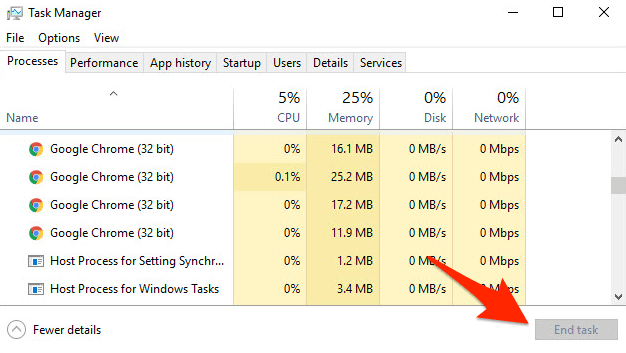
Reopen Chrome from the desktop shortcut or the Start menu. You’ll know it worked when a normal window appears and the address bar accepts typing.
If the window appears but freezes again within seconds, the process was not the cause. Move on to the startup page check below.
Check whether Chrome is waiting at startup
Chrome opens and then hangs. Often the browser is trying to restore a tab or a startup page that no longer responds, and the whole window waits on that one request.
- Open Chrome settings from the address bar by entering chrome://settings/onStartup.
- Find the On startup section and select Open a specific page or set of pages.
- Remove any startup pages that point to an unavailable address, then select Save changes.
Launch Chrome again. If it opens cleanly, add the startup pages back one at a time and restart after each. The page that brings the hang back is the one to drop.
Disable extensions to find a startup crash
Extensions load before your homepage does. One broken extension is enough to take Chrome down with it, and the crash usually happens before the window finishes drawing.
- Launch the Google Chrome on your computer.
- Click on the More
 for the list menu.
- Hover on the More Tools menu and choose the Extensions sub-menu.
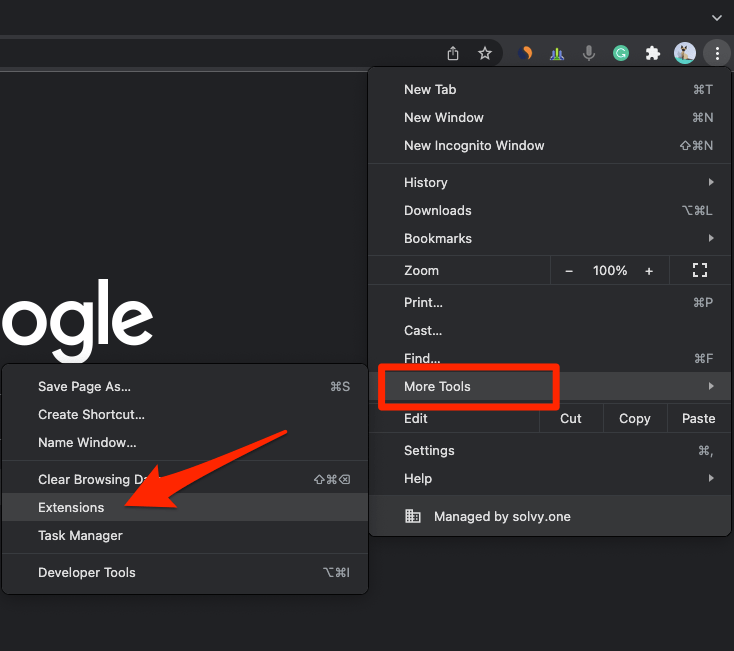 It will open the Chrome Extensions Manager page with the list of installed extensions.
- Toggle the switch to Disable the extension.
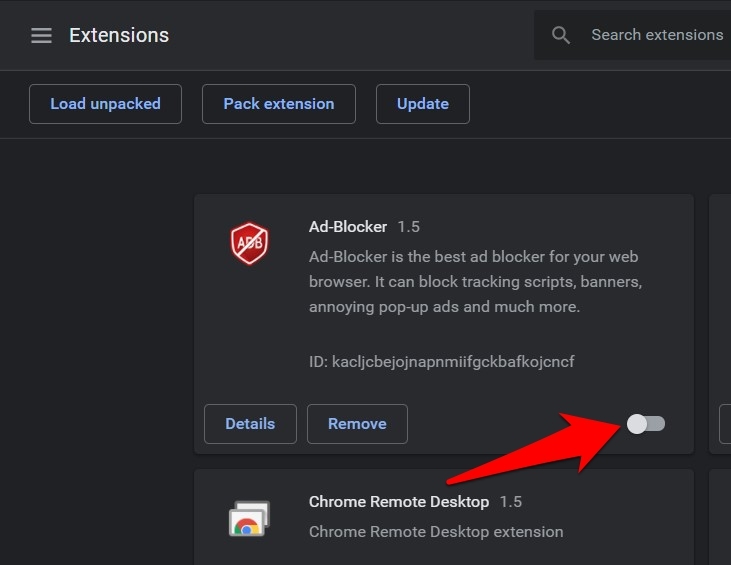
Start Chrome with everything disabled, then launch it again. If the window opens with a bare toolbar, an extension was the problem. Turn them back on one at a time, restarting Chrome after each, and remove or update the one that brings the crash back.
Clear Chrome cache and browsing data
A corrupt cache entry can stall startup as reliably as a bad extension. Try this once a stuck process and a failing extension are ruled out.
- Go to chrome://history/clearBrowserData in the address bar.
- Select the Time range from the drop-down.
- Enable the checkboxes for Browsing history, Cookies and other site data, and Cached images and files.
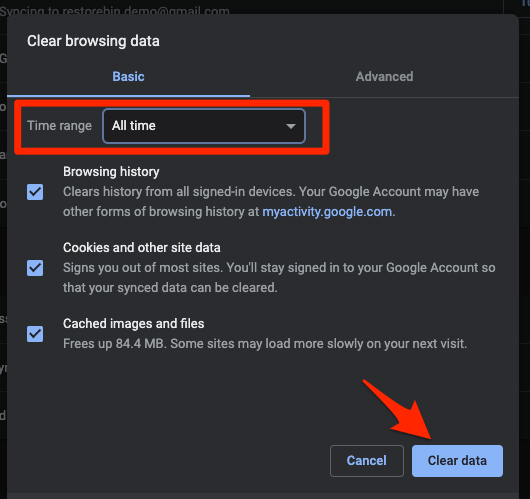
- Hit the Clear data button.
Reopen Chrome. You’ll know it worked when the first window loads without the long pause.
Clearing data has a cost: some sites will sign you out and forget saved preferences. Use the narrowest time range that solves the problem.
Reset Chrome settings
Nothing has worked, and Chrome still refuses to open. Resetting the configuration to defaults is now faster than hunting for the single setting that broke.
The reset restores startup pages, the default search engine, and some site permissions. Your files on the computer are untouched.

A settings reset is not the same as wiping your data. Bookmarks and passwords are stored separately, but they can still be affected if you clear browsing data or wipe the installation afterward.
- Launch the Chrome browser on the computer.
- Click on the More for menu list, and select the Settings menu.
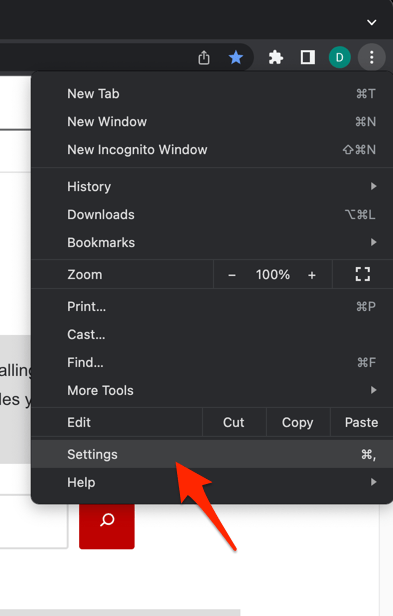 It will open the Chrome browser's Settings page.
- Switch to the Reset settings tab in the left sidebar, and select Restore settings to their original defaults option.
- Finally, hit the command button.
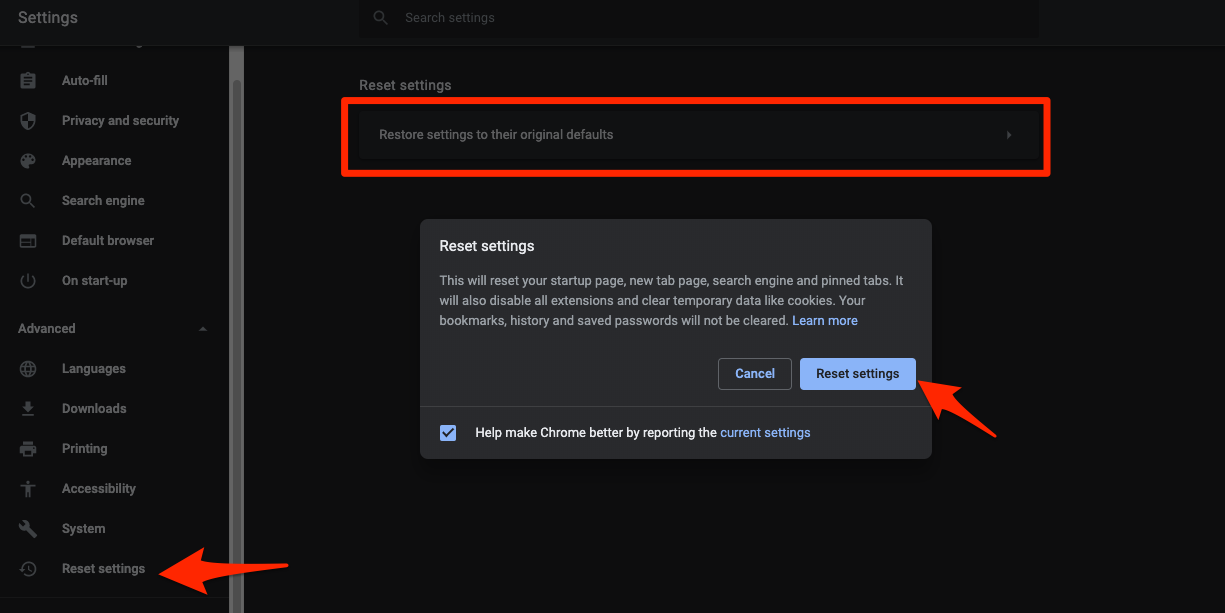 It will reset the Chrome browser settings, clear temporary data, and disable all extensions.
When Chrome reopens, test it with a blank new tab before you sign in or restore old tabs. If that tab loads and the browser stays open, the reset did its job, and you can skip the reinstall.
Sign back in and reapply only the settings you actually use, one at a time.
Update Chrome
Chrome opens one minute and refuses the next. That pattern often means a half-finished update left the installation in an odd state, and an old build can also fail on pages that have moved on.
- Launch the Google Chrome on your computer.
- Click on More for the options list, and select the Settings menu.
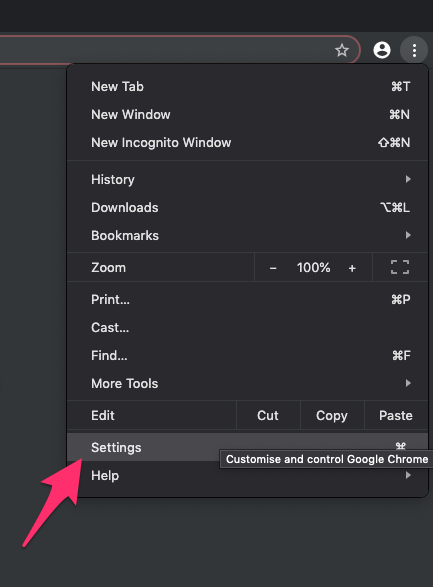
- Switch to the About Chrome tab in the left sidebar pane.
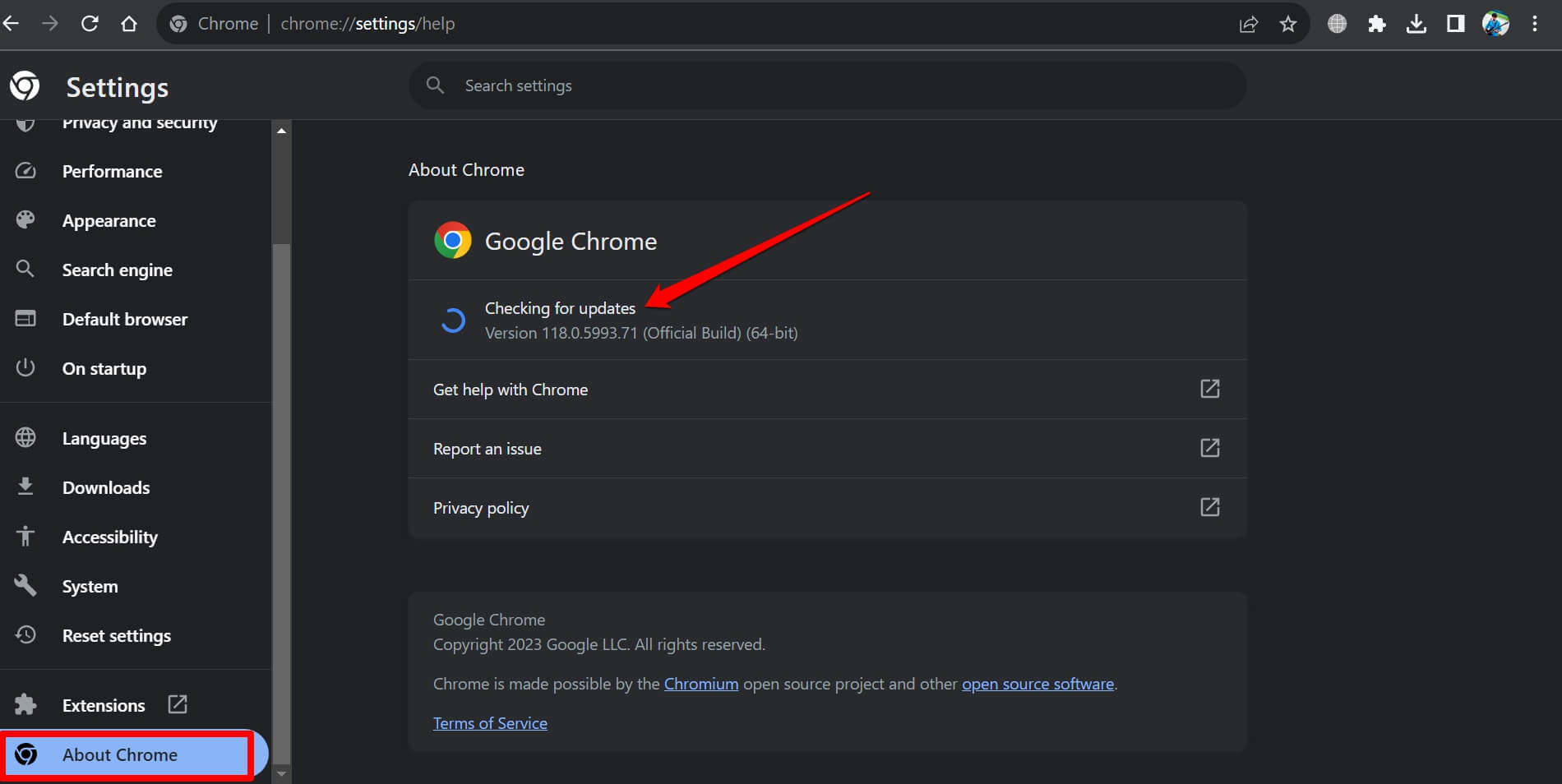 The browser should automatically start looking for the latest updates.
- Hit on the button.
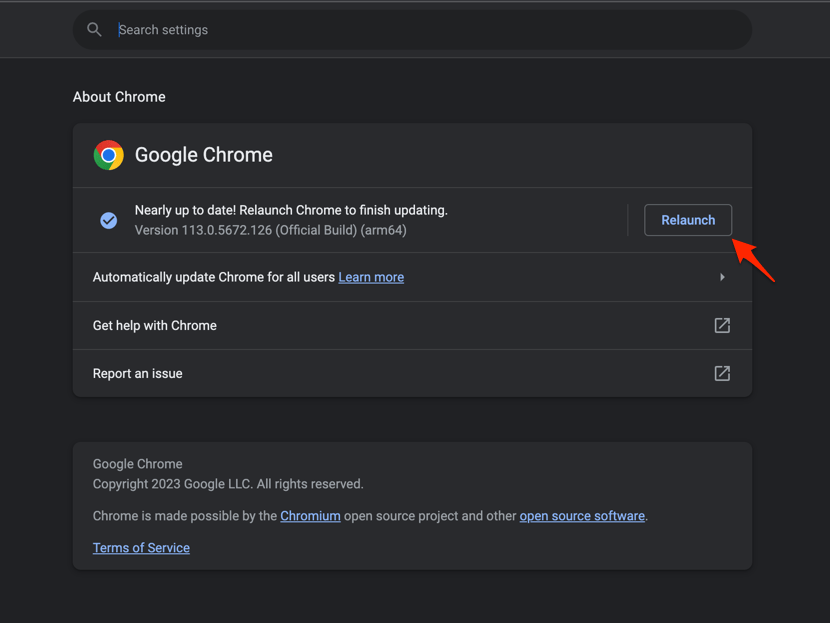 It will complete the Chrome browser update process.
Restart the computer once the update completes, then launch Chrome again. If the splash screen no longer hangs, you’re done.
Google keeps its own recovery steps for launch failures in the Chrome Help guide for crashes and startup problems. Read it if the update refuses to finish.
Reinstall Chrome on Windows
If the installation itself is damaged, no amount of resetting will help. Reinstalling replaces the program files, and it can remove the local Chrome installation, so back up anything you keep only inside the browser first.
- Uninstall Chrome through Settings
 → Apps → Installed apps.
- If the profile folder remains at %LOCALAPPDATA%GoogleChromeUser Data, delete it manually.
- Restart Windows.
- Download a fresh copy of Chrome and install it.
- Set Chrome as your default browser, then set your default search engine again.
Open Chrome when the installer finishes. You’ll know it worked when the browser launches and offers to sign you in.
Signing in brings back synced bookmarks and passwords. For a broader cleanup before reinstalling, see how to uninstall Chrome and wipe its data completely.
Try a Chrome guest profile
Chrome still won’t open, and you need to know whether the fault is your profile or the browser itself. A guest window answers that without touching your saved data.
- Open Chrome settings by entering chrome://settings/people in the address bar.
- Select Profiles in the left side of the settings page.
- Select Guest, then choose Open Guest window.
If the guest window opens, your regular profile is the problem: a startup page, an extension, or a damaged preference. If the guest window fails too, go back to the reset and reinstall steps.
Check for a blocked Chrome shortcut
Chrome opens from the Start menu but the desktop icon does nothing. That’s a shortcut problem, not a browser problem, and it takes about a minute to confirm.
- Right-click the Chrome desktop shortcut and select Properties.
- Open the Shortcut tab.
- Check the Target field and select Change Icon.
- Choose the Chrome icon from the available list and select OK.
Save the changes and double-click the shortcut again. If the target path looks wrong, delete the shortcut and build a new one from the installed Chrome application.
What to do if none of the fixes work
Chrome still won’t open, and you’ve tried everything above. The cause is probably outside the browser now: a security tool blocking the executable, a cleanup utility that removed a file, or too little free space on the drive.
Open another browser and check free storage on the system drive. Then think about what changed recently, whether that’s a new antivirus suite, a disk cleaner, or a Windows update.
Restart the computer once after disabling the suspected program, then try Chrome one more time. If it stays blocked, contact the software vendor and point them to the standard recovery steps in Google’s Chrome Help page.
Most startup failures end at step one or two, with a stuck process or a bad extension. Keep the reinstall in reserve for the rare case where the program files themselves are damaged.

Frequently Asked Questions
Why does Chrome close immediately after I open it?
A crashing extension, a damaged startup page, or corrupt browser data can close Chrome seconds after launch. Disable extensions first, then clear browsing data or reset the settings if the problem continues.
Will resetting Chrome delete my bookmarks and passwords?
A settings reset restores the original configuration, but it is not the same as deleting all Chrome data. Bookmarks and passwords can still be affected if you also clear browsing data or wipe the installation.
Can I fix Chrome not opening without reinstalling it?
Yes. Ending the stuck process, changing startup pages, disabling extensions, clearing browsing data, and resetting settings resolve many startup failures. Reinstall only when those steps come up empty.
Why does Chrome open in Incognito but not in my normal profile?
That points at your regular profile: an extension, a startup page, or a damaged profile setting. Open a guest window to confirm, then remove the extension or reset the settings before you consider a full reinstall.
Why do I need to end the Chrome process before restarting it?
A hidden Chrome process can stay in the background with no window on screen. Ending it clears the locked state so the next launch starts fresh instead of attaching to the unresponsive process.