You want your Chrome profile on another drive or outside a folder that gets synced, but Chrome has no setting for changing the profile location. The workaround is to copy the User Data folder and launch Chrome with the –user-data-dir option.
Record the current profile path first, and keep the original folder intact until the relocated profile opens with your bookmarks, passwords, and signed-in accounts in place.
In this guide, I have covered:
Contents
Move a Chrome Profile to Another Folder on Windows
Chrome has no setting for changing where a profile lives. To move a Chrome profile, copy its User Data folder to the new path and start Chrome with the --user-data-dir option.
Reach for this when you want profiles on another drive, in a separate folder, or outside a location that gets backed up or synced. Keep the original copy until the relocated profile opens correctly.
Find the Current Chrome Profile Location
Before you copy anything, find out which folder Chrome is actually using. Open chrome://version and read the Profile Path row.
- Open Chrome and enter chrome://version in the address bar.
- Locate the Profile Path row and note the folder beside it.
- Identify the parent folder that contains the profile. On Windows, the default user data root is %LOCALAPPDATA%\Google\Chrome\User Data, while individual profiles usually appear as Default or Profile 1.
Do not copy only the Default or Profile 1 folder. Copy the complete user data root so Chrome keeps its profile references and related settings.
You’ll know it worked when the Profile Path ends in a profile folder such as Default, and its parent is User Data.
Close All Chrome Windows
Copying files while Chrome is still running can fail or leave the new folder incomplete. Closing the last visible window may leave Chrome running in the background.
- Open Task Manager on Windows.
- Right-click each Google Chrome process in the list.
- Click .
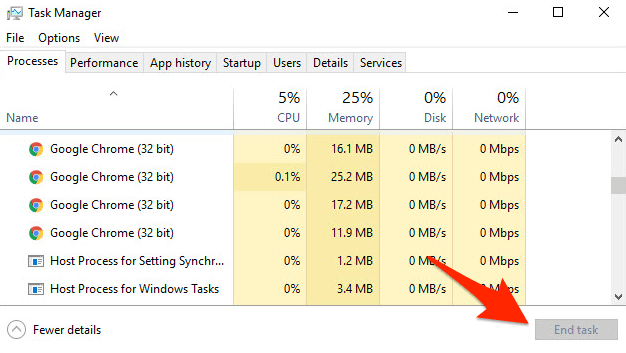
You’ll know it worked when the next copy step can read every file without a file-in-use warning. Wait a few seconds after Chrome closes before copying the folder.
Copy the Chrome User Data Folder
We usually recommend copying the whole user data root, not just the profile folder. For example, place it at D:\Chrome\User Data instead of the original path under your user profile.
- Open File Explorer and enter %LOCALAPPDATA%\Google\Chrome in the address bar.
- Right-click the User Data folder and select Copy.
- Create the destination folder in File Explorer, such as D:\Chrome.
- Open the destination folder and select Paste.
- Wait until Windows finishes copying the folder before continuing.
The destination must contain the copied folders and files directly. For example, D:\Chrome\User Data\Default is correct if Default is the profile folder shown in chrome://version.

Keep the original User Data folder unchanged until the moved profile has been tested. If something goes wrong, point Chrome back to the original location and recover without downloading or recreating your local profile data.
Check the Chrome Shortcut Target
You want Chrome to launch from the new path, so check the shortcut before you edit it. That avoids changing the wrong shortcut or overwriting an existing command.
- Right-click the Chrome shortcut you normally use (Desktop, taskbar, or Start menu).
- Choose Properties.
- On the Shortcut tab, look at the Target field.
- The target should end with chrome.exe only. If anything follows it, especially a URL with "yahoo" in it, delete the extra text.
- Click Apply, then OK.
- Repeat for every Chrome shortcut on your PC: Desktop, taskbar pinned icon, and Start menu.
You’ll know it worked when the Target field shows the chrome.exe path and no old --user-data-dir value remains. If the target already contains one, remove it before adding the new location.
Point Chrome at the New Folder
The shortcut is what tells Chrome to use the copied folder instead of the default one. Edit it once, then start Chrome from that shortcut.
- Right-click the Chrome shortcut on the desktop and select Properties.
- Open the Shortcut tab and locate the Target field.
- Place the cursor after the closing quote for the Chrome executable.
- Add a space followed by --user-data-dir="D:\Chrome\User Data", replacing that example path with your actual destination.
- Select and then select .
- Start Chrome using the edited shortcut.
For example, a target may end with chrome.exe --user-data-dir="D:\Chrome\User Data". The exact executable path depends on where Chrome is installed.
If you want a separate shortcut for the relocated profile, see how to create a website shortcut on the desktop using Chrome. Use the same command-line option for a dedicated Chrome shortcut.
Chrome normally stores the cache in the same user data directory as the profile. Moving the user data root therefore relocates the profile and its associated local browser data together.
Verify the Relocated Profile
Before you delete or edit anything else, confirm Chrome is reading from the new folder. Check the path first, then check the profile contents.
- Open chrome://version in Chrome.
- Check that the Profile Path now points to the profile folder inside the new destination.
- Open the Chrome profile picker and confirm the expected profile name, email address, bookmarks, and signed-in state are present.
- Close Chrome and open it again from the edited shortcut to confirm it starts from the relocated folder.
You’ll know it worked when chrome://version shows a profile path under the new folder and Chrome opens the same profile. The original folder can then be retained temporarily as a backup.
Update Other Chrome Shortcuts
The moved profile only opens from shortcuts that carry the new --user-data-dir path. Other shortcuts may still point to the old location or open Chrome with its default user data directory.
- Locate Chrome shortcuts on the desktop, in the Start menu, and on the taskbar that you use regularly.
- Edit each shortcut that should open the relocated profile.
- Add the same --user-data-dir="D:\Chrome\User Data" option to its Target field.
- Open each edited shortcut and confirm that it launches the relocated profile.
For a quick reference, Google’s instructions for creating a Chrome shortcut explain where to find the target field in the shortcut properties.
What to Do If Chrome Opens a New or Empty Profile
Chrome opening a clean, empty window after the move usually means the shortcut points at the wrong folder level or contains a bad path. It can also happen if the User Data folder was copied incorrectly.
- Close Chrome completely.
- Open the edited shortcut’s Properties and check the Target field.
- Confirm that the path after --user-data-dir points to the folder containing Default, Profile 1, and the other copied user data contents.
- Remove any second --user-data-dir option or an old path left in the target field.
- Start Chrome again and check chrome://version.
If the profile still does not appear, remove the command-line option temporarily and confirm the original profile still opens. That verifies the original folder remains intact.
Restore the Original Profile Location
If the relocated profile won’t open, put the original path back before you touch any files. You can return to the old folder without deleting anything.
- Close Chrome completely.
- Open the Chrome shortcut’s Properties.
- Remove the --user-data-dir option from the Target field.
- Select and then select .
- Start Chrome and open chrome://version to check that the original profile path is active again.
Do not delete the original user data folder until bookmarks, passwords, extensions, and signed-in accounts have been confirmed in the relocated profile. If you use Chrome Sync, you can also sign in and manage Chrome Sync data before troubleshooting a profile that appears incomplete.

Frequently Asked Questions
Can I change the Chrome profile folder from Chrome Settings?
Chrome does not document a built-in setting for moving a profile to another folder. You must copy the user data and use the --user-data-dir option in the Chrome shortcut.
Do I copy the Default folder or the whole User Data folder?
Copy the whole User Data folder. Individual profile folders such as Default or Profile 1 sit inside it, along with files that hold Chrome’s profile references and related settings.
Can I move only one Chrome profile?
Chrome’s --user-data-dir option points to the user data root rather than an individual profile folder. Moving one profile alone is more complex because Chrome also maintains profile information in the root of the user data directory.
Will moving the profile delete the old copy?
No. Copying the folder leaves the original in place. You can use the old copy as a backup and remove it later only after verifying the relocated profile.
Why does Chrome open an empty profile after the move?
The shortcut is probably pointing one level too high or too low, or it contains an old or duplicate path. Check that --user-data-dir points directly to the copied User Data root that contains the profile folders.