You finish one CAPTCHA, the page reloads, and Edge asks you to do it again. The loop usually means the site cannot save or read the data it needs to confirm you are human.
Start with an InPrivate window, then check cookies, JavaScript, pop-ups, and extensions. Test the site after each change so you know which setting broke the loop.
In this guide, I have covered:
Contents
Why Edge Keeps Showing You CAPTCHAs
You solve one puzzle, the page reloads, and another challenge appears. That loop usually means the website cannot finish its verification step. It may keep asking for images, a code, or another check instead of loading the page you wanted.
The usual suspects are blocked cookies, disabled JavaScript, blocked pop-ups, a conflicting extension, damaged site data, or strict Edge settings. Work through the checks below one at a time. Retest the site after each change so you know what fixed it.
Test the Problem in InPrivate Mode
If the CAPTCHA only fails in your normal Edge window, an InPrivate test will tell you quickly. It shows whether your regular profile, cookies, or extensions are causing the loop.
- Open a new InPrivate window with ++.
- Visit the website that produces the repeated CAPTCHA.
- Complete the verification once and check whether the page loads.
If the CAPTCHA works in InPrivate mode, go back to your normal Edge window. Focus on cookies, site settings, and extensions.

InPrivate mode does not keep your normal profile’s cookies, but it can still use extensions. If the loop remains, close the InPrivate window and continue with the browser-level checks below.
Check Cookies and Third-Party Cookie Settings
If the CAPTCHA loops on one specific site, start with that site’s cookies. CAPTCHA providers often use cookies to confirm that you are a real user. A blocked cookie can make the verification fail and send you back to another challenge.
- Open edge://settings/content/cookies in the Edge address bar.
- Under Permissions, confirm that Allow sites to save and read cookie data (recommended) is selected.
- Select See all cookies and site data.
- Locate the website that shows the CAPTCHA loop.
- Remove its saved cookie and site data.
- Return to the website and complete a new CAPTCHA.
If the website still loops, check whether Block third-party cookies is enabled. Some verification flows depend on cookies from another domain. Blocking third-party cookies can affect them.
After the data is cleared, reopen the site and test the verification again. You’ll know it worked when the page opens after one challenge. If it still loops, the old site data was not the cause.
If you want a full cleanup instead of one site, the steps to clear browsing data and reset Edge on your computer cover cookies, cache, and reset options.
Allow JavaScript for the CAPTCHA Site
If the CAPTCHA widget loads but never finishes, JavaScript may be blocked for that site. CAPTCHA widgets often rely on JavaScript. If Edge blocks scripts for the site, the widget may load incorrectly or restart the challenge.
- Open edge://settings/content/javascript in the Edge address bar.
- Confirm that Allow sites to use JavaScript is selected.
- Select next to Sites that can use JavaScript.
- Enter the CAPTCHA website’s domain and select .
- Reload the website and test the challenge again.
If JavaScript is already enabled globally, adding the specific site makes sure no existing exception blocks it. You’ll know it worked when the widget loads and the challenge completes without restarting.
Review Pop-up and Redirect Settings
If the challenge seems to finish and then nothing happens, a blocked pop-up or redirect may be the culprit. Some verification pages open a separate pop-up or redirect to another domain. Edge can block that step, which may leave the original page waiting and displaying another CAPTCHA.
- Open edge://settings/content/popups in the Edge address bar.
- Check whether Block pop-ups and redirects is enabled.
- Select next to Sites that can always pop up windows.
- Enter the CAPTCHA website’s domain and select .
- Reload the site and complete the verification.
If the page now opens but does not pass the check, look for a blocked permission request. Allow it only for the website you trust. You’ll know it worked when the verification window opens and closes on its own.
Disable Extensions That Interfere With Verification
If the loop started after you installed a privacy or ad-blocking extension, test without extensions. Privacy, antivirus, and content-blocking extensions can alter scripts, cookies, or network requests on a CAPTCHA page. Disabling extensions is the quickest way to identify whether one is responsible.
- Launch the Edge browser on your computer.
- Click on the More
 for the menu list, and select the Extensions menu.
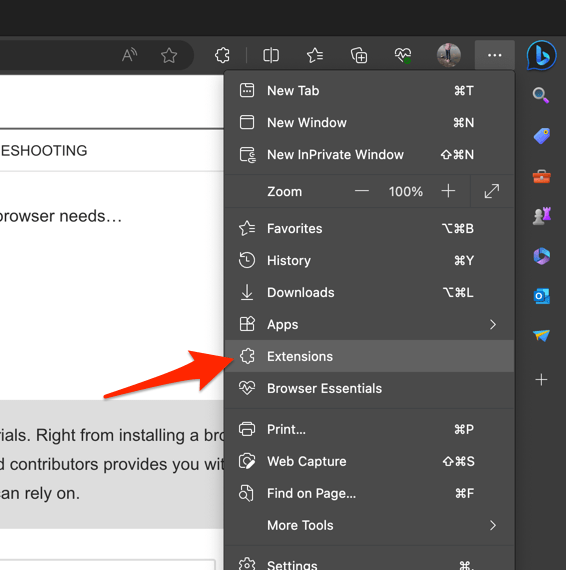 It will open the Edge browser's extensions manager page.
- Toggle the switch to Turn Off the extension in Edge browser.
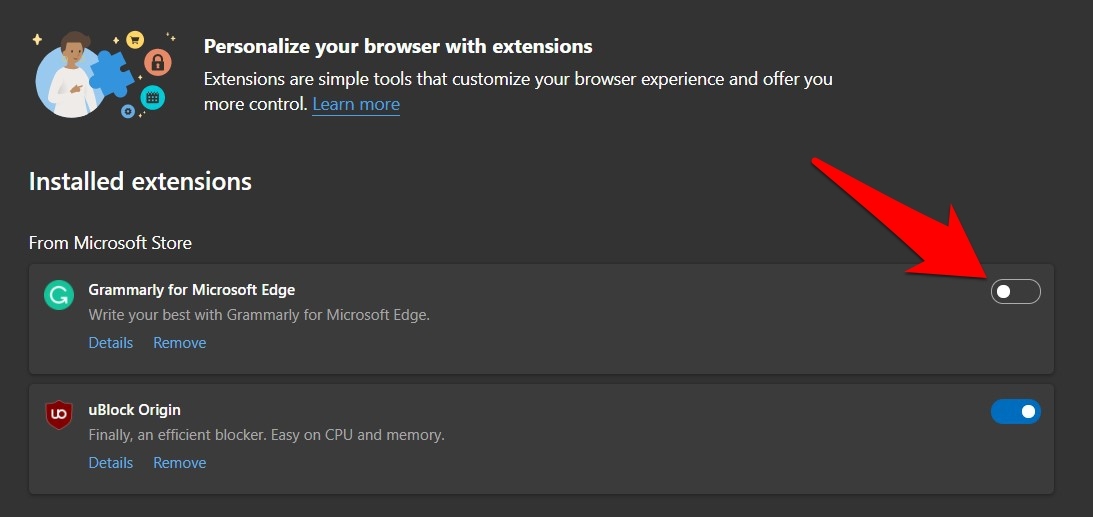
Reload the CAPTCHA page after disabling the extensions. If the loop stops, enable the extensions again one at a time. Keep the one that brings the loop back turned off.
Reset Edge Settings as a Final Fix
If you have checked cookies, JavaScript, pop-ups, and extensions and the loop remains, reset Edge. This restores the default browser settings. It removes incorrect site permissions or cookie preferences.
- Launch the Microsoft Edge browser.
- Open edge://settings/resetProfileSettings in the address bar.
It will open the reset browser confirmation dialog box. - Hit the button to confirm the browser reset.
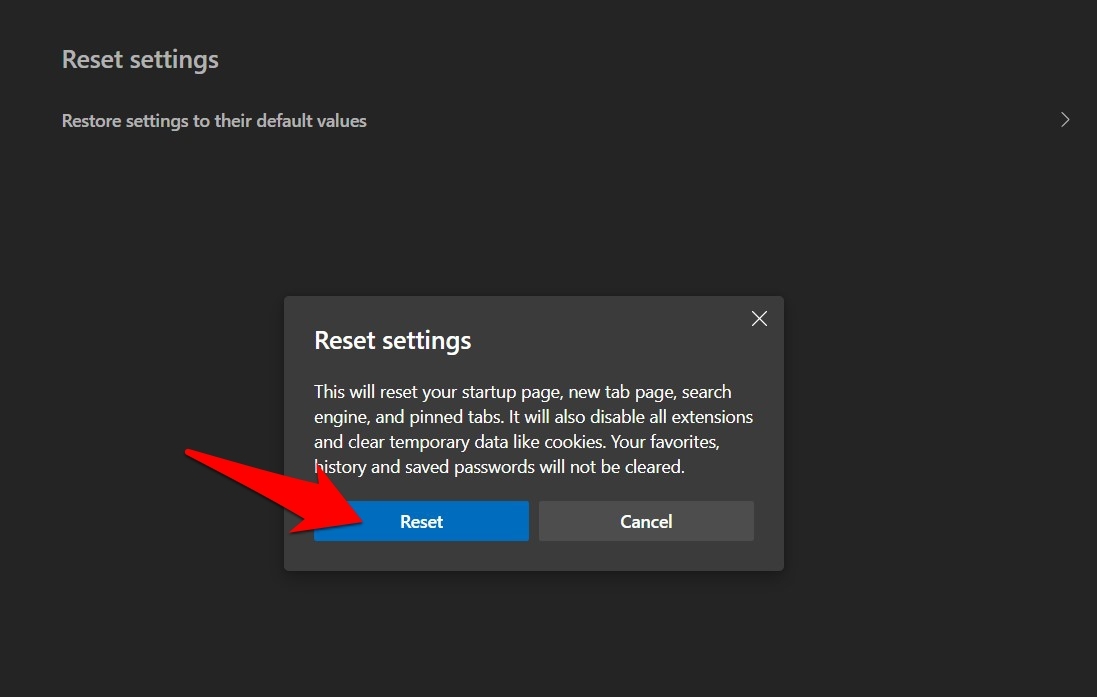 It will reset the Edge browser to the original default, clearing the temporary data and disabling all extensions.
After Edge restarts, test the website before reinstalling anything or changing settings outside the browser. If the CAPTCHA passes, a bad setting was the cause.

ALERT: Resetting Edge restores browser settings, so note which extensions, homepage, default search engine, and other customizations you want to restore afterward.
Other Checks If the CAPTCHA Still Loops
If the same site loops in Edge after all the checks, rule out the site and network.
- Close other tabs that are using the same verification service.
- Wait briefly after clearing site data, then request one new challenge.
- Try the website in another browser to confirm that the service itself is working.
- Check whether the network or a security tool is blocking the CAPTCHA provider’s requests.
- Switch to a standard Edge window after disabling extensions and test again.
If the same site loops in every browser, the problem may be on the website or network side rather than in Edge. If it only loops in Edge, continue checking site permissions and the extension conflict.

Frequently Asked Questions
When the CAPTCHA loop will not stop, these are the questions readers ask most.
Why does Edge keep asking for the same CAPTCHA?
Edge may not be passing the verification because cookies, JavaScript, or pop-ups are blocked. Extensions and stale site data can also prevent the challenge from completing.
Should I allow all third-party cookies in Edge?
Allowing all third-party cookies is not usually necessary. Start with the recommended cookie setting. Allow a third-party cookie exception only when a specific verification service requires it.
Does clearing Edge cache remove my passwords or bookmarks?
The cookie and cache cleanup steps here do not target passwords or bookmarks. Resetting Edge settings changes browser preferences, so note any customizations before doing it.
Will disabling Edge extensions stop the CAPTCHA loop?
Disabling extensions is a diagnostic test, not a permanent fix. If the loop disappears, enable them one at a time. Keep only the extension identified as causing the conflict turned off.
What if the CAPTCHA works in InPrivate mode?
The loop is probably connected to your normal profile’s cookies, site permissions, or an extension. Clear the affected site’s data, review its permissions, and test the extensions individually.