An Edge CAPTCHA that keeps coming back can block sign-in and checkout pages for hours. Most cases come down to an extension, a stale cookie, a blocked script, or graphics acceleration. Work through those in order and you will usually find the culprit on the first or second try.
If the loop follows you into InPrivate and a new profile, nothing on your computer is causing it. Update Edge, or use another browser until a fix ships.
In this guide, I have covered:
Contents
Why Edge keeps sending you back to the same CAPTCHA
You tick the box, pick the traffic lights, hit verify, and Edge drops you on the same challenge again. The site cannot read the cookie that records your pass, or part of its verification script never runs.
That is the Edge CAPTCHA loop, and it has a short list of causes. An extension interfering with the widget, cookies Edge is blocking, JavaScript restricted for the site, or a graphics path that fails to draw the challenge properly.
There is a fifth cause that catches people out. A Microsoft Edge regression broke CAPTCHA checks on some sites, sometimes with an error such as “600010.” Testers reproduced it on clean computers with no extensions, so clearing local data never helped. If the loop also follows you into InPrivate and a brand-new profile, an update is your fix.
Work through the checks below in order, and stop as soon as the verification completes.
Test the CAPTCHA with extensions disabled
If the loop started around the time you added an ad blocker, a privacy tool, or an antivirus extension, that is your first suspect. These tools can cut the script that marks a challenge as complete.
- Launch the Edge browser on your computer.
- Click on the More
 for the menu list, and select the Extensions menu.
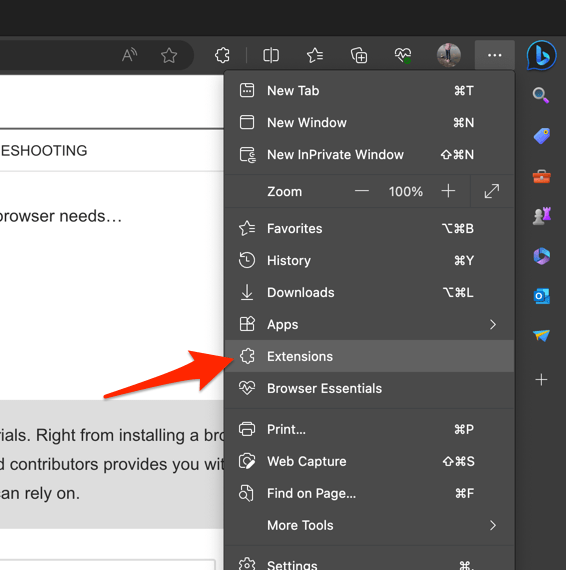 It will open the Edge browser's extensions manager page.
- Toggle the switch to Turn Off the extension in Edge browser.
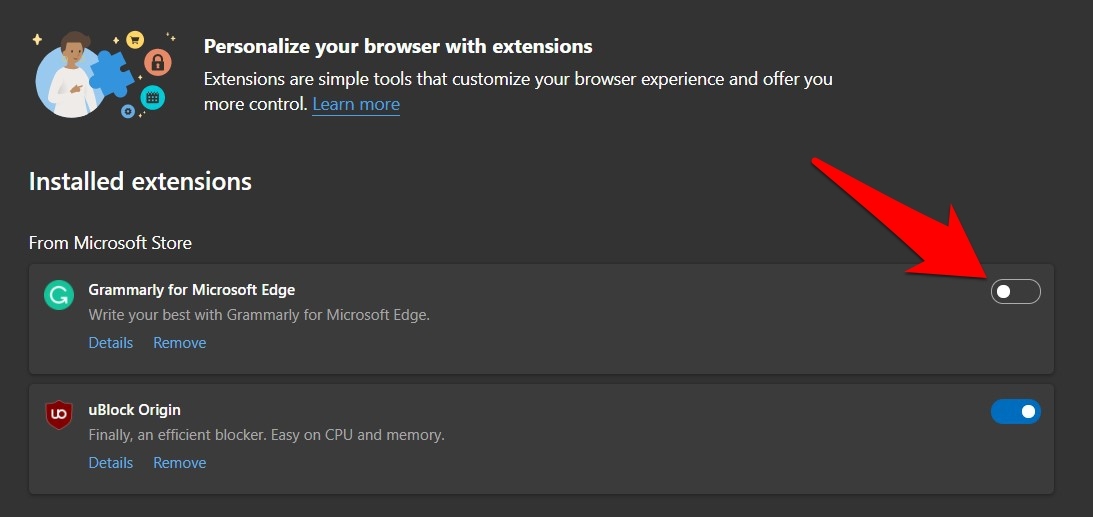
Reload the page and try the challenge again. You’ll know an extension was responsible when the CAPTCHA completes with everything still disabled, so turn them back on one at a time and retest until the loop returns.
Clear Edge cookies and cached site data
A half-finished verification can sit in your cookies long after you gave up, and Edge keeps replaying it on every visit. Clearing the site’s data gives the challenge a clean start.
Close every tab for the affected site, reopen the page, and run the check. You’ll know it worked when the CAPTCHA completes on the first attempt and the page moves on instead of reloading the widget. Expect to sign in again if the site dropped its session cookies.
For a wider reset that also restores Edge settings, see how to clear browsing data and reset Edge on your computer.
Check cookie and JavaScript permissions for the site
If clearing data changed nothing, permissions are the next suspect. Edge may be blocking a cookie or a script the widget depends on, so check these two settings before you touch anything else.
- Select the
 menu, then choose Settings.
- Select Privacy, search, and services.
- Select Cookies and site permissions.
- Check whether Block third-party cookies is turned on, and change it if the verification site needs cross-site cookies.
- Select Site permissions, then Additional content settings.
- Select JavaScript and confirm that sites are allowed to use it.
- Close the settings page, reload the affected tab, and try the CAPTCHA again.
Compare a normal window with InPrivate. If the site verifies there but not in your usual window, the difference sits in that site’s permissions. Edge’s cookie and cache controls are the place to compare them.
You’ll know a permission was the culprit when the challenge completes on a normal reload with the loop gone. If it still repeats, move on to rendering.

Do not disable JavaScript globally as a permanent solution. If the CAPTCHA works after allowing JavaScript, keep the change limited to the affected site when Edge offers a site-specific permission.

Turn off graphics acceleration to test rendering
Does the challenge box appear blank, flicker, or restart the moment you click it? That points at rendering rather than cookies, and turning acceleration off is the quickest way to confirm it.
- Select the menu, then choose Settings.
- Select System and performance.
- Turn off Use graphics acceleration when available.
- Select when Edge asks you to restart.
- Reopen the affected page and try the CAPTCHA again.
If the challenge behaves with acceleration off, leave it off for now and test the site again after the next Edge update. This is a workaround, not a permanent setting.
Test the site in InPrivate
InPrivate settles one question fast: is anything stored on your machine causing this? It rules out saved cookies, most extensions, and the rest of your profile in about ten seconds.
- Select the menu.
- Select New InPrivate window.
- Open the page that shows the CAPTCHA.
- Complete the verification and watch whether Edge returns you to the site.
InPrivate is not a separate installation, so a genuine Edge bug still shows up there. That distinction matters for the next step.
InPrivate blocks some third-party cookies by default. If the loop appears only in InPrivate, adjust the cookie setting in a normal window before blaming Edge itself.
Update Edge or switch to another browser
When the loop survives InPrivate, a new profile, or a second computer, stop editing cookies and permissions. That pattern says the browser build is at fault, not your data.
- Launch Microsoft Edge on your computer system.
- Click on the More for the menu list, and select the Settings menu.
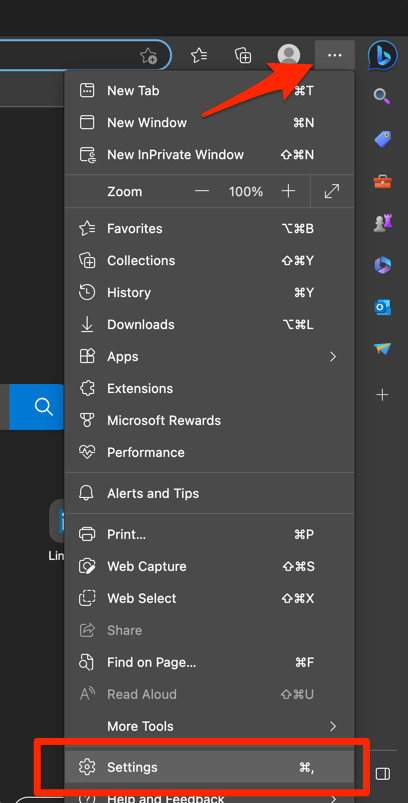
- Switch to the About Microsoft Edge tab from the left side pane.
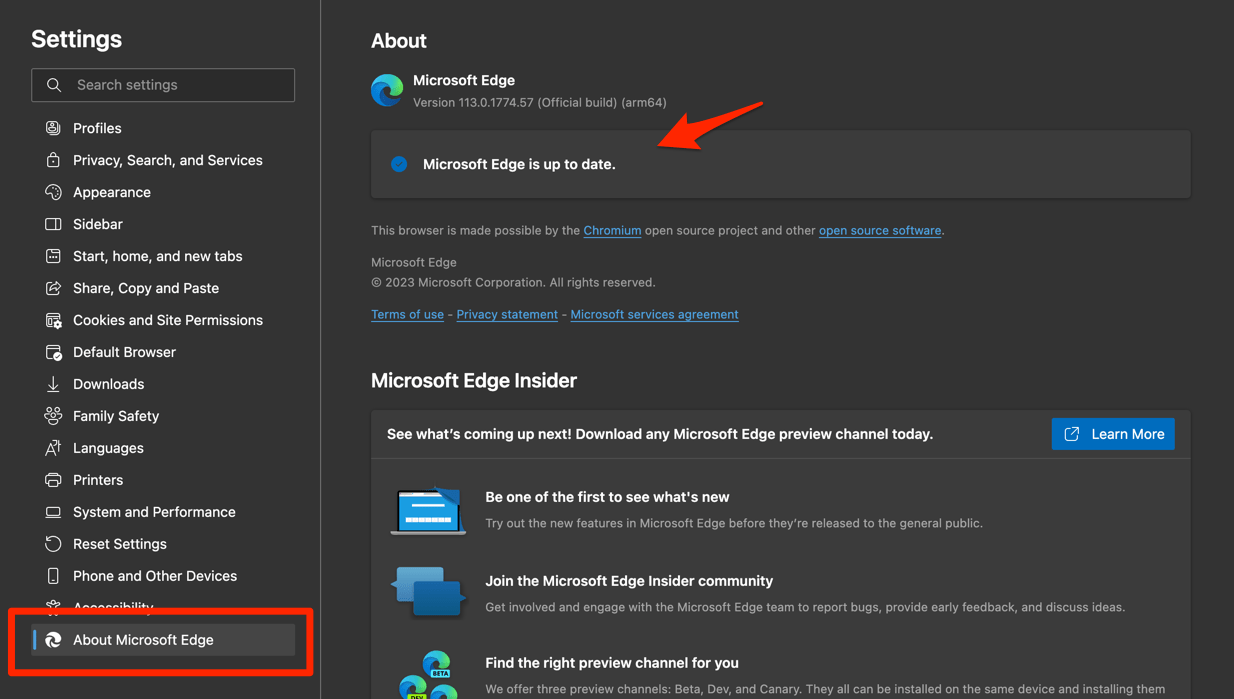 The Edge will automatically start checking for updates and installs, if any are available.
- Finally, hit the button if available after the (major) update.
Edge browser will be updated to the latest version.
After updating, close every Edge window, reopen the browser, and retry the verification. You’ll know the fix landed when the challenge completes once and the page continues. If it still loops, use another browser until Microsoft releases a corrected build.
Microsoft’s Edge community discussion documents exactly this case: clean profiles and InPrivate failed, and a later Edge build fixed the check.
Confirm the loop is fixed
Fixed looks specific. The challenge completes once, disappears, and the page lets you continue without dropping you back on the same screen.
Reload the original page and confirm the verification is still accepted. Then repeat the test in a normal window rather than only in InPrivate, since a private session can hide cookie problems that come back later.
If the challenge still repeats everywhere, keep the alternate browser and check for another Edge update before you change more settings.
Frequently Asked Questions
Why does Edge keep showing the same CAPTCHA?
Edge may be blocking a cookie or script that records the completed check, or an extension may be interfering with the widget. A browser regression can also affect CAPTCHA pages even on clean profiles.
Does clearing cookies fix an Edge CAPTCHA loop?
It can remove an old verification session, but it will not fix a browser-wide regression. If the loop also appears in InPrivate and on another computer, update Edge instead.
Should I allow third-party cookies for the CAPTCHA?
Only if the site requires them and the CAPTCHA otherwise fails. Keep the permission as narrow as possible and change it back if the verification completes without it.
Should I turn off JavaScript to stop the CAPTCHA?
No. The CAPTCHA normally depends on JavaScript, so blocking it can prevent the challenge from completing. If a site-specific JavaScript setting is blocked, allow it for the affected site only.
Why does the CAPTCHA work in another browser?
The other browser may store different cookies, load different extensions, or use a different graphics-rendering path. It can also be unaffected by a current Edge regression, so the difference does not necessarily identify the exact cause.