Edge Beta can look like it forgot everything after a restart: extensions vanish from the toolbar and preferences jump back to their defaults.
Most of the time the extension is still installed but disabled, parked in another profile, or waiting on a sync that never finished. Check the profile and permissions first, reset settings only if the drift continues, and reinstall an extension only when it is truly gone.
In this guide, I have covered:
Contents
Before you reinstall: check what Edge Beta actually lost
You restarted Edge Beta and your extensions are gone. Or the toolbar looks bare and your startup page, search engine, and pinned tabs all snapped back to defaults. Before you download anything again, check whether the extension is really missing or just switched off.
Edge hides a lot behind profiles. An extension that vanished from one profile can sit intact in another, and a sync that has not finished yet looks exactly like data loss.
- Open edge://extensions in the address bar.
- Check whether the missing extensions are absent from the list, turned off, or restricted to particular sites.
- Open the profile menu with the user
 icon in the toolbar.
- Confirm that the active profile is the same profile you used before the restart.
- Sign in to that profile if synchronization is turned off or its status is unclear.
You’ll know it worked when the extension list and the active profile match the setup you expect. If an extension is listed but not running, repair its access settings in the next section instead of reinstalling it.
Check extension permissions and site access
An extension can stay installed and still do nothing at all. Edge gives every extension three site-access choices: On click, On specific sites, and On all sites. After a profile change or a settings reset, that choice can land on the wrong one.
- Open edge://extensions in the address bar.
- Turn on each extension that should remain active.
- Select the extension that is not working.
- Review Site access and change it to the access level the extension requires.
- Review any enabled or disabled permission switches and restore the ones the extension needs.
- Open a website that uses the extension and confirm that it responds as expected.
If the extension works on your test page but fails elsewhere, the trouble is probably that one site’s permission. The Edge site information and permission guide shows how to check the permissions for a particular website.
Restore Edge’s default settings
Settings that reset themselves after every restart need a clean baseline before you can tell what is broken. Reset Edge once, reapply what you care about, then watch whether those preferences hold through the next launch.
- Launch the Microsoft Edge browser.
- Open edge://settings/resetProfileSettings in the address bar.
It will open the reset browser confirmation dialog box. - Hit the button to confirm the browser reset.
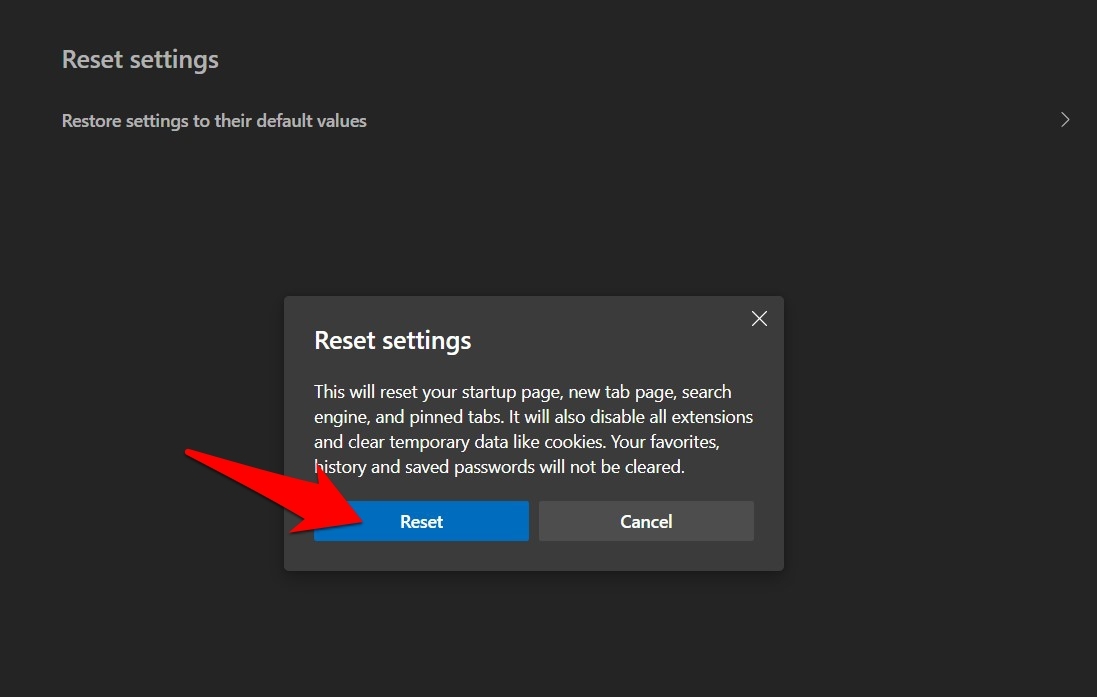 It will reset the Edge browser to the original default, clearing the temporary data and disabling all extensions.
After Edge restarts, check the startup page, new tab layout, search engine, pinned tabs, and site permissions. The reset returns all of those to their default values, so set them again before you call the job done.
You’ll know the reset worked when those settings survive a restart without drifting back. If they still slip, move on to testing the profile itself.

This reset restores settings rather than reinstalling extensions. Reapply important preferences after the reset and use profile synchronization, if available in your setup, to reduce repeated manual configuration.
Reinstall extensions that are genuinely missing
Some extensions really are gone, deleted rather than disabled. If edge://extensions still does not list the one you need after the reset, install it again from the Chrome Web Store.
- Open Microsoft Edge and visit the Chrome Web Store.
- Search for the extension you want and click the listing to open its install page.
- Click the Get extension button on the banner at the top of the page. Edge replaces the standard "Add to Chrome" label with this button when it detects Edge.

- If Edge shows a small dialog asking to allow extensions from other stores, click Allow. Edge remembers this choice for future Chrome Web Store installs.
 The extension downloads in a few seconds. Its icon appears next to the address bar, or inside the Extensions menu if the extension has no toolbar button.
Then open edge://extensions, enable the extension, and test it on a site that uses it. You’ll know it took when the same extension is enabled after you close and reopen Edge.
If the store page refuses to load or the install stalls halfway, the guide to installing Chrome Web Store extensions in Edge walks through the full flow.
Test the affected profile
Still losing extensions after a reset and a reinstall? The profile itself is the remaining suspect. A second profile gives you a clean test without touching the data in your current one.
- Open Settings from the Edge menu.
- Select Profiles in the settings sidebar.
- Create a new profile with a recognizable name.
- Sign in to the account you use for synchronization, if applicable.
- Install one of the extensions that disappeared.
- Change one of the preferences that repeatedly resets.
- Close Edge completely and start it again.
- Open edge://extensions and confirm that the extension is still enabled.
If the extension and the preference both survive in the new profile, the old profile is your problem. Keep using the new one while you watch whether the old profile settles after another restart.

TIP: Name the test profile something obvious, like Test, so you never mix it up with your main profile when you switch.
Verify the fix holds after a restart
A successful reinstall proves nothing on its own. The only test that matters is a full close and relaunch, with the same profile coming back exactly as you left it.
- Confirm that every required extension appears and is enabled at edge://extensions.
- Open the sites where the extensions are used and test each extension’s key function.
- Review your startup page, new tab settings, search engine, pinned tabs, and site permissions.
- Close every Edge window and quit Edge from the system menu.
- Start Edge again and open the active profile.
- Repeat the extension and preference checks.
Your setup is fixed when the extension list, permissions, and preferred settings are identical after the restart. If the problem comes back in the old profile but not in the new one, stay on the stable profile and reinstall only the extensions you actually use there.

Frequently Asked Questions
Does resetting Edge Beta settings remove installed extensions?
No. The settings reset restores items such as the startup page, new tab layout, search engine, pinned tabs, and site permissions to their defaults, but it is not an extension uninstaller. Reinstall only extensions that are actually absent from edge://extensions.
Why do my Edge extensions disappear after every restart?
The cause may be a damaged profile, synchronization trouble, or extensions that are disabled or restricted rather than removed. Check the active profile and extension permissions before reinstalling everything.
How do I check whether an Edge extension is disabled?
Open edge://extensions and review the switch beside each extension. If the extension is enabled but a website still does not work, check its Site access setting and permission switches.
Should I delete the original Edge Beta profile?
Not immediately. Create a separate profile and test the affected extension and preferences there first. If they remain stable in the new profile, you can continue using it while keeping the original profile available for troubleshooting.
What should I check after repairing Edge Beta?
Restart Edge and confirm that the extensions remain enabled and functional. Also verify that your startup page, new tab layout, search engine, pinned tabs, and site permissions still match the configuration you selected.