Edge sync can look fine on one computer and broken on another: the profile stays on “Setting up sync,” the browser cannot reach the sync server, or favorites saved yesterday never show up elsewhere.
Sign out and back in first, then re-sync the device. If neither works, export your favorites, reset sync, and read the internal sync, sign-in, and policy pages to see which one is actually failing.
In this guide, I have covered:
Contents
Why Edge sync stops working on your computer
Your favorites match on the desktop and look a week old on the laptop. Or Edge sits at “Setting up sync” and never finishes. Restarting the browser does not help, because the failure usually is not in the browser window at all.
Three things break sync most often: an expired Microsoft account sign-in, a profile that quietly has sync turned off, or a device that dropped out of the sync chain. Each one has its own repair, so the checks below run from the least destructive fix to the most.
Sign out and sign back in
A stale account session can stop Edge from finishing its identity check. Signing out and returning with the same Microsoft account refreshes that handshake without wiping your profile.
- Click the profile
 icon in the browser toolbar.
- Choose the profile that is having sync problems.
- Select Sign out.
- Sign back in with the same Microsoft account that owns the synchronized data.
- Wait for Edge to show the profile as signed in and synchronized.
You’ll know it worked when the profile flyout shows your account and sync stops complaining. If Edge drops back into the same error, move on to the re-sync below. For how a profile links to an account in the first place, read the Microsoft Edge sign-in and sync guide.
Re-sync data to the current computer
Edge recognizes your account, but the local copy is out of date. A re-sync asks Edge to pull the account’s stored data down to this device again.
Reach for it when you are signed in properly and Edge still shows old bookmarks, passwords, or settings. It is the gentler option, which is why it comes before a full reset.
- Open the Settings and more
 menu.
- Select Settings.
- Open Profiles.
- Select Sync.
- Locate Re-sync data to this device.
- Select .
- Keep Edge open while the operation completes.
How long it takes depends on how much data Microsoft holds for your account: seconds for a small set, a few minutes for a large one. You’ll know it worked when your favorites and settings match on a second device.
Back up favorites before resetting sync
A full reset can affect the local copy of your synchronized data. Export your favorites first and you have a plain HTML file you can reimport if the reset does not go as planned.
- Press ++ to open the favorites manager.
- Open More options in the favorites manager.
- Select Export favorites.
- Choose a folder where you want to store the export.
- Select .
The file usually lands with a name like favorites_month_day_year.html. Confirm it is in the folder you picked before you touch the reset button.
The full walkthrough, mobile steps included, is in Export Favorites from Microsoft Edge.
Reset Microsoft Edge sync
Re-syncing did not fix it. Resetting sync clears the account’s synced data in the cloud and rebuilds it from this computer, so treat it as the last repair, not the first.
- Open the Settings and more menu.
- Select Settings.
- Open Profiles.
- Select Sync.
- Select Still having sync problems? Try another option.
- Select Reset sync.
- Confirm that you want to reset sync.
- Keep the browser open until the reset is fully complete.
When the reset completes, this computer becomes the source of truth. Sign in again on every other computer so they can pull the data down.

Microsoft’s reset guidance says to keep Edge open until the operation is fully complete. If Edge reports that the reset could not be completed, wait a few hours and try again before seeking further help.
If Edge pauses sync and asks you to sign in again, that is a separate fault with a shorter fix: “Not syncing, sign in again” in Microsoft Edge.
Check Edge’s sync diagnostics
The settings page tells you nothing and the error stays vague. Edge has internal pages that answer the questions Settings skips: is sync on, which devices are connected, and is a policy blocking the whole thing.
- Open a new tab and enter edge://sync-internals/ in the address bar.
- Review the Summary section to confirm that sync is enabled and inspect any reported errors.
- Open the Sync Node Browser tab.
- Review Device info to check whether the other computers appear in the device list.
- Open edge://signin-internals/ in another tab and review the current sign-in status.
- If the browser is managed, open edge://policy/ and check whether a policy has disabled sync.
Look for the SyncDisabled policy if Edge says an administrator turned sync off. An entry such as EDGE_AUTH_ERROR under Credentials means the account cannot authenticate, so you are chasing an identity problem, not a missing device.
Once you know which of the three is failing, jump back to the matching section above.
Update Edge and retry
An outdated build can fail at sync in ways the current one does not. Update first, so the rest of these checks run against the current sync code.
- Launch Microsoft Edge on your computer system.
- Click on the More
 for the menu list, and select the Settings menu.
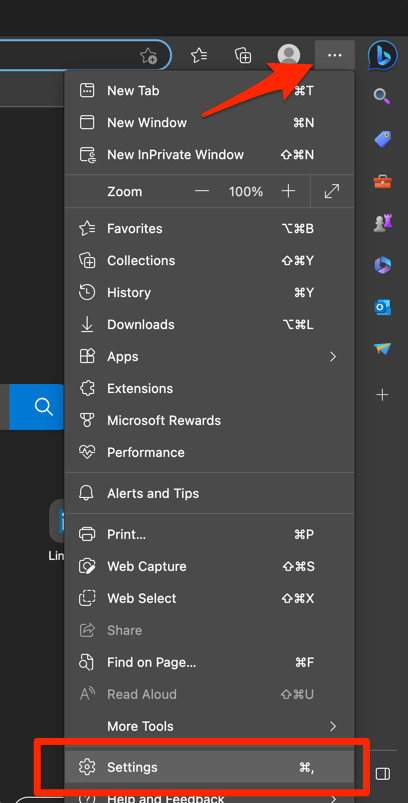
- Switch to the About Microsoft Edge tab from the left side pane.
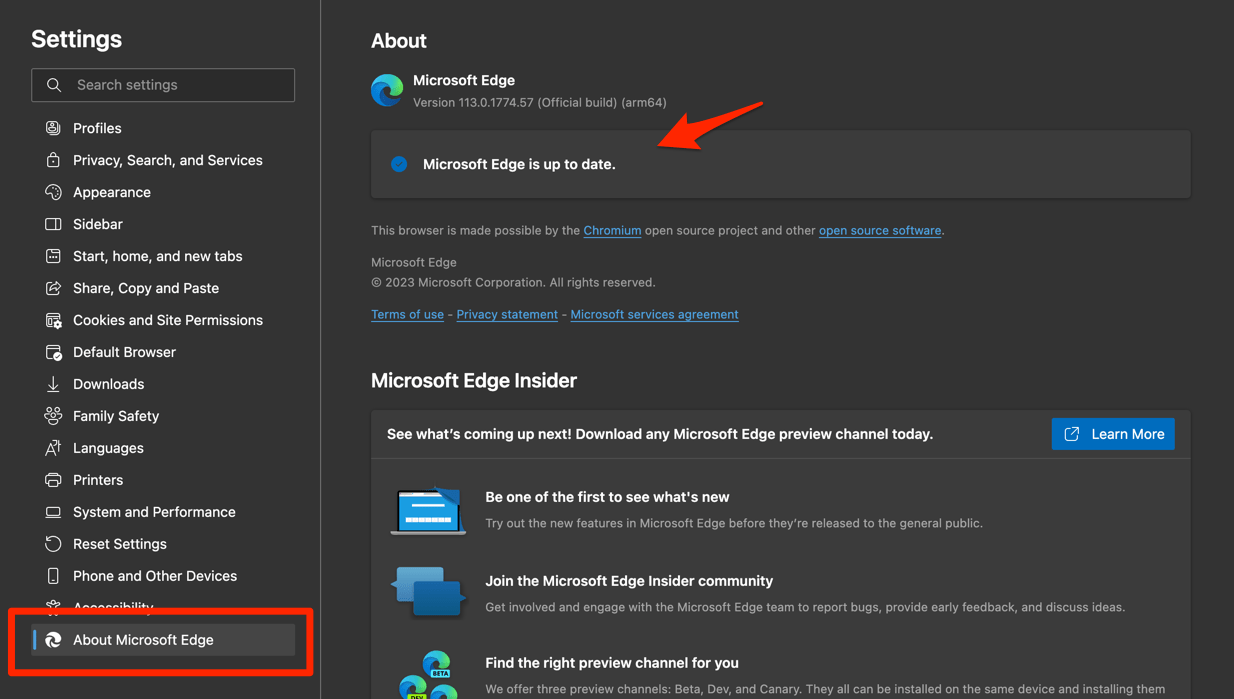 The Edge will automatically start checking for updates and installs, if any are available.
- Finally, hit the button if available after the (major) update.
Edge browser will be updated to the latest version.
You’ll know it worked when Edge reports that it is up to date. Close and reopen the browser, then run the sign-in and re-sync checks again.
What to do when the reset still fails
Microsoft reports that the reset could not be completed. Wait a few hours, then try once more with Edge open for the entire operation. Repeated immediate resets can interrupt the same cloud recovery process.
Still failing after that wait? Contact Microsoft Edge Support and bring three answers: is Edge stuck while initializing, does this computer appear in edge://sync-internals/, and is a policy blocking synchronization.
The Edge sync reset guidance documents the recovery process. The Microsoft Edge sync troubleshooting guide covers the diagnostic pages and policy checks.

Frequently Asked Questions
Why is Microsoft Edge sync stuck on “Setting up sync”?
The account may have lost its authentication state, sync may be disabled by policy, or Edge may be unable to reach the sync service. Sign out and back in, then inspect the internal sync and policy pages if the message remains.
Does resetting Edge sync delete my favorites?
Export your favorites before resetting sync. The reset rebuilds synchronized data from the computer used for recovery, so keeping an HTML export gives you a separate backup.
How long does an Edge sync reset take?
A re-sync or reset can take from a few seconds to a few minutes, depending on the amount of data stored in Microsoft’s cloud. Keep Edge open until the operation is fully complete.
Do I need to sign in on my other computers after resetting sync?
Yes. After a successful reset, sign back in on each other computer so Edge can receive the synchronized data from the account.
What should I do if Edge cannot complete the sync reset?
Wait a few hours and try again. If it still fails, contact Microsoft Edge Support and include the results from the Edge sync, sign-in, and policy diagnostic pages.