Bookmarks in Chrome keep the pages you want to revisit one click away, and folders stop the list from turning into a junk drawer. Sign in with a Google account and the same list appears on every device you use.
The star in the address bar adds a page. From there you can rename, move, or delete entries, decide whether the bookmarks bar shows, and jump to any saved page by typing @bookmarks.
Watch the Video Tutorial
In this guide, I have covered:
Contents
Add a Bookmark in Chrome
You found a page worth keeping. The star in the address bar saves it in two clicks, and once it is added, the bookmark syncs to every other device signed in with the same Google account.
- Open the page you want to save in Google Chrome.
- Click the star
 on the right side of the address bar.
 - Type a name in the small dialog that appears.
- Click the Folder dropdown to pick where the bookmark should live. Bookmarks bar keeps it one click away, while Mobile Bookmarks tucks it out of sight.
- Click . A solid blue star now shows that the tab is saved.
If the address bar is hidden or you prefer menus, click the More  menu, hover over Bookmarks and lists, and choose Bookmark this tab…. The same dialog asks for a name and folder.
Edit a Saved Bookmark
Renames, URL fixes, and folder moves all happen in the Bookmark Manager. Reach for it when the tab you want to fix is not open, or when a bookmark needs to move between folders.
- Click the More menu in the top-right corner of Chrome.
- Hover over Bookmarks and lists.
- Click Bookmark Manager. Chrome opens chrome://bookmarks in a new tab.
- Right-click the bookmark you want to change, or click the More menu to its right.
- Click Edit.
- Update the Name, URL, or Folder field.
- Click .
For a quick rename of the current tab’s bookmark, click the solid blue star , choose Edit, change the field, and save.
You’ll know it worked when the new name shows up in the manager and on your other signed-in devices within a few seconds.
Delete a Bookmark
Removing a bookmark clears it from every device signed in with the same Google account. The Bookmark Manager is where you do it when the page is not open in front of you.
- Go to chrome://bookmarks/ to open the Bookmarks Manager page.
- Click the More menu next to each bookmark or folder.
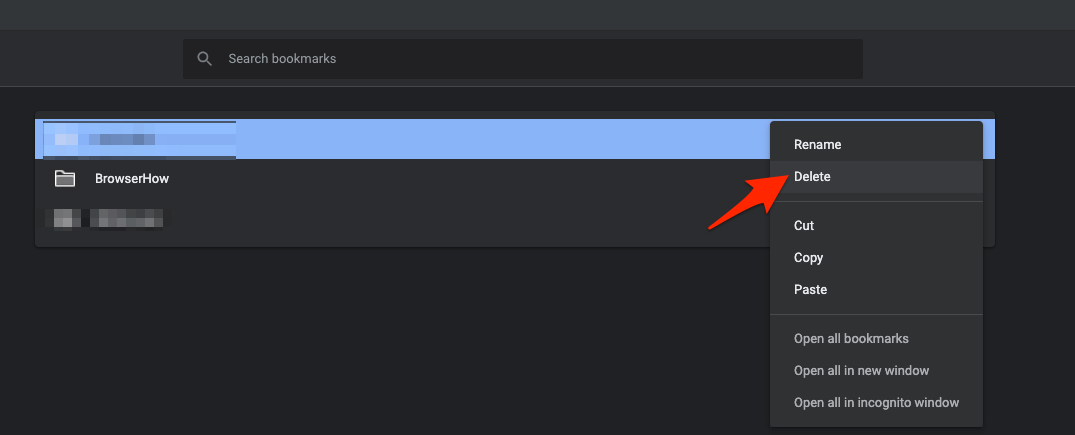
- Select the Delete command from the list.
You’ll know it worked when the entry drops out of the list straight away. To delete a folder along with everything inside it, click the More menu next to the folder name in the left pane.
The search bar at the top filters by name or URL, which helps before you clear several entries in a row.
Show or Hide the Bookmarks Bar
The bookmarks bar sits under the address bar and puts your most-used pages one click away. In current Chrome the control is a three-option dropdown rather than a checkbox.
Show it if you visit the same handful of sites all day. Hide it when you want the extra row of screen back.
- Click the More menu in the top-right corner of Chrome.
- Hover over Bookmarks and lists.
- Click Show bookmarks bar to open a small dropdown.
- Pick Always show, Only show on the New Tab page, or Always hide.
The same control lives in Settings → Appearance → Bookmarks bar.

TIP: The keyboard shortcut + + (or + + on macOS) flips between Always show and Always hide. It cannot land on the “Only show on the New Tab page” setting.
Show or Hide Tab Groups on the Bookmarks Bar
Pinned tab groups give you one click back into a set of tabs you open together, like a project or a research queue. The toggle sits right next to the bookmarks bar option in Settings.
- Open Settings from the Chrome menu .
- Click Appearance in the left sidebar.
- Turn on Show tab groups in bookmarks bar.
- Click the grid icon at the left end of the bookmarks bar to open the saved groups list.
You’ll know it worked when a small grid icon appears at the left end of the bookmarks bar. Click it to expand the list of saved groups and reopen any of them in the current window.
Find a Bookmark From the Address Bar
Past a few dozen saved pages, scrolling through folders gets slow. Chrome’s address bar will search your bookmarks for you.
- Click the address bar to focus it.
- Type @bookmarks followed by a space.
- Start typing the bookmark’s name or URL. Chrome filters the list as you type.
- Click the matching result to open it in the current tab.
The same trick works with @tabs for open tabs and @history for pages you have visited.
Show all bookmarks under More → Bookmarks and lists is another fast path when the bookmark is recent.
Organize Bookmarks in the Bookmark Manager
Folders, sorting, and bulk changes all live in the Bookmark Manager. Chrome recently added a toggle that switches the list between icon tiles and a compact view.
- Click the More menu and pick Bookmarks and lists → Bookmark Manager. You can also type chrome://bookmarks in the address bar.
- Click the Visual view icon at the top right to switch to icon tiles, or the list icon for the compact view.
- Drag a bookmark up or down to reorder it, or drag it into a folder on the left to nest it.
- Right-click a folder to rename it, delete it, or open every link it contains.
- To add a new folder, right-click in the right pane and pick Add new folder.
If the manager cannot do what you need, Google’s official Chrome bookmarks help page covers the rest.
Sync Bookmarks Across Devices
Bookmarks only follow you to other devices when you sign into Chrome with a Google account. Without sign-in, the list lives on the current computer alone.
- Click the profile
 in the top-right corner of Chrome.
 - Click Turn on sync (or Sign in if you are signed out).
- Sign in with the Google account you want to use.
- Open Settings → You and Google → Sync and Google services → Manage what you sync and confirm that Bookmarks is on.
To keep personal and work bookmarks separate on the same computer, set up a second Chrome profile for each Google account. The same bookmark then shows up in Chrome on Android as long as that app is signed in to the same Google account.
Sync carries more than bookmarks. If your saved passwords should follow you to the same devices, check that they are switched on in that same sync list.

Use the Reading List for Pages You Want to Read Once
The Reading list sits in the same Bookmarks and lists submenu as your bookmarks. It is built for pages you plan to read once, not revisit.
- Open the page you want to save.
- Click the More menu.
- Hover over Bookmarks and lists.
- Click Add tab to reading list.
To reopen those pages later, pick More → Bookmarks and lists → Reading list. Click the circle next to any page to mark it as read.
Frequently Asked Questions
Where is the bookmarks menu in current Chrome?
Chrome renamed the menu to Bookmarks and lists in 2024. Open it from the More menu in the top-right corner. The same submenu holds Bookmark Manager, Show all bookmarks, Show bookmarks bar, and Reading list.
Why does my bookmarks bar keep disappearing?
Set Settings → Appearance → Bookmarks bar to Always show. If it still does not stick, check that you did not pick the “Only show on the New Tab page” option by mistake, and look for an extension that might be hiding the bar.
How do I move a bookmark to a different folder?
Open the Bookmark Manager, right-click the bookmark, and pick Edit. Change the Folder dropdown to the new home and click . You can also drag the bookmark straight into a folder in the left pane.
Can two people share the same bookmarks on one computer?
Yes, if they sign into Chrome with the same Google account and turn on bookmark sync. To keep personal and work lists separate, give each person their own Chrome profile.
What is the difference between the Reading list and a bookmark?
Bookmarks are for pages you want to revisit. The Reading list is for pages you plan to read once and tick off. Both live under More → Bookmarks and lists in current Chrome.