You search Google once and Chrome hands you two identical tabs. Something in your profile is running that search twice, and it is usually an extension, a startup rule, or a stored site setting.
Start with an Incognito comparison to rule extensions in or out, then work through Chrome's search engine, startup, and site permission settings until a search opens just one tab.
In this guide, I have covered:
Contents
Why one Google search opens two tabs in Chrome
You typed a query into the address bar, pressed Enter, and Chrome opened the same Google results page twice. That is not Google misbehaving. Chrome is running your search through two handlers at once: an extension redirecting the address bar, plus a startup or site setting opening the results again.
The trick is finding out which half is doing it. Run the search in a normal window, then run the same search in Incognito. If the duplicate disappears there, an extension or a saved profile setting is the cause.
Test the search in Incognito
An Incognito window loads without your extensions, which makes it the cleanest comparison you can run in under a minute.
- Launch the Google Chrome on your computer.
- Click on the More
 menu for the list.
 - Select the New Incognito Window option.
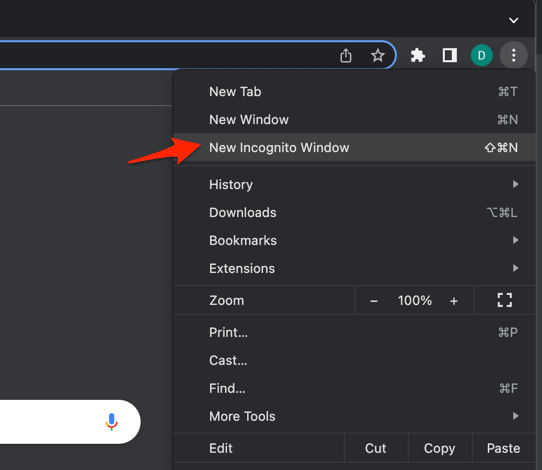 It will start a new incognito window in the browser.
Type the same Google search that produced two tabs. One results tab means an extension is involved. Two tabs in Incognito means the problem sits in Chrome’s search, startup, or site settings, and you can skip ahead.
You’ll know it worked when the Incognito search returns a single results tab.
Turn off Chrome extensions
If Incognito came back clean, your regular profile’s extensions are the suspect. Switching them all off first beats guessing one by one, and nothing gets deleted.
- Launch the Google Chrome on your computer.
- Click on the More for the list menu.
- Hover on the More Tools menu and choose the Extensions sub-menu.
 It will open the Chrome Extensions Manager page with the list of installed extensions.
 - Toggle the switch to Disable the extension.

Close Incognito, return to your normal Chrome window, and repeat the search with every extension disabled. Then turn them back on one at a time, retesting the search after each one. The extension that brings the second tab back is the culprit.

Leave it disabled if you don’t need it, or remove it if the name means nothing to you. Want to keep it? Open its options and look for a setting that changes how searches or links open.
You’ll know it worked when a search with your usual extensions on, minus the one you disabled, still opens a single tab.
Check Chrome’s default search engine
Chrome’s address bar can hold more than one Google entry. A leftover shortcut or a duplicated search engine row can send a query down a second path, so this is the next place to look.
- Open the menu in Chrome and select Settings.
- Select Search engine in the left sidebar.
- Confirm that the search engine used in the address bar is Google.
- Open Site search and review the Google entry.
- Remove any extra Google entry, then reopen the Google search shortcut and enter the same URL in the dialog.
- Select Google, choose the appropriate shortcut, and save the change.
Run the affected search again. Still two tabs? Search engine configuration is probably not the cause, so move on to startup settings.
Review startup and tab-opening settings
Duplicate tabs that appear right after you launch Chrome usually come from a startup page, a restored session, or an extension that injects a page on load.
- Open the menu in Chrome and select Settings.
- Select On startup.
- Choose Open the New Tab page unless you rely on restoring a specific startup page.
- Open System and disable Continue where you left off if Chrome is restoring an earlier search session.
- Restart Chrome and run the Google search again.
You’ll know it worked when a fresh launch plus one search leaves exactly one tab open. If the duplicate only returns after a restart, re-check the extensions you re-enabled before testing.
It sometimes helps to compare against a clean browser. Here is how to transfer saved Chrome data to Microsoft Edge if you want to repeat the search test outside Chrome without signing in again.
Check Google site permissions
Google’s stored permissions can change what happens when a result link opens. If Chrome allows the site to fire pop-ups or redirects, one search can spawn a second tab that looks identical to the first.
- Open the menu in Chrome and select Settings.
- Select Privacy and security.
- Select Third-party cookies.
- Review the allowed and blocked sites for Google.
- Remove Google from the blocked list if it prevents search pages from working normally.
- Select Site settings, then open Additional content settings and review the Pop-ups and redirects setting.
- Allow pop-ups and redirects for Google if that setting is currently blocking the site.
Close every Google tab, then run the search from the address bar once more. You’ll know it worked when one results tab opens and nothing appears behind it.

TIP: An Incognito test tells you whether an extension is involved, but it does not prove your profile is clean. If Incognito behaves and normal windows don’t, the difference is still a setting or extension you haven’t found yet.
Reset Chrome if the problem continues
If every check above came back clean, a reset is the last lever you have. It returns Chrome to default settings, disables all extensions, and clears cookies, site data, and plenty of custom preferences.
- Launch the Chrome browser on the computer.
- Click on the More for menu list, and select the Settings menu.
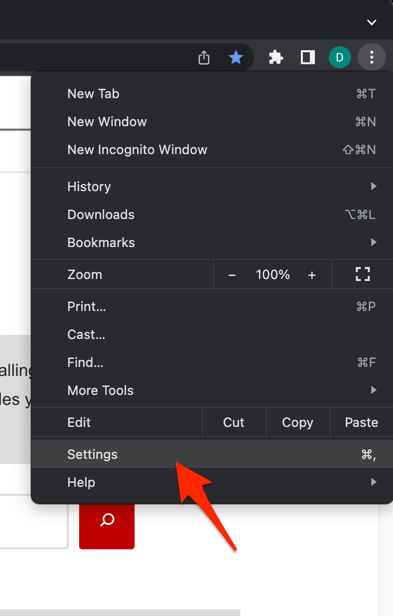 It will open the Chrome browser's Settings page.
 - Switch to the Reset settings tab in the left sidebar, and select Restore settings to their original defaults option.
- Finally, hit the command button.
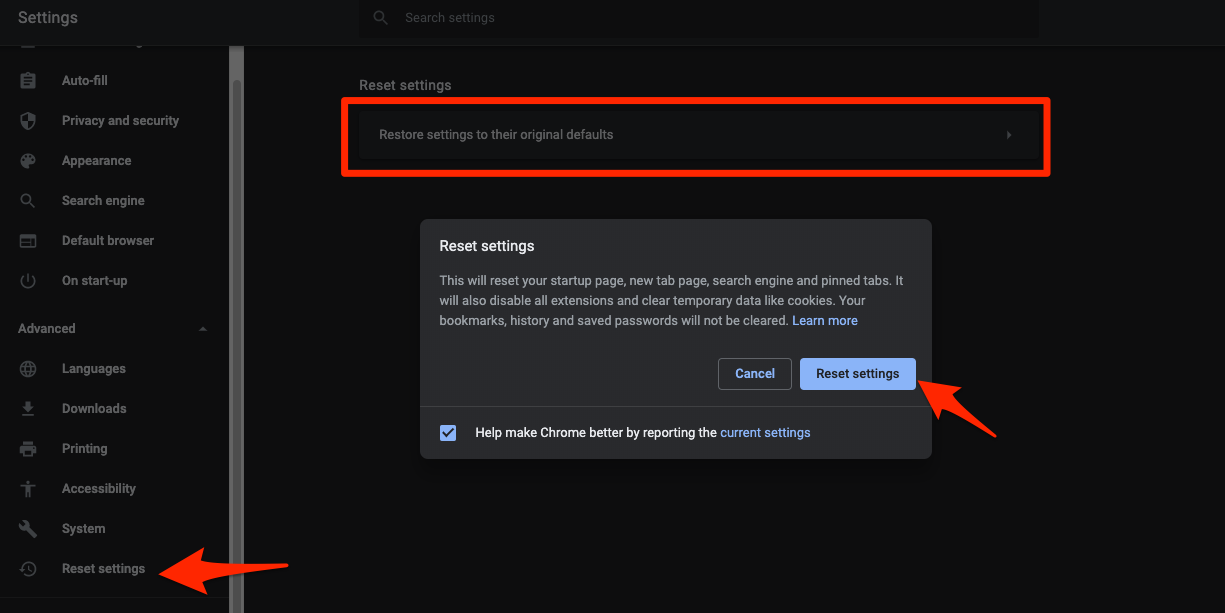 It will reset the Chrome browser settings, clear temporary data, and disable all extensions.
Restart Chrome and run the search. If one tab opens, install extensions one at a time instead of restoring the whole set at once.
Site data is a separate job. You can clear Chrome cookies and cache on its own when stale data is the suspect, though it seldom fixes an extension-driven duplicate.
You’ll know it worked when a freshly reset profile opens a single tab for the search, with only the extensions you actually use installed.

ALERT: Resetting Chrome is not the same as uninstalling it, but it can still erase site preferences and sign-in state on some sites. Sync or back up anything important first.

Frequently Asked Questions
Why does Chrome open the same Google search twice?
Two parts of Chrome are probably processing the query, such as an extension plus the normal address-bar flow. An Incognito test shows whether an extension is involved.
Does clearing cookies fix duplicate tabs in Chrome?
Not always. Clearing cookies and cache helps when a site’s stored behavior is faulty, but disabling extensions and checking search, startup, and site settings cover more of the likely causes.
How can I find which extension opens the duplicate tab?
Disable all extensions, confirm the search opens one tab, then enable them one at a time. The one that brings the second tab back is your culprit.
Will resetting Chrome remove my bookmarks and passwords?
A reset changes settings and disables extensions, but it should not remove bookmarks or saved passwords. It can clear site data and preferences, so some sites may ask you to sign in again.