Firefox blocks a familiar site with “Warning: Potential Security Risk Ahead” and SEC_ERROR_EXPIRED_CERTIFICATE. The certificate may really have expired, or a wrong clock, an extension, or your office network may be making a valid one look stale.
Confirm the code and dates, compare the address in another browser, fix the clock, then retest without extensions. Keep an exception temporary and remove it once the certificate is renewed.
In this guide, I have covered:
Contents
Why Firefox says a certificate expired on a site you trust
One morning a site you use every week stops loading, and Firefox shows a red warning page instead of the login form. That is the Firefox SSL expired warning in plain terms: the browser read the server certificate and found a validity date that has already passed.
The page is usually titled Warning: Potential Security Risk Ahead, and the expanded error normally includes SEC_ERROR_EXPIRED_CERTIFICATE.
A site can be perfectly legitimate and still fail this check. The owner may not have renewed the certificate, a deployment may be half finished, your computer clock may be wrong, or an office network may be serving its own certificate in place of the real one. Mozilla’s discussion of Firefox SSL errors covers more of the background.

ALERT: Do not bypass the warning for a site you cannot identify or trust. Do not enter passwords or payment details through an exception unless you have verified who operates the site.
Confirm the exact certificate error
Before you change a single setting, read the code Firefox is showing. An expired certificate and an untrusted issuer need different checks, so that code decides your next move.
- Open the affected address in Firefox.
- Expand the certificate error code shown beneath the security warning.
- Confirm that it reads SEC_ERROR_EXPIRED_CERTIFICATE and note the displayed dates.
- Compare the certificate expiration date and Firefox’s reported current time with your computer date.
- Open the same exact address in another browser or on another device.
If another browser on the same network fails with the same code, look at the site or the network. If the address loads elsewhere, keep going with the clock, Firefox settings, extensions, and managed certificate roots.

TIP: Open the same address in a Firefox Private Window as a quick second test. Most add-ons are not active there, so a page that loads points to something in your normal Firefox profile.
Correct the date and time on Windows
A clock that is minutes or hours off is enough to make a valid certificate look expired. A Windows machine that has been asleep or offline for a while is the usual culprit, so fix the system time before you touch anything in Firefox.
- Press the button to open the Start menu, and select the Settings
 menu.
menu.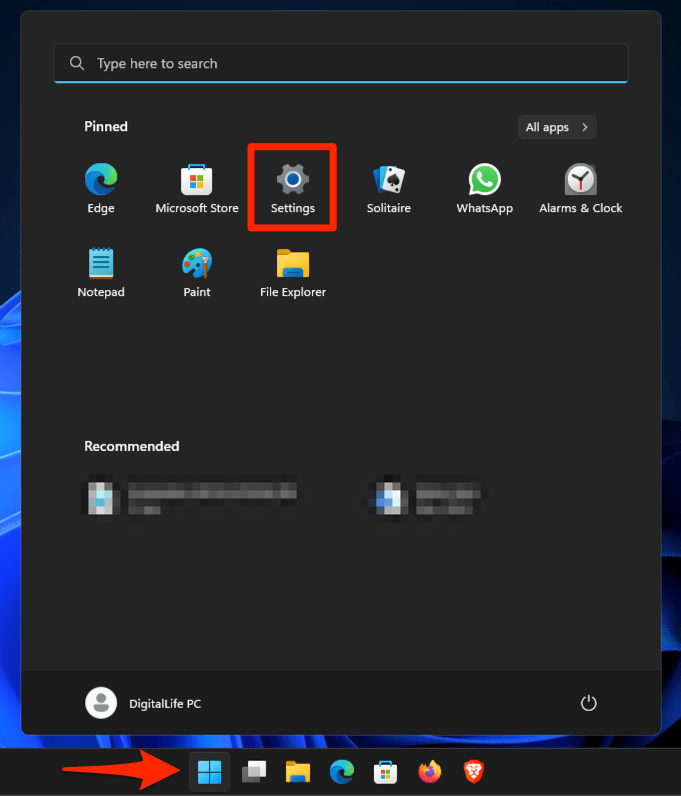 It will open the Windows Settings window.
 - Switch to the Time & Language tab in the left pane.
- Ensure the Time zone reflects correctly, and if it is incorrect, then use the drop-down in the Time zone menu to correct it.
- Enable the toggle switch for the Set time automatically option.
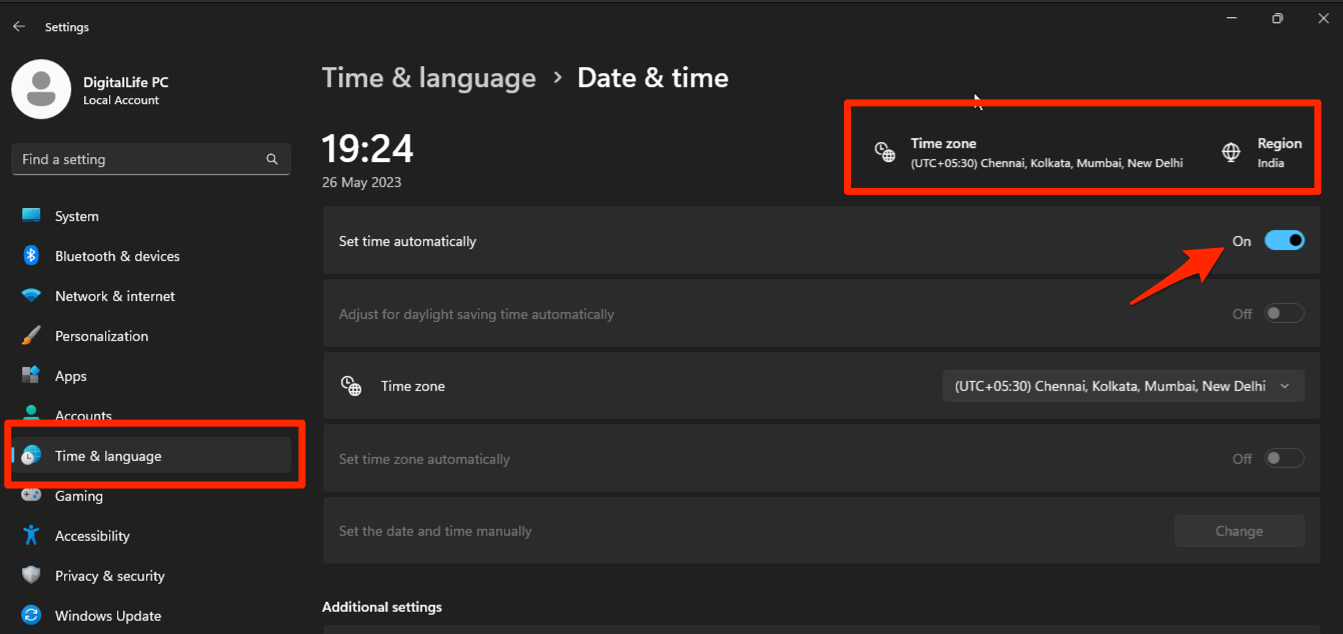
- If you want to adjust time manually, disable the Set time automatically toggle switch and use the command on the Set the date and time manually option.
Open the site again once the clock is correct. You’ll know it worked when the warning disappears without any certificate exception.
Check the clock on Mac or Linux
Firefox reads whatever clock the operating system hands it, so the same fix applies on a Mac or a Linux desktop. Confirm automatic time sync is on, then retest the site.
macOS
- Open the Apple menu.
- Select System Settings.
- Select General.
- Select Date & Time.
- Turn on Set time automatically.
Linux
- Open your distribution’s system settings.
- Open the date and time panel.
- Turn on automatic date and time synchronization.
Retest Firefox
- Close every Firefox window.
- Open Firefox again.
- Open the affected site.
If the clock was the cause, the warning is gone. If SEC_ERROR_EXPIRED_CERTIFICATE is still there with the correct time, move on to the Firefox checks below.
Update Firefox
Firefox updates carry certificate handling and trust store changes, and an old build can fail where a current one succeeds. Update before you consider resetting the profile.
- Open the Firefox browser app on your computer.
- Click on the More
 menu and select the Settings menu.
- Scroll down to the Firefox Updates section within the General tab, and click the button.

- Firefox will check for updates and download them. It may ask to restart to complete the installation of the update.
 The browser will be updated to the latest version.
Load the exact address after updating. If the warning is gone, the browser was the problem. If it is still there, continue with the extension test.
Test without extensions or custom settings
When Firefox fails only in your normal window, the profile is the suspect, not the certificate. Troubleshoot Mode gives you a temporary default configuration for exactly that comparison.
- Click the hamburger menu at the top right of Firefox.
- Click Help.
- Select Troubleshoot Mode….
- Click Restart in the confirmation dialog.
Open the affected address while Troubleshoot Mode is still on. If it loads, an extension or a custom setting is involved. If it still fails, move on to managed roots, the site owner, or your network administrator.
When a Private Window renders the page but your normal window does not, compare the two with View Site Info and Set Site Settings in Firefox on the Computer. That reveals a per-site change, though it cannot make an expired certificate valid.
Check managed certificate roots when needed
This step matters only when Firefox reports an unknown issuer or your organization says the site uses a locally installed root. It does nothing for a confirmed expired certificate, so skip it if you have already seen SEC_ERROR_EXPIRED_CERTIFICATE with the correct date.
- Type about:config in the Firefox address bar.
- If Firefox shows its risk page, select .
- Search for security.enterprise_roots.enabled.
- Set the Boolean value to True.
- Restart Firefox.
- Open the affected site again.

Changing this preference can expand the certificates Firefox trusts. It does not renew an expired server certificate, so it is not a fix for SEC_ERROR_EXPIRED_CERTIFICATE.
Add a temporary exception for a trusted site
Sometimes you cannot wait for the owner to renew the certificate, such as on an internal tool you administer yourself. Use an exception only after you confirm the site belongs to you or your organization and the owner cannot replace the certificate today. It buys temporary access. It does not repair anything.
- On the warning page, scroll down and click Advanced.
- Read the exact reason Firefox lists (expired certificate, untrusted issuer, name mismatch, and so on).
- If you decide to continue, click Accept the Risk and Continue.
- Reload the tab after a moment if the page does not paint automatically.
The exception works when the exact host opens after you add it. Remove it as soon as the owner deploys a valid certificate.
Older instructions that mention “I Understand the Risks” on the main warning page are outdated. The current Advanced panel offers and , but no general continue button. Firefox also provides no user-level bypass for a site using HSTS or preloaded HSTS.
Remove a temporary certificate exception
An exception left in place is how a temporary workaround becomes a permanent hole. Once the owner deploys a valid certificate, take the entry back out.
- Open the menu.
- Select Settings.
- Select Privacy & Security.
- Scroll to the Security section and locate Certificates.
- Select .
- Open the Servers tab.
- Select the site in the exception list.
- Select .
- Close Certificate Manager.
You’ll know it worked when the host no longer appears on the Servers tab. If the certificate is still invalid, Firefox brings the warning back on your next visit.
Repair the certificate at its source
Firefox cannot change the dates on a remote certificate. If the address fails in every browser on every network, only the site owner can fix it. Send them the error code, the displayed certificate dates, and the exact URL.
Use your comparison results to see where the remaining problem sits:
- Every HTTPS site fails: the system clock or a managed security layer is the likely cause.
- One site fails everywhere: the owner must renew or redeploy its certificate.
- One network fails while another works: ask the administrator to check HTTPS inspection, a security gateway, or managed roots.
- Only Firefox fails: keep checking extensions, custom settings, and operating system roots.
Do not start by clearing cookies or cache. Firefox completes certificate validation before it loads any page content, so clearing data cannot renew a certificate. If you have already tried it, clearing cookies and cache in Firefox explains what that step does fix.
If Troubleshoot Mode works but the normal profile does not, a full settings reset is a last-resort profile diagnostic. It still cannot renew the remote certificate.

Confirm the warning is gone
You are finished when the exact site opens in a normal Firefox window, the error code is gone, and it stays gone after a restart. If the page only works in a Private Window, in Troubleshoot Mode, or through an exception, the certificate problem is still there.
At that point the remaining fix belongs to the site owner, and the error code and dates you collected are what they need to act.
Frequently Asked Questions
Why does Firefox show an expired certificate warning on a legitimate site?
A legitimate site may still have an expired or badly deployed certificate. A wrong computer clock or a certificate supplied by an organizational network can also make an otherwise normal connection fail validation.
Is it safe to bypass an expired certificate warning in Firefox?
Do not bypass it for an unknown or untrusted site. Use an exception only when you have verified the site or organization and understand that the connection stays vulnerable until the certificate is replaced.
Why can’t I add an exception for the site?
Firefox’s current warning page no longer offers the old risk-bypass control. HSTS, preloaded HSTS, or an organization-managed policy can also block a user-level exception.
Will enabling operating system roots fix an expired certificate?
No. Operating system roots can help Firefox trust a managed issuer, but they cannot extend an expired certificate’s validity. The site owner must renew it.
Will clearing cookies and cache remove the Firefox SSL error?
No, not normally. Certificate validation happens before normal page content loads, so cookies and cached page data do not renew the certificate. Check the clock and compare the site before clearing browser data.