Setting Firefox as your default browser makes every link from email, chat apps, and other programs open in Firefox automatically. You can do it inside Firefox with one click on Windows, macOS, or Linux, or through your operating system's Settings app if the button is missing.
If Firefox refuses to take over, a clean reinstall clears leftover registry or profile locks. You can also disable the default-browser nag banner from the General settings panel.
In this guide, I have covered:
Contents
Quick Ways to Make Firefox Your Default Browser
The fastest path is the same on Windows, macOS, and Linux: open Firefox and click the button in Settings. If that button is missing, greyed out, or doesn’t work, the operating system still controls the final switch, so use the Windows, macOS, or Linux Settings app as a backup.
Firefox also adds a small reminder banner at startup asking whether you want it to be your default. You can ignore it (the change still happens in your OS) or disable it permanently through Firefox settings.
Set Firefox as Default from Inside Firefox (Windows, macOS, Linux)
This is the cross-platform shortcut. The button sits in the General panel of Firefox Settings and hands the final confirmation step off to your operating system.
- Open Firefox.
- Click the hamburger menu
 in the top-right corner of the window.
 - Select from the menu. (On macOS, you can also click in the menu bar and choose or .)
- Make sure you are on the General panel, which is the first tab in the sidebar.
- Scroll down to the Default Browser section.
- Click .
- If your operating system shows a confirmation dialog, click (Windows) or (macOS) to confirm.
After confirmation, Firefox opens every link from email, chat apps, and other programs automatically. The next time you start Firefox, the startup nag asking whether Firefox is your default should also be gone.
Set Firefox as Default on Windows 10 or 11
If you prefer to set the default directly through Windows, or Firefox’s in-app button doesn’t take, the Settings app lets you pick Firefox by hand for each link type.
- Click on the Start menu and select the Settings option.
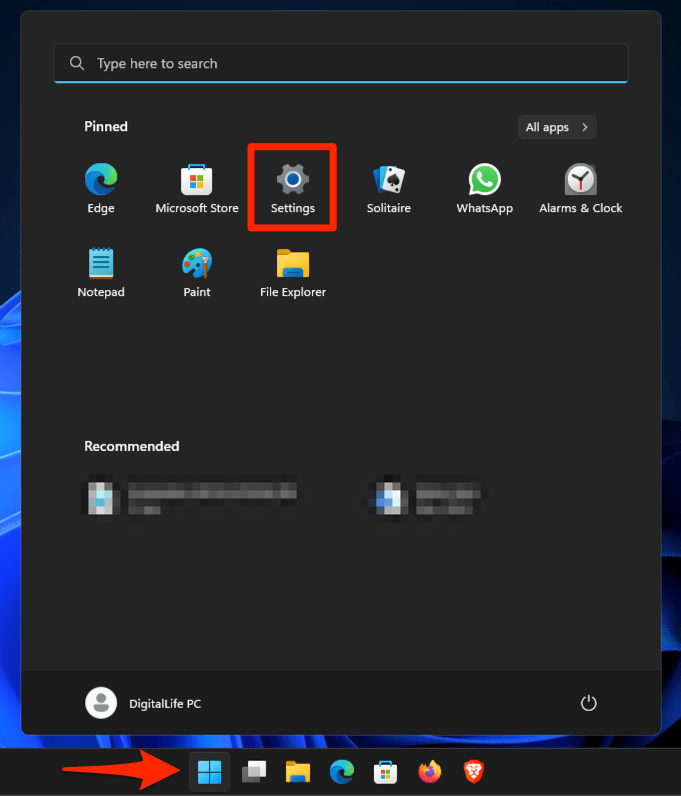 It will open the Windows System settings window.
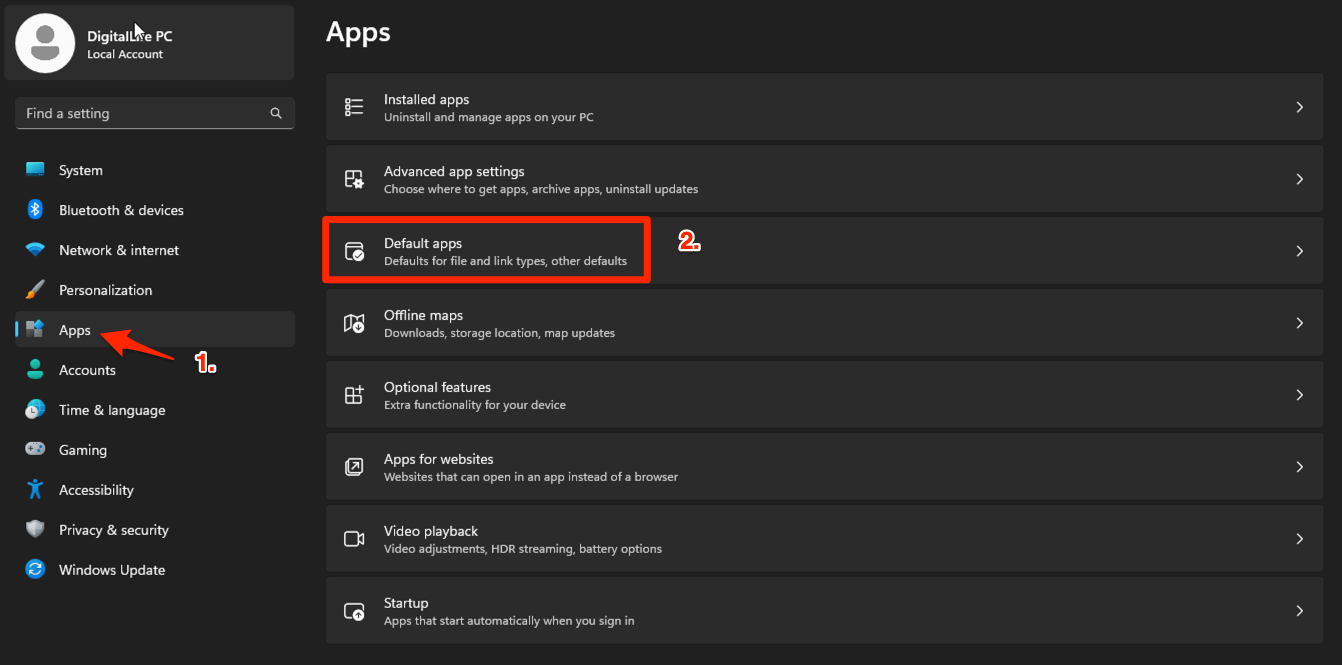
 - Switch to the Apps menu from the left sidebar and then select the Default apps in the right pane.
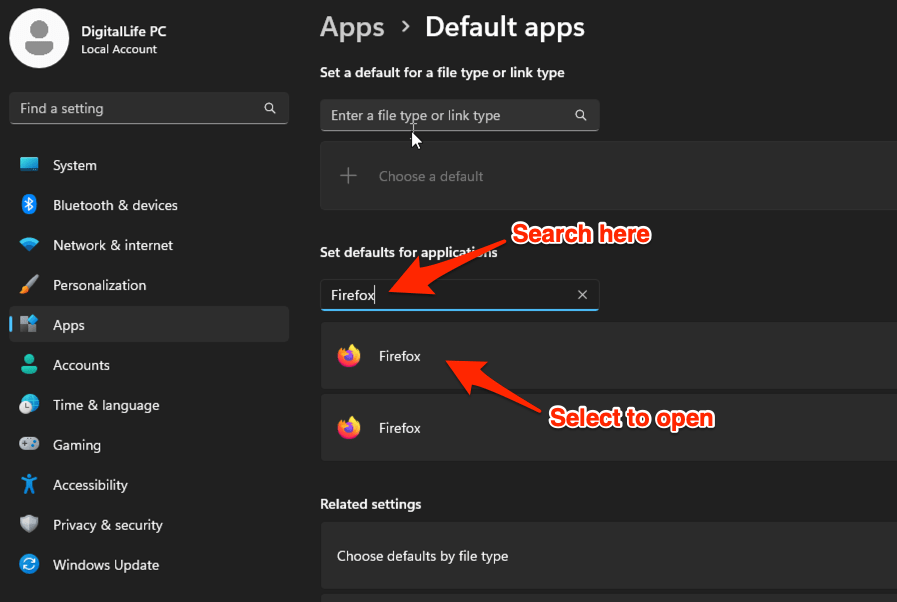
- Under the Set defaults for applications, search and select the desired browser (say, Firefox or Chrome) to open.
- Click the button at the top.
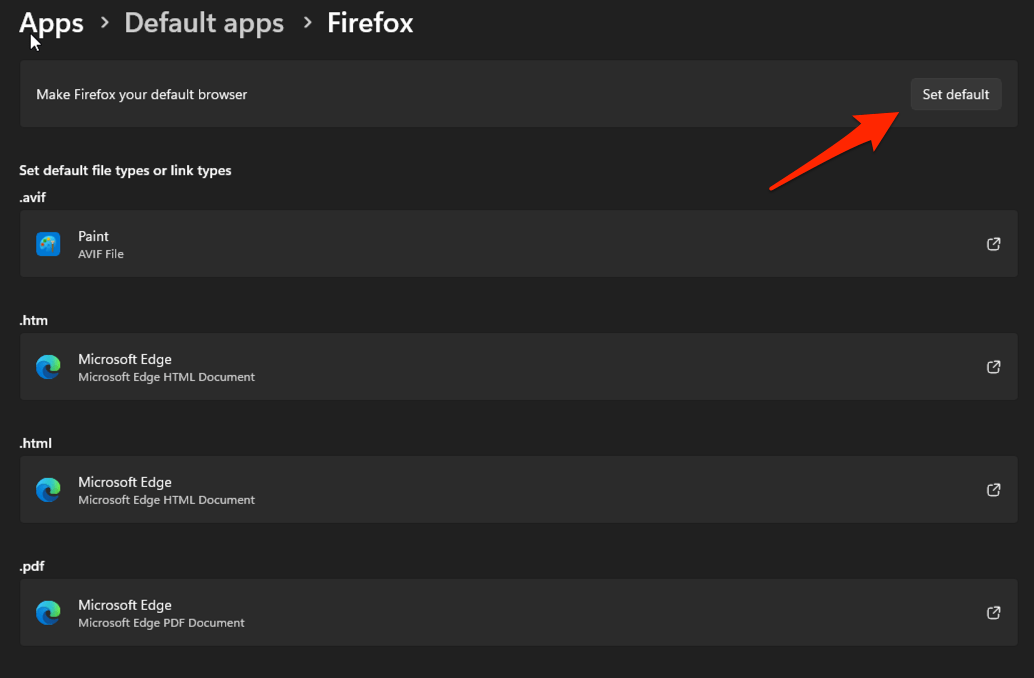 The desired browser will be set as the default app.
The Windows method works for protocols like HTTP and HTTPS, plus file types such as .html and .htm. If you only want Firefox for one type (say, only HTTPS), pick the protocol and leave the others on the original browser.

On Windows 11, the button inside Firefox can sometimes set the default silently through a Mozilla policy that bypasses the Microsoft default-apps screen. To verify exactly which file types Firefox owns, open Settings → Apps → Default apps and scroll to Firefox manually. Microsoft’s documentation for this screen is at Microsoft’s change default apps support article.
Set Firefox as Default on macOS
On current macOS releases, the default browser lives in Desktop & Dock settings, not the older General pane of System Preferences.
- Click the Apple menu in the top-left corner of the screen and choose .
- In the sidebar, click .
- Scroll down to the Default web browser dropdown.
- Select from the list.
- Close System Settings. The change takes effect immediately, no restart required.

TIP: On older macOS where the dropdown is not under Desktop & Dock, the same setting lives under in System Preferences (the older app layout). Apple documents the full path at Apple’s change default browser support page.
Set Firefox as Default on Linux
On GNOME-based distros (Ubuntu, Fedora, Debian, Pop!_OS, and most others), the easiest path is the distro’s Settings app.
- Open your distro's app.
- Click or in the sidebar.
- Click or to open the browser section.
- Select as the default web browser.
- Close Settings, then open a link from another app to confirm Firefox launches.
On KDE Plasma distros the path is similar: System Settings → Applications → Default Applications → Web Browser. If you prefer the terminal, a single command sets the default:
- Open a terminal window.
- Type xdg-settings set default-web-browser firefox.desktop and press .
- Verify with xdg-settings get default-web-browser. It should return firefox.desktop.
Ubuntu ships Firefox as a Snap package, and the Snap build sometimes lacks the button inside Firefox. If the button is missing on Ubuntu, switch to the official .deb build from the Mozilla APT repository or run the xdg-settings command above.
Set Firefox as Default on Android
Android lets you choose a default browser app from the system settings, the same way you would pick a default camera or messaging app.
- Open the Settings app on the Android Phone.
- Select the Apps settings and scroll down to the Default apps section.
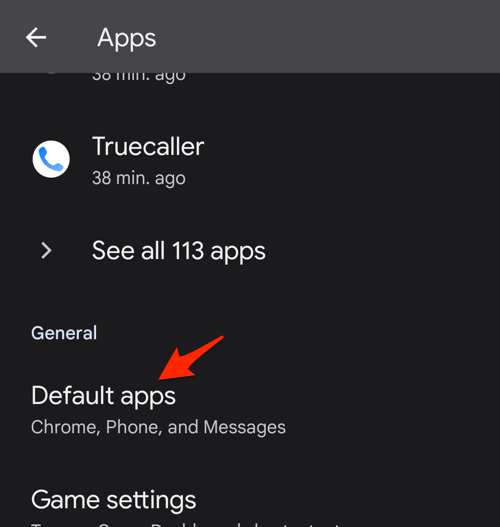
- Choose the Browser app option within the Default apps settings screen.
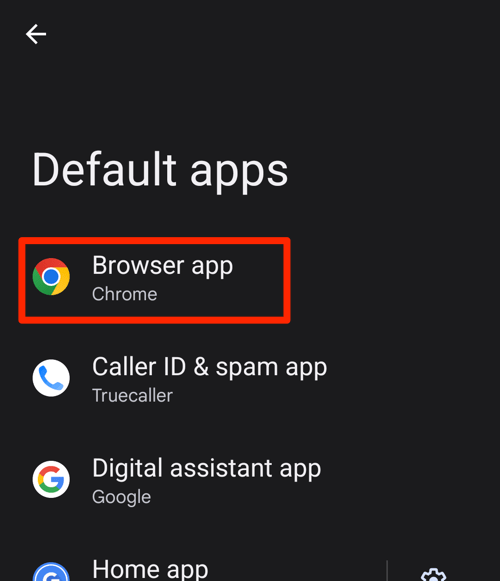 It will display the list of available web browser apps on your device.
 - Choose the new Default browser for Android from available apps.
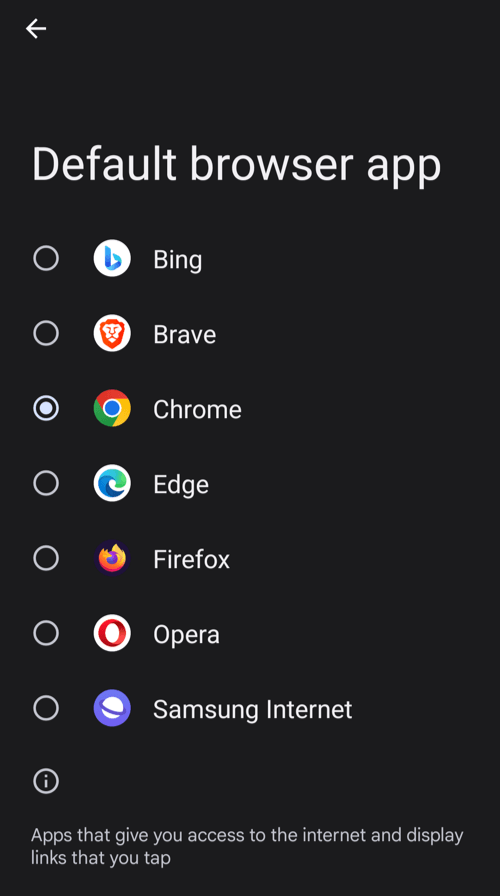 The newly selected browser will be set as the default browser on your Android smartphone.
After this, web links from Gmail, WhatsApp, and other apps will open in Firefox instead of your previous default.
Set Firefox as Default on iPhone or iPad
Since iOS added support for third-party default browsers, Firefox can take over from Safari system-wide. The path lives in the iOS Settings app.
- Install Firefox from the App Store if it is not already installed.
- Open the iOS app.
- Scroll down and tap .
- Tap .
- Tap .
- Select from the list.
After this, links from Mail, Messages, and other apps open in Firefox instead of Safari.
Stop Firefox From Asking to Be Your Default
If the nag banner keeps appearing even after you’ve set Firefox as default, or you’ve deliberately left another browser as default and Firefox won’t stop reminding you, there’s a dedicated toggle for it.
- Open Firefox and click the hamburger menu .
- Select .
- Stay on the General panel.
- Find the Default Browser section.
- Uncheck Always check if Firefox is your default browser.
If that checkbox is greyed out (a corporate policy or lockdown profile can lock it), the underlying preference is in about:config:
- In the Firefox address bar, type about:config and press .
- Accept the prompt.
- Search for browser.shell.checkDefaultBrowser.
- Double-click the value to toggle it to false.
- Close the tab. The nag banner stays gone.
What to Try If “Make Default” Doesn’t Work
A few common reasons the in-app button misbehaves, and how to work around each one.
- Button is greyed out: Firefox is already set as the default, but the OS hasn’t reported back. Open your OS default apps screen and re-confirm Firefox as the web browser.
- Button is missing on Ubuntu: You’re on the Snap build. Switch to the Mozilla
.debbuild or use thexdg-settingscommand above. - No confirmation dialog appears (Windows 11): Mozilla’s policy workaround sets the default silently. To double-check, open Settings → Apps → Default apps → Firefox.
- Another app keeps stealing the default: Some PDF readers, chat apps, and security tools force themselves back. Re-pick Firefox after every such install.
- Firefox reverts after a Windows feature update: Major Windows releases reset default apps. Re-run the Windows steps above.
If none of the above helps, a clean reinstall usually clears leftover registry or profile locks. Download the latest installer from mozilla.org/firefox and run it over your existing installation. As a more drastic alternative, you can also reset Firefox’s settings from inside the browser, which restores defaults without touching bookmarks or saved passwords.
Verify Firefox Is Now Your Default
After any of the methods above, a quick sanity check confirms the change took.
- Close Firefox.
- Click any http:// or https:// link from another app, such as your email client, Slack, Discord, or Notepad.
- Firefox should open the link automatically.
If a different browser opens, the OS default apps screen still has another browser selected for that protocol. Repeat the steps for your platform and confirm Firefox is associated with both HTTP and HTTPS, not just one.

Frequently Asked Questions
Why does Firefox keep asking to be my default browser?
Firefox shows a banner at startup when it detects that another browser is currently set as your OS default. You can silence the banner from Settings → General → “Always check if Firefox is your default browser”, or by setting browser.shell.checkDefaultBrowser to false in about:config.
Is there a way to set Firefox as the default browser using the command line?
On Linux, yes. Run xdg-settings set default-web-browser firefox.desktop in a terminal. Windows and macOS do not expose an equivalent single command for end users; you have to use the Settings apps described above.
I set Firefox as default, but links still open in another browser. What’s wrong?
Check your OS default apps screen and confirm Firefox is selected for both HTTP and HTTPS. Some apps also register their own protocol handlers, so Discord and Slack can force their built-in browser for certain links until you change a setting inside those apps.
Does setting Firefox as default also change my default search engine?
No. The default browser setting only controls which app opens links. The default search engine is a separate setting inside Firefox under Settings → Search. Our guide to viewing site info and setting site preferences in Firefox walks through both.
Can I set different defaults for different link types?
Yes on Windows. In Settings → Apps → Default apps → Firefox, you can choose which protocols (HTTP, HTTPS, FTP) and file types (.html, .htm, .shtml) open with Firefox, and leave the rest on the other browser.