Opera has pushed a new stable build, version 133.0.5932.20, for Windows, Mac, and Linux users on the desktop channel. The release upgrades the underlying Chromium engine to 149.0.7827.201 and brings the first full rollout of the Paste Protect feature.
The update also patches a crash and fixes an issue where the last closed tab was not visible in the Recently Closed list. Rollout is phased, so some users may not see the new build right away.
In this guide, I have covered:
Contents
What is new in Opera 133.0.5932.20
Opera 133.0.5932.20 is now rolling out through the desktop stable channel for Windows, Mac, and Linux, according to the official announcement. The build upgrades the bundled Chromium engine to 149.0.7827.201, which brings the latest web platform fixes and security patches from upstream.
The headline change is the first full rollout of Paste Protect, a feature Opera has been testing in earlier channels. This release also fixes a crash bug and resolves an issue where the last closed tab was not visible in the Recently Closed list.
Paste Protect for the full stable audience
Paste Protect is Opera’s safety layer that intercepts clipboard content before it reaches a page. It warns you when the text looks like a URL, a code snippet, or a credential that could be hijacked by a malicious site. With this update the feature moves out of staged testing and is enabled for the full stable audience. You no longer need to flip a flag to try it.
Chromium 149.0.7827.201 base
The Chromium 149.0.7827.201 base picks up the same upstream security and stability work that other Chromium-based browsers are receiving this week. Opera does not publish a separate CVE list for its stable channel. The safest assumption is that any critical Chromium CVE disclosed in the same window is covered by this build.
How to update Opera on computer
If the automatic update has not reached your PC or Mac yet, open the Opera menu and choose , or visit opera://update directly.
- Open the Opera browser on your computer.
- Click on the Opera menu on macOS or the Opera icon on Windows, and select Update & Recovery from the drop-down menu.
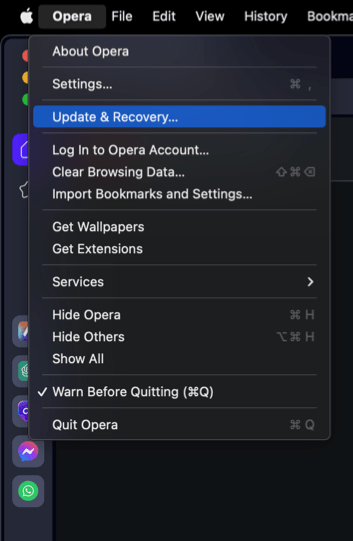 In the Address bar, you can also visit opera://update. It will open the update and recovery page.
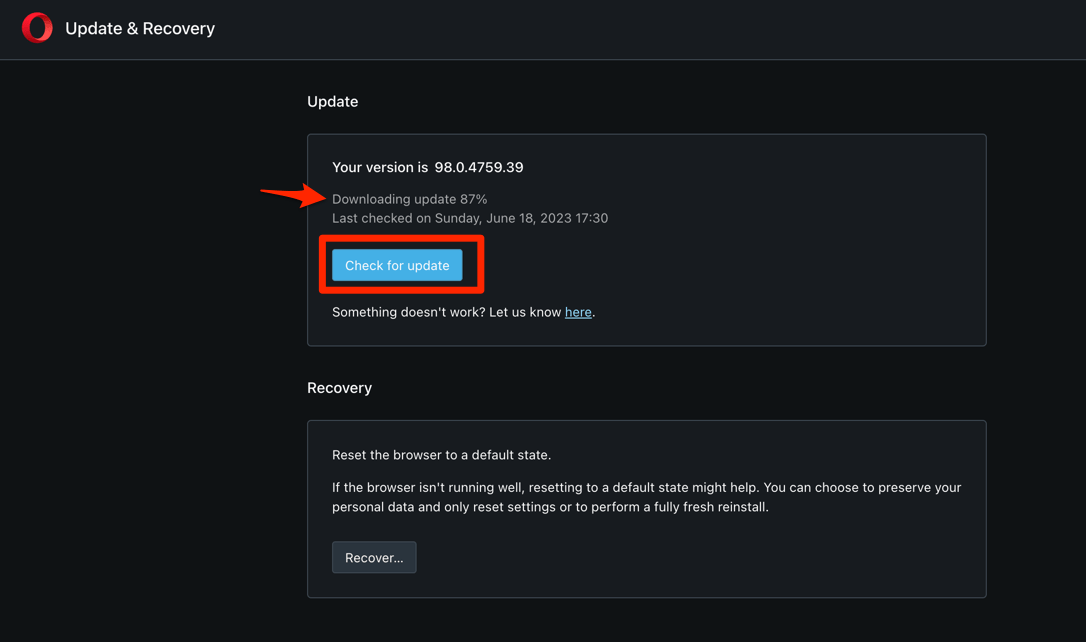
 - Opera will automatically check for updates. If any are available, they will be downloaded and installed.
- After downloading, the browser might also ask to hit on to complete the update process.
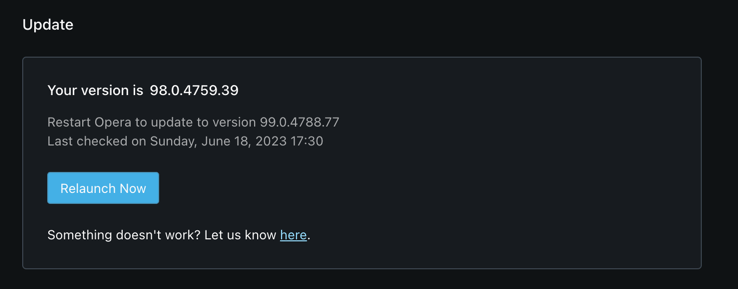 The browser will complete the update.
After Opera downloads the new build, relaunch the browser and confirm the version on the About Opera page. If the page still reports an older build, give it a few hours. Desktop stable updates are pushed in waves.

Rollout for the desktop stable channel is phased across regions. If your About Opera page still shows a lower build after a manual check, wait for the next wave before trying the update again.