Firefox for Android can stop rendering the MitID QR code during the appswitch login. The usual cause is the 'Open links in apps' setting, which needs to be set to Always for the handoff to the MitID app to complete.
This guide walks through the two settings that fix the missing QR panel, when to clear cookies and cache, and what to do on Firefox desktop where the appswitch does not work the same way.
In this guide, I have covered:
Contents
Why the MitID QR Code Stops Showing in Firefox
MitID is Denmark’s official digital ID, and most logins now use an “appswitch” flow: the website opens a deep link that hands the user straight over to the MitID app for approval. Firefox for Android handles this deep link through a setting called “Open links in apps” (Danish: “Åbn links i apps”).
When that setting is off, blocked, or sitting at “Ask every time”, MitID cannot complete the handover. The QR code panel never appears, or it disappears mid-flow.
Multiple bug reports confirm this is a Firefox behaviour, not a MitID app bug. Mozilla’s Fenix bug tracker issue #24537 documents that the appswitch handoff fails inside Firefox, and a workaround reply on Mozilla Connect confirms the two settings that fix it.

MitID’s official help page notes: “If you cannot see a QR code, it might be because the page you are trying to log on to has been reloaded.” A reloaded MitID page invalidates the same QR session, which is one of the most common causes of an empty QR panel.
Update Firefox for Android First
Make sure you are running the latest stable Firefox. Older builds have shipped with the appswitch regression on and off, so an outdated version can look exactly like a broken QR login.
- Open the Google Play Store on your Android device.
- Tap the Profile icon from the top right corner, and select the Manage apps & device menu.
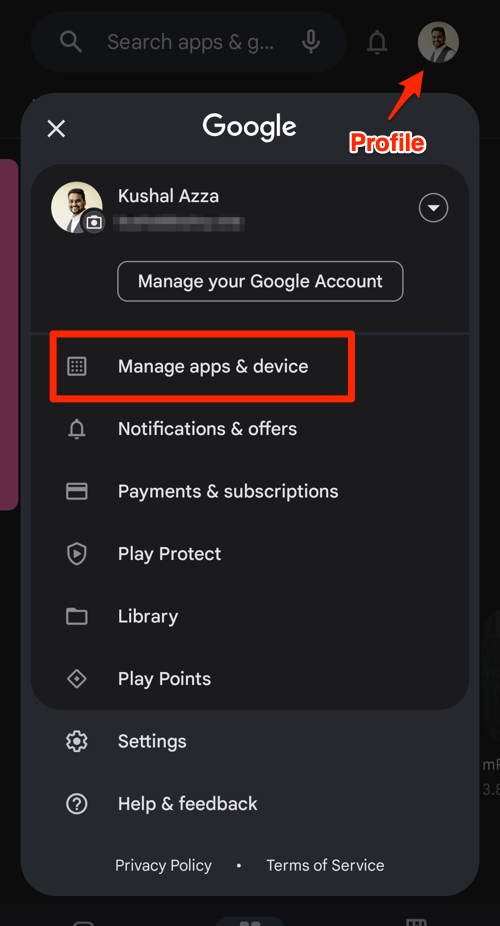
- Tap on the See details command under the Updates available menu.
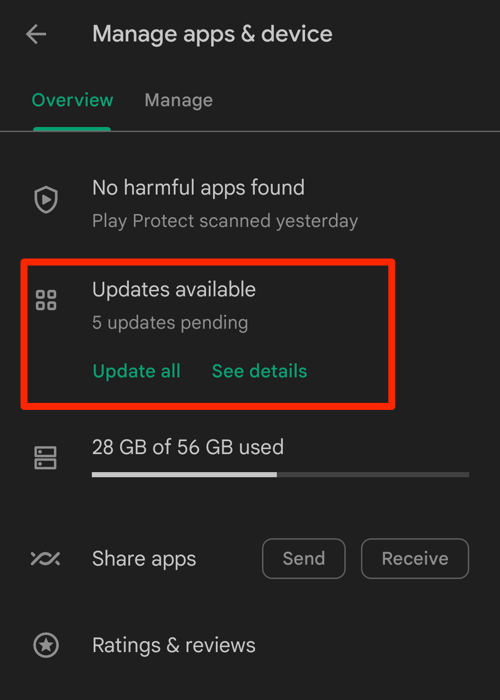
- If Firefox is on the list of apps with available updates, tap on next to it.
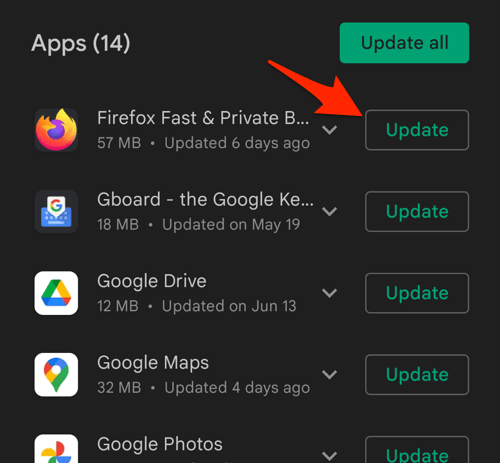
After updating, fully close and reopen Firefox once before retrying MitID so the new build’s preferences take effect.
Turn On “Open Links in Apps” and Set It to Always
This is the main fix. The setting sits in Firefox’s main menu, not under Site Permissions.
- Open Firefox for Android and tap the
 menu.
menu. - Choose Settings.
- Scroll to and tap Open links in apps (Danish UI shows "Åbn links i apps").
- Select Always, not "Ask every time" and not "Never".
For MitID’s appswitch flow, “Always” is required. “Ask every time” still blocks the silent deep-link handoff that the MitID app expects. That’s why some users see the QR code for a second and then nothing happens.

TIP: If you do not see the “Open links in apps” entry, scroll to the bottom of Settings and check whether you are on Firefox Focus instead of regular Firefox, or whether a corporate MDM profile has hidden it.
Enable Cookies for MitID in Firefox
MitID’s session token lives in a cookie. If cookies are blocked, the QR login screen has nothing to bind to and will not load.
- Tap → Settings → Privacy and security → Cookies.
- Make sure cookies are Enabled.
- If you want a narrower fix, leave the global setting as you like it and instead add an exception for mitid.dk.
For a full walkthrough of the cookie screens on Firefox for Android.

Clear Firefox Cookies and Cached Data
Stale session data is the second most common reason a MitID QR code appears blank. Wiping cookies and the site cache forces Firefox to start a brand-new session.
- Open the Firefox browser on your phone.
- Tap on the More
 menu for options and select the Settings menu.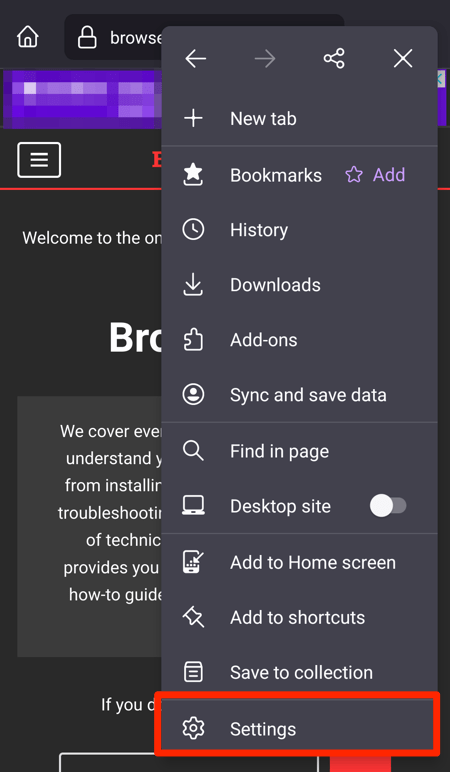
- Select the Delete Browsing Data option.
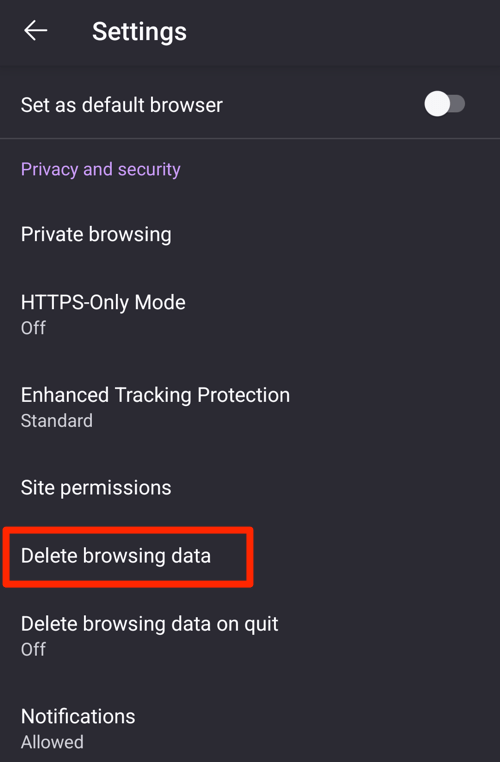
- Enable the checkboxes for the 'Cookies' and 'Cached images and files' options.
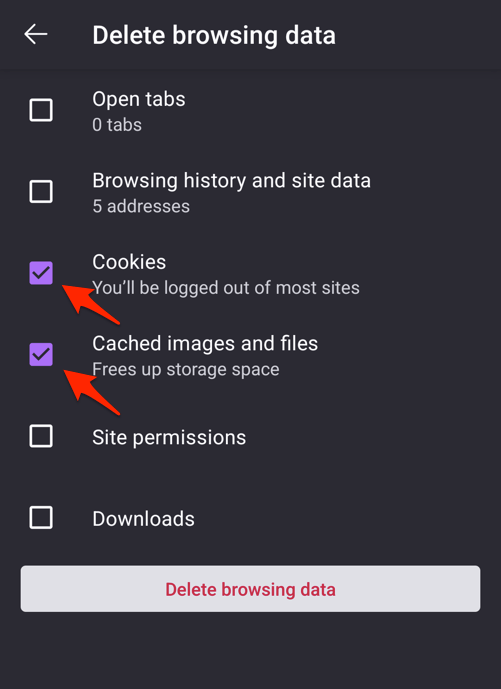
- Hit the command button.
After clearing, return to the MitID login page, reload it, and start the QR code flow from scratch instead of resuming the old session. For a broader browser-level data reset, see our guide on clearing cookies and cache from Firefox.
Open the Hidden about:config for Advanced Tweaks
If the “Always” setting and a cookie clear did not help, one more thing to check is whether a hidden preference is blocking the deep link. Firefox for Android hides about:config in the stable build, but you can unlock it.
- Go to → Settings → About Firefox.
- Tap the Firefox logo or version number five times in a row.
- A toast reading "Debug menu enabled" appears.
- Return to Settings. A new Debug section now contains a link into about:config, where you can search for protocol-handler entries to inspect them.
You do not need to change anything here for most MitID issues. The appswitch setting and the cookie state covered above are the two real causes in 9 out of 10 cases.
about:config edits are not officially supported, and Mozilla can rename or remove any preference between releases. Do not change flags you do not understand; stick to the appswitch and cookie fixes first.
Desktop Firefox: Scan the QR With Your Phone Instead
If you are using Firefox on a Linux, Windows, or macOS desktop, MitID’s appswitch flow does not behave the same way as on a phone.
Reports on the Manjaro forum show Firefox and Chrome both failing to render the MitID QR on some Linux distros, because the desktop browser is not part of the MitID appswitch handoff.
On desktop, your real options are:
- Open the MitID login on your phone’s browser instead, where the appswitch flow above applies.
- Use a different supported browser on the desktop (Chrome, Edge, Safari) and then scan the QR code with the MitID app on your phone.
- Sign in with a one-time passcode from inside the MitID app if the service you are logging into offers it.
The official guidance for the QR flow lives on MitID’s “Approve with QR code or one-time passcode” help page.
Still Not Working? Try These Last Steps
If the QR code is still missing after the steps above, run through this short checklist before giving up on Firefox.
- Disable any installed content blockers, ad blockers, or privacy extensions in Firefox for Android and retry MitID.
- Switch Firefox into a private browsing tab and load the MitID login there, so a fresh session is used.
- Confirm your phone’s date and time are set automatically. MitID rejects sessions whose clock drift exceeds a few minutes, which can look like a missing QR code.
- Make sure the MitID app itself is updated from the Play Store or App Store.
- Try a different network (mobile data versus Wi-Fi). Some corporate firewalls strip the deep-link request.
- As a last resort, install the latest stable Firefox again from the Play Store to rule out a corrupt install.
- Open the Google Play Store on your Android device.
- Search for Firefox in the search bar and select it from the results list.
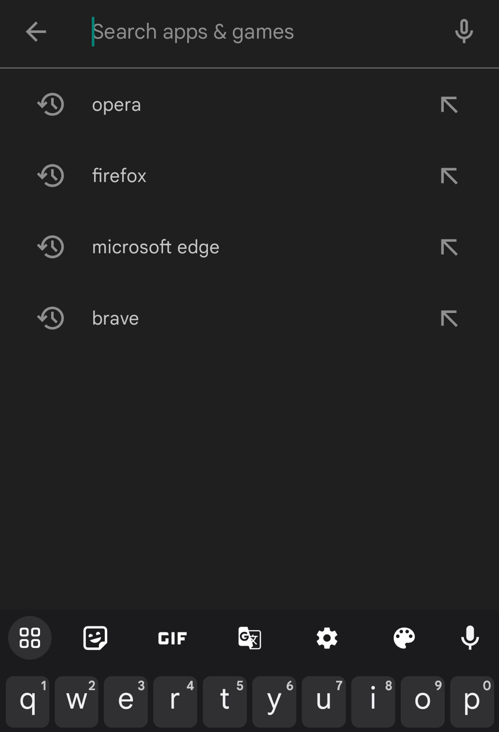
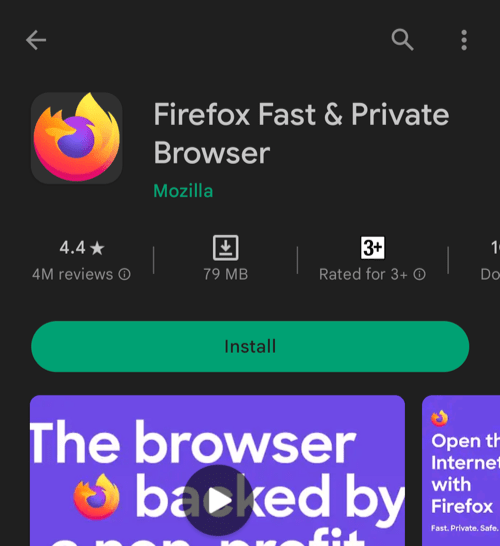
- Tap the button to download and install the app.
- After installation, tap the button to launch the Firefox browser.
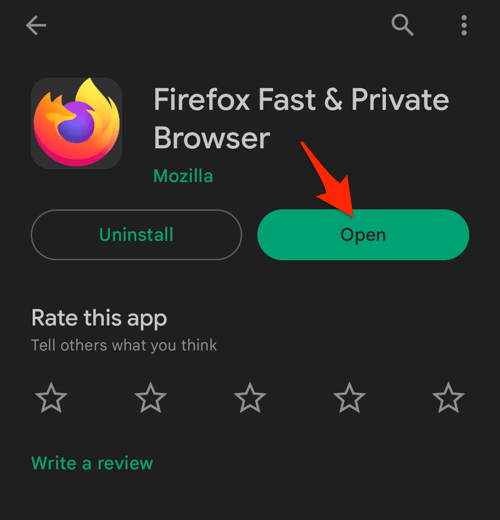 It will open the Firefox app on your device.
Frequently Asked Questions
Does MitID officially support Firefox for Android?
Firefox for Android works with MitID’s QR login once the “Open links in apps” setting is on and cookies are allowed, but MitID does not list it as a primary supported browser. The most common break points are the appswitch setting and blocked cookies.
Where is “Open links in apps” in Firefox for Android?
It is under menu → Settings → Open links in apps. The Danish label is “Åbn links i apps”. Set it to Always for the MitID appswitch to complete.
Why does the QR code briefly appear and then disappear?
This is the classic sign of an appswitch failure: Firefox renders the QR, then cannot hand the deep link to the MitID app, then reloads and the QR is invalidated. Turning on “Open links in apps” to “Always” and reloading from scratch fixes it in most cases.
Do I need to clear cache and cookies every time?
No. Only clear them when MitID refuses to show a fresh QR after you have already logged in once in the same Firefox session, or when switching between two MitID accounts. Stale sessions are the usual culprit.
Will Firefox on desktop ever show the MitID QR code again?
Yes, the QR code does render on desktop Firefox. The appswitch handoff itself is the part that does not behave the same way as on a phone. If you need the full login on a computer, use a supported desktop browser and approve the prompt inside the MitID app on your phone.