Firefox on Android can crash on launch, freeze on a specific site, or entire bookmark folders can go missing after a bad update or a sync glitch. The Android build is Fenix-based, so the desktop Crash Reporter popup does not exist here, but the in-app crash log and Sync still help.
Work the fixes in order: update Firefox, clear cache and site settings, refresh Sync, then reinstall only as a last resort.
In this guide, I have covered:
Contents
Why Firefox on Android Crashes and Bookmark Folders Go Missing
If Firefox on Android crashes on launch, freezes on a page, or bookmark folders vanish after an update, there’s usually a specific cause. Firefox on Android runs on Mozilla’s Fenix codebase, so it handles crashes differently from desktop. Android does not show a standalone Crash Reporter popup or an about:crashes page. The operating system collects the crash dump, and Firefox sends a small report to Mozilla in the background.
Bookmark folders usually vanish for three reasons. A sync hiccup can skip the latest folder tree, an outdated Android System WebView can corrupt pages that load the bookmarks screen, or a botched profile refresh in the Play Store can wipe local data after a bad update. The fixes below target all three, starting with the least disruptive option first.
Update Firefox to the Latest Release
If the trouble started after a specific Firefox update, the next release usually patches the crash or storage bug. Updating first also fixes bookmark storage corruption that can hide folders. A fresh build sometimes brings missing folders back on its own.
- Open the Google Play Store on your Android device.
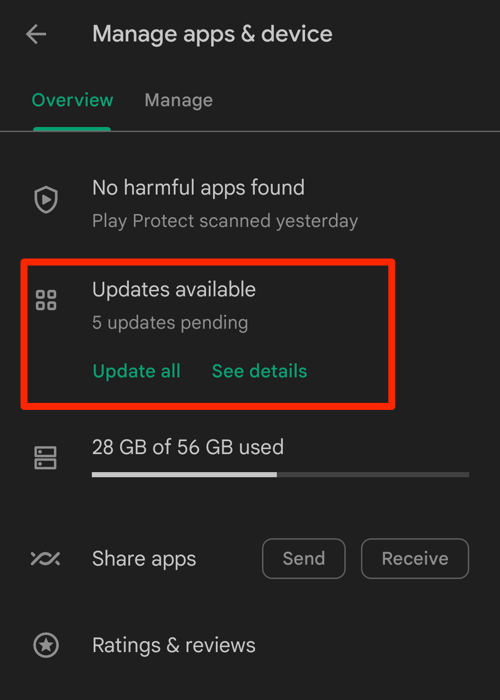
- Tap the Profile icon from the top right corner, and select the Manage apps & device menu.
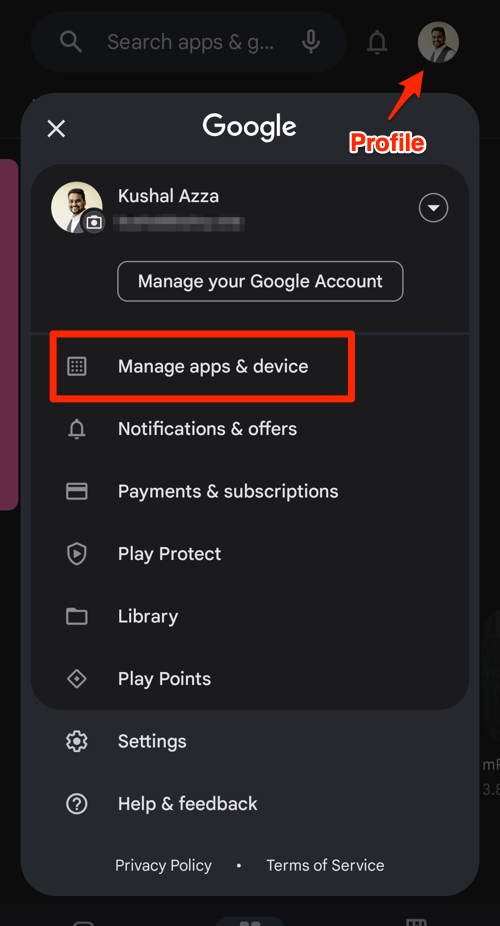
- Tap on the See details command under the Updates available menu.
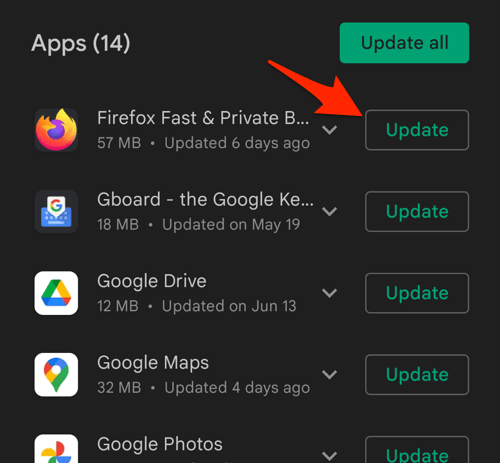
- If Firefox is on the list of apps with available updates, tap on next to it.
After the update, open Firefox once and let it sit on the home screen for a minute so any post-update profile migration can finish. Then check whether the crashes and the missing folders are both gone.

If Firefox keeps crashing on launch and you cannot reach the Play Store from the phone, use a second Android device or ask someone with a computer to download the latest APK from Mozilla’s official site and transfer it to your phone. Updating Android System WebView, covered below, also helps in this scenario.
Update Android System WebView
When bookmark folders look empty or a page crashes on load, Android System WebView is often involved. Firefox on Android uses Google Play System WebView to render some content, including the bookmarks manager.
- Open the Play Store app on your phone.
- Tap your profile picture at the top right and choose Manage apps and device.
- Tap Updates available and look for Android System WebView in the list.
- Tap next to WebView if a new version is available.
- Wait for the download to finish, then relaunch Firefox.
Open the bookmarks screen again. If a corrupt WebView was the cause, the folder list should reappear without further action.
Force-Stop and Relaunch Firefox
When Firefox feels stuck or crashes repeatedly, a stuck background process is often the culprit. Force-stopping clears the running process without touching saved data like bookmarks, logins, or history, so it is safe to try early.
- Open Android Settings and tap Apps.
- Find and tap Firefox in the list of installed apps.
- Tap and confirm when prompted.
- Open Firefox again from your home screen.
If Firefox still crashes immediately or the bookmarks screen still does not load, move on to clearing the cache.
Clear the Cache and Cookies in Firefox
If Firefox crashes on the same sites or the bookmarks screen will not load, corrupt cached files are usually the first thing to check. Clearing cache and cookies forces Firefox to rebuild those local files from scratch.
- Open the Firefox browser on your phone.
- Tap on the More
 menu for options and select the Settings menu.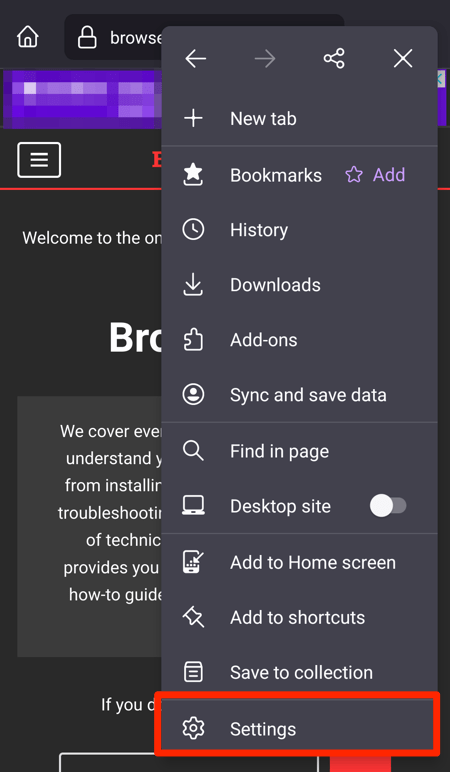
- Select the Delete Browsing Data option.
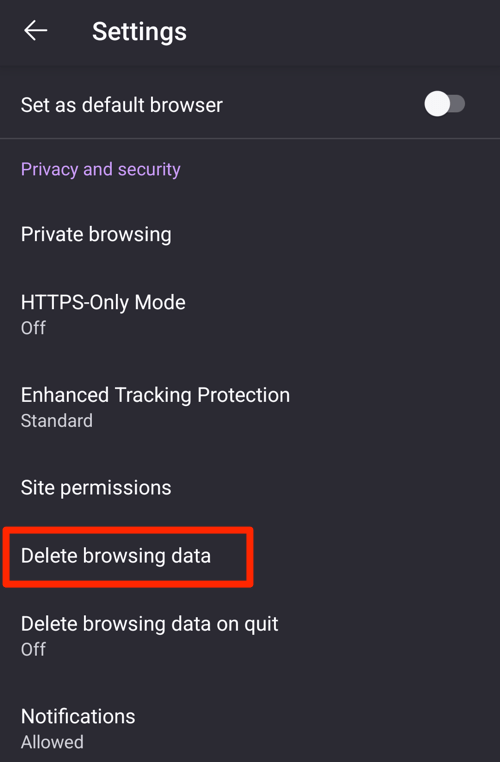
- Enable the checkboxes for the 'Cookies' and 'Cached images and files' options.
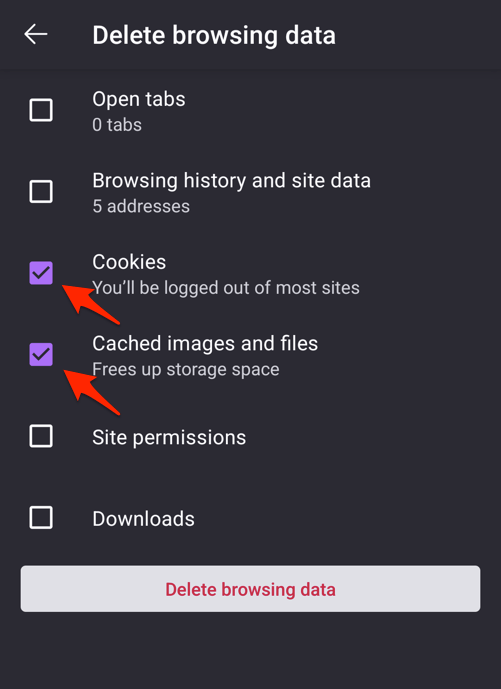
- Hit the command button.
After the clear, sign back into the sites you use. Cache and cookies will rebuild on the next visit. If the bookmark folders are still missing, the issue is likely with Sync, not local storage.
Clear Site Settings for a Problematic Site
If Firefox only crashes on one site, the per-site permissions or storage for that domain may be bad. Clearing site settings removes just that site’s overrides without touching the rest of your data.
- Tap in Firefox and choose Settings.
- Tap Site Settings and find the site under "Clear site settings".
- Tap Clear next to the site entry.
- Return to the page, reload it, and re-enable the "Desktop site" toggle.
Reload the page that was crashing. If it loads cleanly, the per-site overrides were the culprit and you can stop here.
Open the In-App Crash Log
When Firefox keeps crashing and you want to know whether Mozilla received a report, open the in-app crash log. It is the Fenix equivalent of the desktop about:crashes page. Mozilla documents the path in the Firefox for Android source documentation.
- Open Firefox and tap the menu button at the top right.
- Tap Settings.
- Scroll to the bottom of the Settings list and tap About Firefox.
- Tap Crashes.
- Tap any crash entry to open the Socorro crash report in your browser.

TIP: If the Crashes list is empty, Firefox has not sent a new report since the last install. That is a good sign: the app is currently stable. An empty list is not an error.
Reading the Socorro page for a crash entry tells you which build and which component failed. That information is useful if you decide to file a bug.
Turn On Sync to Restore Bookmark Folders
If bookmark folders disappeared after a reset, a new install, or a sign-out, Firefox Sync usually has an encrypted copy waiting. Turn Sync back on, or sign in again, to pull the latest folder tree from Mozilla’s servers.
- Tap the menu button in Firefox.
- Tap Settings.
- Tap Sign in to sync.
- Enter the email address for your Firefox account and the password, then follow the prompts.
- Wait for the sync to finish. The first sync can take a minute or two.
Once the spinner stops, open the bookmarks screen. Your folders should reappear in the order they had on the last device that signed in.
If you no longer remember the password for your Firefox account, reset it from any desktop browser at the Firefox account recovery page before continuing. Without the password, Sync cannot restore your folders.
Force a Manual Sync
When Sync is already on but a folder is still missing, the device may be stuck on an old copy. Forcing a manual sync tells Firefox to re-pull the full bookmark tree from Mozilla’s servers right now.
- Tap the menu button in Firefox.
- Tap Settings.
- Tap your account email at the top of the Settings list to open the account screen.
- Tap .
- Wait for the status line to confirm the sync completed, then open the bookmarks screen.
If the missing folders still do not appear, signing out and back in forces a complete re-sync of the local copy.
Sign Out and Back In to Your Firefox Account
If a manual Sync did not bring the folders back, a stale Sync token may be holding the local copy back. Signing out clears that token, and signing back in rebuilds it from scratch.
- Tap the menu button in Firefox.
- Tap Settings.
- Tap your account email at the top of the list.
- Tap and confirm.
- Restart Firefox, then tap Sign in to sync and sign back in with the same account.
Once Sync finishes, check the bookmarks screen. Folders that were only on the server should be back on this device.
If only one or two specific pages are still missing and you do not want to wait for another sync pass, you can add a Firefox page directly to the Android home screen as a shortcut so it stays one tap away.
Last Resort: Clear App Data and Reinstall Firefox
If nothing above has helped, the local profile is likely corrupt. Clearing app data wipes bookmarks, history, and logins from the phone. Do this only after you have tried every step above and are sure your data is in Sync, or backed up elsewhere.

ALERT: Clearing app data permanently removes every bookmark, saved login, and piece of browsing history on this device. Only do this if your Firefox account Sync has the latest copy of your bookmarks, or you have exported them to a file.
If the issue started right after a specific Firefox update, you can also try installing the previous build before clearing data. Our guide to downgrade and install an older version of Firefox walks through that path.
- Open Android Settings and go to Apps.
- Tap Firefox in the list.
- Tap Storage and then (or ).
- Confirm the warning prompt.
- Return to the Apps screen, tap Firefox, and choose .
- Reinstall Firefox from the Play Store using the link below.
- Open the Google Play Store on your Android device.
- Search for Firefox in the search bar and select it from the results list.
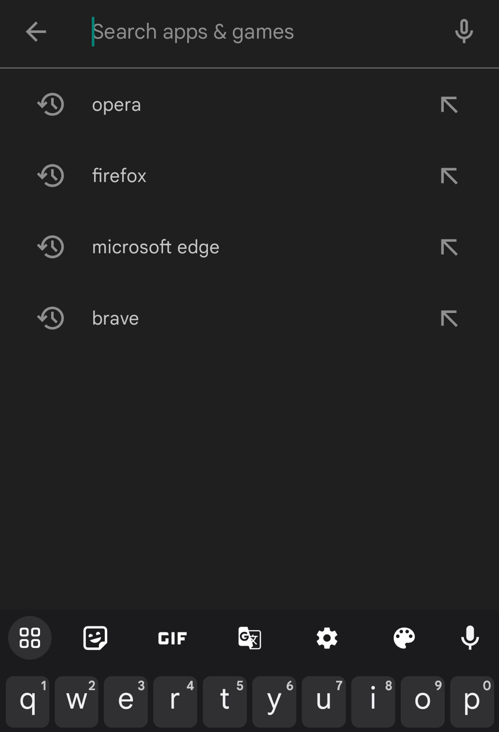
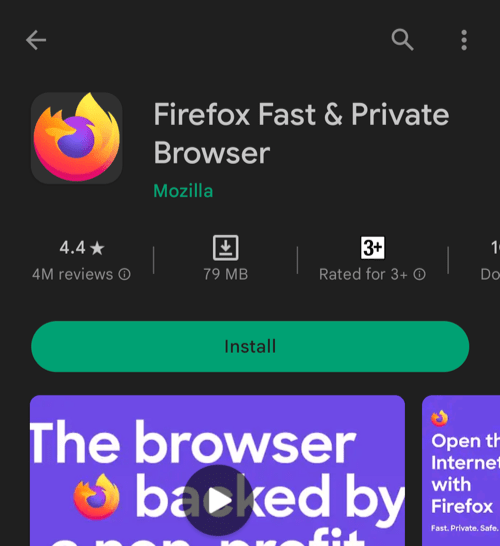
- Tap the button to download and install the app.
- After installation, tap the button to launch the Firefox browser.
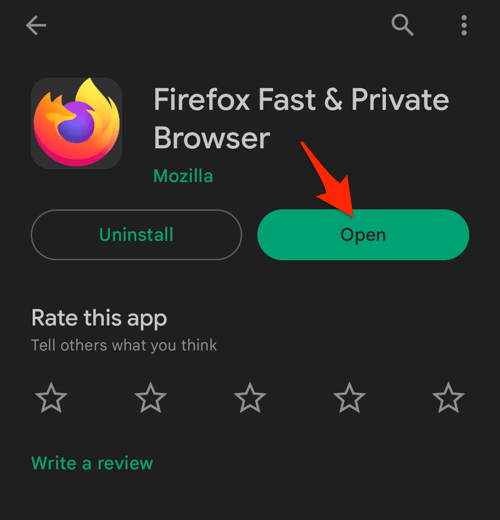 It will open the Firefox app on your device.
After reinstall, sign back into your Firefox account to pull your bookmarks, history, and logins from Sync. The fresh profile usually resolves both the crash and the missing-folder symptoms together.

Frequently Asked Questions
Why does Firefox on Android not show a Crash Reporter popup like the desktop version?
Android collects crash dumps itself, and Firefox submits them to Mozilla in the background. There is no in-app Crash Reporter window on Android, which is why the about:crashes page also does not exist on this build. The closest equivalent is the Crashes list inside Settings, under About Firefox.
Will clearing cache and cookies delete my saved bookmarks?
No. Bookmarks, logins, and history are stored in the Firefox profile, not in the cache. Clearing cache and cookies only removes temporary site data, and Firefox will rebuild it on the next visit.
Where did my Firefox bookmark folders go after a sync?
They are still on Mozilla’s servers under your Firefox account. If the local copy looks empty, force a Sync now, then sign out and back in if the folders still do not appear.
Can I recover deleted Firefox bookmarks on Android without a backup?
If the folders were ever part of a Sync session, signing back in on this device will pull them from the cloud copy. There is no Android-only undo for bookmarks that were never synced.
How do I report a Firefox on Android crash to Mozilla?
Open the menu, go to Settings, scroll to About Firefox, and tap Crashes. Tap an entry to open the Socorro report in your browser, then attach that link when you file a bug.